
MTConnect
The MTConnect protocol lets 2WinScada read data from CNC machines and other production equipment over HTTP through an MTConnect agent. Each 2WinScada device corresponds to an MTConnect device on the agent; each tag carries the value of a data item (DataItem) on that device.
Main supported features:
- Discovering the devices on the agent and bulk import
- Listing the device's data items in a tree view and importing them as tags
- Periodic reading of the current values of data items
MTConnect is a read-only protocol; 2WinScada does not write to MTConnect devices.
License
MTConnect is one of the standard protocols and is available in all license packages. For license details, see the License page.
Channel Definition
On the General tab of the new channel window, enter the channel name and select MT_Connect as the Connection Type. This protocol has no connection parameters at channel level; the agent address is entered separately for each device. Click Save to create the channel.
The Devices section on the Advanced Parameters tab contains the Import Devices button. The button is enabled after the channel is saved.
Importing devices
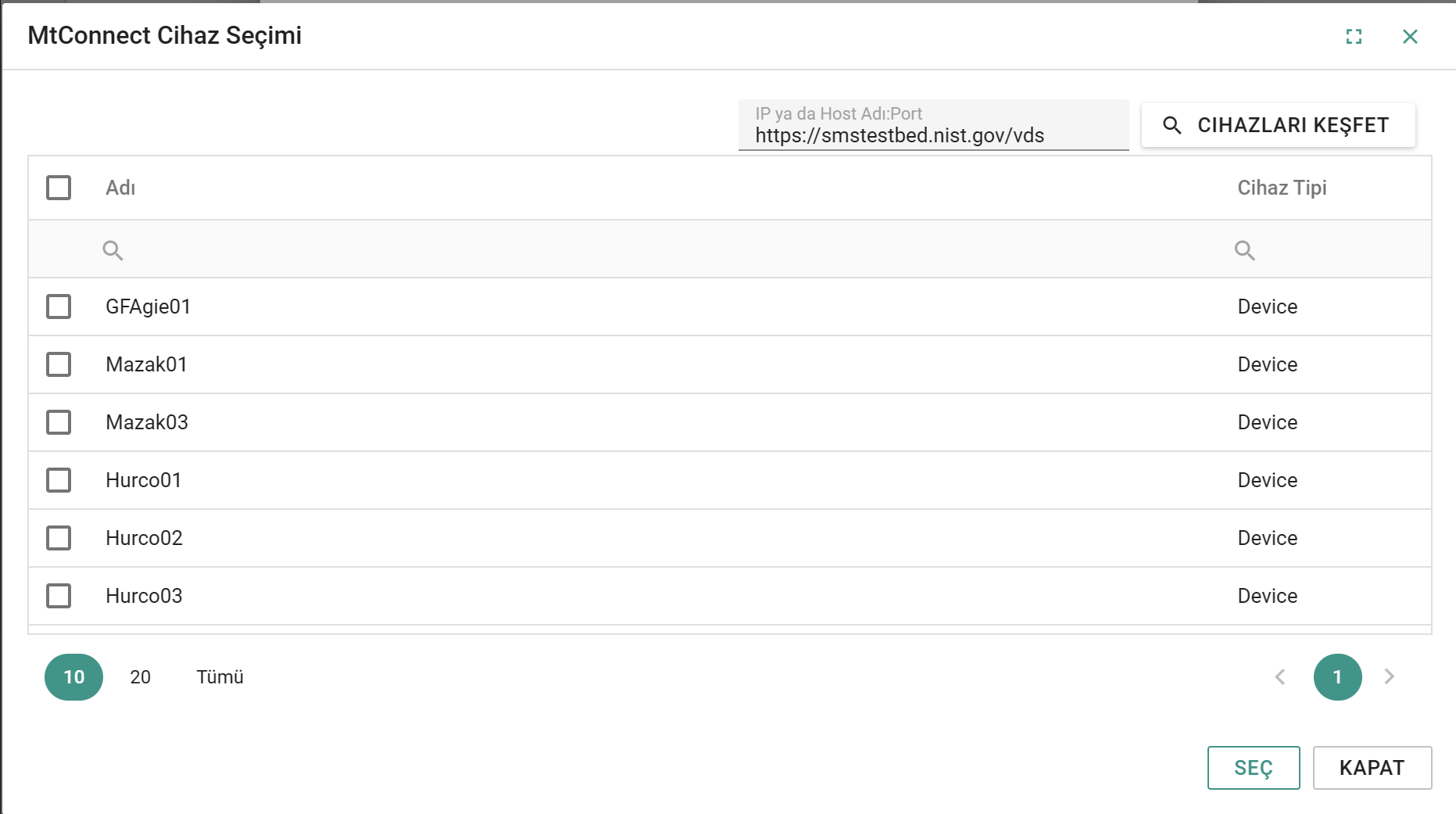
- In the window of the saved channel, open the Advanced Parameters tab and click Import Devices. The MtConnect Device Selection window opens.
- Enter the agent address as a URL in the IP or Host Name:Port field (e.g.
http://192.168.1.20:5000). If the address is not a valid URL, the field shows an error. - Click Discover Devices. The devices offered by the agent are listed with the Name and Device Type columns. After it is clicked, the button stays disabled for 10 seconds.
- Select the devices to import with their check boxes and click Select.
- Confirm the operation in the confirmation window. The selected devices are added to the channel as Active; the Host, Port and Device Id fields are filled from the entered address and the device name. At the end of the operation, the numbers of imported and failed devices are reported.
If the address is wrong, the agent is not running or the port is closed, the error The MTConnect agent could not be reached. Check the address, port and network access. appears (error 5300). An empty list means that the agent was reached but did not report any devices. Check the Host and Port values of the imported devices in the device window.
Device Definition
Right-click the MTConnect channel in the channel tree and select New Device to open the device window. On the General tab, the device name and Active are set as for other protocols. On imported devices, the parameters are already filled in.
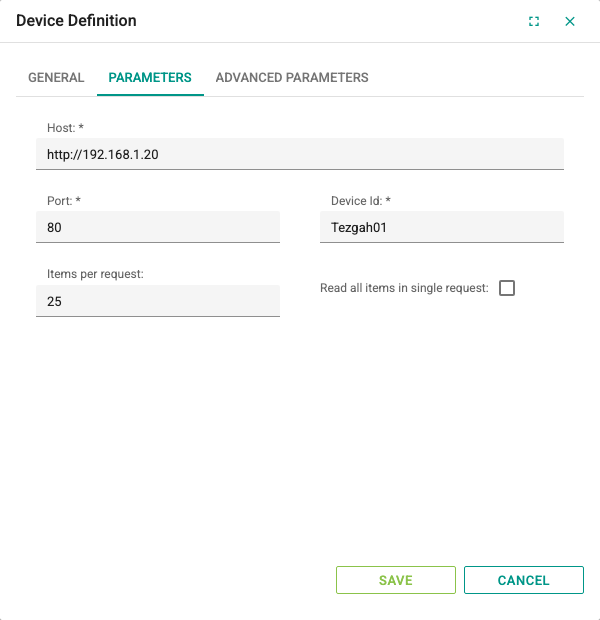
Parameters tab:
| Field | Description | Default | Range |
|---|---|---|---|
| Host | Address of the MTConnect agent, as a URL (e.g. http://192.168.1.20) | Empty | Required; a valid URL |
| Port | HTTP port of the agent | 80 | Required; 1–65535 |
| Device Id | Name of the device on the agent; requests are made for this device | Empty | Required |
| Items per request | Maximum number of tags queried in one read request | 25 | 0–1024 |
| Read all items in single request | If selected, all current values of the device are retrieved with a single request; each tag is updated from this response at its own Update Interval[s] | Off | — |
The Tags section on the Advanced Parameters tab contains the Import Tags button (see Importing tags). The button is enabled after the device is saved.
Tag Definition
Tags can be defined manually in the device's tag table or imported from the list of data items (see Tag Management).
| Field | MTConnect rule |
|---|---|
| Address | id value of the data item on the agent (e.g. Xpos). Case-sensitive. |
| Data Type | A numeric type for numeric values (e.g. Real, DInt); String for text values |
| Update Interval[s] | Read period of the tag; 0.5–86400 seconds |
| Read Only | No writes are made to MTConnect devices; a value written to the tag is not sent to the device. |
Choosing the data type
For types other than String (including Automatic), the value is converted to a number. Non-numeric values (e.g. ACTIVE, AUTOMATIC, READY) appear as 0 with these types. For data items with text values such as execution state, mode or program name, select String as the Data Type.
Importing tags
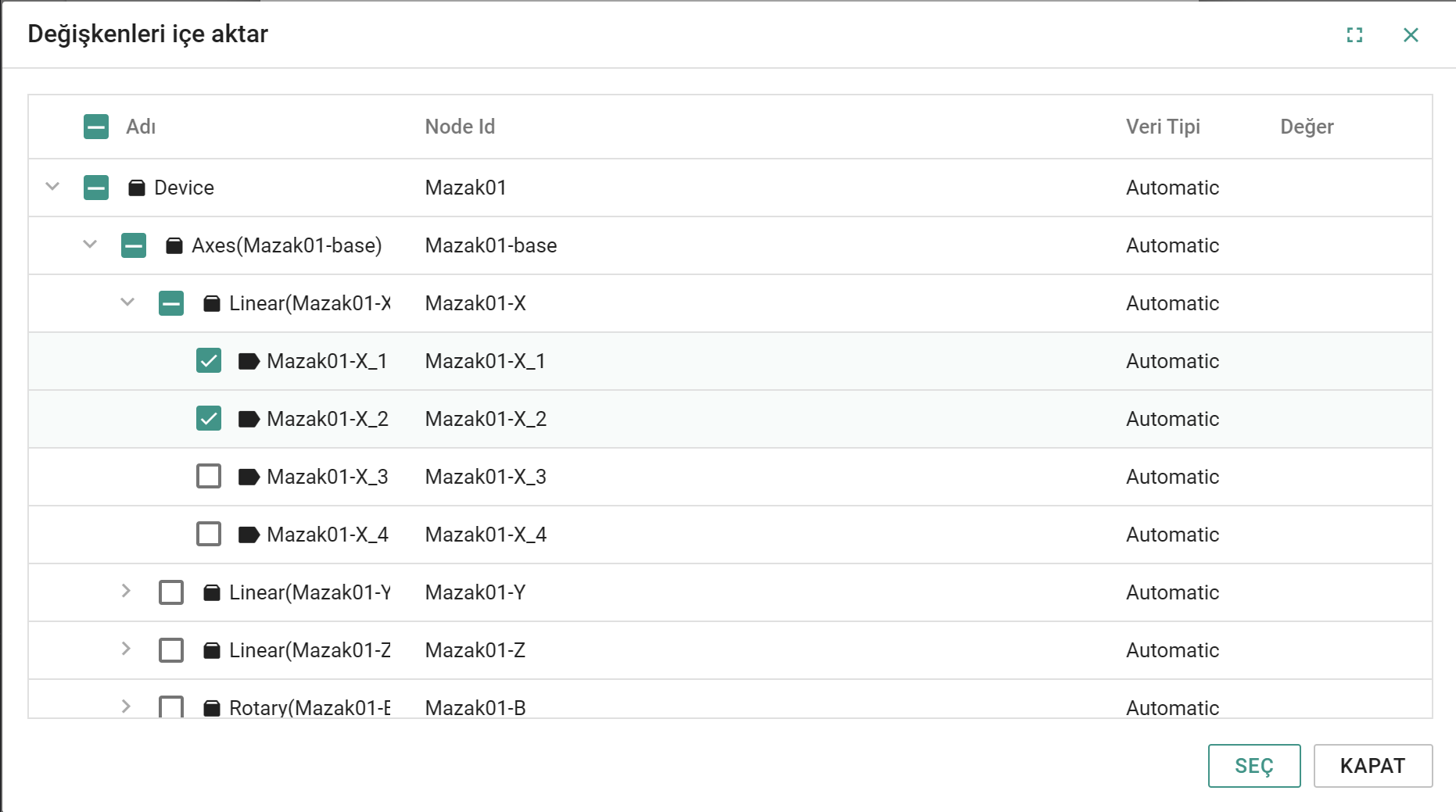
- The device must be saved, Active and running; the data items are read from the agent through the running device.
- In the device window, open the Advanced Parameters tab and click Import Tags.
- The window that opens lists the device's components and data items as a tree. Components are shown with a box icon, data items with a label icon. The Node Id column contains the
idvalue of the data item. - Select the data items to import; selecting a component selects all items under it. Click Select and confirm the operation in the confirmation window.
- Only data items are added as tags; components are skipped. On the added tag, the Name and Address fields are the
idvalue of the data item and the Data Type is Automatic. At the end of the operation, the numbers of imported, failed and unsuitable items are reported.
After the import, change the Data Type of tags with text values to String. The Reinitilize Device icon appears next to the device in the channel tree; click the icon to restart the device so that the new tags start to be read.
Read behavior
- Tags are grouped by their Update Interval[s] value. While Read all items in single request is off, each group is split into requests that query Items per request tags each.
- While Read all items in single request is selected, a single request is made to the agent, and tag groups with different Update Interval[s] values are updated from this response at their own intervals.
- For values the agent returns as
UNAVAILABLEor that arrive empty, the tag quality becomes Uncertain; the last value is kept. - The quality of tags whose data items are not in the response becomes Bad.
- If the agent cannot be reached or the response cannot be read, the quality of the tags becomes Bad; read attempts continue.
Troubleshooting
| Symptom | Checks |
|---|---|
Error 5300 during device discovery | Check that the address is the root address of the agent, that the agent can be reached from the 2WinScada server, and that the port and the firewall are open. Open the agent address with /probe appended in a browser to verify that it responds. |
| The list is empty during device discovery | The agent was reached but does not report any devices. Check the agent configuration. |
| The Import Devices or Import Tags button is inactive | Save the channel or the device first. |
The tag list is empty or error 5300 | Check that the device is saved, Active and running; that the Host, Port and Device Id values are correct and that the agent can be reached. |
| The quality of all tags is Bad | Check that the agent is running, the Host and Port values, and that the Device Id is the same as the device name on the agent. |
| The quality of one tag is Bad | Check that the Address value is the same as the id value of the data item, including case. |
| Tag quality is Uncertain | The agent returns UNAVAILABLE for the data item; check that the machine and the agent adapter are sending data. |
| A text value appears as 0 | Set the tag's Data Type to String. |