
OPC UA Client
The OPC UA client lets 2WinScada connect to an OPC UA server (gateways such as KEPServerEX, built-in OPC UA servers of PLCs, etc.) and read and write node values through subscriptions. Each channel opens a session with the server; each device under the channel creates its own subscription in this session.
Main supported features:
- Connection to
opc.tcp://endpoints anonymously or with username / password - Listing and selecting the endpoints offered by the server
- Signed and encrypted connections with an automatically created application certificate
- Browsing the server's address space and bulk import of tags
- Subscription and monitored item settings
- Automatic detection of the data type from the server
License
OPC UA is included in the Standard and Professional license editions; it can be added to the Starter edition as an add-on module. After OPC UA is added to the license, OPC UA communication does not work until the services are restarted. For license details, see the License page.
Channel Definition
On the General tab of the new channel window, enter the channel name and select OPCUA as the Connection Type. After making the settings on the other tabs, click Save.
Connection Parameters tab:
| Field | Description | Default | Range |
|---|---|---|---|
| EndPoint Url | Endpoint address of the OPC UA server, e.g. opc.tcp://192.168.1.10:49320 | opc.tcp://127.0.0.1:49320 | Must be a valid address |
| Timeout [ms] | Maximum duration of a connection attempt; also reported to the server as the session timeout | 3000 | 3000–86400000 |
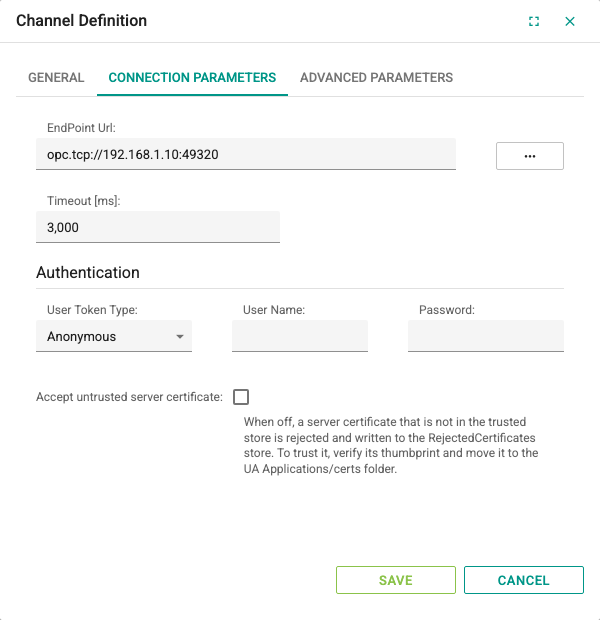
The Authentication group on the same tab:
| Field | Description | Default |
|---|---|---|
| User Token Type | The user identity used to connect to the server: Anonymous or User (username / password) | Anonymous |
| User Name | Server username when User is selected | Empty |
| Password | Server password when User is selected. For security reasons the saved password is not shown (********); to change it, type a new value. Leaving the field empty does not delete the password | Empty |
| Accept untrusted server certificate | If selected, a server certificate that is not in the trusted store is also accepted. When off, such a certificate is rejected (see Trusting the server certificate). | Off on a new channel |
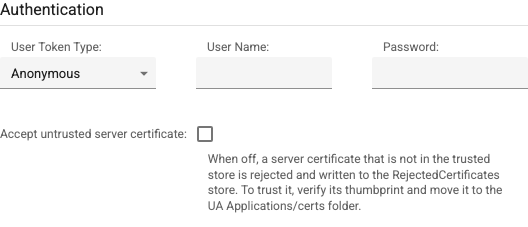
When User Token Type is set to Anonymous, the User Name and Password fields are cleared.
Unsupported identity types
The Certificate and IssuedToken identities are not supported in 2.10: they appear in the list but cannot be selected, and the server also rejects a save with these identities. Channels saved earlier with these identities are not deleted; they stay Bad and an error is written to the service log. On these channels, select Anonymous or User and save. The 2WinScada application certificate is managed automatically (see Certificates).
Endpoint selection
The ... button next to the EndPoint Url field lists, in the OpcUa Endpoint Url Selection window, the endpoints offered by the server at the address written in the field. To get the list, first type the server address (e.g. opc.tcp://192.168.1.10:49320); the query is made from the 2WinScada server.
The endpoints are grouped under the server's application name. Each row has the format <address>#<security policy>#<security mode>, e.g. opc.tcp://192.168.1.10:49320#Basic256Sha256#SignAndEncrypt. When you select a row and click Select, the EndPoint Url, Security Policy and Security Mode fields are filled in together.
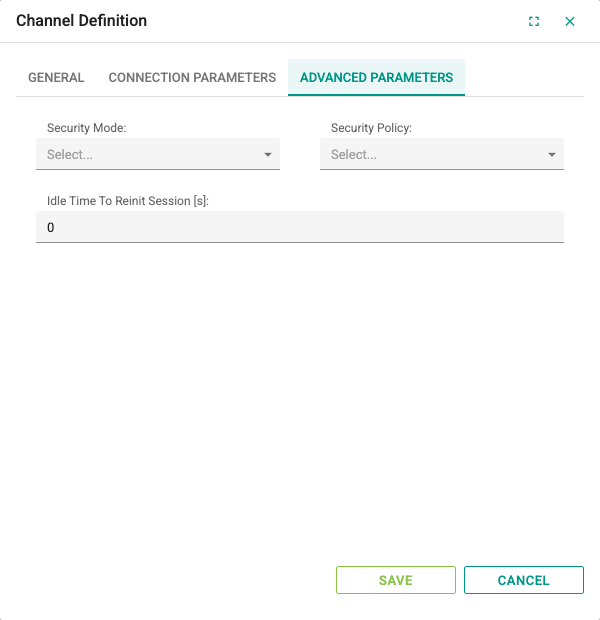
Advanced Parameters tab:
| Field | Description | Default | Range |
|---|---|---|---|
| Security Mode | None, Sign or SignAndEncrypt. If the Security Policy is None, only None is listed; for the other policies, Sign and SignAndEncrypt are listed. | Empty | — |
| Security Policy | None, Basic128Rsa15, Basic256, Basic256Sha256, Aes128_Sha256_RsaOaep, Aes256_Sha256_RsaPss or Https | Empty | — |
| Idle Time To Reinit Session [s] | If no value change notification arrives from any tag on the channel for this long, the session is closed and reopened. 0 turns this check off. | 0 | 0–86400 |
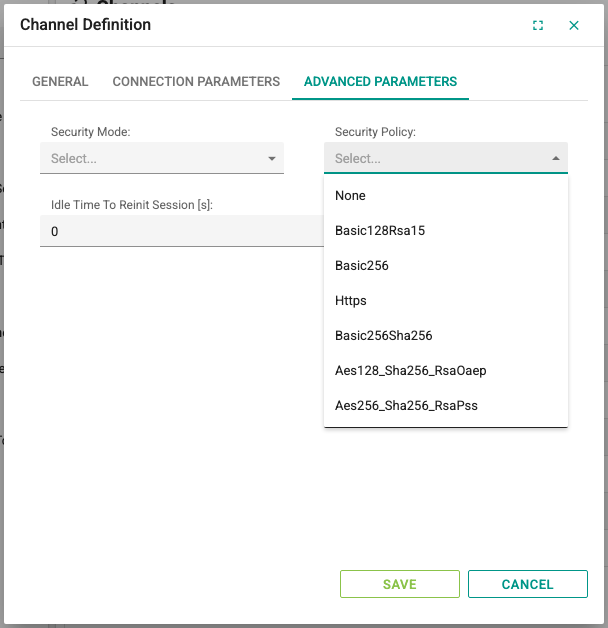
Security Mode and Security Policy are selected together, or both are left empty:
- If both are selected, 2WinScada connects only to the endpoint in the server's endpoint list that offers this mode and policy together. If the server does not offer this pair, no connection is established and there is no fallback to a weaker endpoint; the channel becomes Bad and the status text lists the mode/policy pairs the server offers.
- If both are empty, the endpoint is selected automatically: with the User identity the most secure endpoint the server offers is used, with Anonymous the unsecured (None) endpoint.
- Selecting only one of them, or an inconsistent pair (None mode with a policy other than None, or Sign / SignAndEncrypt with the None policy), is rejected on save.
On a secured (Sign or SignAndEncrypt) endpoint, the server must trust the 2WinScada application certificate and 2WinScada must trust the server certificate (see Certificates).
User identity and None security
If the User identity is saved with None / None, the session is opened unencrypted; the password is protected only if the server's user token policy encrypts it. In this case a warning appears under the Security Mode field on the form, and a warning is written to the service log when the channel opens. On channels that connect with a username and password, select Sign or SignAndEncrypt.
Channels saved in an earlier version
Channels saved before 2.10 with only the mode or only the policy (e.g. Aes endpoints selected in the old form) still connect after the upgrade; there is no fallback to an unsecured endpoint, and a "select both fields together and save" warning is logged when the channel opens. A saved inconsistent pair, however, makes the channel Bad. In both cases, when editing the channel, select both fields together and save.
Certificates
2WinScada connects to OPC UA servers as a client application named 2WinUaClient. There is no separate screen for certificate management in the interface; the operations are automatic:
- Application certificate: On the first OPC UA connection, a self-signed application certificate (
CN=2WinUaClient) is created automatically. The default key length is 2048 bits and the validity period is 60 months. If the certificate is deleted, a new one is created on the next connection; in this case it must be trusted again on the server side. - Server certificates: Validated according to the channel's Accept untrusted server certificate setting (see Trusting the server certificate).
- Trust on the server side: If a secured endpoint is to be used (see the warning above), the server administrator must add the
2WinUaClientcertificate to the server's list of trusted clients. Most servers show this certificate in the rejected list after the first connection attempt; the certificate is moved from there to the trusted ones and the connection is retried.
The certificate stores are kept on the 2WinScada server. If the application certificate must be uploaded to the OPC UA server manually, contact your system integrator.
Trusting the server certificate
The Accept untrusted server certificate setting is off on new OPC UA channels created from the form or through the API. When it is off, 2WinScada accepts only server certificates in the trusted store; other certificates are rejected. The server certificate is always validated on Sign or SignAndEncrypt endpoints. On endpoints with the None security mode, the server certificate is validated only when connecting with the User identity.
For a rejected server certificate, the status text of the channel shows the Subject and Thumbprint values of the certificate. To add the server certificate to the trusted store, contact your system integrator.
On upgraded installations, this option may come selected on some channels; a warning appears on the form. On these channels, add the server certificate to the trusted store and turn the option off. While the option is on, the connection is open to man-in-the-middle attacks.
Connection behavior
- If the connection cannot be established, 2WinScada retries; the wait time starts at 20 seconds, increases by 10 seconds with each attempt and reaches at most 130 seconds.
- By default, at most 2 connection attempts are made at the same time across all OPC UA channels; the other channels wait in line.
- When the connection is established, the subscriptions of the active devices are created. When the connection is lost, the device and tag qualities become Bad.
Device Definition
Select New Device from the right-click menu on the channel. The fields on the General tab are filled in as for other protocols. Each device creates one subscription on the server; you can group tags that need different publishing rates on separate devices.
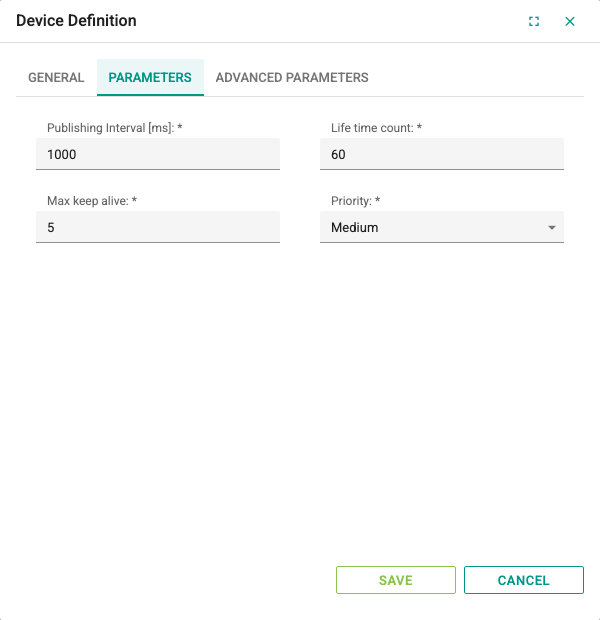
Parameters tab:
| Field | Description | Default | Range |
|---|---|---|---|
| Publishing Interval [ms] | Interval at which the server sends the changes in the subscription to 2WinScada (publishing interval) | 1000 | Required |
| Life time count | For how many publishing intervals the server keeps the subscription without a response from the client | 60 | 3–600 |
| Max keep alive | Every how many publishing intervals the server sends a keep-alive message when there are no changes | 5 | 1–90 |
| Priority | Relative priority of the subscription on the server: Lowest, Low, Medium, High or Highest | Medium | — |
Example: if Publishing Interval [ms] is 1000 and Max keep alive is 5, the server sends a keep-alive message at least every 5 seconds even if there are no changes. If Life time count is 60, a server that hears nothing from the client for 60 seconds deletes the subscription. By the OPC UA rule, Life time count must be at least three times the Max keep alive value; otherwise the server corrects the value itself.
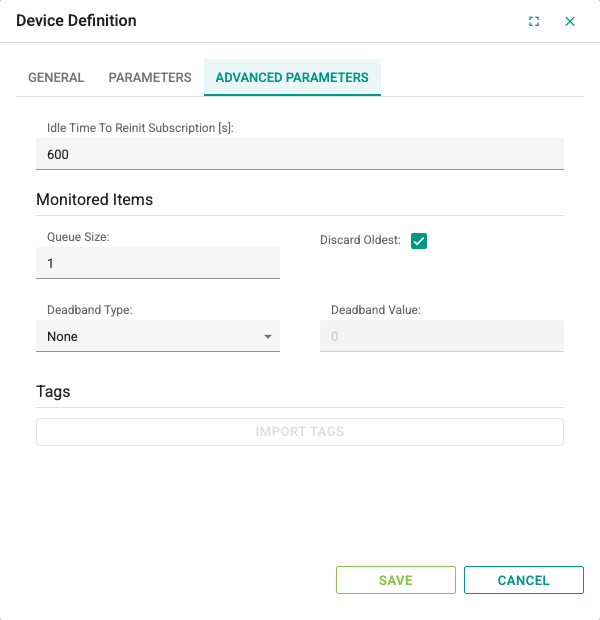
Advanced Parameters tab:
| Field | Description | Default | Range |
|---|---|---|---|
| Idle Time To Reinit Subscription [s] | If no value change notification arrives from the device's tags for this long, the subscription is closed and recreated. 0 turns this check off. | 600 | 0–86400 |
The Monitored Items group on the same tab contains the settings of the monitored item created on the server for each tag on the device:
| Field | Description | Default | Range |
|---|---|---|---|
| Queue Size | Number of values the server keeps for a tag between two publications | 1 | 1–100 |
| Discard Oldest | Discards the oldest value when the queue is full. If cleared, the newest value is discarded. | Selected | — |
| Deadband Type | None (every change is reported), Absolute (absolute difference) or Percent (percentage difference) | None | — |
| Deadband Value | When Absolute or Percent is selected, the smallest difference required for a change to be reported. Inactive while None is selected. | 0 | Number |
The deadband is applied only to numeric tags and only after the tag's first value has arrived. A Percent deadband requires the node's engineering range (EURange) to be defined on the server; a server that does not provide this range may reject the filter of that item, and an error is written to the service log.
Check after upgrade
The Priority, Deadband Type and Deadband Value settings are applied to the subscription. After the upgrade, check on site that the values arrive as expected on devices with a deadband.
Importing tags
The Import Tags button in the Tags group of the Advanced Parameters tab lists the server's address space as a tree. The button is enabled only on saved devices, and the channel must be running and connected to the server for the list to arrive.
Rows with a folder icon in the Name column contain other nodes and can be expanded. The  icon indicates a variable node. The Node Id column is the value to write in the tag's Address field. Select the nodes to add, click Select and accept the confirmation prompt.
Only variable and method nodes are added as tags; other nodes are counted as unsupported items. At the end of the import, the numbers of added, failed and unsupported items are reported. On the added tags, the name is the node's display name and the Address is the node's Node Id value; the Data Type becomes Automatic, the tag is marked Read Only and its Update Interval[s] is 2 seconds. Because nodes with the same name can exist in different folders, check the names of the imported tags.
KEPServerEX device status
If the server is KEPServerEX and the channel and device names in 2WinScada are the same as the channel and device names in KEPServerEX, 2WinScada monitors the connection quality of the device from the KEPServerEX node ns=2;s=<Channel>.<Device>._System._Error. When this node reports an error, the device quality in 2WinScada becomes Bad.
Tag Definition
Tags are defined in the device's tag table in the same way as for other protocols (see Tag Management). The OPC UA node identifier (NodeId) is written in the Address field. The identifier is formed by joining the namespace index and the identifier with ;:
| Identifier type | Format | Example |
|---|---|---|
| Text (String) | ns=<index>;s=<text> | ns=2;s=Hat1.Motor1.Hiz |
| Number (Numeric) | ns=<index>;i=<number> | ns=3;i=1005 |
| GUID | ns=<index>;g=<guid> | ns=4;g=09087e75-8e5e-499b-954f-f2a9603db28a |
| Byte array (Opaque) | ns=<index>;b=<base64> | ns=5;b=M/RbKBsRVkePCePcx24oRA== |
nsis the namespace index. Ifns=is not written, the standard OPC UA namespace 0 is used; for example,i=2258is the server's current time.- Namespace indexes can change when the server is reconfigured. Get the correct identifier from the Import Tags window or from the server's own tool.
- If Data Type is set to Automatic, the type is determined from the first value that comes from the server. A manually selected type must be compatible with the value on the server.
- Update Interval[s] is the sampling interval requested from the server for the tag. Changes are sent to 2WinScada at the device's Publishing Interval [ms].
- The tag quality becomes Good or Bad according to the status code the server sends with the value.
Writing
When a value is written to a tag that is not marked Read Only, 2WinScada reads the node's current value, converts the value to be written to the type of that value and writes it to the node. The node must be writable on the server and the connected user must have write permission.
Troubleshooting
| Symptom | Checks |
|---|---|
| The connection cannot be established | Check the EndPoint Url, the port, the firewall and that the server is running. If Anonymous is used, verify that the unsecured (None) endpoint and anonymous access are enabled on the server. |
| The connection with User is rejected | Check the username and password, that the 2WinUaClient certificate is in the server's list of trusted clients and that a secured endpoint is enabled. |
| The channel is Bad and the status text lists the offered mode/policy pairs | The server does not offer the saved Security Mode / Security Policy pair. Select a pair the server offers in the endpoint selector, or leave both fields empty and save. |
| The channel is Bad and the status text shows the thumbprint of a rejected certificate | The server certificate is not in the trusted store. Follow the steps in Trusting the server certificate. |
| The channel does not connect after an upgrade | The channel may have been saved with the Certificate / IssuedToken identity or with an inconsistent security pair. Check the service log; select a supported identity and a valid pair, and save. |
| The endpoint list is empty | Make sure you typed the server address in the EndPoint Url field and that the 2WinScada server can reach this address. |
| Import Tags returns an error | Check that the channel is running and connected to the server. |
| Tag quality is Bad | Check the namespace index and the identifier in the Address value, that the node exists on the server and that the user has read permission. |
| Values update late | Lower the tag's Update Interval[s] and the device's Publishing Interval [ms] values. |
| Writing does not work | Check the Read Only setting, that the node is writable and that the user has write permission. |
| The data flow stops | Set the Idle Time To Reinit Subscription [s] value on the device and the Idle Time To Reinit Session [s] value on the channel to be greater than how often the tag values change. |