
Recipe Apply
This page, which opens when you select Recipe Management > Recipe Apply in the menu, lets operators apply the defined recipes to devices without dealing with technical details. Unlike the Recipe Definition page, values cannot be edited here; you only select a recipe and apply it. Defining recipes is described on the Recipe Management page.
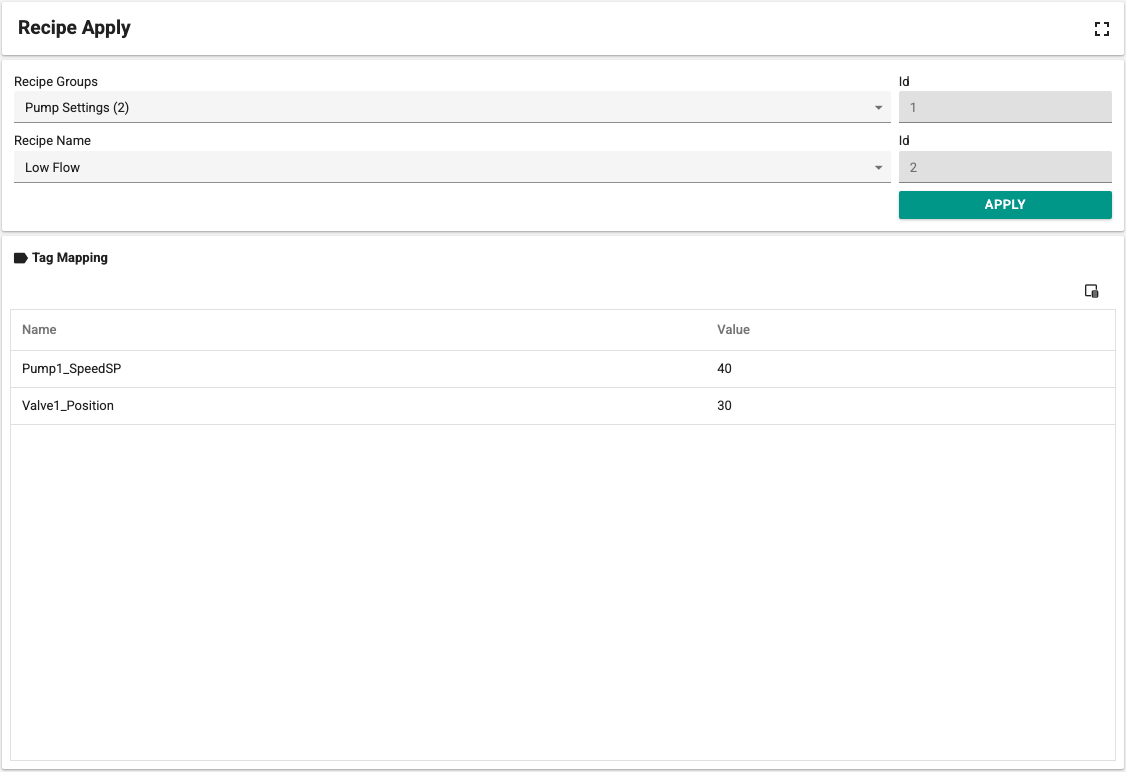
Selecting the group and the recipe
First select the group in the Recipe Groups list, then the recipe to apply in the Recipe Name list. The ID numbers of the selected group and recipe are shown to the right of the lists.
Tag Mapping table
The items of the selected recipe that will be applied are listed read-only:
- Name: The name of the tag in the system.
- Address: The address of the tag in the device. Hidden by default; it can be shown with the column chooser at the top right.
- Value: The value written to the tag when the recipe is applied.
Applying the recipe
After making your selection, click Apply. The tag-value pairs in the recipe are written to the devices concerned. If an item cannot be written, writing continues with the other items. For example, items whose value is outside the defined minimum or maximum limit are not written.
When the operation is finished, the Apply Result section appears at the bottom of the page. This section shows the Total, Applied and Failed item counts and the Recipe Id; the status line next to the counts summarizes the result, and the items that could not be written are listed below with their reasons:
| Status line | Meaning | Notification |
|---|---|---|
| All tags were written. | All items were written and the server reported no problem. | Success |
| Partially applied: some tags were not written or were skipped. | At least one item could not be written, was rejected or was skipped (for example, the operation stopped because of a license change). | Warning |
| Not applied: no tag was written. | No item was written. | Error |
A partially applied recipe is not shown as successful. Writes that the device rejected or did not confirm (for example a value rejected by a BACnet object) are also listed as failed items. "Written" means that the value was passed to the driver; verify critical values on the device.
When at least one item is written, the group's active recipe is updated and, if a Post-Apply Tag is defined for the group, the specified value is written to that tag.
Permissions
To apply recipes, the user's group must have the Editor or RecipeApplier role. To define recipes, the RecipeManagement or Editor role is required. If roles are defined for the recipe group, the user must also have one of those roles. The Recipe Management menu appears only on installations whose license includes the recipe module. The Recipe Apply screen also opens on installations whose license includes only the recipe apply right (without the recipe management right); the recipe definition and management screens require the recipe management right.