
MQTT Client
The MQTT client lets 2WinScada connect to an MQTT server (broker), subscribe to the specified topics and transfer the values in incoming messages to tags. Each channel establishes a single connection to the broker; each device under the channel subscribes to one topic filter.
Main supported features:
- Connection over TCP or WebSocket; MQTT versions 3.1.0, 3.1.1 and 5.0
- Authentication with username / password, and TLS
- Plain text (number, text,
true/false) and JSON message content; access to fields of JSON objects and to array elements with a dotted path - Listing the topics coming from the broker in a tree view and bulk import of tags
- Publishing a value written to a tag to the topic in the tag address
License
MQTT is available in the Standard and Professional license editions; it is not available in the Starter edition. For license details, see the License page.
Channel Definition
On the General tab of the new channel window, enter the channel name and select Mqtt as the Connection Type. After making the settings on the other tabs, click Save.
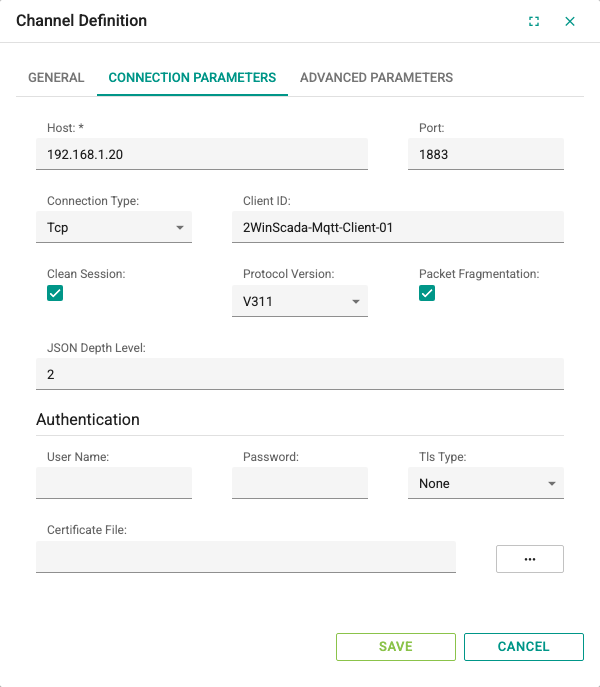
Connection Parameters tab:
| Field | Description | Default | Range |
|---|---|---|---|
| Host | IP address or DNS name of the broker. For a WebSocket connection, the full address is written (see the description below). | A placeholder address is filled in; always enter your own broker address before saving | Required; an IP address, a DNS name with dots, or localhost |
| Port | TCP port of the broker. Used only for a Tcp connection. | 1883 | Number |
| Connection Type | Tcp, WebSocket or WebSocket4Net | Tcp | — |
| Client ID | Client identifier reported to the broker. A unique value is generated automatically for a new channel. | Automatically generated random value | Must be different for each client connecting to the same broker |
| Clean Session | If selected, a new session is opened on the broker at every connection and the subscriptions are made again. If not selected and the broker has not kept the previous session, the subscriptions are still made again on reconnection. | Selected | — |
| Protocol Version | V310 (3.1.0), V311 (3.1.1) or V500 (5.0). Explicitly select the version your broker supports. | V311 | — |
| Packet Fragmentation | Allows large packets to be sent in fragments. If the broker does not support fragmented packets (some cloud brokers), clear the option. | Selected | — |
| JSON Depth Level | How many levels of nested objects in JSON messages are expanded into separate tag addresses (see JSON messages) | 2 | 1–15 |
The Host field is written differently depending on the Connection Type selection:
- Tcp: Write only the address, e.g.
192.168.1.10orbroker.local. The port is taken from the Port field. - WebSocket / WebSocket4Net: Write the full address including the scheme, port and path, e.g.
ws://192.168.1.10:8080/mqtt. In this case the Port field is not used. Both options behave the same at runtime.
The Authentication group on the same tab:
| Field | Description | Default |
|---|---|---|
| User Name | Broker username. If left empty, no credentials are sent. | Empty |
| Password | Broker password. For security reasons the saved password is not shown (********); to change it, type a new value. Leaving the field empty does not delete the password | Empty |
| Tls Type | None, Tls, Tls11, Tls12 or Tls13 | None |
| Certificate File | The ... button opens the Certificate File Selection window; a file with the .crt, .der, .cer or .pfx extension can be selected or uploaded. | Empty |
TLS and certificate
With every option other than None, the connection is established with TLS; if the broker runs on an unencrypted port, the connection cannot be established. In this version, authentication with a client certificate is not supported. Connect to the broker only over a trusted network and, when using TLS, set the Port value to the broker's TLS port (usually 8883).
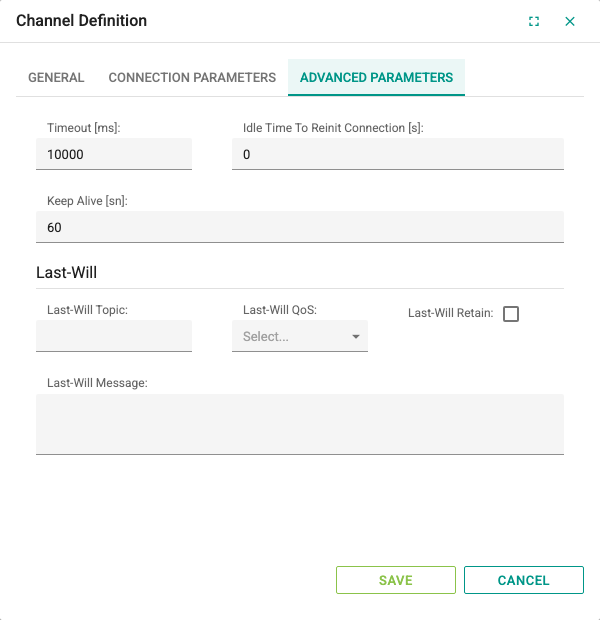
Advanced Parameters tab:
| Field | Description | Default | Range |
|---|---|---|---|
| Timeout [ms] | Time to wait for responses when communicating with the broker | 10000 | 3000–86400000 |
| Idle Time To Reinit Connection [s] | If no value arrives for any tag for this long, the connection is closed and re-established. 0 turns this check off. | 0 | 0–86400 |
| Keep Alive [sn] | Polling interval with the broker to keep the connection alive. 0 turns polling off. | 60 | Number |
The Last-Will group on the same tab contains the Last-Will Topic, Last-Will QoS (0, 1 or 2), Last-Will Retain and Last-Will Message fields. In MQTT, the Last-Will is the message the broker publishes to the specified topic when the client's connection drops unexpectedly.
WARNING
Last-Will is not supported in this version. To monitor whether 2WinScada is offline, use the connection monitoring features on the broker side.
Connection behavior
- The channel connects to the broker if there is at least one active device under it that the license allows.
- When the connection is lost, 2WinScada tries to reconnect; it waits at least 30 seconds between two attempts. A single connection attempt takes at most 30 seconds.
- When the connection is established, the topics of the active devices are subscribed to again.
- If the connection or the subscription fails, the quality of the device and its tags becomes Bad.
Device Definition
Select New Device from the right-click menu on the channel. The fields on the General tab are filled in as for other protocols.
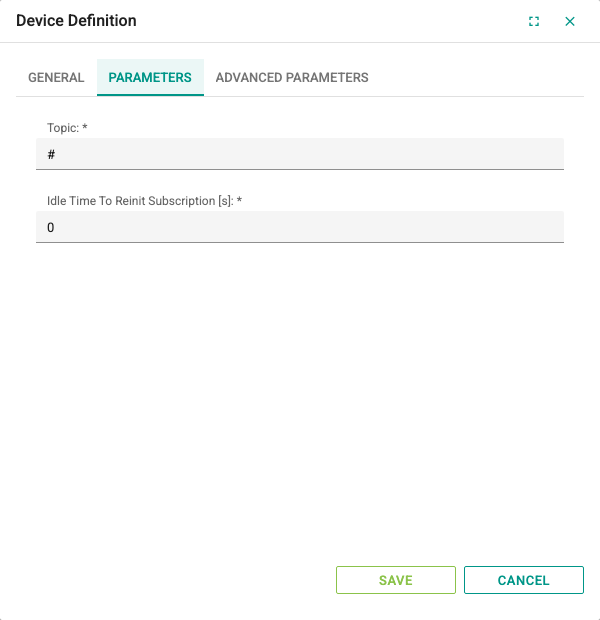
Parameters tab:
| Field | Description | Default | Range |
|---|---|---|---|
| Topic | Topic filter the device subscribes to. # receives all topics on the broker; a value such as fabrika/hat1/# receives only topics that start with this prefix. | # | Required; at most 2048 characters |
| Idle Time To Reinit Subscription [s] | The value is saved but does not affect the subscription in this version. | 0 | Required; 0–86400 |
On a new device the Topic field is filled with #. If the broker carries many topics, narrow the filter to the device's topics to avoid receiving unneeded messages.
Subscriptions are made with QoS 0. To renew the connection when no data arrives for a long time, use the Idle Time To Reinit Connection [s] field on the channel.
Topic filter
Use the # character only at the end of the filter. An incoming message is assigned to the device if its topic starts with the filter without the #. The + wildcard matches a single topic level by the standard MQTT rule (e.g. fabrika/+/sicaklik).
Importing tags
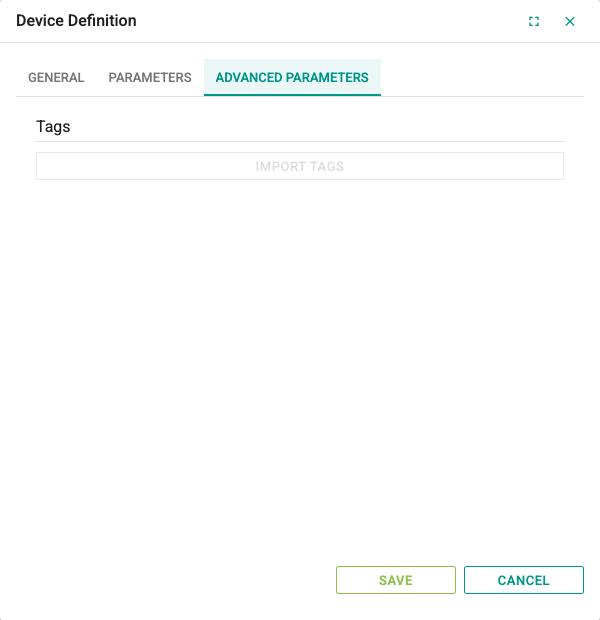
The Import Tags button in the Tags group of the Advanced Parameters tab lists the topics coming from the broker and adds the selected values as tags. The button is enabled only on saved devices.
- Make sure the channel is running and connected to the broker.
- Click Import Tags. In the window that opens, the topics that match the device's Topic filter are listed as folders split by the
/separator. - Review the Name, Node Id, Data Type and Value columns.
- Select the rows to add, click Select and accept the confirmation prompt.
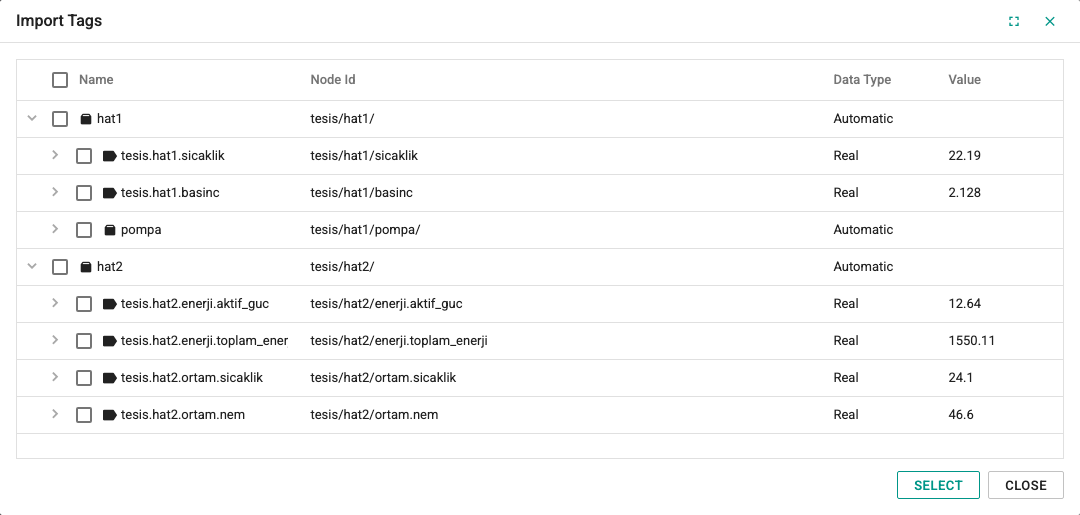
At the end of the import, the numbers of added, failed and unsupported items are reported. Only rows that carry a value are added as tags; folder rows are counted as unsupported items. On the added tags:
- The Address is the row's Node Id value.
- The tag name is created by replacing the
/characters in the address with.. - The Data Type is guessed from the incoming value: numbers become Real,
true/falsevalues become Bool, and others become String. - The tag is marked Read Only and its Update Interval[s] is 2 seconds.
TIP
The list is built from the messages that arrive after the channel connects to the broker and holds at most 4096 values. If a rarely published topic does not appear in the list, wait for a message to arrive or define the tag manually. If the channel is not connected, the list is empty.
Tag Definition
Tags are defined in the device's tag table in the same way as for other protocols (see Tag Management). The Address consists of the topic the message arrives on and, if needed, the field path inside the JSON. The address is case-sensitive and must match the incoming data exactly.
| Message | Tag Address example |
|---|---|
| Message with a plain value | The whole topic: fabrika/hat1/sicaklik |
| Field of a JSON object | Topic, dot and field name: fabrika/hat1/olcum.sicaklik |
| Nested JSON field | fabrika/hat1/olcum.motor.akim |
| Element of a JSON array | The element index starts at 0: fabrika/hat1/olcum.degerler.0 |
- Topic levels are separated with
/, JSON fields with.. A.is also used between the topic and the JSON path. - Messages that start with
{and end with}, or start with[and end with], are processed as JSON. Other messages are treated as a single value, and the address is the topic itself. - The incoming value is converted to the tag's Data Type.
- Update Interval[s] sets the shortest interval at which value changes are reflected to the tag; the last value received in between is reflected at the next interval.
- Messages larger than 4 MB and topics longer than 2048 characters are ignored.
JSON messages
As an example, suppose this message arrives on the fabrika/hat1/olcum topic:
{
  "motor": {
    "sensor": {
      "akim": 12.5
    }
  }
}
JSON Depth Level sets how many levels below the root fields are expanded. An object or array below this level is taken as a single text value (JSON text):
| JSON Depth Level | Resulting address | Value |
|---|---|---|
| 1 | fabrika/hat1/olcum.motor.sensor | {"akim":12.5} (text) |
| 2 | fabrika/hat1/olcum.motor.sensor.akim | 12.5 (number) |
Choosing a higher level than needed can increase the processing load under heavy message traffic.
Writing
When a value is written to a tag that is not marked Read Only, the value is published as plain text to the topic in the tag's Address field (QoS 0, retain off). If the address contains a JSON path, the path is also treated as part of the topic name; a JSON field cannot be written. For writing, use only tags whose address consists of a topic.
Troubleshooting
| Symptom | Checks |
|---|---|
| The connection cannot be established | Check the Host, Port and Connection Type values, the firewall, the broker's username/password requirement and the Protocol Version selection. For WebSocket, write the full ws:// or wss:// address in the Host field. |
| The connection keeps dropping and reconnecting | Check whether another client or channel uses the same Client ID value; the broker drops the previous client that connected with the same identifier. |
| Cannot connect with TLS | Select Tls or Tls12 as the Tls Type and set the Port value to the broker's TLS port. |
| Tag quality is Bad or no value arrives | Check that the tag's Address value is exactly the same as the topic and JSON path and that the device's Topic filter covers this topic. |
| A JSON field arrives as text | Increase the JSON Depth Level value. |
| The Import Tags list is empty | Check that the channel is connected and that at least one message has arrived on the topic after the channel connected. |
| The connection is not renewed when no data arrives for a long time | Set the Idle Time To Reinit Connection [s] value on the channel to greater than 0. |