
Device Profiles
A device profile is a reusable device and tag template for a device model. The profile holds the tag list of the device (points), data types, addresses, access directions, intervals, units and scaling information. When several devices of the same model are installed, the tags are created from the profile instead of being entered by hand each time.
Profiles can be used for Modbus (Modbus Serial, Modbus TCP, Serial over Ethernet) and EtherNet/IP devices. Using profiles is optional; the channel → device → tag flow on the Tag Management screen keeps working as before.
Important
Creating, saving or publishing a profile does not change any running device. Only the Create Device operation produces a new, passive device definition.
Access
The page is in the left menu under Settings > Device Profiles.
| User | Access |
|---|---|
| SystemAdmin | All profile operations |
| Editor role, if the license allows managing tag definitions | Modbus and EtherNet/IP profiles |
| Editor role, if the license allows only EtherNet/IP definitions | EtherNet/IP profiles only |
| Operator | No access |
Basic Concepts
- Profile key: A technical identity generated by the system that cannot be changed. For user profiles it starts with
usr.; after saving it is shown in the Technical details section, where it can be copied. The user never types a profile key in any flow. - Revision: A save sequence number increased by the system (Revision 1, Revision 2 …). The revision number is the only visible version concept of a profile.
- Draft: A revision that can be edited and cannot be used to create devices yet.
- Published: A revision that cannot be changed and can be used to create devices. To make changes, a new revision is opened.
- Archived: Can be read, exported and restored; editing, cloning, new revisions and device creation are disabled.
- Mapping: The point list for one protocol within a profile (Modbus registers or EtherNet/IP tags). A profile can have more than one mapping.
- Point: A single tag definition in a mapping.
- Source / firmware version: Optional manufacturer information of up to 64 characters; it is not the profile revision.
- System profile: Profiles that come with 2WinScada. They cannot be edited, published or permanently deleted; they can be cloned into a user profile, and archived and restored.
Page Layout
The Profile catalog is on the left of the page, and the details of the selected profile are on the right.
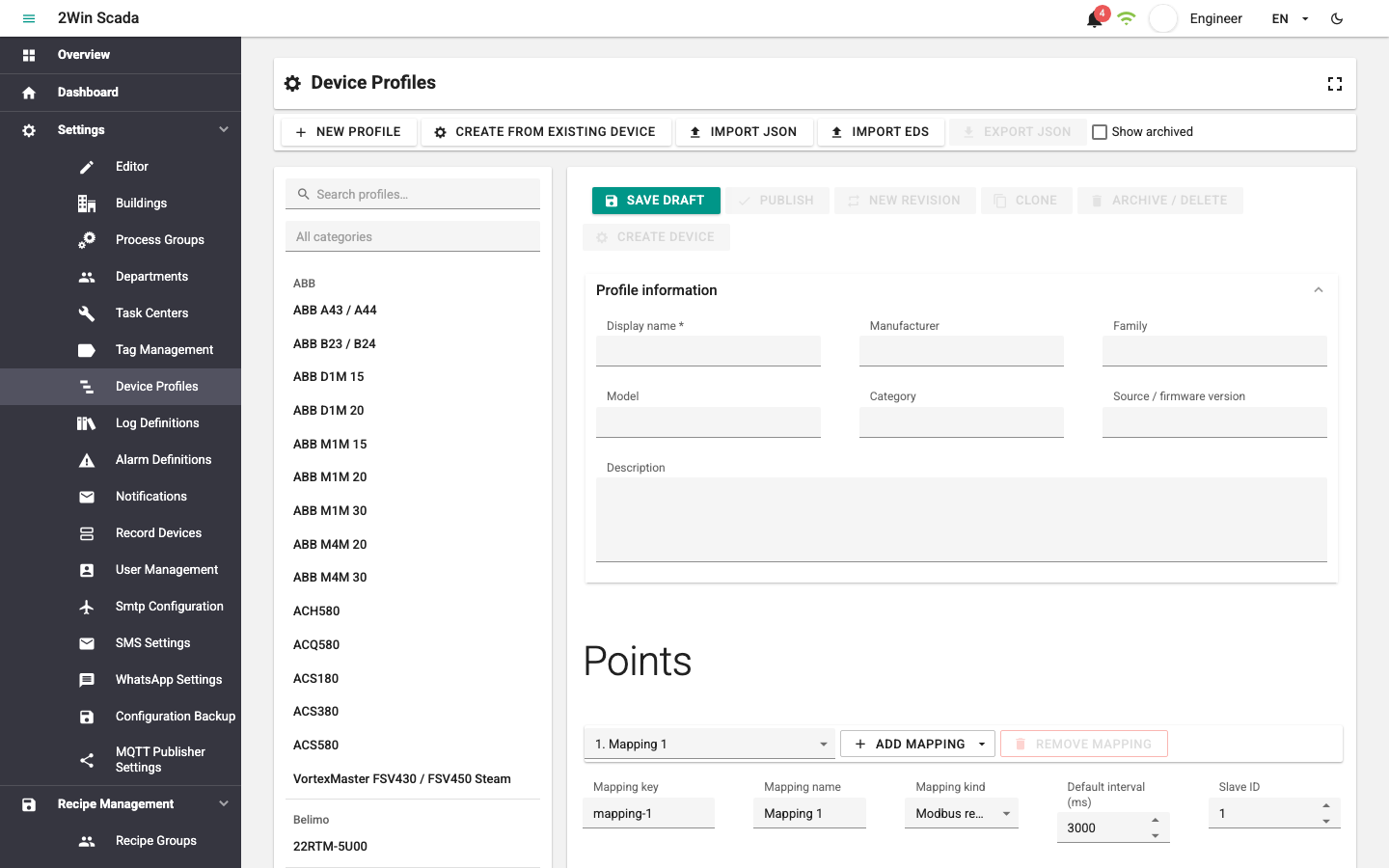
- The catalog groups profiles by manufacturer and shows 24 profiles when it first opens. Each click on Show more adds 24 more profiles.
- The Search profiles… field searches the whole catalog by display name, profile key, manufacturer and category, including profiles that are not shown yet.
- With the Category filter you can select one or more categories; profiles in any of the selected categories are listed. Clearing the selection returns to all categories.
- The Show archived option also lists archived profiles.
- The details section contains the Revision selector, Profile information, the Mapping selector and the point table.
Toolbar operations: New Profile, Create from Existing Device, Import JSON, Import EDS, Export JSON, Save Draft, Publish, New Revision, Clone, Archive / Delete and Create Device. Some operations appear disabled depending on the state of the selected revision.
Typical Workflow
- Create the profile: from scratch (New Profile), from a running device (Create from Existing Device), from a JSON package (Import JSON) or, for EtherNet/IP, from an EDS file (Import EDS).
- Review the draft, edit it if needed and save it with Save Draft.
- When it is ready, publish the revision with Publish.
- Use Create Device to create a new device in the target channel from the published revision.
- Verify the connection and tag settings of the device, which is created passive, then enable the device.
Creating a New Profile
- Click the New Profile button.
- In the Profile information section, fill in Display name (required), Manufacturer, Family, Model, Category and Description. Source / firmware version is optional.
- From the Add mapping menu, select Modbus registers or EtherNet/IP tags. The new mapping is selected immediately and opens with one point. Change the active mapping with the Mapping selector at the top.
- Enter the Mapping key, Mapping name, Mapping kind and Default interval (ms) fields of the mapping. For Modbus mappings select the Slave ID (1–247); for EtherNet/IP mappings select the Adapter (Generic CIP, Rockwell Logix or Omron NX/NJ).
- Edit the points in the point table; use the Add point button for a new row.
- Click the Save Draft button. The system generates the profile key and creates the first save as Revision 1 · Draft.
When saving, all profile information, mappings, points, scales and bindings are checked. If there is an error, the system selects the first mapping with an error, goes to the row and focuses the field with the error.
Point Table
| Column | Description |
|---|---|
| Key | Point key; must be unique within the mapping |
| Point | Name of the tag to be created |
| Semantic / Description | Optional semantic key and description |
| Data type | The same list as on the Tag Definition screen: Automatic, Bool, Sbyte, Byte, Int, Word, DInt, DWord, Real, LInt, ULInt, LWord, LReal, String |
| Length / Interval / Access | Data length, read interval (50–3600000 ms) and access: Inherit access, Read Only or Read/write |
| Unit | Engineering unit |
| Scale | Optional linear scaling: Raw min, Raw max, Minimum, Maximum |
| Binding | Protocol address: Modbus register, EtherNet/IP symbolic, EtherNet/IP CIP object or EtherNet/IP assembly |
| Command behavior | EtherNet/IP only: Normal write, Pulse (0 → 1 → 0) or Rising edge (0 → 1); for Pulse, Pulse duration (ms) |
| Actions | Deleting the point |
When Inherit access is selected, the default access of the mapping is used; if the mapping does not define one either, the point is created read-only.
If a scale is used, all four raw and engineering range values must be entered, and the lower and upper values of each range must differ. Bool points do not use a scale. For EtherNet/IP CIP bit points, the data type must be Bool, the source data type must be an explicitly selected integer type and the length must be 1. For the meaning of the binding fields, see the EtherNet/IP and Modbus Addressing pages.
Cell changes are applied to the draft immediately but are not saved permanently; they are saved permanently with Save Draft. Searching in the table only filters the point names; it does not delete points from the draft.
Limits
- A profile can have at most 16 mappings and at most 2,000 points in total across all mappings.
- Each mapping must have at least one point.
- The size of the profile package cannot exceed 2 MiB.
- Display name can be at most 200 characters; Manufacturer, Family, Model and Category at most 100; Description at most 2000.
- Keys can contain only lowercase letters, digits, dots and hyphens.
Creating a Profile from an Existing Device
A new, unpublished profile draft can be created from the portable tag definitions of a running Modbus or EtherNet/IP device. The Create from Existing Device window has three steps:
- Source device: Type the device name in the Search devices field and select the source device from the list. The list shows at most 50 results.
- Tag selection: Select the tags to include in the profile. Tags are marked as Convertible, Excluded or Invalid; the Reason column shows why a tag was excluded. Select all convertible tags selects all eligible tags.
- Profile information: Review the Profile summary and the counters (Convertible tags, Excluded tags, Invalid tags, Warnings), confirm the warnings under Required confirmations, edit the display name and other information, and click the Create Draft button.
The preview does not create a record. If the source device changed after the preview, the system stops the operation; check the selections again with Refresh preview.
| Included in the profile | Not included in the profile |
|---|---|
| Tag name, address, data type, length | Site-specific connection values such as host/IP, port, serial port, route and network interface |
| Access, interval, unit, description, scale | Alarm, log and advanced tag expression relations |
| Modbus slave ID, address base, word order and block size | Advanced tags |
| EtherNet/IP adapter, identity and Assembly model | Tags with an invalid address, an unsupported type or an invalid scale |
On Modbus devices, String tags whose Length is greater than 1 and whose address does not fit the data type (see Modbus Addressing) are excluded or marked invalid in the preview and cannot be selected; creating the profile does not fail because of these tags.
Revision and Publishing Lifecycle
Working on a Draft
- In a draft revision, profile information, mappings and points can be edited.
- If the same draft was changed in another session, you get a warning when saving; reopen the profile and repeat your changes on the current draft.
- Before an operation that would discard unsaved changes, a confirmation is requested.
Publishing
- Review the revision content and the protocol settings one last time.
- Click the Publish button.
- Verify the Revision N · Published state in the Revision selector.
A published revision cannot be changed. Earlier devices and published earlier revisions do not change in place.
New Revision
- Select the published revision and click the New Revision button.
- The system creates a new draft with the next revision number.
- Make the changes in the draft and publish it separately when it is ready.
Cloning
Clone copies the selected revision into a new profile. Only a new Display name is entered; the system generates the new profile key and creates the copy as Revision 1 · Draft. This is how system profiles are turned into an editable user profile.
Archiving, Restoring and Permanent Deletion
The Archive / Delete button opens the Profile lifecycle window:
- Archive: Stops editing, cloning, new revisions and device creation. The profile remains readable and exportable.
- Restore: Makes an archived profile usable again.
- Permanently delete: Available only for archived user profiles; deletes the profile and all its revisions. System profiles cannot be permanently deleted.
The number of devices created from the profile shown in the window is for information only and does not block deletion. Devices and tags created earlier are not affected by archiving or deletion.
JSON Import and Export
JSON Export
- Select the revision to export.
- Click the Export JSON button.
- Keep the file in your approved configuration archive.
The file name has the format manufacturer-model-display-name-rN.device-profile.json; empty information is skipped. Site-specific connection values are not in the package.
JSON Import
In the Import JSON window, select a single .json package with Select JSON file or drop the file on the window. The browser pre-checks the file size and extension; the actual validation is done on the server.
- A profile key that has not been used before is kept.
- If the same key with the same content is imported again, the existing record is returned; no copy is created.
- If the same key already exists with different content, the Profile key collision window opens: New revision adds the content to the existing profile as a new revision; Separate copy creates a separate profile with a new key generated by the system.
WARNING
If you edited the JSON package by hand, check the profile key, mapping kinds, point keys and binding fields before importing. Packages with unknown fields, broken JSON, an unsupported protocol or data type are rejected.
Creating a Profile from an EDS File
For EtherNet/IP devices, a Generic CIP profile draft can be created from the manufacturer's EDS file. EDS import is a separate operation from JSON import. The EDS is only a commissioning source; the runtime does not keep the file or read it again.
- Click the Import EDS button and select a single
.edsfile of at most 2 MiB with Select EDS file. Change file clears the previous preview. - In the read-only preview, review the EDS device identity (vendor ID, device type, product code, device revision), Import summary and EDS connections (input, output and configuration Assembly) sections.
- In the Variables to import table, select the points to add to the profile. All mapped points are selected at first; Select all and Filter by name can be used. The filter keeps the selection of hidden rows. At least one variable must be selected; connections with no selected points left are not imported.
- Review the grouped warnings and affected instances under Review items. If content was skipped or partially mapped, select the warning confirmation. Compare the Assembly sizes, directions, offsets, RPI and Run/Idle information with the manufacturer's manual.
- If a profile with the same identity already exists, choose one of the options offered under Existing profile action: Use profile key (reject collision), Create separate copy or Add new revision. If the identity belongs to a system profile or an archived profile, only a separate copy can be created.
- Click the Import as Draft button. Check the points and access directions again, then publish the profile.
Imported variable names are adapted to the tag naming rules: spaces become underscores, invalid characters are removed and conflicting names get suffixes such as _2, _3. Unsupported or ambiguous EDS content is skipped safely and reported as a review item; references to other files or addresses are not resolved. The import does not create a runtime device.
Creating a Device from a Profile
Create Device is available only on a published, non-archived revision while a mapping is selected.
- Select the revision and the mapping to use, and click the Create Device button.
- In the Create device from profile window, fill in the Channel, Task Center and Device Name fields. The protocol of the channel must be compatible with the mapping.
- Enter the site-specific protocol device parameters; these do not come from the profile package. For EtherNet/IP enter the server/IP address, port, device profile and CIP route path; for Modbus TCP enter the IP and port. Modbus Serial and Serial over Ethernet connection settings are taken from the selected channel. Selecting Technical details opens the advanced parameters and a JSON view of the parameters; after editing the JSON, you can transfer it to the form with Apply JSON to form.
- If the profile has EtherNet/IP cyclic outputs, select Explicitly enable EtherNet/IP cyclic outputs to enable them.
- Use Preview to review the number of points to be created and the Resolved device parameters.
- Click the Create Device button.
The device and all its tags are created in a single operation; if there is an error, no partial device or tags remain. For safety, the new device is created Passive. No connection is made to the physical device and nothing is written during preview and creation.
Commissioning checklist
- Local connection values such as host/IP, port, serial port or route are correct.
- Writable tags and cyclic output tags have been reviewed separately.
- The connection and addresses have been verified on the passive device (Test connection for EtherNet/IP).
- The device is made Active only after a controlled commissioning step.
If the device cannot be brought into the runtime after it is created, the warning "The device was created, but runtime activation was deferred" is shown; the device stays saved. In this case, review the service logs and reload the device configuration.
Profile Origin
A device created from a profile carries the key, display name, revision number, definition digest (hash) and mapping key of the source profile, and each tag carries the source point key, as a record that cannot be changed. This information is used to track which profile revision the device was created from.
- Later changes and new revisions of the profile are not applied to existing devices automatically.
- Even if the profile is archived or deleted, the origin information and tags on the device do not change.
Backup and Restore
Device profiles, their revisions and the profile origin information on devices are included in the configuration backup (see Backup and Restore).
- Profiles are kept in a separate Device Profiles module in the backup. A backup containing devices can be restored whether or not the profile catalog is in the package.
- If you also want to restore the profile catalog, select the Device Profiles module in the preview. Restoring or leaving out this module does not change the origin information carried by the devices.
- If older backups have matching profile data, the profile link of the device is converted to origin information; otherwise the link is ignored and the device and its tags are still restored.
- After restoring, follow the service restart warning.
Troubleshooting
| Situation | What to do |
|---|---|
| The page or an operation is not visible | Check the user's Editor role and that the license allows tag definitions or EtherNet/IP management. |
| Create Device is disabled | Check that the revision is published, the profile is not archived and a mapping is selected. |
| Source device changed warning | Redo the tag selections and confirmations with Refresh preview. |
| A tag cannot be selected | Fix the advanced tag, unsupported data type, invalid address or invalid scale on the source device. |
| Draft is not current warning | Reload the profile and repeat your changes on the current draft. |
| Import collision | Choose New revision or Separate copy, depending on your goal. |
| Saving gives a field error | Fix the validation message on the mapping and point row the system selected. |
| An old backup has no Device Profiles | The package may be in the old format; if the preview shows it can be restored, the devices are loaded without profile origin. |