
Recipe Management
Recipe management writes predefined values (a recipe) to a group of tags at once. For example, it is used to apply different set values (temperature, pressure, speed and so on) for different product types with a single click.
Who defines, who applies
Recipe groups and recipe definitions require the RecipeManagement (or Editor) role; applying a recipe requires the RecipeApplier role. Which group has which role is set on the User Management screen.
The left menu has three pages under the Recipe Management heading: Recipe Groups, Recipe Definition and Recipe Apply. The Recipe Apply page is described in the Recipe Apply section.
Recipe Groups
Recipes are organized in groups. A group determines which tags the recipes write values to and the limits of these tags. The Recipe Groups page has two parts: the group selection area and buttons at the top, and the Group Tag Mapping table of the selected group at the bottom.
Group selection: Select a group from the Recipe Groups list at the top of the page. The ID of the selected group is shown in the Id field on the right.
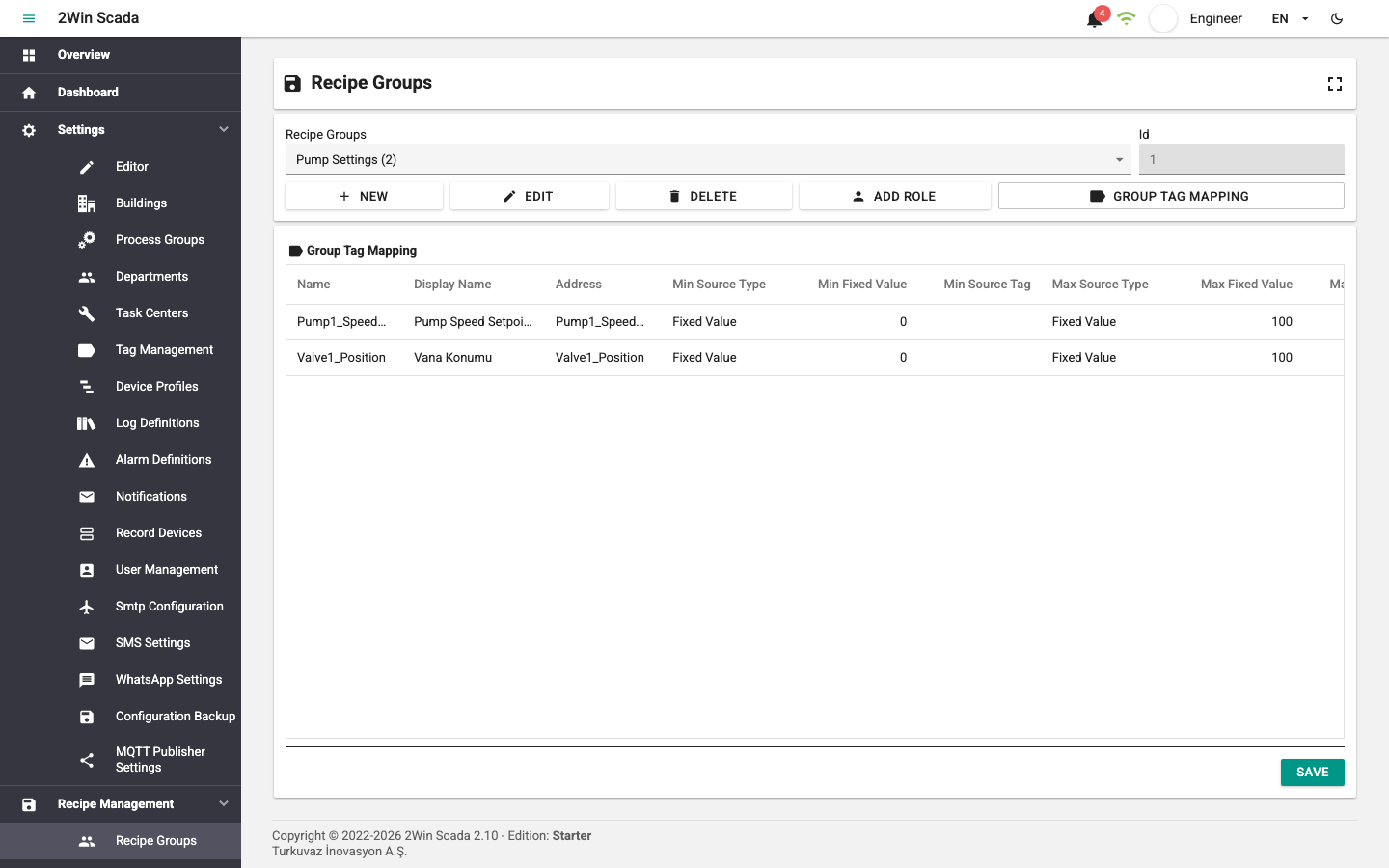
Buttons:
- New: Creates a new recipe group. Fill in these fields in the Add Recipe Group window:
- Name: The name of the group.
- Description: Optional description.
- Active: Whether the group is enabled.
- Auto Tag Value Sync: If selected, the recipe table is synchronized live with the tags (see the Automatic tag value synchronization section below).
- Post-Apply Tag: The tag a value is written to after the recipe is applied. Select the tag with the Select button; remove the selection with Clear Selection. It is used to give the PLC a "recipe applied" signal.
- Post-Apply Tag Mode: If Write True (default) is selected,
true(1) is written to the tag when the apply completes. If Write Custom Value is selected, the value to write is entered as JSON in the Post-Apply Tag JSON Value field (for example,true,1,"RUN").
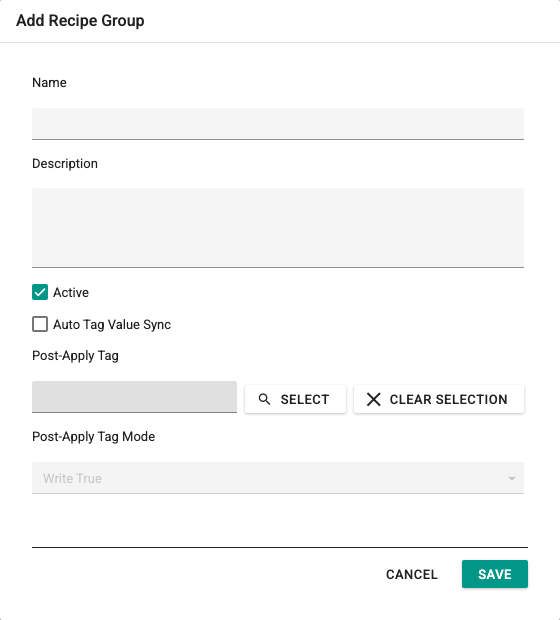
- Edit: Edits the information of the selected group in the same window (Edit Recipe Group).
- Delete: After confirmation, deletes the selected group. A group that contains recipes cannot be deleted; the recipes of the group must be deleted first.
- Add Role: Assigns a role to the selected group. If roles are assigned to the group, its recipes can be used only by users with one of these roles and by users with the Editor role. A group without roles is open to all users with recipe permissions.
- Group Tag Mapping: Opens the window for adding tags to and removing tags from the group. The window has the Tag Selection tree on the left, the Add and Remove buttons in the middle and the Tags list of the group on the right. The display name and limit values in the list on the right can also be edited. Save with Save, close with Cancel.
Group Tag Mapping Table
This table shows the tags in the selected recipe group and the value limits of each tag. Click a cell to edit it. Columns:
- Name: The name of the tag.
- Display Name: The name shown on recipe screens.
- Address: The address of the tag in the device.
- Min Source Type / Min Fixed Value / Min Source Tag: The source of the smallest value allowed for this tag. If None is selected, no lower limit is applied; if Fixed Value is selected, Min Fixed Value is used; if Source Tag is selected, the instant value of the tag selected in the Min Source Tag field becomes the lower limit.
- Max Source Type / Max Fixed Value / Max Source Tag: The same structure applies to the largest value.
A limit value cannot be left empty for the selected source type, and the largest value must be greater than the smallest value. Save the changes with the Save button under the table.
Recipe Definition
On the Recipe Definition page, you manage the recipes of the selected recipe group and the tag–value pairs (recipe items) in each recipe.
Group and recipe selection: There are two lists at the top of the page. First select a group from the Recipe Groups list, then one of the recipes of that group from the Recipe Name list. The IDs of the selections are shown in the Id fields on the right.
Recipe buttons (left):
- New: Adds a new recipe to the selected group. Enter the name and an optional description of the recipe in the window that opens.
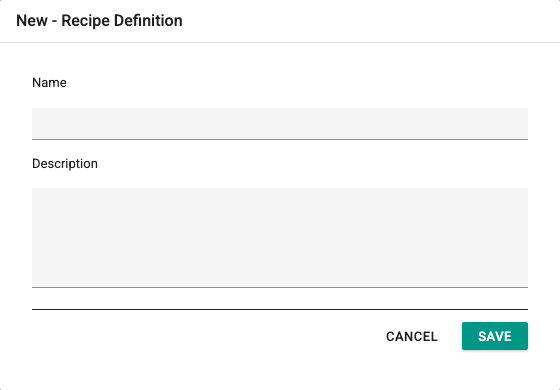
- Edit: Edits the name and description of the selected recipe.
- Delete: After confirmation, deletes the selected recipe and all its items. This cannot be undone.
CSV buttons (right):
- Template: Downloads an empty CSV template that matches the tag structure of the group. Recipe data can be prepared by filling in the template.
- Import: Select a filled-in CSV file to open the Recipe Import Preview window. The window shows the selected file, the target and source group, the Imported Recipe Name, the total, matched and valid row counts and the blocking issues. Row results can be filtered as All, Valid and Issues; Copy Issues copies the issue list to the clipboard. The Import button creates a new recipe with the values in the file. If a recipe in the group already uses the same name, the new recipe gets a unique name; existing recipes are not overwritten.
- Export: Downloads the items of the selected recipe as a CSV file. It can be used as a backup or as the basis for another recipe.
The CSV file is separated by semicolons and contains these columns: RecipeGroupName, RecipeName, RecipeDescription, TagName, DisplayName, Value. All rows in a file must have the same recipe name. Rows are matched to the tags of the group by tag name.
Recipe Items table:
Lists the tag–value pairs of the selected recipe. Each row has two columns:
- Display Name: The name defined in the Group Tag Mapping.
- Value: The value written to the tag when the recipe is applied. Click the value cell to edit it. If the value is outside the limits of the group, the warning "value is out of range" is shown together with the limit values.
Bottom buttons:
- Apply: Writes all values of the selected recipe to the tags. Tags that cannot be written are skipped and the warning "Recipe applied, but some tags failed." is shown. If roles are assigned to the group, only authorized users can apply it. After applying, the ID and name of the last applied group and recipe are written to the recipe state tags; these tags are listed in the System tab of the tag selector in the page editor.
- Read From Device: Reads the instant values of all tags in the group from the devices and updates the table. The read values are saved to the recipe with Save.
- Save as: Saves the values in the table as a new recipe in the same group. Enter the name and description of the new recipe in the window that opens.
- Save: Saves the changes made in the table to the selected recipe.
Automatic Tag Value Synchronization
If Auto Tag Value Sync is selected for the group, the Recipe Definition page behaves as follows:
- When a recipe is selected from the list, the recipe is applied automatically.
- The values in the Recipe Items table are synchronized with the live values of the tags. Tags with no value or with quality that is not good do not change the table.
- When a value in the table is changed, the value is written to the tag immediately.
On the Recipe Apply page too, the recipe is applied automatically when it is selected.