
Device States
This page, which opens when you select Monitoring > Device States in the menu, shows the communication state and the last errors of the defined devices. The page consists of a filter section and the Card View and Grid View tabs. The Full Screen button in the header expands the page to the whole screen.
Filters
In the filter section, select the devices to list. By default, you select channels and devices from tag management with the Channels and Devices fields. When you click the Process Groups button in the section header, you select with the Process Groups, Task Centers, Departments and Devices fields instead; the same button, now named Channels, switches back to channel selection. After selecting, click Update. The green refresh button in the header reloads the list.
If no device is selected, all devices are listed.
Card view
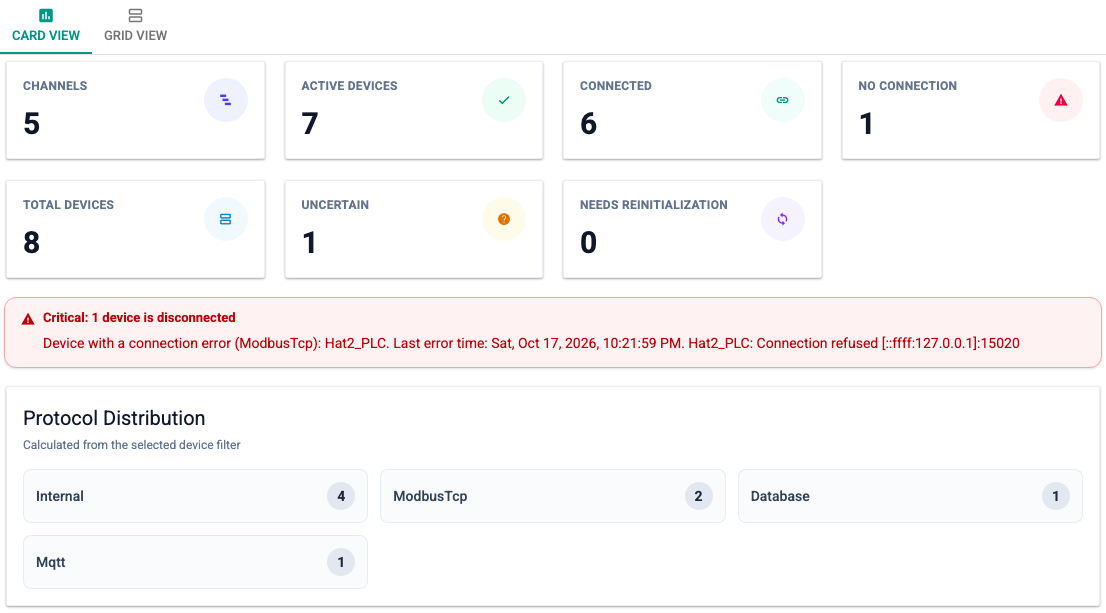
When the page first opens, the Card View tab is shown. This tab summarizes the following counts for the selected devices as cards: Channels, Active Devices, Connected, No Connection, Total Devices, Uncertain and Needs ReInitialize.
If a device reports a connection error, a critical warning is shown below the cards. The warning contains the number of disconnected devices, the protocols and devices concerned, the time of the last error and the last error message. The Protocol Distribution section shows how the devices are distributed across protocols.
Grid view
On the Grid View tab, the devices are listed in a table.
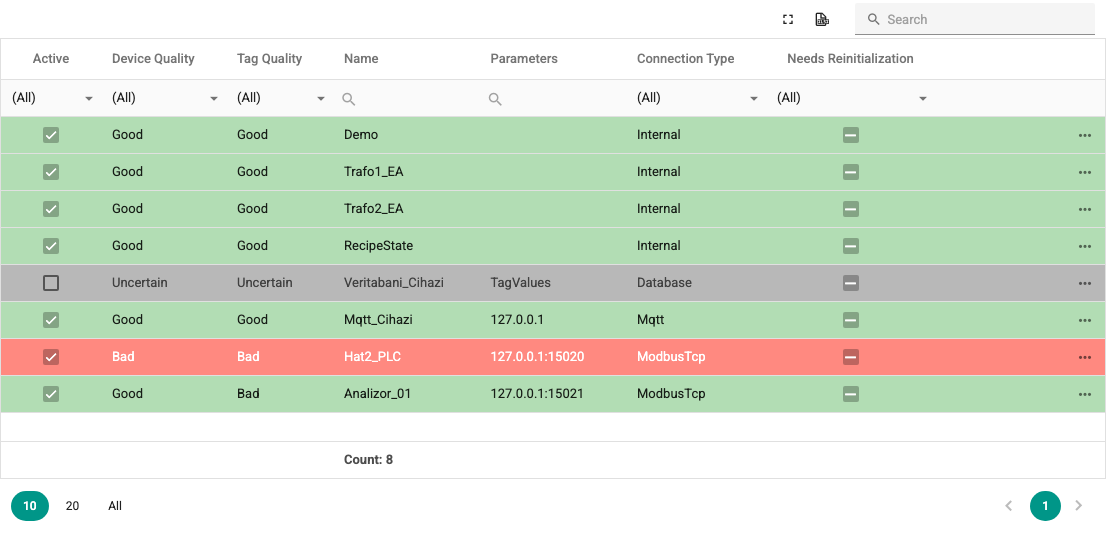
The table columns are:
- Active: Shows whether the device is set as active in its device definition in tag management. Inactive devices are shown with a gray background.
- Device Quality: Shows the state of device communication: Good means communication is established, Bad means there is a communication problem. Devices whose communication is not healthy are shown with a red background.
- Tag Quality: Shows the state of the device's tag queries. If there is a problem, one of the following may have happened:
- No response arrived in time to the queries sent. If the device settings have read and write request timeouts, they can be increased.
- The response packets to the queries are corrupt or different from what is expected.
- Name: The device name.
- Parameters: The connection settings of the device (address, port and so on).
- Connection Type: The device's protocol.
- Error Date: The date and time of the last error in device communication.
- Error: The last error message.
- Needs ReInitialize: Selected if the device definition or the device's tag list was changed; device communication must be restarted for the changes to take effect.
Rows of devices that need a restart have a Reinitilize Device button at the end. Clicking the button restarts communication with the device; the button is disabled while the request is processed. The restart icon on the information bar also opens this page (see Interface Tour).
The table toolbar has refresh, full screen and Excel export buttons and a search box. Below the table, the number of listed devices (Count) is shown.