
Tag States
This page, which opens when you select Monitoring > Tag States in the menu, is used to check whether there are errors reading the tags of the selected devices. The Full Screen button in the header expands the page to the whole screen.
Filters
The filter section works the same way as on the Device States page: select devices from the channel and device fields, or from the process group, task center and department fields opened with the Process Groups button, then click Update.
On this page at least one device must be selected; if you run the query without selecting a device, a warning is shown.
Table
The tags of the selected devices are listed in the table below.
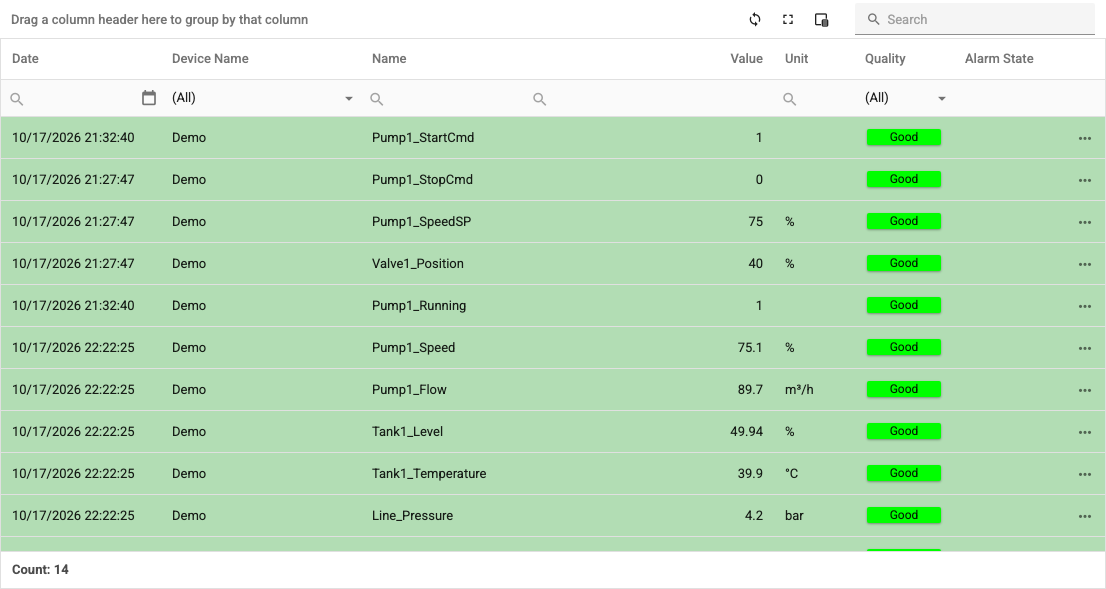
The table columns are:
- Date: The date and time the tag value was last updated.
- Device Name: The device the tag belongs to.
- Name: The tag name.
- Address: The address of the tag in the device. Hidden by default.
- Value: The current value of the tag.
- Unit: The unit of the tag, if defined.
- Description: The tag description. Hidden by default.
- Quality: Shows whether healthy data is received from the tag:
- Good: The data is read correctly.
- Bad: The data cannot be read correctly.
- Uncertain: The tag has not been reached yet. With some protocols it also shows that the defined tag address is not present in the query response.
- Alarm State: If one of the alarms defined for the tag is currently active, an alarm icon appears.
- Log: If a log definition exists for the tag, a button with a chart icon appears. Clicking the button adds the tag to the reporting shortcut list (see Reporting shortcut button).
Cells of tags with Good quality are shown with a green background, the others with a red background.
Show hidden columns with the column chooser. You can group the tags by dragging column headers to the grouping area above the table. The toolbar has refresh, full screen and Excel export buttons and a search box; below the table, the number of listed tags (Count) is shown.