
Interface Tour
Login Screen
The 2WinScada login screen looks like the one below. Enter your Username and Password and click Sign in to open the application. On the same screen you can change the interface language, open the virtual keyboard, select Remember me, and use the Forgot password link if you have forgotten your password. To sign in, use the administrator (SystemAdmin) account created during installation or a user account defined by the administrator.
User accounts
The administrator creates user accounts on the User Management screen and gives each account a temporary password (see User and Group Management); by default, the user replaces this password with their own at the first sign-in.
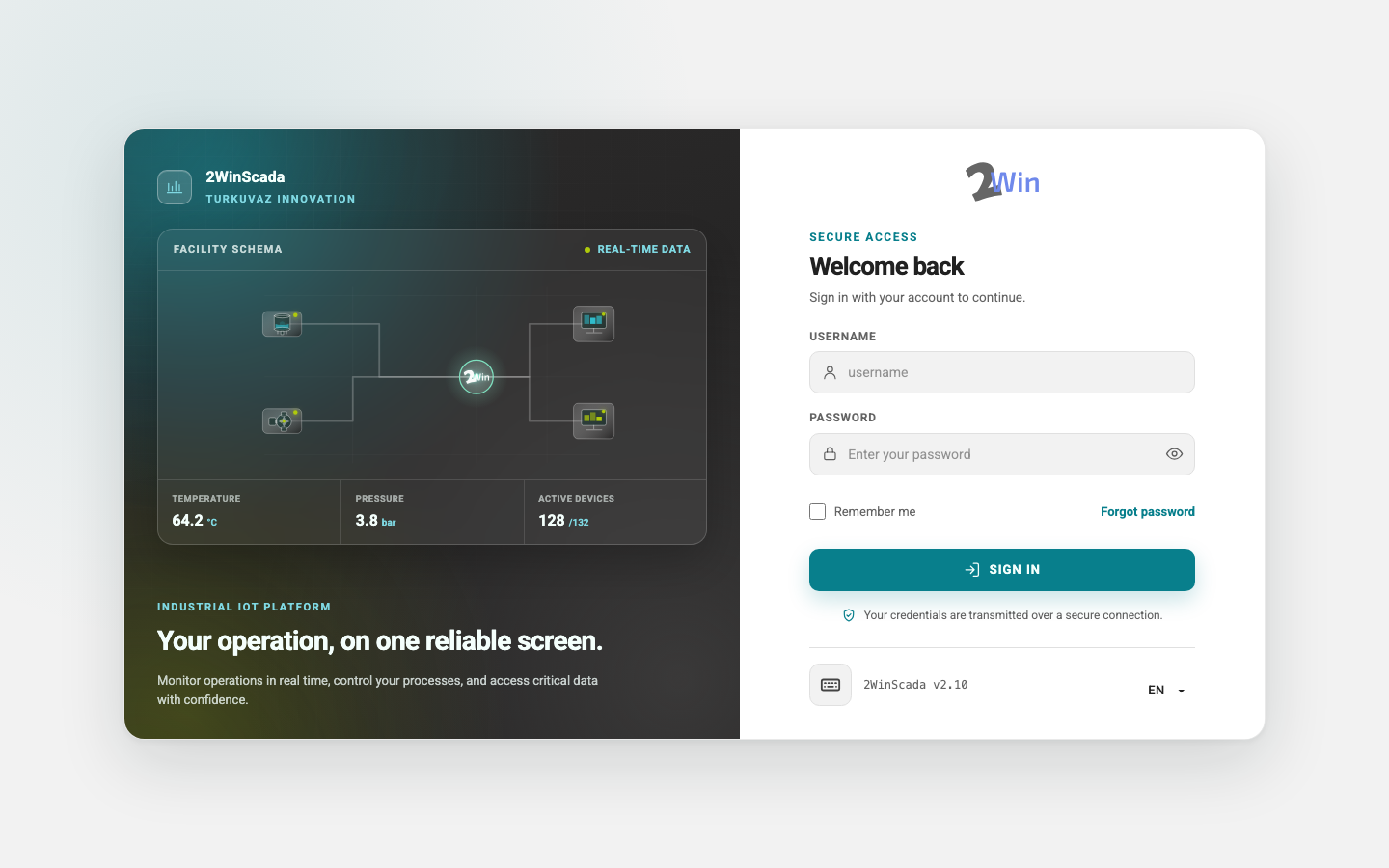
When the session expires, the login screen opens. After signing in, the user returns to the page that was open when the session ended.
Session and tabs
After a sign-in on 2.11, the session is kept separately in each browser tab. Reloading the page keeps the session. When a new tab is opened in the same browser or the browser is restarted, the session opens on its own without a sign-in; if the browser deletes cookies on exit (for example a private window), the login screen opens. Only one user can be signed in to a browser at a time: if Logout is selected in one tab or someone signs in as another user, the other tabs open in the same browser return to the login screen. A session opened before the upgrade to 2.11 keeps working the old way until the next sign-in: all tabs of the browser share the same session.
Server not reachable
If the server cannot be reached when the application opens while a session already exists, the Server not reachable page appears instead of the login screen. The page says "Your session is kept. The requested page opens by itself as soon as the server responds." and shows the time of the Last attempt. The application keeps trying to connect to the server by itself; when the server responds, the requested page opens and there is no need to sign in again. This usually happens while the server restarts or when a panel PC starts before the server.
Forgot Password
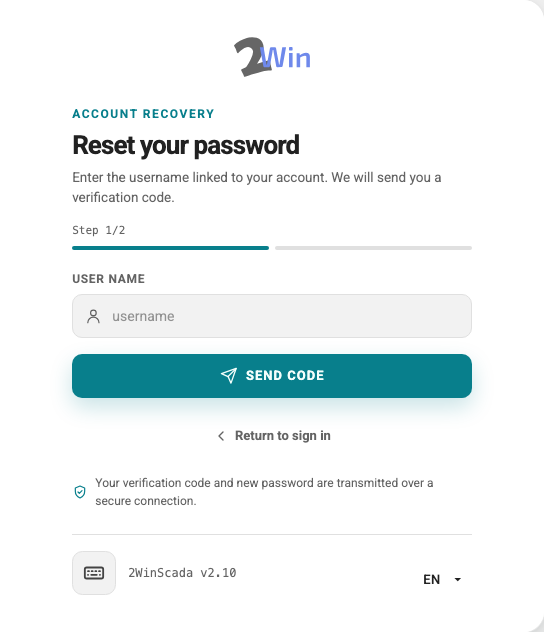
When you click the Forgot password link on the login screen, the form below opens. Enter your Username and click Send code. A 6-character verification code is sent to the email address registered in the system.
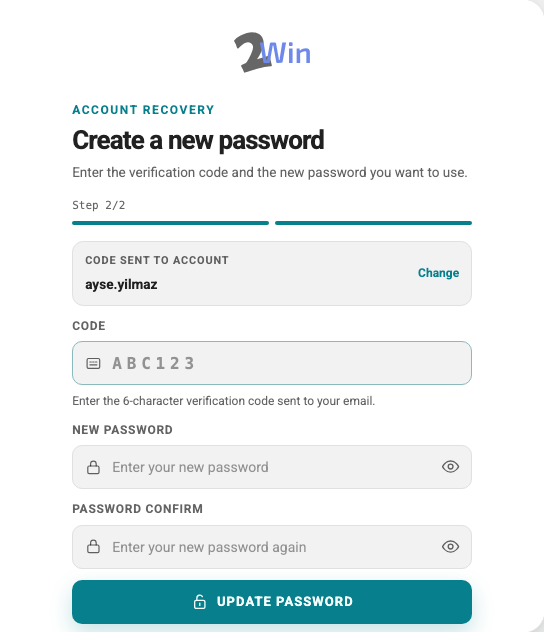
In the second step, enter the verification code you received by email in the Code field and your new password in the New password and Password Confirm fields, then click Update password.
Who can use Forgot Password?
The recovery code is sent to the user's email address registered in the system, so the SMTP settings must be configured and the user's email address must be defined. Accounts that have never had a password set and the administrator (SystemAdmin) account cannot get a password this way; the administrator gives these accounts their password. If the SystemAdmin password is forgotten, contact your system integrator.
Changing the Password at First Sign-In
In the following cases, the user is taken directly to the Change your password screen after signing in:
- The account was newly created by the administrator,
- The administrator reset or changed the account's password,
- The account still uses a password that is no longer accepted (for example, one left over from an older version).
On this screen, enter the Old Password, New password and Password Confirm, then click Change. The new password must differ from the username and the current password and must be at least the minimum shown by the server policy (10 by default, 12 for SystemAdmin). No other page of the application can be opened until the password is changed; you can end the session with Sign out.
Screens that stay open
If an account whose password must be changed is used on a screen that stays open, such as a panel PC or a wall display, the screen switches to this page when the session is renewed and waits there until the password is changed. Change the password of the account used on these screens; if a password is saved in the browser, update it as well.
Landing Screen
After sign-in, the Overview page opens by default. This page shows the landing page assigned to the user or, if none is assigned, the system's default landing page. The administrator sets the user's landing page in the user preferences.
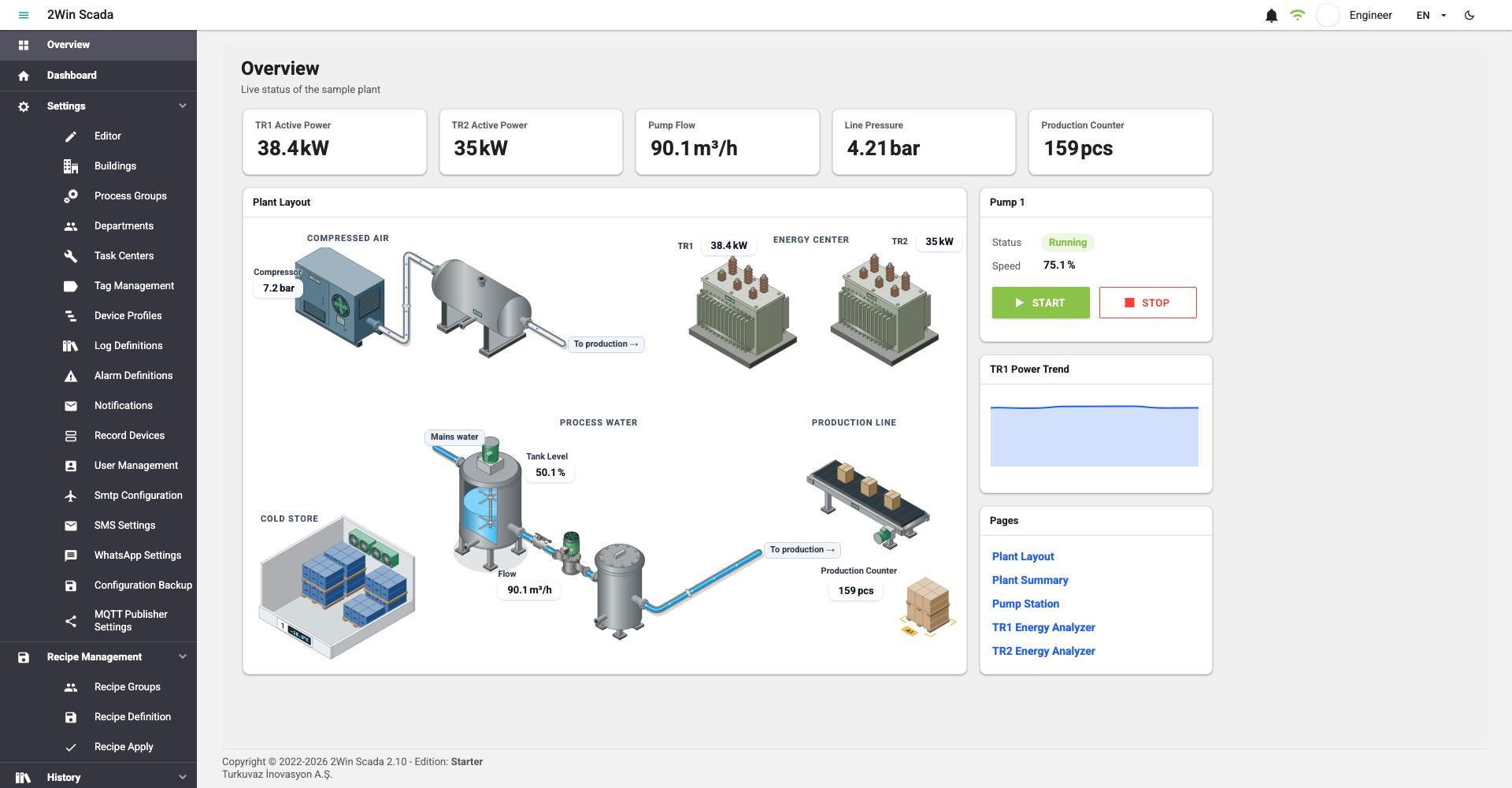
These pages are designed beforehand in the page editor and contain process animations and live system data. Links on the pages lead to other pages. Monitoring pages, full screen, kiosk mode and printing are described on the Page Viewer page.
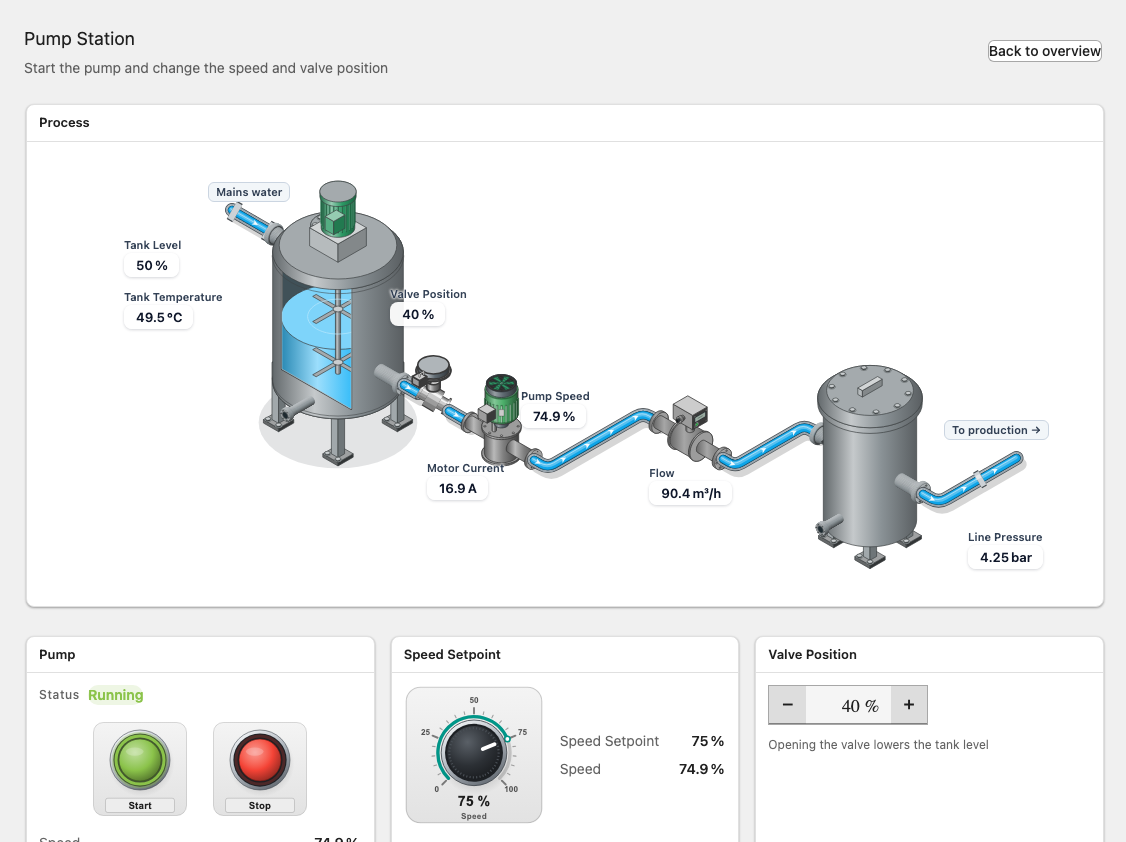
Main Screen
The application window has four parts: the menu on the left for moving between pages, the information bar at the top, the page selected in the menu in the middle, and the footer at the very bottom.
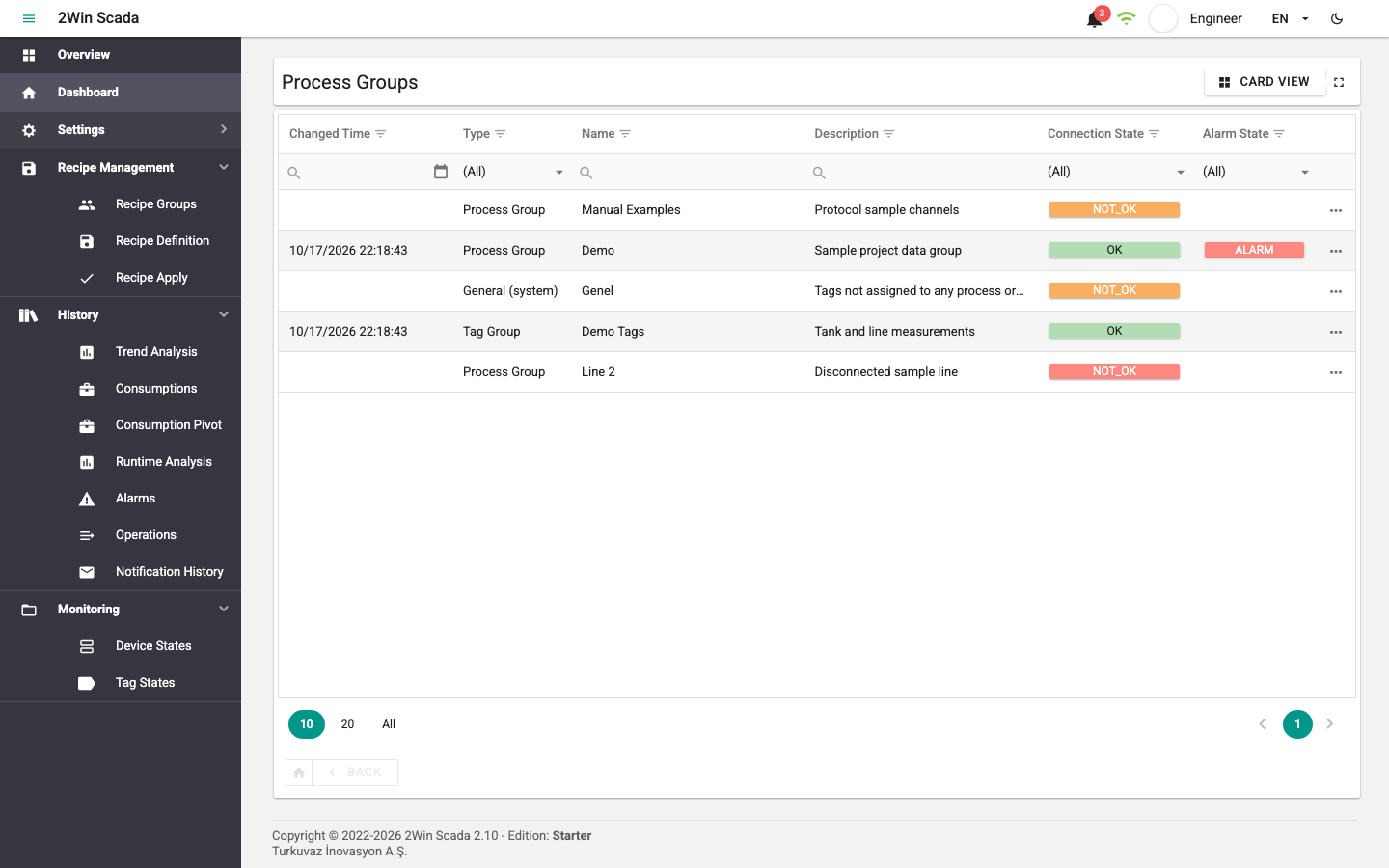
The left menu contains the following main items. Users see only the menu items they have permission and a license for.
| Menu | Content |
|---|---|
| Overview | Displays the designed pages. |
| Dashboard | Table and card views of process groups, task centers, devices and tags. See Dashboard. |
| Settings | Editor, definition and system settings screens. |
| Recipe Management | The Recipe Groups, Recipe Definition and Recipe Apply screens. |
| History | Trend Analysis, Consumptions, Consumption Pivot, Runtime Analysis, Alarms, Operations and Notification History. See Reporting. |
| Monitoring | Device States and Tag States. |
Information bar
At the far left of the information bar is the button that collapses and expands the menu, followed by the application name. On engineering computers that use project profiles, the name of the active project is also shown next to the application name (see Project Profiles (in the help installed with the product)).
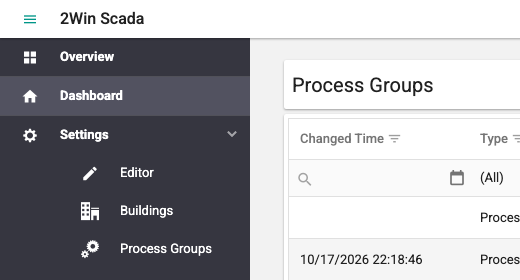

On the right of the information bar are the following buttons, from left to right:
- the button that shows the number of devices that need a restart (visible only when there is such a device),
- the reporting shortcut button,
- the alarm status button,
- the button that shows the real-time connection status with the server,
- the button that shows the username and opens the user menu,
- the language button, which shows and changes the interface language,
- the theme button, which switches between the light and dark themes.
Devices that need a restart
When a device definition or the tag list of a device is changed, communication with the device must be restarted. If there is such a device, a yellow device icon with the number of devices appears on the bar. Clicking the button opens the Device States page, where the devices can be restarted.
Reporting shortcut button

 This button appears when, on the Dashboard or Tag States screen, you click the button in the Log column of a tag that has history records and the tag is added to the list. It blinks to draw attention; the number of tags in the list is shown in its upper right corner. Clicking the button opens the Preselected Tags window.
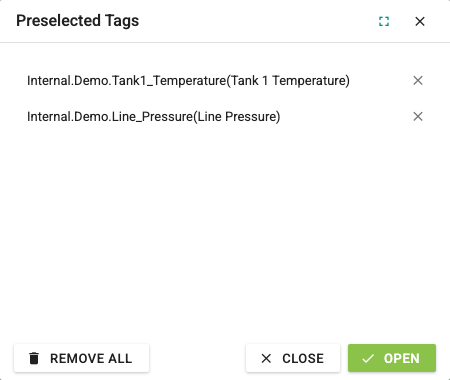
In this window you can remove tags from the list one by one with the button on the right of each tag row. The Remove All button clears the whole list.
The Close button closes the window; the Open button opens the Trend Analysis screen with the tags in the list selected.
Alarm status button
 The alarm button (bell icon) is always on the bar. If there are active alarms, the number of alarms is shown in its upper right corner; when a new alarm arrives, the button blinks. Clicking the button opens a window with the list of active alarms.
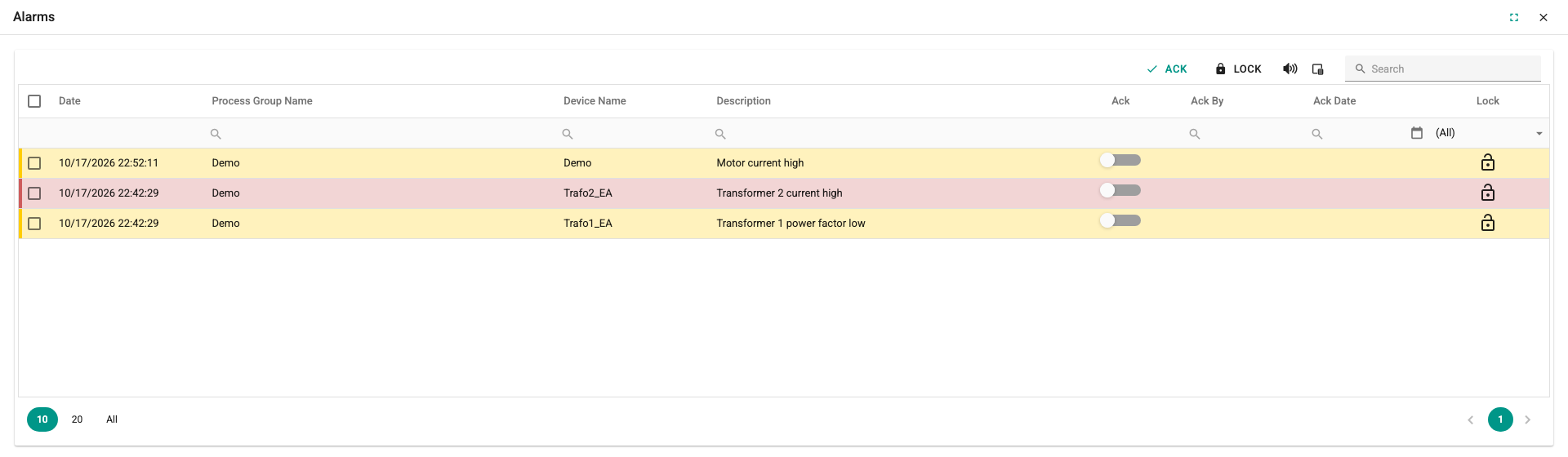
The table in this window lists the Date, Process Group Name, Device Name, Description, Ack, Ack By, Ack Date and Lock columns. The Task Center Name and Type columns are hidden by default and can be shown with the column chooser.
On the right of the window's top bar are the following buttons:
- Ack: Acknowledges all alarms in the list. To acknowledge a single alarm, turn on the switch in the Ack column of that row; the switch of an acknowledged alarm cannot be turned off again.
- Lock: If at least one of the alarms selected in the table is unlocked, locks all selected alarms; if all selected alarms are already locked, unlocks them all. Locked alarms are not colored in the table.
- Mute Sound: Mutes or unmutes the alarm sound.
To acknowledge and lock alarms, the user's group must have one of the UserAdministrator, Operate, Editor or AlarmManagement roles; a user without permission sees a warning.
 This icon shows that the alarm sound is on; clicking the button mutes it.
 This icon shows that the alarm sound is muted; clicking the button turns the audible alarm back on.
 The column chooser button opens a small window where you select the columns to show in the table.
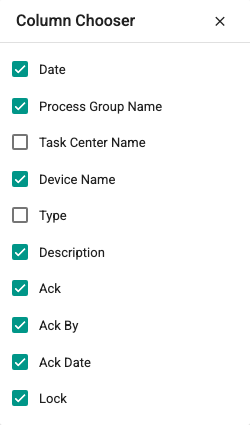
In the column chooser, select the check boxes to the left of the columns you want to show. Close the window with the X button in its upper right corner.
Text typed in the Search box is searched for in all text columns of the table.
 This button on the far right switches the alarm window to full screen.
The alarm table lists the current errors, warnings and alarms. The row color shows the alarm type and the acknowledgment state:
| Type | New (not acknowledged) | Acknowledged |
|---|---|---|
| Error | Red background | Light red background, red stripe on the left |
| Warning | Yellow background | Light yellow background, yellow stripe on the left |
| Alarm | Orange background | Light orange background, orange stripe on the left |
In the dark theme, acknowledged alarms have a dark background instead of a light one.
Below the table, select the number of records per page on the left; use the page numbers and buttons on the right to move between pages.
Connection status button
 This icon shows the status of the real-time data connection between the server and the web interface. If there is no connection, click the button to send a reconnect request.
Green means that the connection is established.
Red and blinking means that there is no connection. In this case the background of the information bar also turns red.
When the connection is lost, the application tries to reconnect by itself without giving up: after 2, 5 and 10 seconds, then about every 30 seconds. The session is kept during the outage; you do not have to sign in again unless the server refuses the session. During the outage the values on screen are not current: the screen keeps the last values and the last known alarms from before the outage. The alarm count appears faded, the alarm window shows the note Alarm list not current, and alarms cannot be acknowledged. When the connection is back, the values update without a page reload; the alarm list is replaced by the server's current active alarms, and alarms that closed during the outage drop out of the list (see During a connection outage).
User menu
This button shows the name of the signed-in user. Clicking it opens the menu below.
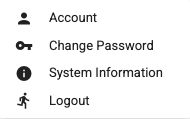
- Account: Opens the My Account page, which shows the user's details (User Name, Phone, E-mail) and preferences (Landing Page, Enable Alarm Sound, Tag Prefix). This page is for information only; the preferences are changed by the administrator.
- System Information: Opens the page with software, license and service information. See the System Information page.
- Logout: Ends the session and opens the login screen. In a session opened by a sign-in on 2.11, this browser's session renewal key is also invalidated on the server; in sessions opened before the upgrade the key is only removed from the browser. Signing out does not close the account's sessions on other devices; a sign-in with the same account on another device, however, ends the session of the earlier devices (see Session renewal and shared accounts). If the server cannot be reached at that moment, the sign-out is sent again at the next page change until the server answers or someone signs in again.
Language button
Shows the active interface language; clicking it lists the languages you can switch to.

Theme button
Shows a moon icon in the light theme and a sun icon in the dark theme. Clicking it switches the interface to the other theme.

New version notice
When a new 2WinScada version is installed on the server, open screens show the notice "A new version has been installed. Reload the page to use it." The page does not reload by itself; if you have unsaved work, save it first, then reload the page in the browser. Kiosk screens, however, reload into the new version by themselves once the screen has not been touched for a while (see Panel PC and Kiosk).
Footer
The footer at the very bottom of the page shows the software version and, under the Edition heading, the name of the installed license package. When the license needs attention (invalid license, restart required, grace period, package exceeded and so on), a colored License status badge appears next to the package name. Clicking the badge opens the details and a System Information link. For details, see the License page.
