
Closed Reports and Archive
Every closed month is kept as an official report that cannot be changed. The Energy Performance > Closed Reports screen lists the official reports you can access; from here a report is opened read-only and downloaded as XLSX. This screen does not need the add-on: it also works when the add-on is removed (see Archive mode).
The menu item appears only if there is at least one closed report you can access.
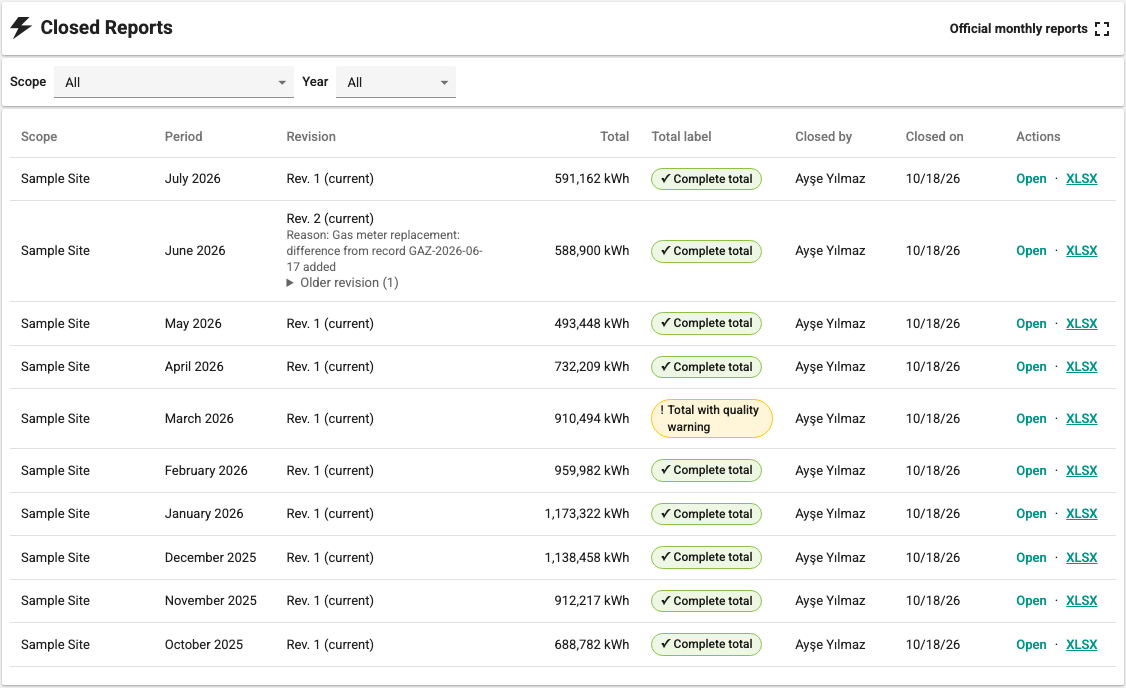
List
The columns of the Official monthly reports table are Scope, Period, Revision, Total, Total label, Closed by, Closed on and Actions (Open, XLSX).
- The list starts with the newest period. It is filtered by Scope and Year; Clear Filters removes the filters.
- Each row is the current revision of the month (Rev. {revision} (current)). Earlier revisions are collapsed under the row as Older revisions ({count}). From Rev. 2 on, the revision reason appears as Reason: {reason}.
- The no live counterpart label shows that the scope has no counterpart in today's definitions (for example after a backup of a different project was restored). The name is the name at the time of closing.
- If the installation has very many closed reports, the list is not loaded without a filter: There are many closed reports. Choose a scope or a year to list them. If there are still too many for the selected scope and year, open the report directly with its link.
If there is no report you can access, the screen says There are no closed reports you can access.
Official report
Open opens the report with the title Official report — {scope} · {month}. The header shows the Closed · Rev. {revision} · read-only badge, Closed by {user} · {date} and, from Rev. 2 on, Revision reason: {reason}.
- The report shows the information frozen at the time of closing: the total and its label, the meter rows and their four row fields, corrections, factors, production, baseline and target revisions, time zone, calculation and read times. Today's definitions or newly arrived data do not change the official report.
- There are no calculation, closing or correction actions; the row details are read-only.
- Older revisions are opened with the revision selector. The XLSX file of each revision is downloaded separately.
- If you have the add-on and the rights, the Open This Month in Period Report link goes to the work screen (for example for a new revision).
- If the report was opened through archive access, it says Viewed through archive access.
An official report link (for example the Official report link taken after closing) is permanent and works even if the add-on is removed. If the link does not name a revision, the current revision opens.
Who can open it
To open and download a closed report, you must be able to access all rows of the scope in one of these two ways:
- Current data rights: You have an energy role (Energy Reader, Energy Data Entry, Energy Management, Energy Closing or Editor), the tag link of the row at closing is the same as today's tag (the tag was not deleted and its settings did not change), and your process group rights cover this tag.
- Archive access: Your role was given archive access for this scope. This way does not need an energy role.
If you cannot access even one row in either way, the report does not open: You are not allowed to view this report. Reading it with current data rights needs the Energy Reader role and access to all data of the scope; for closed reports only, ask a user with the Energy Closing right for archive access. A different total is not shown by leaving out the rows you have no rights on; the screen gives no meter name or number.
A user without an energy role cannot open the report through way 1, even if their process group rights cover all tags of the scope (for example a user with only the Monitor role). Give this user the Energy Reader role or archive access for the scope.
After a backup of the same project is restored, the tags and their settings stay the same, so closed reports stay readable through way 1; there is no need to wait for the tag links to be approved. If a backup of a different project was restored, old reports usually open only with archive access (see Backup and Restore).
Archive access
Archive access lets a role read and download the closed reports of a scope without SCADA data rights (for example an energy auditor or management). Archive access can be granted to any role; the role does not need to be an energy role (for example a custom auditor role). It is managed on the Definitions > Archive Access tab with the Energy Closing role (or Editor). The tab is on the Definitions screen, so it cannot be used in archive mode; archive access granted earlier stays valid in archive mode as well.
- Click the Grant Access button.
- Choose the Scope and the Role. The scope list comes from the scopes in the closed reports; scopes without a live counterpart are also listed with their names.
- Read the explanation: This role can read and download the scope's closed reports without SCADA data rights. Save with Grant Access.
The table shows the Scope, Role, State and Actions columns:
| State | Meaning | Action |
|---|---|---|
| Active | The access is valid. | Revoke |
| Role changed — grant again | The name of the role that was given access has changed. | Grant Again or Revoke |
| Grant again after restore | Because the configuration was restored, this access is not valid until it is granted again. | Grant Again or Revoke |
| Removed | The access was removed (listed with Show revoked grants). | Grant Again |
- Archive access is granted only explicitly. It is not derived from normal report rights or from the Editor role, and it is not a general right across sites.
- Removing asks for confirmation and can be undone: the access can be granted again later.
- Listing all roles needs user management rights; without them, only the roles that were given access earlier are listed.
- Archive access opens only closed reports. It gives no access to live data, drafts or the trend.
Retention
Closed reports cannot be deleted or changed from within the product. Closed reports are not part of the configuration backup; they are protected by the SQL Server database backup (see Backup and Restore).