
Page Management and Access
The pages operators view (pages designed with the editor) are managed from the left panel of the page editor. The page list, folder structure, landing page and page access roles are edited here.
Select Settings > Editor in the left menu to open the page editor. Page design is described in the Page Editor section.
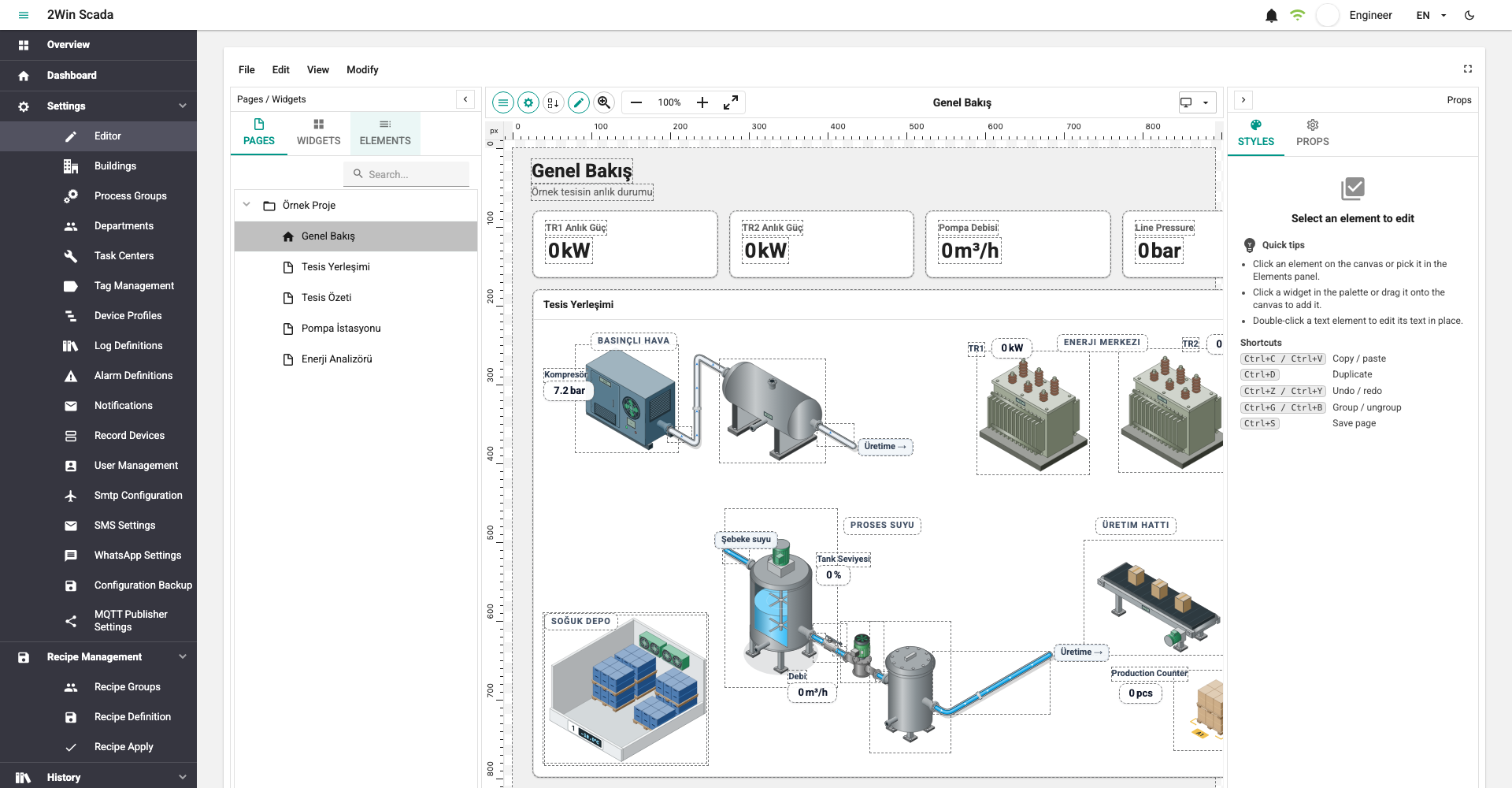
Left Panel – Pages Tab
There are three tabs at the top of the left panel: Pages, Widgets and Elements. The Pages tab is open by default.
Search: The Search... box at the top of the tab filters the list by page or folder name.
Page and folder list: The pages and folders defined in the system are listed in a tree. Click the arrow icon on the left of a folder name to open or close the folder. The icon shows the type of the page:
- Folder icon: A folder used to group pages.
- Document icon: A standard page.
- Home icon: The page assigned as the landing page. This page opens when you sign in to the system.
Hovering over an item shows its ID number as a tooltip.
Clicking a page: Clicking a page in the list opens it in the design area of the editor.
Drag and drop: Dragging a page and dropping it on a folder moves it to that folder; dropping it outside the folders moves it to the root.
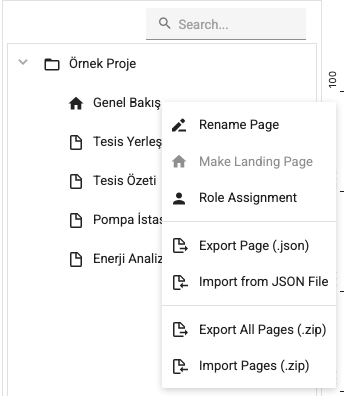
Right-Click Menu
Right-clicking a page or folder shows these commands:
- Rename Page: Changes the name of the page or folder.
- Make Landing Page: Available only for pages. Assigns the page as the system landing page. The assignment of the previous landing page is removed and the home icon moves to the new page.
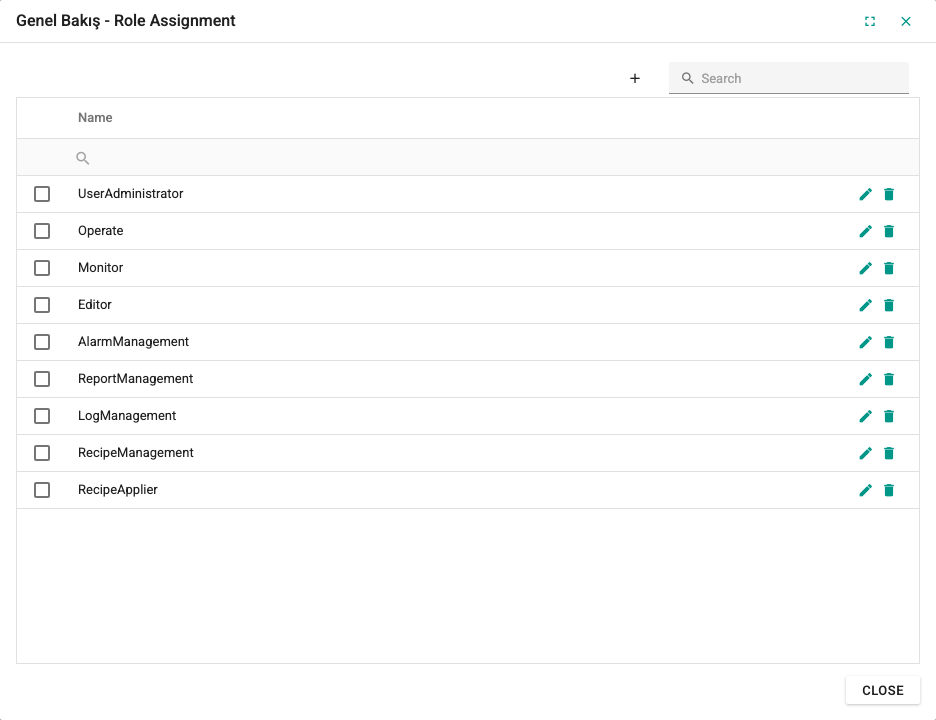
- Role Assignment: Available only for pages. Opens the window where the roles that can access the page are selected. If no role is assigned to the page, it is open to all users; if roles are assigned, only users with one of these roles can view the page.
- Export Page (.json) and Import from JSON File: Available only for pages. Downloads the clicked page as a JSON file or loads the content of a JSON file into this page (see Single page).
- Export All Pages (.zip) and Import Pages (.zip): Download all pages as a single .zip package or import them from a package (see All pages).
The window opened with Role Assignment:
Exporting and Importing Pages
Pages are transferred in two forms: a single page as a JSON file, all pages as one .zip package. The commands are in the top menu under File > Transfer and in the right-click menu of the page list:
| Operation | File > Transfer | Right-click menu |
|---|---|---|
| Export a single page | Export (page open in the editor) | Export Page (.json) (clicked page) |
| Import into a single page | Import from JSON File (page open in the editor) | Import from JSON File (clicked page) |
| Export all pages | Export All Pages (.zip) | Export All Pages (.zip) |
| Import from a package | Import Pages (.zip) | Import Pages (.zip) |
Single page (.json)
Export: The page is downloaded as a <page name>.json file. The page open in the editor is exported with its editor content (including unsaved changes). If a page that is not open is selected from the right-click menu, its content saved on the server is exported; a page whose saved content cannot be read is not downloaded as an empty file, and an error is shown.
Import: The content of the file replaces the content of the page. The name, folder, roles and landing page assignment of the page do not change. The imported content is not written to the server until the page is saved; the page is marked as unsaved.
- When importing into the page open in the editor, you confirm the replacement of the content after selecting the file.
- When importing from the right-click menu into a page that is not open, the file is selected first, then the page opens and the content of the file is loaded. If the page in the editor has unsaved changes, you are asked about them before the page opens. If you cancel the file selection, the page does not open.
All pages (.zip)
Export All Pages (.zip) writes all pages and folders with their saved content, folder structure, order and roles into one .zip package. Use the package to move pages to another system or to take a backup before a large change.
Import Pages (.zip) imports a package as follows:
Select the .zip package. The package is checked first; a package that contains pages without a name is rejected with the warning "The package cannot be imported: it contains pages without a name."
The Import Pages window opens. It shows the number of pages in the package (folders included), the number of new pages and the number of pages that already exist with the same name. The existing pages with the same name are listed under Existing pages that will be overwritten:.
Make a choice:
- Overwrite: New pages are added, and existing pages with the same name are replaced with their version in the package.
- Skip existing: Only new pages are added; existing pages with the same name are not touched. This button appears only when pages with the same name exist.
- Cancel: Nothing changes.
If none of the pages in the package exist yet, the window shows "None of the pages in the package exist yet; all of them will be added as new pages." and the button is named Import.
When the import finishes, the numbers of added, updated and skipped pages are shown and the page list is refreshed.
Matching: A page in the package is matched to the existing pages by name; upper and lower case are not distinguished (e.g. HAT1 and Hat1 count as the same page). The folder the page is in does not affect matching.
Overwrite: The existing page is updated, not deleted and recreated. Its content, whether it is a page or a folder, its order, its folder and its roles are taken from the package. Roles in the package that do not exist in this system are not assigned. The previous content of the page is not kept on the server. If the same package is imported again into a system where the pages were not changed, the pages are rewritten with the same content: nothing visibly changes, and the pages are counted as updated in the result.
Skip existing: The content, folder, roles and landing page assignment of a page with the same name do not change. New pages under a skipped folder are added to the existing folder. A skipped page that is not a folder does not get child pages; new pages that the package places under it are added at the top level.
Landing page:
- A newly added page does not become the landing page, even if the package marks it as the landing page.
- An overwritten page that is the landing page stays the landing page.
- If the package marks an overwritten existing page as the landing page, that page becomes the landing page and the assignment of the previous landing page is removed.
- With Skip existing, the landing page does not change.
Page open in the editor: If the import overwrote the page open in the editor and the page has no unsaved changes, the page is reloaded from the server. If it has unsaved changes, the editor content is kept and a warning shows that the import replaced the page on the server. In that case Save overwrites the imported version; to use the imported version, switch to another page without saving the changes and open the page again.
Overwriting cannot be undone
Overwrite changes the existing pages immediately, and operator screens show the new version the next time the pages are opened. Take a backup with Export All Pages (.zip) before importing.