
API Keys
API keys let external applications access 2WinScada without entering a user name and password. Keys are managed on the API Keys tab of the Settings > User Management page. To use this tab, the user's group must have the UserAdministrator role.
Each key belongs to a user and works with that user's roles and process group access. A user can have more than one key, so each integration can get its own key and, when needed, only that key can be deleted.
Keys are created for one of two purposes:
- SCADA API: Used for REST API requests. These keys start with
2Win-and are sent in theApiKeyheader of the request. - MCP access: Used by AI clients that connect to the 2WinScada MCP server. These keys start with
2WinMcp-.
A key created for one purpose is not valid for the other; for example, an MCP access key is rejected by the REST API.
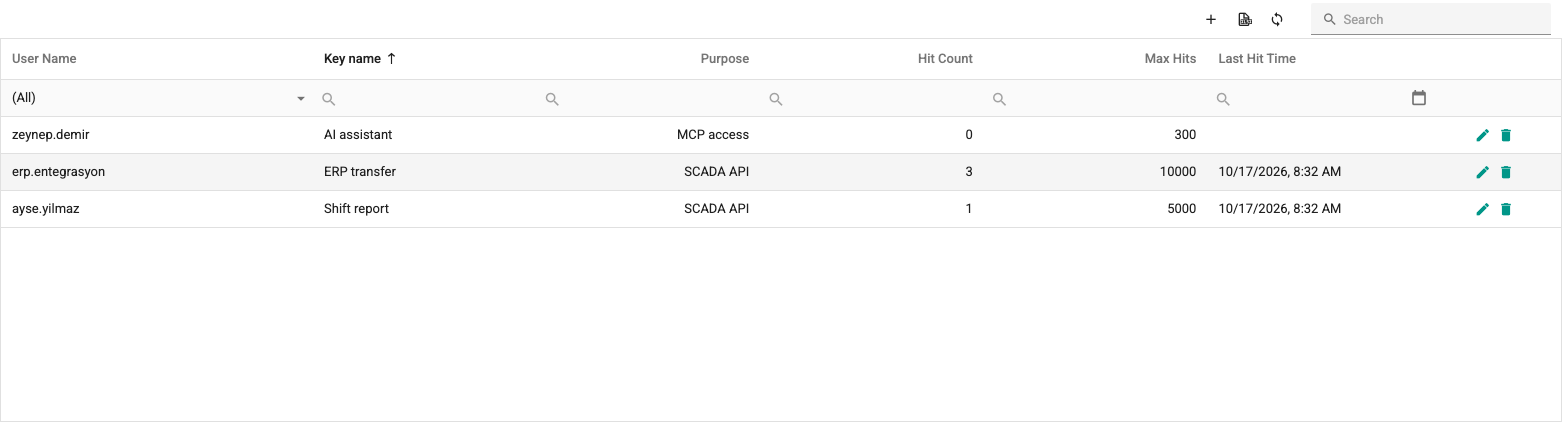
The table has the following columns:
- User Name: The user who owns the key.
- Key name: The name that identifies the key.
- Purpose: SCADA API or MCP access.
- Hit Count: The number of requests made with the key within a 10-minute period.
- Max Hits: The maximum number of requests that can be made with the key within 10 minutes. When this limit is exceeded, requests are rejected for a while. How the counter is reset is described on the REST API page.
- Last Hit Time: The time of the last request made with the key.
Keys that belong to SystemAdmin accounts are listed and can be changed only when you are signed in with a SystemAdmin account.
Adding a key
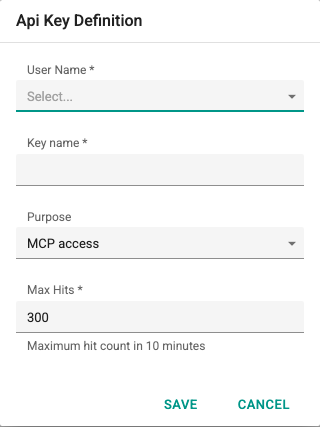
Clicking the + button above the table opens the Api Key Definition window. Fill in the following fields:
- User Name: The user who will own the key. Cannot be changed after saving.
- Key name: The name that identifies the key, up to 100 characters. Two keys of the same user cannot have the same name.
- Purpose: SCADA API or MCP access. The default is MCP access; for the REST API, select SCADA API. Cannot be changed after saving.
- Max Hits: The maximum number of requests that can be made within 10 minutes. The default is 300.
When you click Save, the API key created window opens and shows the key. The key is shown only once, in this window. Copy it with the Copy button, store it in a safe place, and then click I saved it, close. The key cannot be displayed again later; if it is lost, create a new key.
Editing and deleting
With the pencil icon on the right of each row you can change the Key name and Max Hits of the key. The user and the purpose cannot be changed.
The trash can icon deletes the key. Requests made with a deleted key are rejected immediately; this cannot be undone.
Filter the keys with the Search box above the table and with the filter row below the column headers; the list can be exported to Excel and reloaded with the refresh button.