
Alarm History
When you select History > Alarms in the menu, the Alarm History page opens and lists the alarm records raised for the defined alarms. The top of the page has the Filters section. Set the Start date and End date as on the Reporting screen, then click Update to run the query. The Full Screen button in the header expands the page to the whole screen.
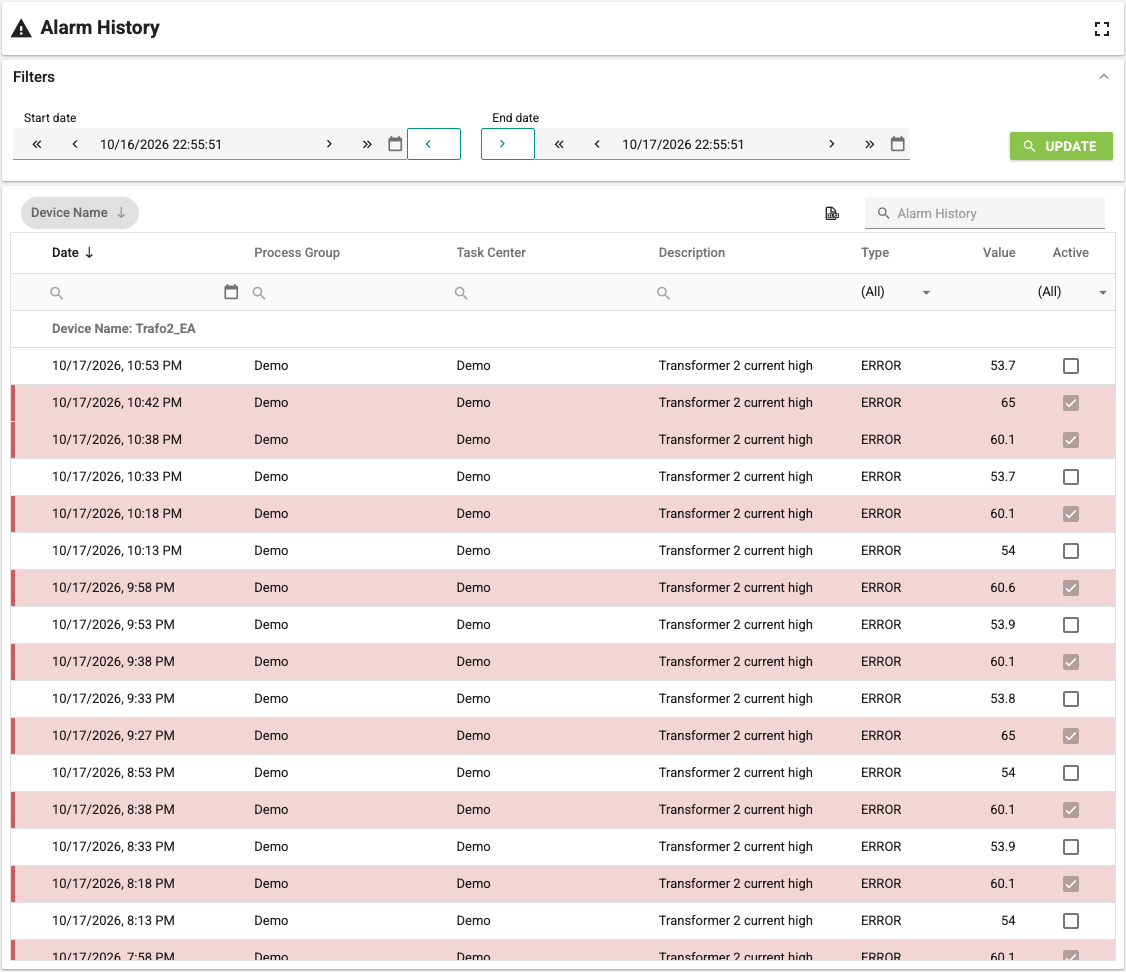
The table has the following columns:
- Date: The time of the alarm record.
- Process Group, Task Center and Device Name: The process group, task center and device of the tag the alarm belongs to (if defined).
- Description: The description in the alarm definition.
- Type: The alarm type (error, warning or alarm).
- Value: The tag value that caused the alarm to be raised or cleared.
- Active: If selected, the record shows that the alarm was raised; if not selected, it shows that the condition that raised the alarm has cleared.
You can group the records by dragging column headers to the grouping area above the table. The figure above shows a list grouped by the Device Name column; you can also group by Process Group or Task Center.
Filter the records with the filter row under the column headers; text typed in the search box at the top right is searched for in all text columns of the table. The next records are loaded as you scroll down the table.
Rows of active (raised) records are shown in the color of the alarm type: red for errors, yellow for warnings and orange for alarms. The colors are the same as the acknowledged alarm colors in the active alarm table. Cleared records are not colored.
The button to the left of the search box exports the table as an Excel file.