
WhatsApp Settings
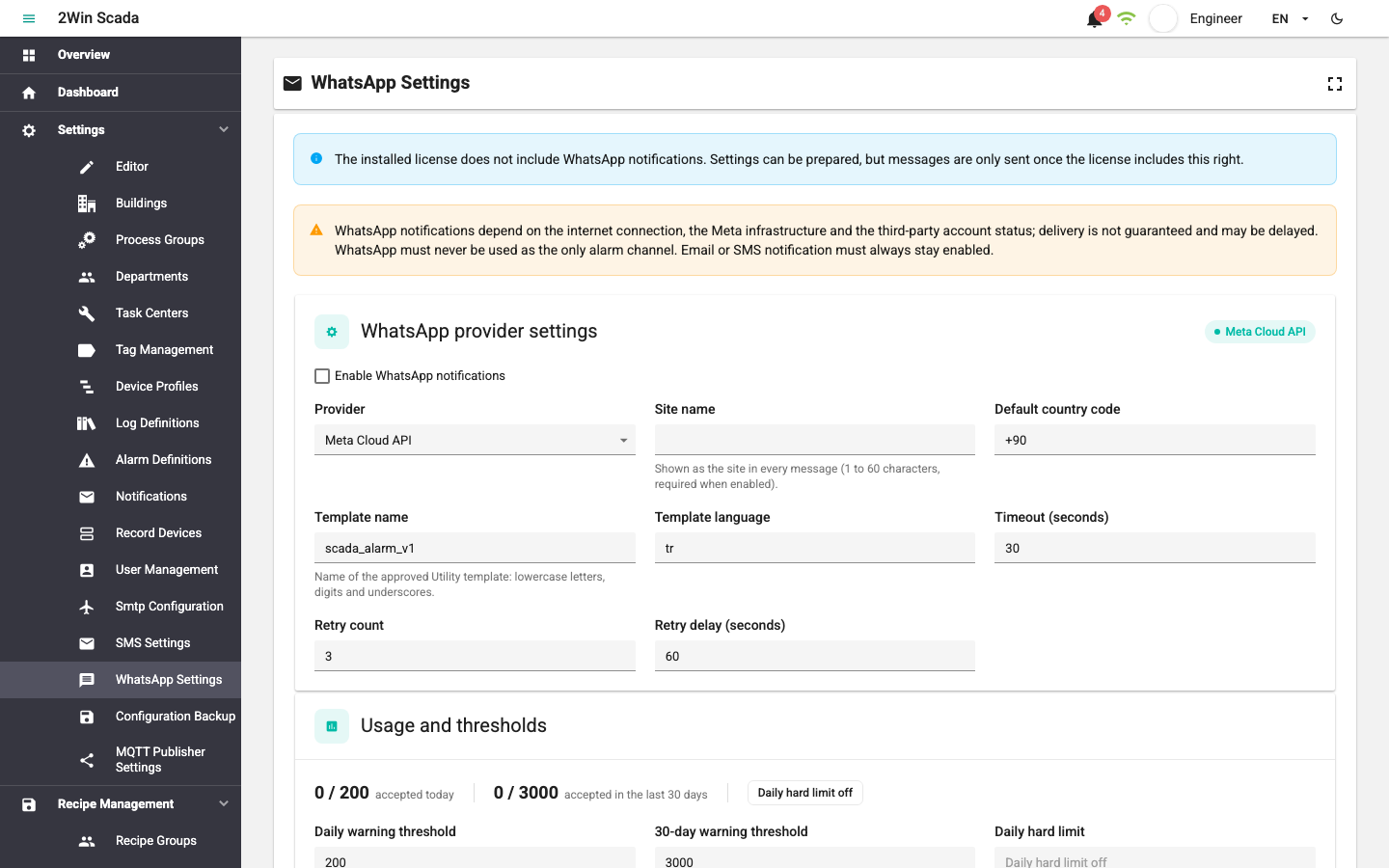
In addition to email and SMS, alarm notifications can also be sent via WhatsApp. The WhatsApp provider is defined on the Settings > WhatsApp Settings page. The page can be opened by users with the Editor role and by the SystemAdmin group.
WhatsApp messages are sent with a message template approved by Meta; the alarm details are placed in the template's variables, and no free text is sent. Messages go only to users who have given WhatsApp consent. As with SMS, messages are first written to a persistent send queue, and the notification service passes the queued messages to the provider; a slow response from the provider does not delay alarm processing.
WhatsApp cannot be the only alarm channel
WhatsApp notifications depend on the internet connection, the Meta infrastructure and the status of a third-party account; delivery is not guaranteed and may be delayed. WhatsApp must never be used as the only alarm channel. Email or SMS notification must always stay enabled.
This warning is also shown at the top of the settings page. In notification definitions, WhatsApp can be selected only as an additional channel; see Notifications.
License
WhatsApp sending is a separate right in the license. Without this right, the settings can be prepared, but neither alarm messages nor test messages are sent.
| Installed license | |
|---|---|
| Standard and Professional (current license model) | Included in the package; no new license file is needed. |
| Starter (current license model) | Added to the license as an add-on. |
| Old license models | Not available. Contact the 2WinScada team to have the license updated. |
If the installed license does not include the WhatsApp right, an information bar that starts with The installed license does not include WhatsApp notifications. appears at the top of the page. For license compatibility and the versions that licenses with the WhatsApp add-on work on, see License.
Before commissioning
Database and services: 2WinScada must have been upgraded to 2.10.0 or later with Setup, and the notification service must be running (see Upgrade).
Outbound internet access: HTTPS (TCP 443) outbound access to
graph.facebook.commust be open from the server the notification service runs on. No inbound connection is needed. If the plant network has no direct internet access, outbound access is provided through a DMZ or a corporate proxy. See Internet and Network Access.Meta account: A verified Meta Business account and a WhatsApp Business phone number are required. For access, a non-expiring System User access token is created in Meta.
Message template: In Meta, create a template in the Utility category, named
scada_alarm_v1with the languagetr, and have it approved. The template body must contain the five variables in this order:
2WinScada alarm bildirimi
Tesis: {{1}}
Önem: {{2}}
Cihaz: {{3}}
Alarm: {{4}}
Zaman: {{5}}
Bu mesaj otomatik gönderilmiştir. Ayrıntılar için SCADA ekranını kontrol edin.
The variables are filled as follows:
| Variable | Content |
|---|---|
{{1}} | The Site name setting |
{{2}} | The severity of the alarm: Uyarı (warning) or Hata (error) |
{{3}} | The name of the device the alarm belongs to |
{{4}} | The alarm description |
{{5}} | The alarm time (in the dd.mm.yyyy hh:mm:ss format) |
Line breaks and tabs in the variables are converted to a single space. A value longer than 120 characters is shortened and … is added at the end; an empty value is replaced with -. Process values are not added to the message.
SCADA cannot check whether the template is approved in Meta. The template name, language and number of variables are verified with a test message.
Settings fields
Fields on the WhatsApp provider settings card:
| Field | Description |
|---|---|
| Enable WhatsApp notifications | When off, no WhatsApp messages are created for alarms. |
| Provider | The service the messages are sent through. Only Meta Cloud API can be used for sending (see below). |
| Site name | The name shown as the site in every message; 1–60 characters. Required while WhatsApp is enabled. |
| Default country code | The code added to numbers written without a country code. Default +90. |
| Template name | The name of the template approved in Meta; lowercase letters, digits and underscores only. Default scada_alarm_v1. |
| Template language | The language code of the approved template; 2–15 characters. Default tr. |
| Timeout (seconds) | The maximum time to wait for a response from the provider; 1–120 seconds. Default 30. |
| Retry count | The number of retries after temporary errors; 0–10. Default 3. |
| Retry delay (seconds) | The base time between retries; 1–3600 seconds. Default 60. Retries are made after 1, 5 and 15 times this time. |
The template name and language must be exactly the same as the values approved in Meta.
Provider fields
When Meta Cloud API is selected, the provider card has the following fields. Fields marked with an asterisk (*) are required while WhatsApp is enabled.
| Field | Description |
|---|---|
| Phone number ID* | The WhatsApp phone number ID in the Meta panel. |
| Business account ID | The WhatsApp Business account ID in the Meta panel. |
| Access token* | The System User access token. |
| API base URL | If left empty, https://graph.facebook.com is used. If entered, it must be a full address that starts with https://. |
| API version | If left empty, v21.0 is used. When Meta retires old API versions, update it in this field. |
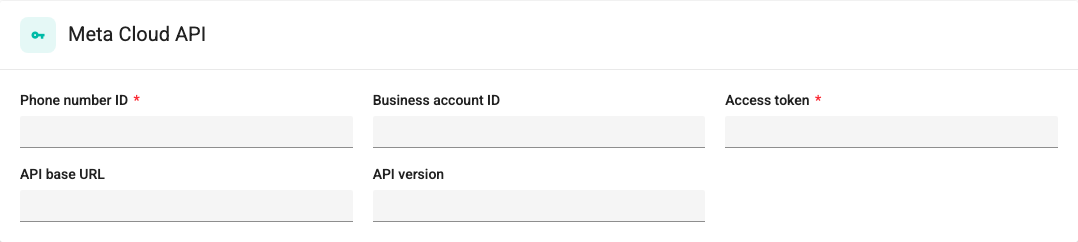
The access token is stored encrypted and is never sent back to the page. If a token is stored, A protected value is stored. Leave blank to keep it. is shown below the field. To change it, enter the new value; to delete it, click Remove stored value and save the settings.
Only Meta Cloud API is supported for sending. When one of the other providers in the list is selected, the settings cannot be saved while WhatsApp is enabled.
Changing the provider
When you select a different provider and save, the stored details of the previous provider are deleted.
To save the changes, click Save settings. Saving does not require the license right.
Usage and thresholds
Meta charges for template messages. The product does not show prices; see Meta for the current rates. The Usage and thresholds card shows the number of messages accepted by the provider and the warning thresholds:
- The accepted today and accepted in the last 30 days counts are shown with the related threshold (
count / threshold). Test messages are not counted. - When the Daily warning threshold (default 200) or the 30-day warning threshold (default 3000) is reached, a warning bar appears on the card and the notification service writes a warning log once a day. Sending does not stop.
- The Daily hard limit is optional; it is off by default. To turn it off, leave the field empty. After the limit is reached, WhatsApp messages created on that day are not sent; in the history they appear in the Validation failed status with the Daily WhatsApp limit reached error code. Email and SMS are not affected.
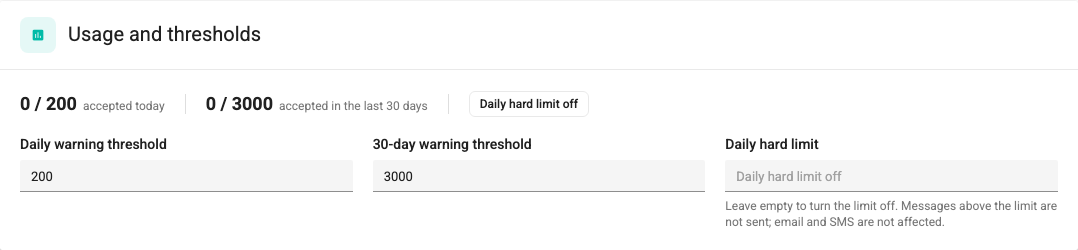
If the counters cannot be retrieved, Usage counters are not available. Check the Notification Service connection. is shown.
Template preview
The Template preview card shows what the message will look like with a sample alarm. Fill in the Severity, Device and Alarm fields and click Refresh preview; sample values are used for fields left empty. The preview uses the unsaved site name and language; line breaks and long values are cleaned up as in the real message.
Recipient consent
A WhatsApp message is sent only to users whose WhatsApp consent is recorded and whose consented number matches their current phone number. Consent is recorded in two ways:
- By the user: In the WhatsApp alarm notifications section of the My Account page, the user reads and accepts the consent text, and can withdraw it at any time. See My Account.
- By the administrator: With the WhatsApp button in the Users table, the administrator records or withdraws consent by entering the reference of a signed form or written approval. See User and Group Management.
To record consent, the user must have a valid mobile phone number.
- When the phone number changes, the consent becomes invalid and its status is shown as Consent needed again. Consent must be obtained again for the new number.
- When consent is withdrawn, messages that have not been sent yet are not sent; they appear as Cancelled in the history.
- Recipients without consent are not skipped silently. For these recipients, a record in the Validation failed status is created in Notification History; the error code is Recipient has no WhatsApp consent or Phone number changed after consent.
The WhatsApp consent column in the Users table and the section on the My Account page appear only when the installed license includes the WhatsApp right.
Test message
The Test message card lets you try the saved settings with a real send:
- Enter the provider details, select the Enable WhatsApp notifications check box and click Save settings.
- Type a number that uses WhatsApp in the Test phone field. The field accepts only digits,
+, parentheses and spaces. - Click Queue test message.
- The card shows the number of queued, invalid and duplicate messages, and any warnings.
- Follow the result on the History > Notification History screen by selecting WhatsApp as the Channel (see Notification History).
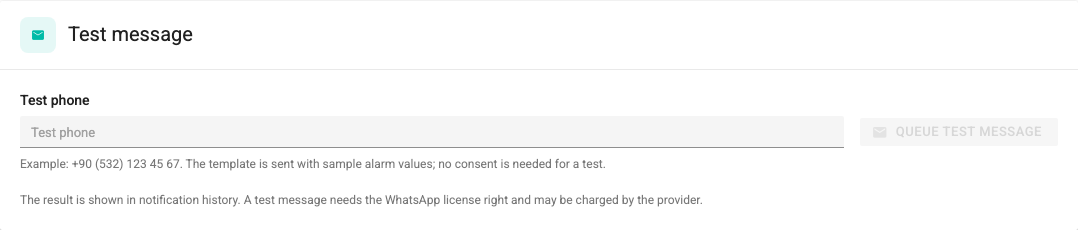
- The test message uses the approved template with sample alarm values. No recipient consent is needed for a test.
- While the default country code is
+90, only Turkish mobile phone numbers are accepted (e.g.+90 5XX XXX XX XX). For an invalid number, the warning Enter a valid mobile phone number. appears. - The button is enabled only while Enable WhatsApp notifications is selected and a provider ready for sending is selected.
- A test message requires the license right and may be charged by the provider.
Warnings that may appear on the card:
| Warning | Meaning |
|---|---|
| WhatsApp notifications are disabled in the saved settings. | The enable check box is selected, but the settings have not been saved. Click Save settings first. |
| The installed license does not allow WhatsApp messages. | The license does not include the WhatsApp right. |
What Accepted means
When the message is passed to Meta, the status of the record becomes Accepted. This shows that Meta accepted the request; it does not show that the message reached the phone. Meta reports delivery and read information only through an inbound connection to the SCADA server (webhook). Because no inbound connection to the SCADA server is opened, this information does not arrive, and the final status of WhatsApp records stays Accepted.
Error codes
For failed sends, Meta's error code is shown in the Error code column of Notification History in the Meta:<code> format.
| Error code | Meaning | What to do |
|---|---|---|
Meta:190 | The access token is invalid or has expired. | Enter a new System User access token. |
Meta:132001 and template errors | The template was not found or the variables do not match. | Check the Template name, the Template language and the approval status of the template in Meta. Not retried. |
Meta:130429 and rate limit errors | Rate limit or temporary error. | Retried automatically. If the error persists, check the status of the Meta account. |
Meta:131026 and recipient errors | The recipient does not use WhatsApp or cannot be reached, or the account is restricted. | Check the recipient's number and the messaging limits of the Meta account. Not retried. |
Meta:131042 | A problem with the payment method of the Meta account. | Check the payment details in the Meta account. |
| Provider unavailable | WhatsApp was turned off or the provider was changed while the message was in the queue. | Check the settings. |
| Not allowed by license | The license lost the WhatsApp right before the message was sent; the record is in the Suspended by license status. | Check the license. These records are not sent again. |
Network errors, timeouts and temporary provider errors are retried as many times as the Retry count; when the retries are used up, the record becomes Failed. An internet outage does not affect alarm processing or email/SMS sending.
WhatsApp messages suspended by license
If the license loses the WhatsApp right, unsent WhatsApp messages are moved to the Suspended by license status. Unlike SMS, suspended WhatsApp messages cannot be re-queued: a delayed alarm message has no operational value and incurs charges. These records stay only in the history and are deleted after 30 days.
History and retention
- Like email and SMS, WhatsApp delivery history is kept for 30 days; older records are deleted automatically.
- Phone numbers are shown masked in the history.
- Full phone numbers, message contents and the access token are not written to the service logs.
Backup
The WhatsApp configuration consists of two separate modules in the backup (see Backup and Restore):
- WhatsApp Settings: The provider settings and the access token.
- WhatsApp Recipient Consents: The users' consent records. This module depends on the Users module.
The access token is included in the backup; keep the backup package as confidential information. After restoring on another installation, send a test message; if it fails, enter the token again. The WhatsApp selection in notification definitions is carried with the Notifications module. Backups taken on versions before WhatsApp are restored with WhatsApp turned off.
Personal data protection
The phone number and the alarm information are personal data. Meta may process this data abroad. As the data controller, the operating company determines, with its own legal department, the legal basis for the transfer abroad and the information and consent text. For this, the product provides consent records, masked history, 30-day retention and tools to withdraw consent.
This note is not legal advice.
Troubleshooting
| Symptom | Possible cause and solution |
|---|---|
| WhatsApp settings could not be loaded. | Check your session and your permissions; refresh the page. |
| WhatsApp settings could not be saved. | Check the Site name, Template name, Template language and the required provider fields. If an API base URL is entered, it must start with https://. |
| The WhatsApp test message could not be queued. | Check that the notification service is running. |
| No WhatsApp records are created | Check the Enable WhatsApp notifications setting, the WhatsApp right in the license (without the right no record is created), the WhatsApp selection in the notification definition and that users are added to the notification. |
| Record in the Validation failed status | Look at the Error code column: if the recipient has no consent or the number has changed, obtain consent again; if the number is invalid, correct the phone number in the user record. |
| Record is Accepted but the message did not arrive | Check that WhatsApp is used on the recipient's number and the messaging limits of the Meta account. Delivery information does not reach SCADA. |