
Templates and Blocks
The page editor offers ready-made content so that frequently used designs do not have to be drawn again. This page describes page templates, blocks, KPI cards, composite components and moving pages as packages. For the general use of the editor, see the Page Editor page.
| Kind | What it adds | After adding |
|---|---|---|
| Page template | All or a large part of a page | An independent copy on the page. Even if the template changes later, the page does not change. |
| Block | A single section: value card, control station, navigation bar and so on | An independent copy. |
| KPI card | A single KPI card | An independent copy. |
| Composite component | A box and its content saved to the library | Stays linked to the template. When the template is updated, all pages that use the component are updated. |
These are in the widget list in the left panel of the editor, under the widget categories:
- Composite Components (Beta): the component library.
- Blocks: ready-made section-size blocks.
- Custom Blocks: KPI Cards and Page Templates.
These three sections are not shown while a component template is being edited.
Page Templates
Ready-Made Templates
The templates that come with the system are divided into categories:
| Category | Templates |
|---|---|
| Starter | Dashboard - 4 KPI + Trend, Overview + Detail, Alarm Page, Production Line, Operator Downtime Panel, Operator Panel (Touch), Shift Report, Daily Energy Report, Alarm Report, Empty Layout - 2 Columns, Empty Layout - 3 Columns |
| Energy | Energy Overview, Energy Detail, Energy Analyzer Detail (LV), Energy Analyzer Detail (MV), Energy Consumption Dashboard |
| Process | Compressor Overview, Compressor Detail |
| Utilities | Natural Gas Detail, Steam Detail |
System templates cannot be deleted. On every start, the server restores the system templates to the versions that came with the installation. Therefore, instead of changing a system template, save the page as your own template.
Alarm Page shows the alarm summary on the left and an Alarm table of all devices with acknowledge on the right.
Production Line is made for one line or machine: a Page time picker in the header (last 8 hours), then a Downtime timeline, a Downtime reason Pareto, a line speed trend and the alarm table of the page device; the timeline, the Pareto and the trend follow the picker. Operator Downtime Panel is made for panel PCs: Downtime reason entry for the last 8 hours, the run/stop timeline and the page device's alarms with acknowledge.
These two templates use relative tag names: .Running with a run/stop log and .Speed with a history log (Production Line only). Insert the template with the line's or machine's prefix as Tag Prefix (e.g. Internal.Line1 → Internal.Line1.Running); if your tag names differ, change them in the widget settings afterwards. The downtime widgets need the downtime reasons license (Standard or Professional) and Downtime reasons turned on in the machine's log definition (see Downtime Reasons).
Operator Panel (Touch) is an operator page that works on panel PCs and in desktop browsers: at the top an equipment name band and the Alarm banner, in the middle equipment status, motor start/stop, speed setpoint and safety and interlock cards, at the bottom large navigation buttons (the alarms button shows the active alarm count as a badge). After inserting it, bind the card tags and select the target of the detail page button. See Touch Panels.
Energy Consumption Dashboard is a consumption dashboard prepared for four transformers. It contains yearly KPI cards, a stacked monthly consumption chart, a donut chart showing the share of the transformers and a monthly table with a total column. The charts show the calendar year and open paused (live mode off).
The template uses sample tag names: ENERJI.TRAFO_01.kWh … ENERJI.TRAFO_04.kWh and, in the KPI cards, a consumption snapshot for ENERJI.TOPLAM. Because these are full (absolute) names, they are not affected by the Tag Prefix parameter. After adding the template, replace these names with the names of your own meter tags using Edit > Modify Page Content > Replace a string. The notation of consumption snapshot names is described on the Consumption Snapshots page.
Printable Report Templates
Shift Report, Daily Energy Report and Alarm Report are made for printing on paper: they are flexible (responsive) pages, and the cards are stacked full width in a single column, so the printout is fitted to the paper width (see Printing a page). The {{equipmentName}} placeholder in the header is filled with Equipment Name; because the tag names are relative, insert the template with the line's, machine's or meter's prefix as Tag Prefix.
| Template | Contents | Tags read |
|---|---|---|
| Shift Report | Page time picker (default last 8 hours; presets last 8 hours, today, this week), run/stop timeline, downtime Pareto, line speed trend and a table of the hourly average, minimum and maximum line speed. All of them follow the page time. | .Running (run/stop log), .Speed (history log) |
| Daily Energy Report | Page time picker (default today; presets today, this week, this month, last month), three value cards with the consumption of today, yesterday and this month (consumption snapshots), an hourly consumption chart compared with the previous period and an hourly consumption table with the period total. The chart and the table follow the page time; the cards show fixed periods and do not follow the picker. | .KWH (energy counter with a history log) |
| Alarm Report | Read-only Alarm table of the page device: all states (active, unacknowledged and ignored alarms), up to 500 rows, no acknowledge button. There is no page time picker; the table shows the live alarm list, that is the alarm state at the moment the page is opened or printed, not an alarm history. | — |
The table in the Alarm Report shows the device of the Tag Prefix entered when inserting the template; without a prefix it uses the device in the tag prefix the page is opened with. The downtime widgets of the Shift Report need the same license and log setting as the Production Line template. If your tag names differ, change them in the widget settings afterwards.
Creating a New Page from a Template
- Open the Create new page window with File > New and type the page name.
- In the Start field, select From a page template. The template list opens. You can narrow the list with search and the category filter.
- Select a template. If you like, fill in the Tag Prefix and Equipment Name parameters (see Template parameters).
- Confirm the window. The page is created, the template is added to the page and the page is saved.
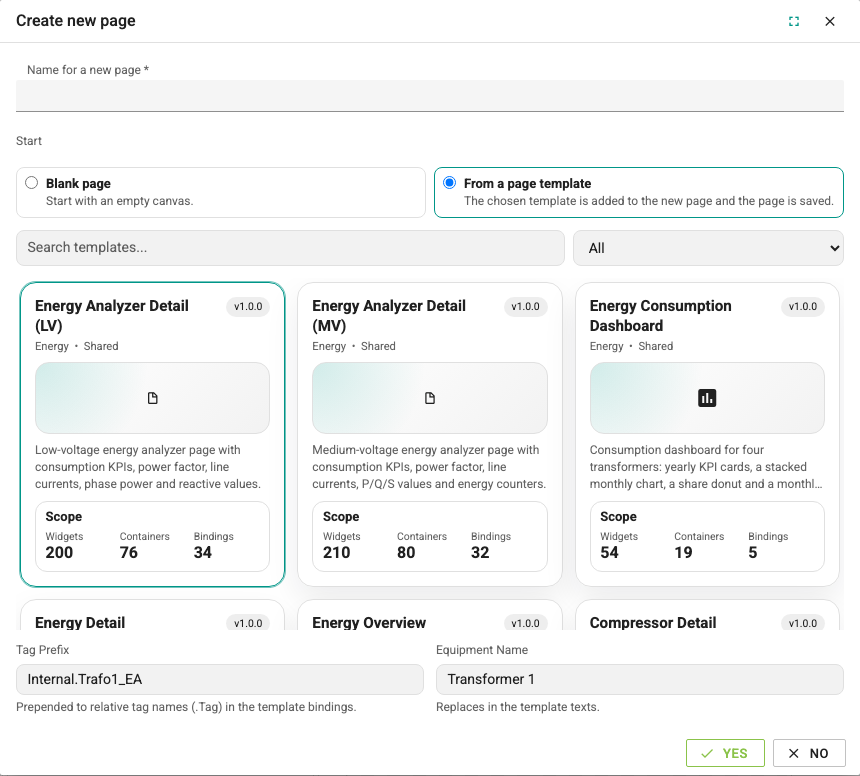
If the template cannot be added, the page is still created and a warning is shown, for example The template was added but the page could not be saved. Try saving your changes.
Adding a Template to an Existing Page
In the Custom Blocks section, click the Open Page Templates button. The Page Templates window lists the templates as cards. The window has search, a category filter and the Favorites Only option. The star on a card adds the template to favorites. The card shows whether the template is Draft or Shared and the Scope information (number of widgets, containers and bindings).
A template is added in three ways:
| Way | Behavior |
|---|---|
| Quick Apply | The template is added immediately, without asking for parameters. |
| Preview | The Template Preview & Dry Run window opens. First the parameters are filled in, then the template is applied. |
| Drag and drop | The card is dragged to the desired place on the canvas or into a container. Locked containers are skipped; the template is added to the next unlocked container above (see Lock). |
If a single container is selected, the template is added into it; if nothing is selected, it is added to the root of the page. The template does not delete the existing widgets on the page.
If the template contains event code, from 2.11 the page can be saved only with a SystemAdmin account; this also applies to creating a new page from the template. Linked composite component copies are outside this rule (see Who can add event code).
The preview window has two apply buttons:
- Apply to Empty Page: enabled only while the page is empty.
- Safe Merge: enabled while the page has content. The template is added to the existing content.
The window also shows the template version, the Template Diff summary (Current Page Widgets, Estimated Additions, Widgets After Apply), the CSS classes used in the template (Tokens) and, if any, the Changelog.
Adding to a page with content
Quick Apply, drag and drop and Safe Merge also work on a page with content; the template is added to the existing content.
Template Parameters
The Template Parameters in the preview window are applied once, when the template is added. After a value is changed, the preview is refreshed with Refresh Preview. Parameters left empty do not change the template.
| Parameter | Effect |
|---|---|
| Title | Replaces the {{title}} placeholder in the template texts. |
| Tag Prefix | Added in front of the relative tag names in the template (rules below). An alarm table whose device filter is Device in the page tag prefix is pinned to the device of the entered prefix (Device list), so the inserted page shows the right device's alarms even when it is opened without a prefix. |
| Equipment Name | Replaces the {{equipmentName}} placeholder in the template texts. If the template has no such placeholder and the root of the template is a card or a header, the name becomes the text of the card or header. |
| Accent Color | Changes the accent color of the added section; the rest of the page is not affected. While Use the theme accent is selected, the theme color is used. |
Tag Prefix is added in front of these tag names:
- names that start with a dot (
.Hiz), - consumption and history snapshot names (
__cons.…,__hist.…), - names that contain no dot at all (
Hiz).
Full names with dots (Hat2.Pompa01.Hiz) and names starting with @NOP:: do not change.
| Name in the template | Tag Prefix | Result |
|---|---|---|
.Hiz | Hat1.Pompa01 | Hat1.Pompa01.Hiz |
Hiz | Hat1.Pompa01 | Hat1.Pompa01Hiz (no dot is added in between) |
Hat2.Pompa01.Hiz | Hat1.Pompa01 | Hat2.Pompa01.Hiz |
The new page window asks only for Tag Prefix and Equipment Name.
Your Own Page Templates
To save the open page as a template, use the Save Page As Template command in the Custom Blocks section or in the File menu. The whole current content of the page is taken into the template. If the page contains event code, saving it as a template needs a SystemAdmin account from 2.11.
The General tab of the save window has these fields:
| Field | Description |
|---|---|
| Template Name | The name shown in the list. |
| Category | Selected from the list, or a new category is typed. |
| Description | A short description shown on the card. |
| Icon Key | The icon shown on the card when there is no thumbnail. |
| Visibility | Draft: only you see the template. Shared: all editors see the template. |
| Thumbnail Source | Auto Preview, System Image or Icon. |
In the Translation tab, the name, category and description of the template can be translated for the current interface language.
Page templates can use only the CSS classes the system allows. If there is a class that is not allowed, the template is not saved and the error Unsupported utility tokens were used in the page template. is shown.
These operations are available for your own templates:
- Publish: makes a draft template shared.
- Edit (pencil icon): opens the Edit Template Metadata window. In this window only the name, category, description, visibility, image and translations change; the content of the template does not change. To change the content, edit the page and save it as a new template.
- Delete Template (trash can icon): permanently deletes the template after confirmation.
A template can be edited and deleted only by the user who created it or by a system administrator.
Pages When a Template Changes
Page templates and blocks are copied into the page. After they are added, there is no link between the page and the template:
- Editing or deleting a template does not change the pages created with it.
- Updated system templates that come with a new version do not change existing pages either. To use the updated template, you must add the template to the page again.
The only content updated together with the template is the linked copies of composite components.
Template Packages
Page templates can be moved to another installation as a .zip package.
- Single template: click the export icon of the card.
- Several templates: click the Selection Mode button and select the cards, then use the More > Export Selected command. The same menu also has Select All and Clear Selection.
To import a package:
- In the Page Templates window, click the Import button and select the
.zipfile. - In the Import Template Package window, check the file name, the Trust and Signature status, the templates in the package and, if any, the Issues list.
- Click the Import button. If there is a Blocking issue, the button stays disabled.
If the templates in the package contain event code, the import needs a SystemAdmin account; for other users the package is rejected without adding any template. The code is not compared with a template of the same name in the installation; only code of linked composite component copies that already exists in the component template in the installation does not count as new (see Who can add event code).
Imported templates are added as Draft. Templates from packages whose signature cannot be verified are quarantined; the Trust field shows Quarantine. Quarantined templates cannot be published and their information cannot be edited. Import packages only from sources you trust.
Composite components and blocks are not listed in this window, so they cannot be added to a package. Page templates are also included in the configuration backup as the Page Templates module.
Blocks
Clicking a block in the Blocks section adds it into the selected container (or to the page if nothing is selected). Blocks can also be dragged and dropped at the desired place; a dragged block skips locked containers.
The tag bindings of blocks come empty. When a block is added, the first widget with an empty binding is selected automatically. This way the tag can be entered right away in the Bindings (Rules) section.
From 2.11.0 the colors of newly inserted blocks come from the theme, and status pills use readable text tones; the blocks are readable in the light and the dark theme. Blocks inserted earlier do not change. See Status colors.
Dashboard sections:
| Block | Content |
|---|---|
| Status list | A card that lists equipment with a Normal/Alarm status text |
| Alarm summary | Active, unacknowledged and warning alarm counts |
| Alarm banner | The newest active alarm in one row with a button that acknowledges only this alarm, a severity pill and the active and unacknowledged alarm counts; contains no event code |
| Two columns (side panel + content) | A side panel on the left and a content card next to it |
| Simple value box | A title and the actual value |
| Value box with set | The actual value, a warning color and an editable set value |
| Value card | A label, a large value with unit and a progress bar |
| Equipment status card | A Running/Stopped badge and three measurement tiles |
| Gauge row x3 | Three circular gauges with title and unit |
| Tank level card | A tank level graphic; level, volume and temperature |
| Target vs. actual | A completion ring; the actual and target value |
| Control panel | A status badge, an auto/manual switch, Start/Stop buttons with confirmation |
| Energy summary strip | Power, energy, cost and efficiency tiles |
| Info / warning banner | A full-width notification card |
| Shift summary | Produced, reject, downtime and OEE tiles |
Manual control blocks:
| Block | Content |
|---|---|
| Motor Start/Stop Station | Momentary START/STOP buttons, a run lamp, Running/Stopped/Fault badges |
| Hand-Off-Auto Selector | A HAND / 0 / AUTO rotary switch with confirmation that writes to two mode tags, and mode badges |
| Speed Setpoint (Potentiometer) | A 0-50 Hz speed reference with set and actual values |
| Valve Local Control | OPEN/CLOSE pulse buttons with limit switch lamps, status badges, a position set knob |
| Conveyor Line Control | START/STOP/JOG buttons, a FORWARD-0-REVERSE selector with confirmation, Running/Stopped/Jam badges |
| Jog/Inch Station | JOG FORWARD/REVERSE buttons that run while held down, direction lamps, a jog speed potentiometer |
| Pump Local Panel | A HAND / 0 / AUTO selector, START/STOP buttons, status badges, pressure and flow |
| Interlocks & Reset | A panel showing emergency stop, guard door, safety relay and ready states, and a RESET request button with confirmation |
Safety
The push buttons and selectors in the manual control blocks are not safety or emergency stop devices. The Interlocks & Reset block only shows the state. Interlocks and emergency stop must be provided on site, in the PLC and in the safety circuit.
Page navigation blocks:
| Block | Content |
|---|---|
| Navigation Bar (Back / Home / Forward) | Back, Home and Forward buttons that work on every page |
| Page Header with Navigation | A back button, title and subtitle, a link to the parent page and a Home button |
| Page Card Grid x3 | Three cards, each opening a SCADA page |
| Tab Page Switcher | Four tab-style buttons that switch between sibling pages |
| Quick Links to System Screens | Shortcuts to alarm history, trends, the run/stop report, operation history, device and tag monitoring |
| Side Menu | Home, five page links and an Alarms shortcut |
The target pages in these blocks are selected in the Navigation (To) section of each button.
KPI Cards
The Custom Blocks > KPI Cards section has three cards: KPI - value, KPI - value + trend and KPI - status. KPI cards are added like blocks; after adding, the first widget with an empty binding is selected.
Composite Components
A composite component is a Box widget saved to the library together with its content. The same component can be used on many pages. In each copy, only the parameters exposed to the outside (color, text, tag and so on) are changed.
Copies added from the library stay Linked to the template. When the template is updated, all pages that use the component show the new version, both in the editor and in the viewer.
Creating a Component
- Select a single Box on the page. The widgets in the box become the content of the component.
- Use the Save as Component command in the Composite Components section or in the File menu. The command is enabled only while a single box is selected.
- Fill in these fields in the window:
- Component Name: required and must be unique in the library.
- Display Name: if left empty, the component name is used.
- Category: used in the library filter.
- Description: a short description shown on the card.
- Version: read-only.
- Check the Share with team option. If selected, the component appears in the library of all editors. If cleared, the component becomes a Draft and only you see it.
- Click the Save button.
The box on the page stays as it is and is not linked to the template. For a linked copy, add the component from the library. The parameters are defined after saving, in the component template editor.
Create Composite
The Modify > Create Composite command collects the selected boxes in the same container into a single composite component on the page. This component is not saved to the library and is not linked to any template (Template Link: Detached).
Adding from the Library
The Composite Components section shows the three most recently used components. For the full list, click the Open Composite Widgets button. The window that opens has search (Search components...), a category filter and paging. Each card shows the name, category, description, version and last update date of the component. Draft components have a Draft label.
Operations on a card:
| Operation | Description |
|---|---|
| Add to Page | Adds a linked copy of the component to the page. The card can also be added by dragging it onto the canvas. |
| Share with team | Visible only on your own draft components; shares the component with all editors. |
| Edit Component | Opens the component template editor. |
| Delete Template | Deletes the component from the library. |
A component that is used on any page cannot be deleted; the warning This template is used by saved pages and cannot be deleted. is shown.
Component Parameters
When a composite component on the page is selected, the Component Parameters section opens in the right panel:
- General: the name of the component, the Template Link (Linked or Detached) and the number of inner widgets.
- Tag Prefix: added in front of the tag names in the component. The rules are the same as for the template parameters. The tag prefix of the page comes in front of this one too. The widgets in the component receive their live values with these full names; the same tag does not need to be bound separately on the page. Where
{{composite.tagPrefix}}is written in the link (Navigation (To)) settings of inner widgets, this effective prefix is used; for an example see Shared equipment window. - Exposed Props and Exposed Bindings: the fields exposed in the template and their values in this copy. Each row shows the inner widget and the field name as the target. A changed value is returned to the template default with Reset to default.
- Effective Tag Preview: shown under the binding rows. It is the full name of the entered tag after the page prefix and Tag Prefix are applied.
- Template: the template version when the copy was added and the current version (Template version: inserted …, current …). If the template has changed since then, an updated label appears.
- Actions: the Edit Component Template button.
Changes made in this section affect only the selected copy. Parameters not changed in the copy follow the default in the template. When a default changes in the template, these copies use the new default.
The Events section is not shown for the composite component itself. The event code of inner widgets can be edited separately in each copy if it is exposed in the template as a parameter of type Code (see Event Code). Code parameters are event code: from 2.11, only SystemAdmin accounts can change them, and they are shown read-only to other users (see Who can add event code).
Component Template Editor
The component template editor is opened in two ways:
- The Edit Component button on the library card.
- The Edit Component Template command in the File menu or in the Component Parameters section, while a linked component is selected on the page.
If the open page has unsaved changes, you are first asked There are unsaved changes on the current page. Save the page before editing the component template?. If you confirm, the page is saved and the component editor opens.
In the component editor, the canvas contains only the content of the component. Inner widgets are selected and edited as on a normal page. The File menu has three commands:
| Command | Description |
|---|---|
| Save | Saves the template. |
| Component Settings | Edits the information and parameters of the component. |
| Back to Editor | Returns to the page that was open before you came to the component editor. If there are unsaved changes, a confirmation is requested. |
The Component Settings window has three tabs:
- General: component name, display name, category, version, description and the Share with team option.
- Exposed Props: properties that can be changed in copies. With Add Prop, first select the Inner Widget, then the Property / Binding Field; the suggested label can be changed. Then enter the Type (Text, Number, Boolean, Color, Select, Code) and the Default Value. For the Select type, Select Options must be defined. Event code fields are of type Code; from 2.11, only SystemAdmin accounts can change the Default Value field of a parameter of type Code.
- Exposed Bindings: tag bindings that can be changed in copies. With Add Binding, select the inner widget and the binding field. The Default Tag is typed by hand or selected with Pick Tag.
The window contains the warning Template changes here affect every linked component that uses this template.. After the window is closed, use the Save command to make the changes permanent.
Version and Conflict Check
Every component template has a version number (for example, 1.0.3). Every save that changes the content increases the last digit of the version by one. Saves that change only information such as the name or description do not change the version.
If another user saves the same template while you are editing it, your save is rejected and a window titled Template was updated opens: This component template was saved by someone else while you were editing it. Your changes were not saved. Do you want to load the latest version? (Unsaved changes will be lost.)
- If you confirm, the latest version of the template is loaded and your changes are discarded.
- If you cancel, you continue editing, but every save is rejected for the same reason until the latest version is loaded. Note your changes, load the latest version and apply the changes again.
The new saved version is used in the linked copies on all pages. Parameters changed in the copies are kept. The viewer loads the current version of the template when the page opens. A browser that has the application open at that moment shows the new version when the browser page is refreshed. If the template cannot be loaded, the copy is shown as it was when it was added to the page.
Page Packages
All pages can be exported as a single .zip package and imported into another installation. The commands are in the menu that opens when you right-click a page in the page list in the left panel of the editor. The commands work only with the Editor role.
| Command | Description |
|---|---|
| Export All Pages (.zip) | Writes all pages and folders to the package, with their content, order, landing page information and role assignments. |
| Import Pages (.zip) | Checks the selected package. Shows the total number of pages and the number of pages to add (Add) and to update (Update), and asks for confirmation. |
When importing, pages are matched by name:
- If a page with the same name exists, its content, folder and order are replaced with the version in the package. This cannot be undone.
- If no page with the same name exists, a new page is added.
- The role assignments of the page are replaced with those roles from the package that exist with the same name in the target system.
- If the package has a landing page, it becomes the landing page.
- If a page in the package contains event code that the page with the same name on the target system does not contain, the import needs a SystemAdmin account. For other users the whole package is rejected without changing any page (see Who can add event code).
Take a configuration backup before importing.
Composite components
The package does not contain the composite component templates used by the pages. Linked components are linked to the template by ID number. If this component template does not exist in the target system, the component is shown as it was when it was added to the page.