
Reporting
Archived tag data (tags with a log definition) is reviewed on the screens under the History item in the menu:
| Menu | Content |
|---|---|
| Trend Analysis | Shows tag history as a chart and a table. Most of this page describes this screen. |
| Consumptions | Shows the periodic consumption of counter and instantaneous consumption tags as a chart and a table. See Consumptions. |
| Consumption Pivot | Shows consumption as a pivot table by period and tag. See Consumption Pivot. |
| Runtime Analysis | Analyzes the running and stop times of machines. See Runtime Analysis. |
| Alarms | See Alarm History. |
| Operations | See Operation History. |
| Notification History | See Notification History. |
For a tag to appear on these screens, it must have a log definition (see Log (Archive) Definitions).
Trend Analysis
This screen shows the log records kept for tags as a chart and a table.
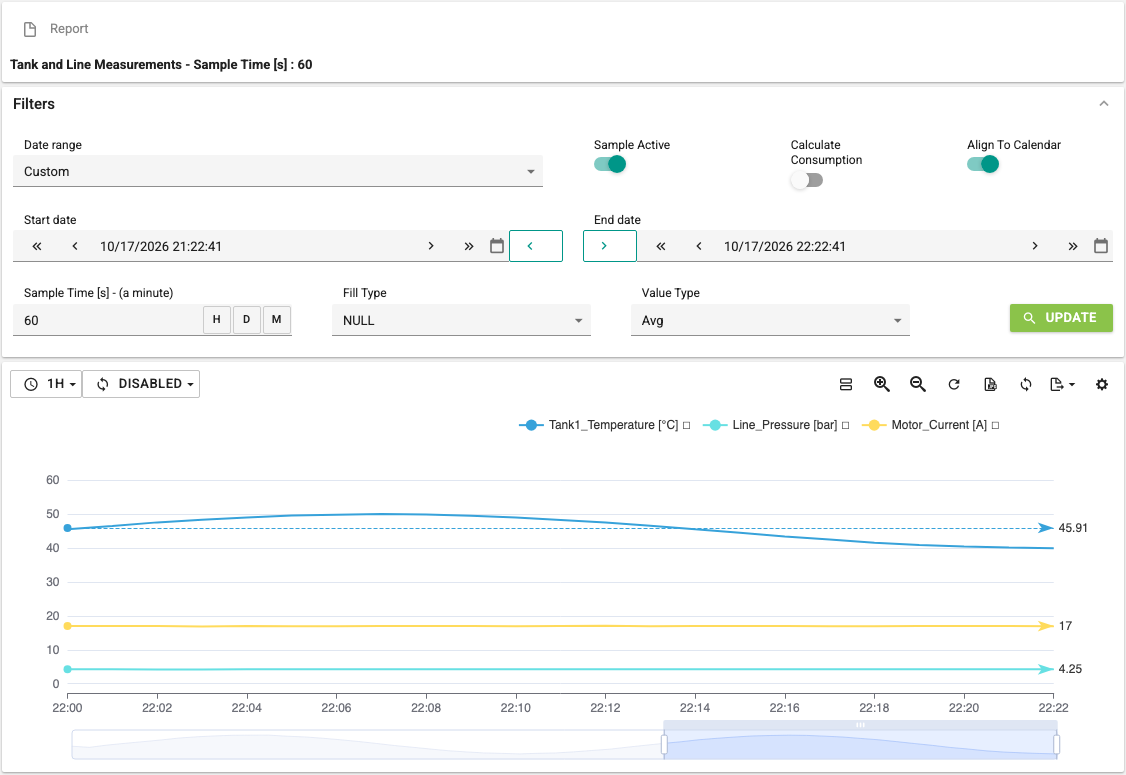
At the top of the screen is the report menu, below it the collapsible Filters section, and at the bottom the chart and table section.
Report menu
A report is a saved set of selected tags and sampling settings under a name. Below the Report menu, the name and the sample time of the open report are shown; if no report is open, the text No Report Selected appears.
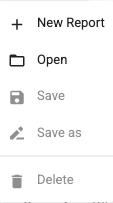
The Report menu has the following commands:
- New Report: Creates a new report with the selected tags and the filter settings other than the dates.
- Open: Opens the Report Selection window. Reports are listed by report group; you can search by name in the window. The selected report opens with the Ok button, and the report's tags and log definitions become selected.
- Save: Saves the open report with the selected tags and the current filter settings, after confirmation.
- Save as: Creates a new report with the settings of the open report.
- Delete: Deletes the open report, after confirmation.
Save, Save as and Delete can only be used while a report is open. To create, save and delete reports, the user's group must have the Editor or ReportManagement role.
When you select New Report or Save as, the window below opens.
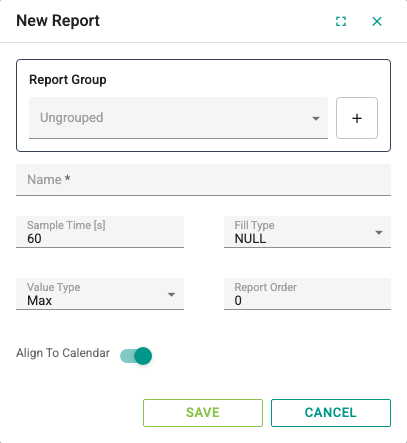
- Report Group: The group the report is listed under. If left empty, the report is listed under the Ungrouped heading. The + button next to it (Add / Manage Group) opens the window where report groups are added, edited and deleted. You set the Name and Group Order of the groups; a group that is in use cannot be deleted.
- Name: A unique name for the report.
- Sample Time [s]: The period (in seconds) over which records are combined in the query. It is applied to the query if Sample Active is on in the filters. For example, for a tag with a 30-second log interval, if you choose a sample time of 60 seconds, the two values in each 60 seconds are reduced to a single value with the function set by Value Type.
- Fill Type: Sets how a gap is filled when there are no records within a sample time:
- NULL: The gap is filled with an empty value (null).
- PREV: The gap is filled with the previous value.
- LINEAR: The gap is filled linearly between the previous and the next value.
- ZERO: The gap is filled with 0.
- Value Type: Sets which value is calculated from the records in the sample time:
- Min: The smallest value.
- Max: The largest value.
- Avg: The average of the values.
- Sum: The sum of the values.
- Count: The number of records.
- Report Order: The order of the report within its group.
- Align To Calendar: Aligns the sampling periods to the calendar (see Filters).
After setting the options, click Save; the Cancel button closes the window without saving. The saved report opens with the selected tags.
Filters
The Filters section below the report menu contains the date range and the sampling settings of the query.
Select a predefined range in the Date range list: Yesterday, Today, Last Shift Day, This Week, Last Week, This Month, Last Month, Last 3 Months, Last 6 Months, This Year, Last Year or Custom. When a predefined range is selected, the start and end dates of the range are shown next to the label.
When Custom is selected, the Start date and End date fields appear. The end date must be after the start date.

The arrows inside the date boxes do the following:
- The double arrow moves the date 30 days back or forward.
- The single arrow moves the date 1 day back or forward.
The framed arrows between the two date boxes shift the whole range back or forward by one range length, keeping the length of the range.
The other filter settings are:
- Sample Active: If on, the records are combined according to the sample time, and the Sample Time [s], Fill Type and Value Type fields appear. These fields are described in the Report menu section. The H, D and M buttons in the sample time box set the time to one hour, one day and one month respectively.
- Calculate Consumption: If on, consumption is calculated instead of the value in each sampling period. The calculation depends on the consumption type in the tag's log definition: for counter (cumulative) tags, the increases between consecutive values are added up starting from the last value before the period (see Counter rule); for instantaneous tags, the values are added up; the conversion factors in the log definition are applied. In this case Value Type is not used.
- Align To Calendar: If on, the sampling periods are aligned to the calendar in the browser's time zone (if the browser time zone cannot be sent, the server time zone is used) (for example, hourly periods start on the hour and daily periods at midnight). If off, the periods start from the first record in the range.
After setting the options, click Update to run the query.
If the sample time recommended for the log interval of the selected tags differs from the one entered, a confirmation window opens that suggests setting the time to the recommended value. If the number of records returned for the selected date range is very large, a window opens that suggests narrowing the start date. You can apply the suggestions or not; these windows are shown once for the same tag selection. Keep in mind that drawing a very large number of records reduces chart performance.
Chart and table section
Below the filters is the section where the records are shown as a chart or a table. A toolbar is at the top of the section.
Toolbar
On the left of the toolbar are two drop-down buttons:
- Query interval (clock icon): Sets the date range backwards from now to 1h (1 hour), 4h, 8h, 12h or 1D (1 day) and runs the query.
- Auto refresh interval (refresh icon): Sets how often the data refreshes by itself: Disabled, 15 and 30 seconds, 1, 2 and 5 minutes.
On the right of the toolbar are the following buttons, from left to right:
- Table view / Chart view: Switches between the chart and the data table.
- Enable zoom, Undo zoom and Reset zoom: See Zoom.
- Save as image: Downloads the chart as an image file.
- Refresh data: Runs the query again.
- Export: Exports the chart and the table as a PDF (Export to PDF) or Excel (Export to Excel) file. Disabled until the first query is run.
- Chart Settings: Opens the window with the date, tag and log selection and the chart settings.
Table/chart toggle button
When the screen first opens, the chart is shown. When the button shows the table icon, clicking it switches to the data table; when it shows the chart icon, clicking it switches to the chart.

Zoom

Clicking the button with the magnifier icon enables zooming; then select an area on the chart to zoom into it. The middle button undoes the last zoom, and the right button resets the zoom completely. The zoom buttons are disabled in the table view; on small screens only the reset button is visible.
Exporting
 When you click the Export button, two options appear: the first exports the chart and the table as PDF, the second as Excel.
 The Save as image button downloads the chart as a PNG image.
Chart Settings window
When you click the Chart Settings button, the Chart Options window opens. The settings in the window are applied with the Ok button.
The first tab is Tag Selection. On this tab, set the Start date and End date as in the filters, and select the tags and the log definitions.
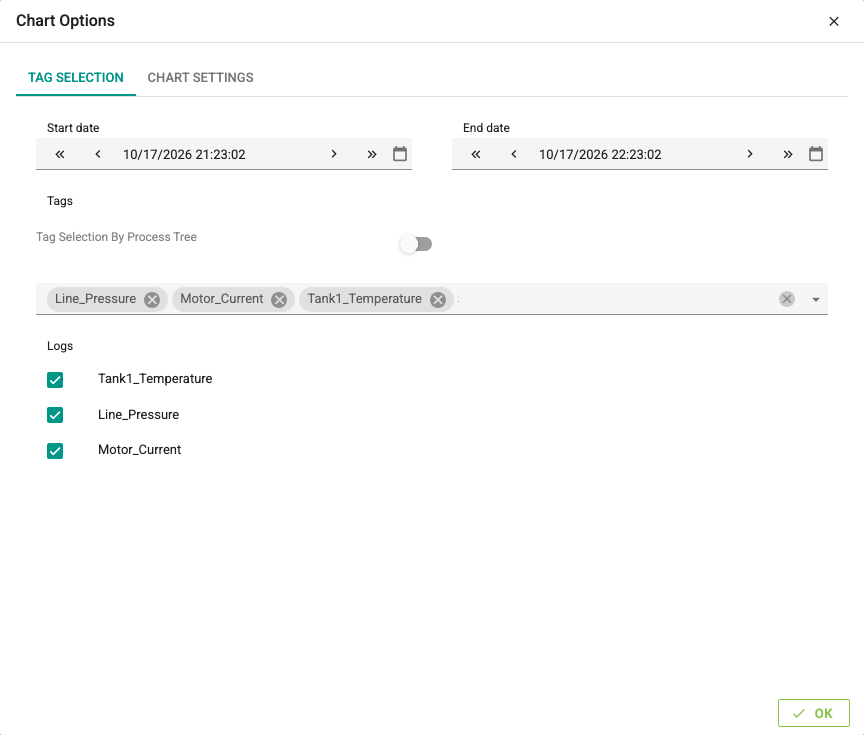
- Tag Selection By Process Tree: When off, tags are selected from the channel and device tree, as in tag management. When on, they are selected from the process group, task center and device tree. This switch is visible only to users with the Editor role.
- Tags: Select the tags with the tree.
- Logs: The log definitions of the selected tags are listed as selected. You can change the selection with the check boxes in the rows.
The second tab is Chart Settings. These settings can be used after at least one series is selected in the chart, and they are applied to the selected series. Selecting series is described in the Chart section.
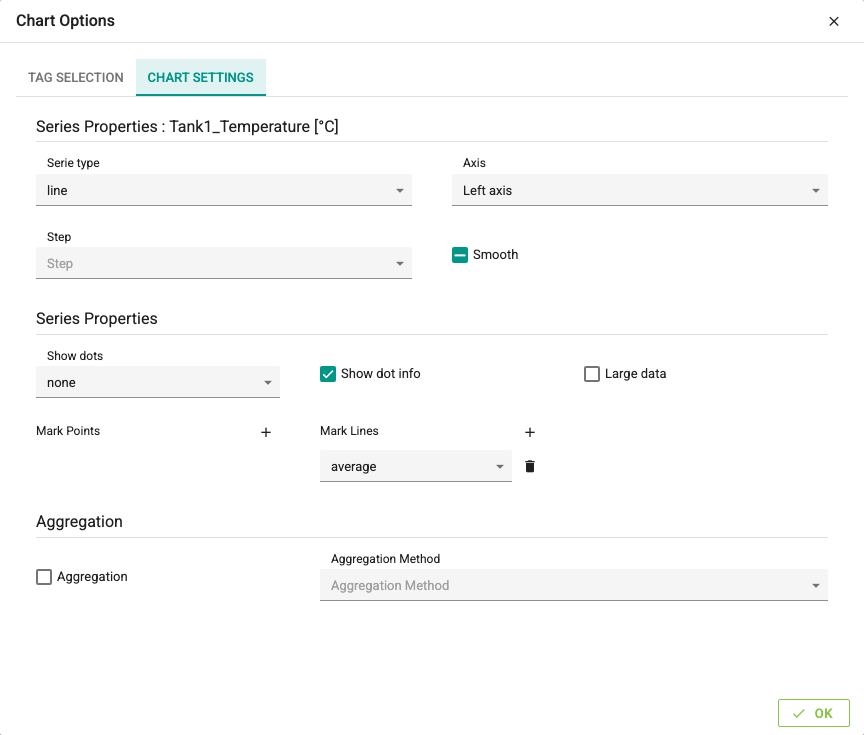
The names of the selected series are shown next to the Series Properties heading. The settings in the first part are:
- Serie type: The series is drawn as a line (
line) or as bars (bar). The default isline. - Axis: Sets which axis the series is shown on.
- Step: Visible only for line series; turns the line into a step shape. The default is None.
- None: Step is off.
- Start: The record time is taken as the start of the step.
- Middle: The record time is in the middle of the step.
- End: The record time is at the end of the step.
- Smooth: Visible only for line series; draws the line smoothed. Off by default.
The settings in the second part are:
- Show dots: Visible only for line series; sets the symbol shown at the record points. For performance reasons the default value is
none.
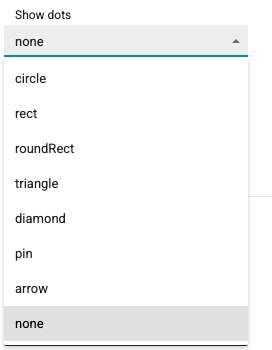
- Show dot info: Turns on the tooltip that shows the time, series and value when you hover over the points in the chart. On by default.
- Large data: Turn it on to speed up drawing when a large number of records is drawn.
- Mark Points: Creates information points on the series for the selected values.
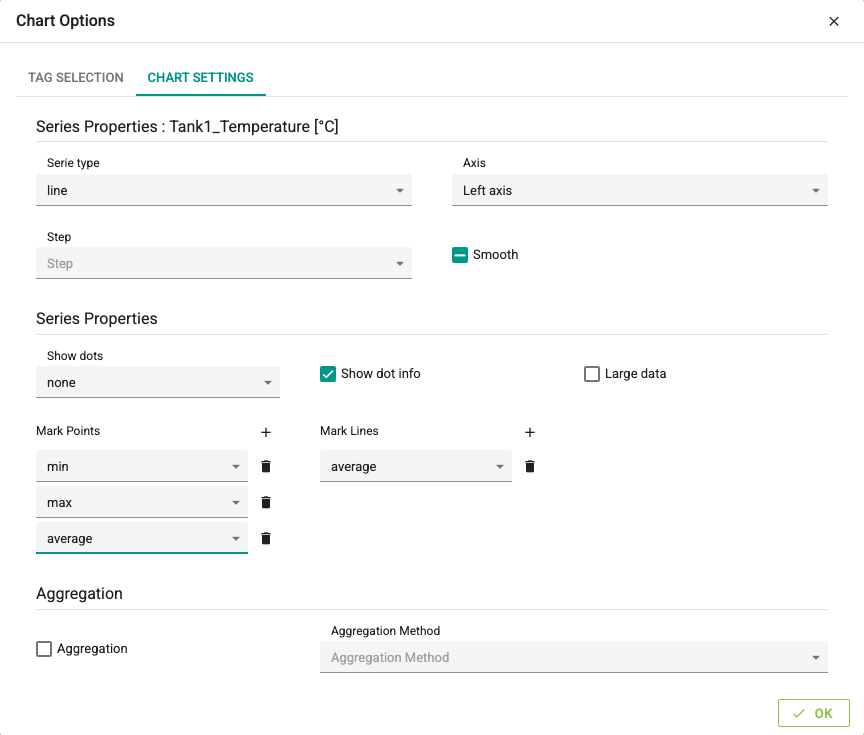
To add a mark point, click the + button; a selection box with a delete button on its right appears. In the selection box, select which value the point is created for: min, max or average. To delete a mark point, click the button with the trash can icon on its right.
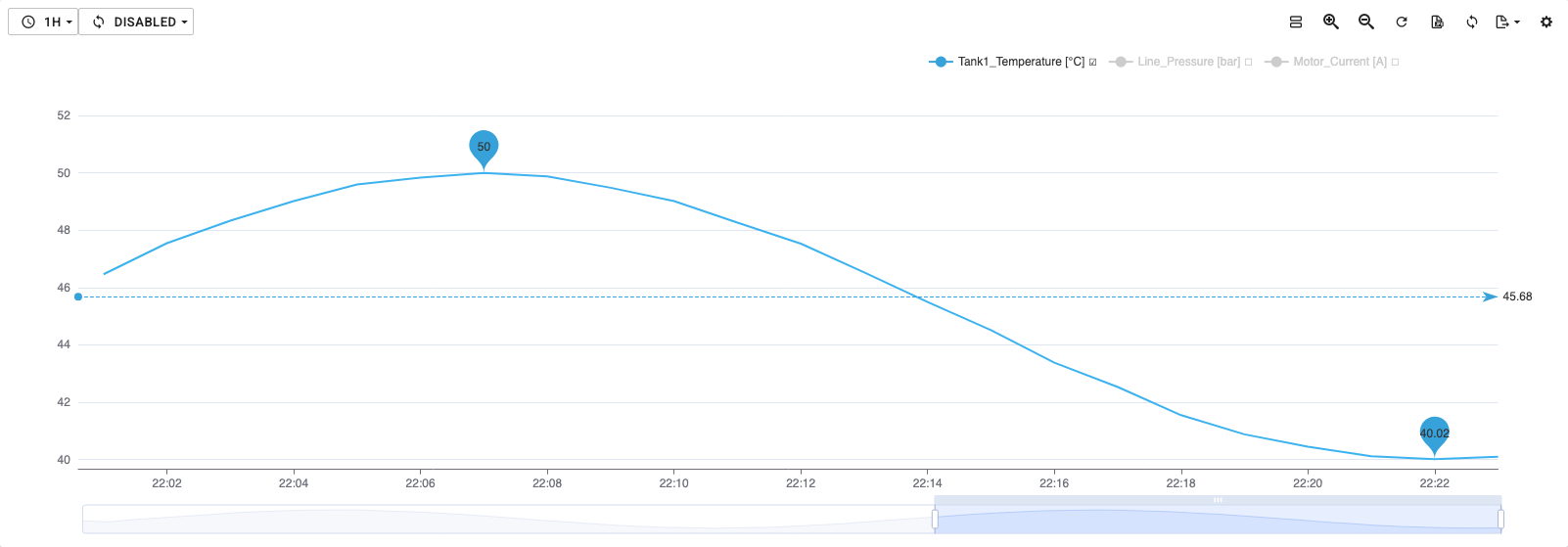
In the chart above, the min and max mark points created for the Tank1_Temperature series appear in bubbles in the color of the series. The dashed line is a mark line created with the average option.
- Mark Lines: Defined like mark points; draws a line along the series for the selected value.
The last part is the Aggregation settings. When the number of records is much larger than the number of pixels on the screen, aggregation draws the chart in a more summarized way and improves performance.
- Aggregation: Turns aggregation on or off. When off, all record points are drawn.
- Aggregation Method: Sets how the points are reduced:
- Average: The average of the points is used.
- Minimum: The smallest values are used.
- Maximum: The largest values are used.
- Sum: The sum of the points is used.
- Largest-Triangle-Three-Bucket: Reduces the number of points while keeping the shape of the chart.
Data downsampling
The LTTB algorithm, which reduces the number of points in the chart, is described on the Data Downsampling (LTTB) page.
Chart
After the query runs, the records are shown in the chart.
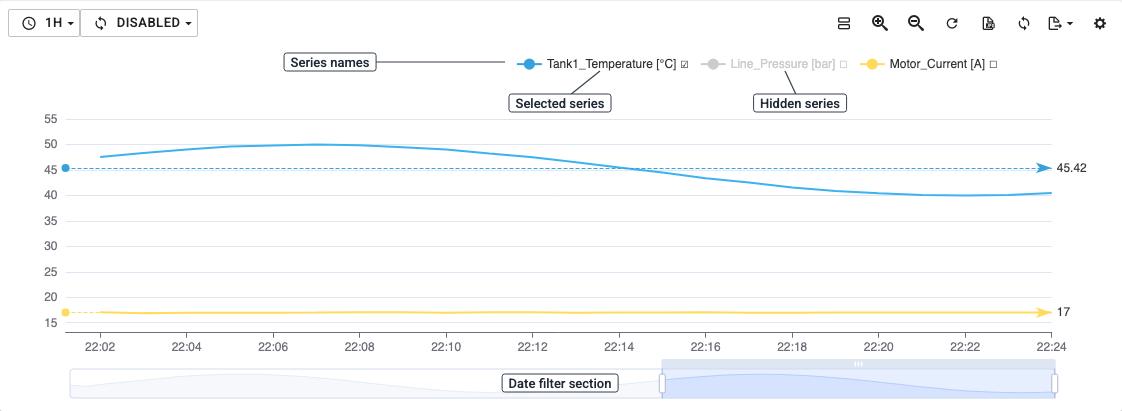
The series names of the selected log definitions are at the top of the chart. The first click on a series name hides the series in the chart. The second click shows the series again and also selects it; the settings of the selected series can be changed in the Chart Settings window.
Below the chart is the date scroll bar. Drag the left and right edges of the bar with the mouse to narrow or widen the range shown in the chart. Hold the bar and move it left or right to change the part shown.
Data table
When you switch to the table view, the records are shown in a table. The leftmost column contains the record time, and the following columns contain the log definitions. The records are listed in ascending time order.
Below the column headers is a filter row; you can define filters for the date and the values.
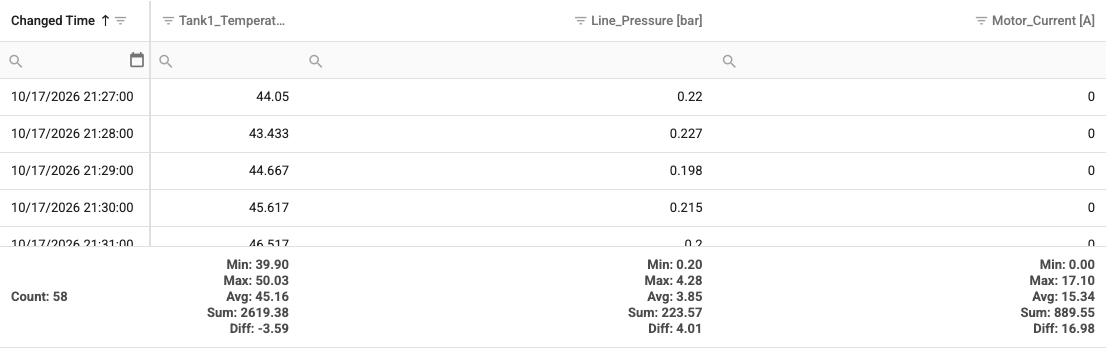
At the bottom of the table are the summary rows. The date column shows the number of records (Count), and below each value column the minimum, maximum, average and total values and the difference between the last and the first value (Diff) are shown.
Consumptions
The History > Consumptions screen splits the consumption of counter and instantaneous value tags into hour, day, month or year periods and shows it as a chart and a table. For details, see the Consumptions page.
Consumption Pivot
The History > Consumption Pivot screen shows consumption as a pivot table, and optionally as a column chart, broken down by process group, tag and calendar. For details, see the Consumption Pivot page.
Runtime Analysis
The History > Runtime Analysis screen calculates the running and stop times of machines by day, week or month from the run/stop data in the log definitions. For details, see the Runtime Analysis page.