
Backup and Restore
The configuration backup puts the definitions in 2WinScada (pages, channels, devices, tags, alarms, users and other settings) into a single .zip package. The package can be restored on the same system or on another 2WinScada installation.
The configuration backup is not a full database backup. It does not contain history data or the license. Before a version upgrade and server maintenance, also back up the SQL Server database separately; see Installation.
Access to the screen
The Settings > Configuration Backup screen can be opened by:
- SystemAdmin.
- Users with the Editor role, if the license has the backup management right (Professional package or a license that includes this right).
Only users in the SystemAdmin and Administrators groups can restore the Users and User Groups modules.
Backup scope
What is included
The package consists of the modules below. When restoring, modules can be selected one by one.
| Module | Module | Module |
|---|---|---|
| Pages | Page Templates | Device Profiles |
| Channels | Devices | Tags |
| Log Definitions | Alarms | Notifications |
| Buildings | Building Columns | Departments |
| Process Groups | Task Centers | Roles |
| User Groups | Users | Recipes |
| Report Groups | Reports | Translations |
| SMTP Configurations | SMS Settings | MQTT Publisher Settings |
| WhatsApp Settings | WhatsApp Recipient Consents | energyperformance |
| Downtime reasons | Page Rotations |
The Users module also contains the users' API keys and user settings. User passwords are kept; restored users can sign in with their existing passwords.
The MQTT Publisher Settings module is included only in backups taken by users who can manage the MQTT Publisher settings.
The WhatsApp Settings module contains the WhatsApp provider settings and the access token. The WhatsApp Recipient Consents module contains the users' WhatsApp consent records and depends on the Users module. The WhatsApp selection in notification definitions is carried with the Notifications module. See WhatsApp Settings.
The energyperformance module contains the Energy Performance definitions (site and area/line tree, meters, tag links, kWh factors, production, baseline and target). Closed energy reports and other operational records are not part of this module. For how the module behaves with a backup of the same project and of a different project, see Energy Performance: Backup and Restore.
The Downtime reasons module contains the downtime reason catalog (global reasons, task center settings and local reasons). The reasons entered by operators are kept in the archive database; they are not part of this module and do not change on restore. The downtime reason settings of log definitions travel with the Log Definitions module. See Downtime Reasons.
Keep the package secure
The package contains user accounts, API keys and the entire configuration of the system. Keep the package in a location with restricted access.
What is not included
- History data: Tag history, alarm history and operation history are kept in the archive database (QuestDB) and are not included in the package.
- Energy Performance operational records: Closed reports, calculations, corrections, monthly manual production values and archive access grants are not included in the package; they are protected by the SQL Server database backup.
- License: The license file, the license state and the machine identity are not included in the package. For the license, see License.
- SystemAdmin accounts: The SystemAdmin group, the accounts in this group, and the API keys and settings of these accounts are not written to the package.
- Session information: Users' open sessions and password reset codes are not written to the package.
- MQTT broker password: The password in the MQTT Publisher settings is never written to the package.
- Service settings: Service settings made during installation and server files are not included in the package.
- Runtime state: Live values and running connections are not included in the package.
Creating a backup
- Open the Settings > Configuration Backup screen.
- In the Create Backup section, click Create Backup.
- When the Backup progress bar is full, the package is downloaded through the browser.
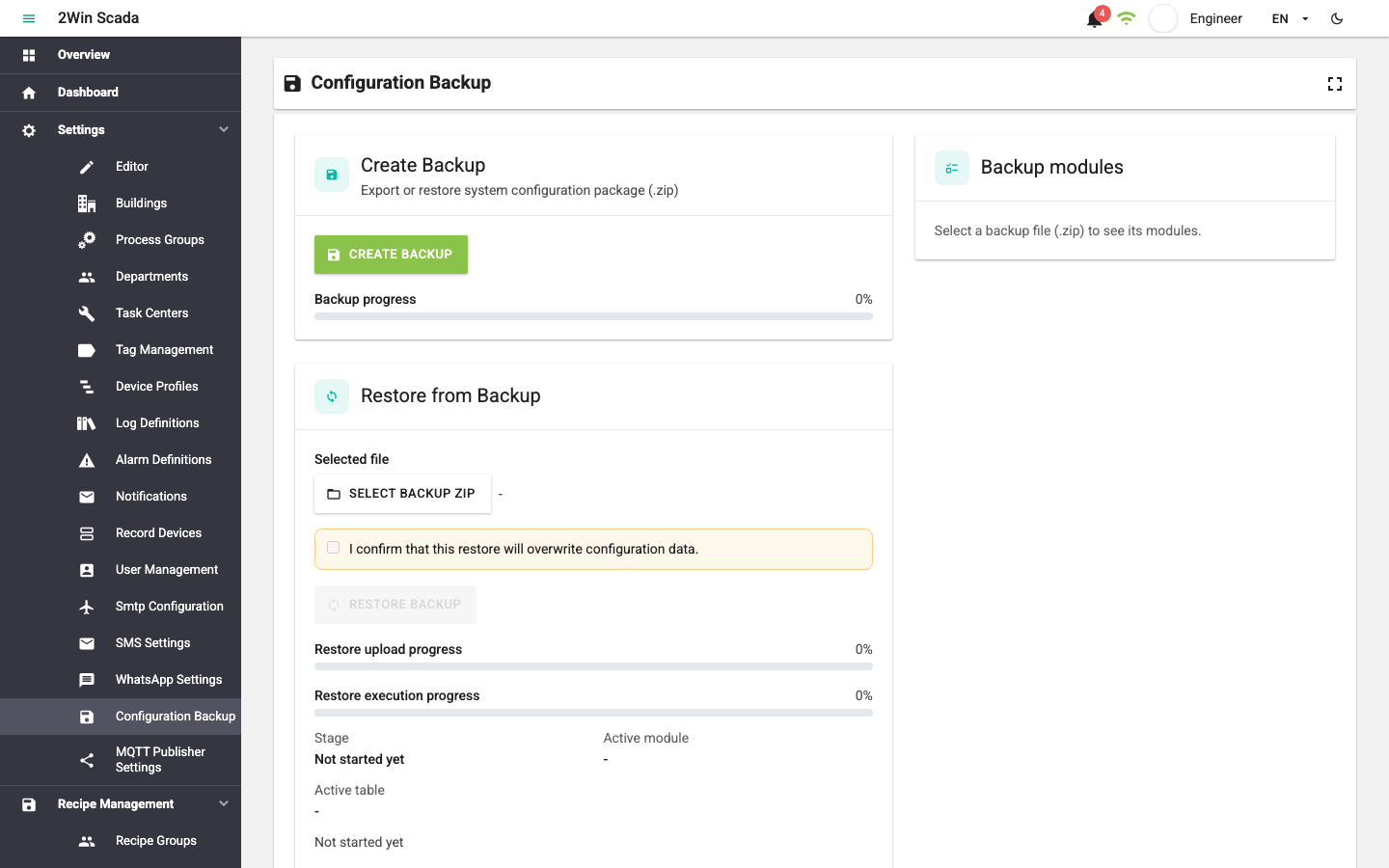
The file name contains the product name, the version and the creation time, for example 2WinScada-v2.10.0-configuration-backup-20261015083000.zip. The time part is UTC.
A new backup cannot be created while a restore is running.
Scheduled backup
The main service takes an automatic configuration backup every day. This feature is on by default.
| Setting | Default |
|---|---|
| Run time | Every day at 02:00 (server local time) |
| Number of backups kept | The 30 newest backups; older ones are deleted |
- The scheduled backup contains all modules. The MQTT broker password is not included in this backup either.
- If a restore is running at that time, the backup is skipped and tried again the next day.
- Scheduled backups are written to the backup folder on the server. Copy the backup folder off the server regularly.
Restore
The contents of the selected modules are replaced
Restoring deletes the existing definitions in the selected modules and replaces them with the definitions in the package. Back up the current system before you start.
Steps
- Open the Settings > Configuration Backup screen.
- In the Restore from Backup section, select the package with Select Backup Zip.
- The Backup modules list on the right shows the modules in the package, their record counts and the Schema version. By default, all modules in the package are selected.
- Select the modules to restore. Modules that a selected module needs or affects are added automatically and shown with the Required dependency or Impacted module label. The numbers of Requested and Effective modules are shown above the list.
- Read the Warnings and Errors boxes. If there is an error or the Missing required modules list is not empty, the restore cannot be started.
- Select the I confirm that this restore will overwrite configuration data. check box.
- Click Restore Backup.
During the restore
The operation is followed with two bars: Restore upload progress shows the upload of the package to the server, and Restore execution progress shows the operation on the server. The Stage, Active module, Active table and Elapsed time fields give the current state.
Before writing data, the server performs these preparation steps:
- The backup package and the target schema are validated.
- The license and capacity are checked.
- The record and notification services and the SCADA runtime are stopped safely.
Then the Deleting, Restoring and Finalizing stages follow.
While the restore is running:
- All users see the bar "Configuration restore is running; write actions are temporarily disabled." Configuration screens become read-only; pages can be viewed.
- Device communication, alarm and recording operations stop.
- Only one restore can run at a time.
- Signing in, session refresh and password recovery with Forgot password on the sign-in screen keep working. An administrator cannot reset a user's password and users cannot change their own password until the restore finishes. If the Users module is being restored, a password set with Forgot password before the restore writes the users is replaced by the password in the package; in that case set the password again after the restore finishes.
- The operation runs on the server. If the browser connection drops, the screen reconnects and checks the status; closing the page does not stop the operation.
License check
Before the restore is started:
- The license must be valid and license management must not be locked.
- The channels in the package must be compatible with the protocols in the license.
- The numbers of tags, devices, alarm definitions, recipes and users after the restore must not exceed the license limits.
If one of these conditions is not met, the restore is rejected without changing data. See License.
Event code check
From 2.11, if a user other than SystemAdmin restores the Pages or Page Templates module, the pages and templates in the package cannot contain event code that does not exist in the pages and templates of the installation. If they do, the restore stops before any delete, data is not changed and the user is told that event code needs SystemAdmin rights. A backup that does not change the code of the installation, for example a current backup of the same installation, passes this check. Restore a package from another installation that contains event code with a SystemAdmin account (see Who can add event code).
Protection of SystemAdmin accounts
- SystemAdmin groups in the package and the accounts that belong to these groups are not restored. A restore cannot create a new SystemAdmin.
- SystemAdmin accounts on the target system are not deleted and keep their roles.
- If the Pages module is restored, the landing page setting of SystemAdmin accounts is cleared.
After the restore
When the restore finishes successfully, the screen shows the Services need to be restarted warning. The new configuration is used in the live system (device connections, alarms and recording) only after the services are restarted. The services are not restarted automatically.
- Click the Restart Services button in the warning. The button is visible only to SystemAdmin and the Administrators group. If the services cannot be restarted from the web interface, the warning says so; in that case, restart the Notification, RecordDevice, MQTT Publisher and SCADA API services manually on the server.
- If the Users module was restored, users must sign in again.
- Check device communication, alarms and log records.
- Check the SMTP, SMS, WhatsApp and MQTT Publisher settings and make a test send. Check the SMS provider details and the WhatsApp access token; if the test send fails, enter them again. Because the MQTT Publisher password is not in the package, the password stored on the target is kept only for the same broker connection; an MQTT setting that is not valid is restored as turned off.
- Check the license status and the capacity table on the System Information page.
Failed or interrupted restore
- Errors during the preparation steps do not change data.
- If an error occurs while writing, the operation is rolled back; the configuration stays as it was before the restore. The error is shown in the Restore error box.
- If the record or notification service does not stop in time, the restore fails without changing data.
- If the main service restarts during the restore, the operation is closed as Interrupted and is not repeated automatically. Select the package again and start the operation from the beginning.
- If the live data flow appears stopped after a failed restore, restart the services.
Compatibility of old packages
- Packages taken on earlier 2WinScada versions can be restored. In old package formats the module record counts may be unknown; the list shows Row count unavailable.
- Modules that are not in the old package (for example settings added in later versions) are not shown in the list and are not restored.
- Notification definitions in packages taken on versions before WhatsApp are restored with WhatsApp turned off.
- A package that contains fields the target database does not recognize is rejected. For this reason, do not restore a package taken on a newer version to an older version.
Restoring to another server or project
- The package keeps the ids of the definitions.
- The license is not included in the package. Install or transfer the license separately on the new server; see License Transfer and License Manager.
- The restore on this screen is not an SQL Server database restore.