
Page Editor
The page editor is the tool for designing, in the browser, the SCADA pages operators monitor. Widgets are dragged onto the canvas, configured in the right panel and their values are bound to tags. A saved page opens in the page viewer.
This page describes the general use of the editor. The settings specific to each widget are in the Widget Reference section. Ready-made page templates, blocks and composite components are described on Templates and Blocks, and code written for widget events on Event Code.
Opening the Editor
Open the editor with Settings > Editor in the side menu. The menu item is visible only to users with the Editor role; the license must also allow page design.
When the editor opens, the canvas is empty. Click a page in the Pages tab of the left panel to open it, or create a new page with File > New.
The Fullscreen button at the top right enlarges the editor to fill the browser window; the same button returns as Exit fullscreen.
Screen Layout
The editor screen has four areas:
| Area | Content |
|---|---|
| Top menu | The File, Edit, View and Modify menus. |
| Left panel | The Pages, Widgets and Elements tabs. |
| Canvas | The area where the page is designed. The canvas toolbar is above it and the rulers are along its edges. |
| Right panel | Settings of the selected item: the Styles and Props tabs. |
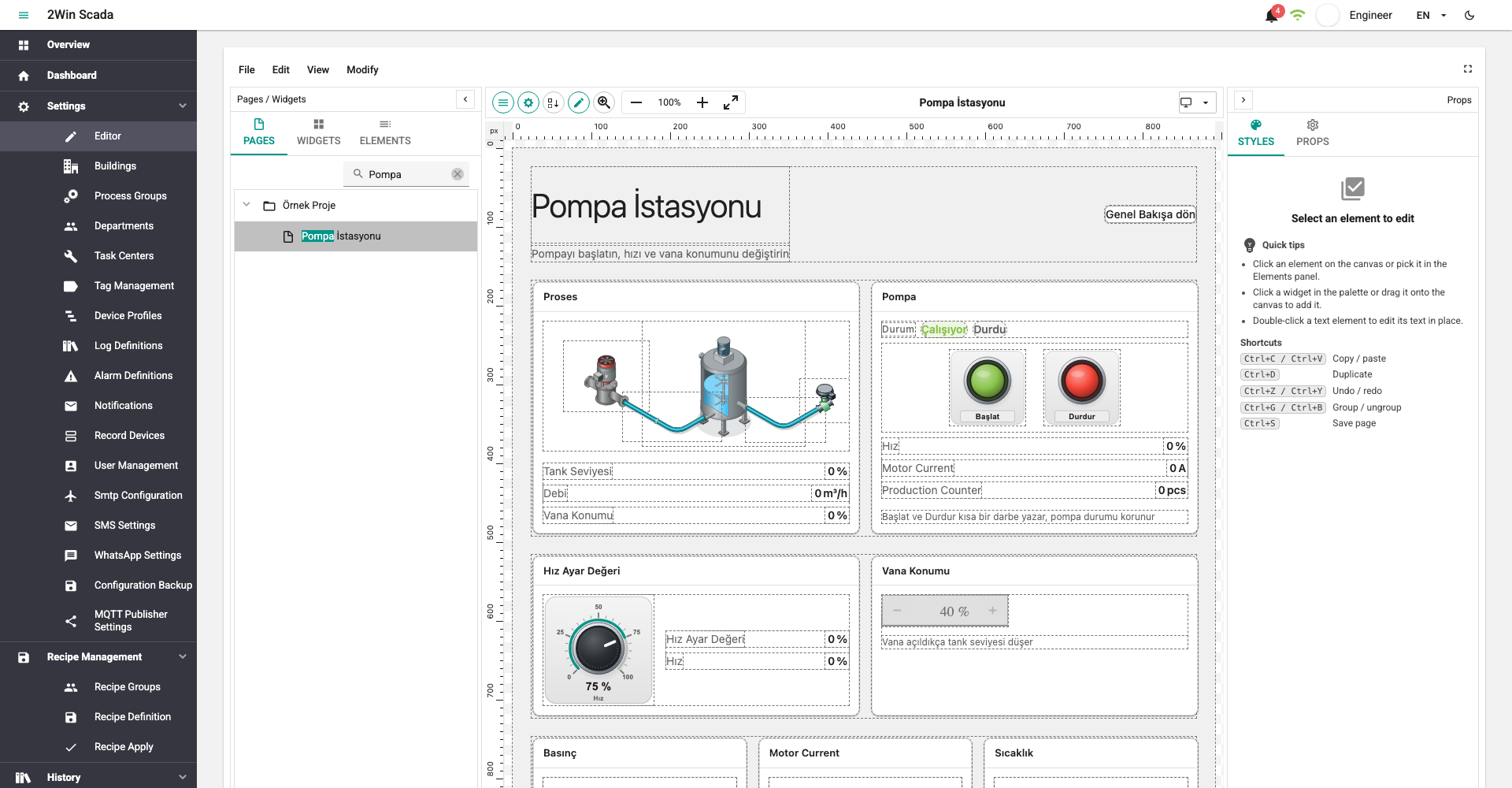
The left and right panels can be collapsed with the arrow button in their header (Collapse left panel, Collapse right panel). A collapsed panel stays at the edge as vertical tabs; clicking a tab reopens the panel on that tab. On narrow screens the panels open over the canvas.
Canvas Toolbar
The bar above the canvas has these buttons, from left to right. Button names appear as tooltips when you hover over them.
| Button | Function |
|---|---|
| Pages / Widgets | Opens or closes the left panel. |
| Props | Opens or closes the right panel. |
| Reassign Z Indexes | Renumbers the Layer order values of the items in the selected container with consecutive numbers starting from 0, keeping their order. If the selected item is not a container, it shows the warning "Selected item must be a container!". |
| Toggle Edit Mode | Turns edit mode on or off. While the mode is off, items on the canvas cannot be selected or moved; rulers, guides and grid are hidden. Used to see the page without editing aids. |
| Enable Zooming | While on, the canvas is panned by dragging with the mouse and zoomed with Alt (Option on macOS) + mouse wheel, centered on the cursor position. Panning by dragging works when the zoom is not 100%. Items cannot be selected in this mode. Esc turns this mode off. |
| Zoom out / Zoom in | Makes the canvas one step smaller or larger. |
| Percentage value | The current zoom level; clicking it does Reset to 100%. |
| Fit to screen | Fits the whole page into the canvas area. |
| Page name | The name of the open page. If there are unsaved changes, a dot (•) appears next to the name. |
| Preview device | Desktop, Tablet (1024 × 768) or Mobile (390 × 844). When tablet or mobile is selected, the page is shown at that size in a preview frame that cannot be edited. To return to editing, select Desktop. |
The Zoom out, Zoom in, percentage value and Fit to screen buttons also work while zoom mode is off.
Panning and Zooming
The canvas can also be panned and zoomed in these ways while zoom mode is off:
| Action | Function |
|---|---|
| Mouse wheel, scroll bars | Scrolls the canvas vertically; two fingers on a trackpad scroll in any direction. |
| Shift + mouse wheel | Scrolls the canvas horizontally. |
| Dragging with Space held | Pans the canvas like a hand tool; the cursor turns into a hand while Space is held. While typing in a text box, Space types a normal space. |
| Dragging with the middle mouse button | Pans the canvas. |
| Ctrl (Cmd on macOS) + mouse wheel | Zooms in or out, centered on the cursor position. Over the canvas, the browser page does not zoom. |
| Pinching with two fingers on a trackpad | Zooms, centered on the cursor position. |
Zoom ranges from 20% to 900%. The keyboard shortcuts Ctrl + + / − / 0 are the browser's own page zoom; they enlarge the whole page, not the canvas.
Keyboard Shortcuts
On macOS, use Cmd instead of Ctrl. Shortcuts do not work while typing in a text box. For all shortcuts except Ctrl+S, the canvas must have focus; clicking an item on the canvas gives focus to the canvas.
| Shortcut | Function |
|---|---|
| Ctrl+S | Saves the page. |
| Ctrl+Z | Undo. |
| Ctrl+Y or Ctrl+Shift+Z | Redo. |
| Ctrl+C / Ctrl+V | Copies / pastes the selected items. |
| Ctrl+D | Duplicates the selected item. |
| Ctrl+G | Groups the selected items. |
| Ctrl+B | Ungroups the selected group. |
| Delete | Deletes the selected items. |
| Esc | Clears the selection; turns zoom mode off if it is on. |
| Esc while dragging | Cancels the drag; the items return to their starting position. See Canceling a drag. |
| Alt (Option on macOS) + drag | Moves the single selected item into the container under the cursor. See Moving an item to another container. |
| Arrow keys | Move the selected items by 1 pixel. |
| Shift + arrow keys | Move the selected items by 5 pixels. |
| Space + drag, middle-button drag | Pans the canvas. See Panning and Zooming. |
| Ctrl + mouse wheel | Zooms centered on the cursor. |
| Alt+↑ / Alt+↓ | Brings the selected item one level forward / sends it one level backward. |
| Shift + click | Adds an item to the selection; removes a selected item from it. Clicking with Ctrl on Windows or Cmd on macOS does the same. |
When no item is selected, the Styles tab of the right panel also lists the most frequently used shortcuts.
Top Menu
File
| Command | Function |
|---|---|
| New | Opens the Create new page window. For Start, select Blank page or From a page template. A page started from a template opens after it is created, the template is added and the page is saved. For templates, see Templates and Blocks. |
| New Folder | Creates a folder for grouping pages. |
| Save (Ctrl+S) | Saves the open page; see Saving. |
| Delete | Deletes the open page after confirmation. A folder that contains pages cannot be deleted ("Folder is not empty!"). |
| Rename Page | Changes the name of the open page or folder. |
| Save Page As Template | Saves the page to the template library. |
| Save as Component / Edit Component Template | Saves the selected box as a reusable component, or edits the template of the selected component. Disabled if no suitable item is selected. See Templates and Blocks. |
| Transfer > Export | Downloads the editor content of the open page as a <page name>.json file. |
| Transfer > Import from JSON File | Replaces the content of the open page with the selected JSON file after confirmation. The change is not written to the server until it is saved. |
| Transfer > Export All Pages (.zip) / Import Pages (.zip) | Downloads all pages as a single .zip package or imports them from a package. In the import window you choose whether to overwrite or skip existing pages with the same name. See Exporting and Importing Pages. |
| Advanced > Import from HTML Code | Converts pasted HTML code into widgets and adds them to the page. |
| Advanced > Save as .vue | Downloads the page as a .vue file. |
Edit
| Command | Function |
|---|---|
| Undo / Redo | Undoes or redoes the last change. |
| Copy / Paste | Copies the selected items to the clipboard; pastes the items on the clipboard. If the selected item is a container, the pasted items are added into it; otherwise they are added to the root container of the page. Because it works through the clipboard, items can also be pasted into another page. |
| Duplicate | Adds a copy of the selected item to the same container, to the right of the item. |
| Delete | Deletes the selected items. |
| Copy Style / Paste Style | Copies the style settings of the selected item (except position and layer order) and applies them to other items. |
| Modify Page Content > Replace a string | See Find and replace. |
| Modify Page Content > Edit Translations | See Translations. |
| Modify Page Content > Clear Page | Asks for confirmation first. Removes leftover values that are not among the defined settings of the widgets from the page data; it does not delete widgets. If there is nothing to clean, the message The page has no undefined properties to clean. appears. The cleaned page is marked as unsaved, and the operation can be undone in a single step with Undo (Ctrl+Z); the change is not permanent until the page is saved. |
View
The options in this menu can be turned on and off; a check mark appears next to those that are on. The selections are stored in the browser, and the editor opens with the same settings next time.
| Option | Function |
|---|---|
| Show rulers | Shows the pixel rulers along the top and left edges of the canvas. |
| Show guides | Shows the guide lines dragged out of the rulers. |
| Show grid | Draws a 10-pixel grid on the canvas. |
| Show grid columns | Shows the columns of the selected grid container with dashed lines. |
| Show borders | Marks widget edges with lines on the canvas. |
| Lock guides | Prevents existing guides from being moved and deleted. |
| Snap to guides | Aligns a moved item to a nearby guide line. |
| Snap to grid | Aligns a moved item and new guides to the 10-pixel grid. |
| Clear guides | Deletes all guides of the open page. |
Modify
| Command | Function |
|---|---|
| Arrange | Stacking order commands. See Stacking order. |
| Align | Aligns or distributes the selected items or makes their sizes equal. See Alignment. |
| Create Composite | Creates a composite component from the selected box. See Templates and Blocks. |
| Group / Ungroup | See Grouping. |
Left Panel
Pages
The pages and folders in the system are listed in a tree. The search box at the top filters the list by name. Clicking a page opens it on the canvas. If the open page has unsaved changes, you are first asked "There are unsaved changes on the page. Do you want to continue without saving?".
Pages can be reordered and moved into folders by dragging. The landing page is shown with a home icon. Right-clicking a row shows these commands:
- Rename Page
- Make Landing Page and Role Assignment (pages only)
- Export Page (.json) and Import from JSON File (pages only): export the clicked page as a JSON file or load a JSON file into this page. If the page is not open, the file is selected first and then the page opens.
- Export All Pages (.zip) and Import Pages (.zip): export all pages as a single package or import them from a package.
The transfer commands are also in the File > Transfer menu; details are in Exporting and Importing Pages.
The landing page and page roles are described on the Page Management and Access page.
Widgets
The widgets that can be added to the page are listed in collapsible groups:
| Group | Content |
|---|---|
| Basic, Buttons, Charts, Containers, Isometric equipment, Media, Operations, Other, Svg | Widgets. The settings of each widget are in the Widget Reference section. |
| Composite Components | Saved, reusable components. |
| Blocks and Custom Blocks | Ready-made widget groups and page templates. |
Composite components, blocks and templates are described on the Templates and Blocks page.
There are two ways to add a widget:
- Clicking: The widget is added into the selected container. If the selected item is not a container, the widget is added to the container the item is in.
- Dragging: The widget is added to the innermost container at the point where it is dropped on the canvas. Locked containers are skipped; the widget is added to the next unlocked container above, and the label "<target> · locked <container> skipped" appears next to the cursor. Blocks, composite components and page templates follow the same rule when dragged.
The added widget is selected automatically. On an empty page, a container must be added first (for example, a box from the Containers group); otherwise the warning "Only containers allowed on empty page!" appears.
Elements
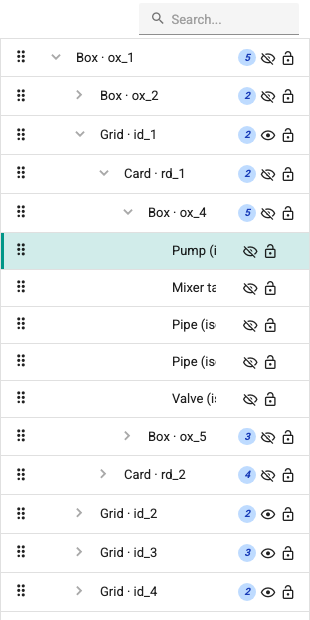
All items on the page are listed as a tree that follows the container structure. An item selected in the tree is also selected on the canvas; an item selected on the canvas is highlighted in the tree. The search box at the top filters items by name.
- Renaming: Double-click the item name and type the new name. This name is the Display name field in the Props > General section; it is used only in the editor and does not affect the runtime.
- Eye icon: Turns the Visible setting of the item on or off. This setting also applies in the page viewer; a hidden item is not shown to the operator either.
- Lock icon: Locks or unlocks the item. The effect of the lock is described in the Lock section.
- Drag and drop: Items are reordered in the tree or moved into another container by dragging. An item dropped into a locked container is not moved and the warning "The target container is locked; the widget was not moved." appears. If the item is already inside a locked container, it can be reordered within its own container.
- Right-click: Opens the same menu as right-clicking on the canvas; the Move out of container command is also here. Selection works as on the canvas (see Right-Click Menu).
Canvas
Selecting and Moving
- Clicking an item selects it. Clicking with Shift adds the item to the selection; if the item is already selected, it is removed from the selection. Clicking with Ctrl on Windows or Cmd on macOS does the same. On macOS, clicking with Ctrl counts as a right click and opens the context menu; it does not change the selection. The same rules apply in the Elements tab.
- A rectangle drawn by dragging from an empty area of the canvas selects the items inside it. If Shift (Ctrl on Windows, Cmd on macOS) is held while dragging, the items are added to the current selection. The rectangle can also be started inside a locked container; this way, by locking a large box in the background, the items in it can be selected easily.
- The selected item is moved with the mouse or the arrow keys, and resized with the edge and corner handles. The item can also be dragged by the title above the selection frame (the widget type of the item).
- Dragging with the mouse moves the item only within its own container; even if the cursor passes over another container, the item does not enter it. To move it to another container, see Moving an item to another container.
- The position of an item inside a flow-layout container (containers such as row, column and grid that arrange their items themselves) is determined by the container; such an item does not change place when dragged. Its order is changed in the Elements tab.
- The text of text items is edited in place by double-clicking the item.
- Esc clears the selection. When the selection is cleared, the right panel shows the page settings.
Moving an Item to Another Container
An item dragged on the canvas does not leave its container by itself. There are three ways to move an item to another container (container in the interface): dragging with Alt on the canvas, drag and drop in the Elements tab, and the Move out of container command in the right-click menu.
Dragging with Alt:
Select the single item to move and start dragging. The hint "Hold Alt to move into another container" appears next to the cursor ("⌥ Option" on macOS).
Hold down the Alt key (Option on macOS). The container under the cursor is highlighted with a frame and its name is written in the label:
Label Meaning "Into <container>" When dropped, the item is moved into this container. The container is written with its widget type and display name (or its short ID if it has no display name). "Stays in <container>" The cursor is over the container the item is already in; the container does not change. The frame is drawn dashed. "Into Page root" The cursor is not over any container; the item is moved to the root container of the page. "<container> is locked, cannot move here" The target is locked; the frame is red. "… · size and position follow the container" The target is a flow-layout container; the size and position of the item are now determined by the container. Release the mouse button while Alt is still held down.
An item moved into an absolute-layout container stays where it was dropped on the screen and is fitted within the bounds of the target container. In a flow-layout container, the item is placed between the items according to the cursor position. An item inside a flow-layout container can also be moved to another container by dragging it by its title with Alt; because the item does not move while dragging, it is placed at the point where the cursor is released.
If Alt is released during the drag, the item continues to be dragged within its own container and the container does not change when the mouse is released. If it is dropped over a locked container, the item stays in its own container and the warning "The target container is locked; the widget was not moved." appears.
The container changes only when a single item is selected. When more than one item is selected, dragging moves the items within their own containers; if Alt is pressed, "Container cannot be changed for a multiple selection" appears next to the cursor.
Move out of container: Right-click the item on the canvas or in the Elements tab and select the Move out of container command. The item is moved to the container one level above its container and comes right after its old container in the order.
- The command is enabled only when a single item is selected and the item is not directly inside the root container of the page.
- If the container above uses absolute layout, the position of the item on the screen is kept.
- If the container above uses flow layout, the item is moved and the warning "The widget was moved into a layout container; its size and position now follow the container." appears.
- If the container above is locked, the item is not moved and the warning "The target container is locked; the widget was not moved." appears.
Canceling a Drag and Undo
Pressing Esc during a drag cancels it: the items return to their starting position, the change is not recorded in the history and the page stays in the saved state it had before the drag. If the browser window loses focus during a drag (for example, when you switch to another window), the drag is canceled in the same way.
A completed drag, including a container change, is a single undo step; Ctrl+Z returns the item to its place and container before the drag. Move out of container is also undone in a single step. An undone step can be applied again with Redo (Ctrl+Y).
Lock
An item is locked with the lock icon in the Elements tab. The lock is saved with the page content and affects only the editor; it has no effect in the page viewer.
- A locked item cannot be dragged on the canvas with the mouse, either by its body or by the title of the selection frame. When several items are dragged, the locked items in the selection stay in place.
- No other item can be moved into a locked container: dragging with Alt, dropping in the Elements tab and Move out of container are rejected with the warning "The target container is locked; the widget was not moved.".
- A widget, block or template dragged from the Widgets tab skips the locked container and is added to the next unlocked container above.
- The lock does not prevent moving the item with the arrow keys, resizing it with the handles or changing it from the Props panel.
If you see an item that shows the lock icon but can still be dragged by its title or can have items moved into it, click the icon once to unlock it, then click the icon again to lock the item.
Right-Click Menu
Right-clicking an item that is not selected selects only that item before the menu opens. Right-clicking an item in the selection keeps the selection; the commands apply to all selected items. The same rule applies on the canvas and in the Elements tab.
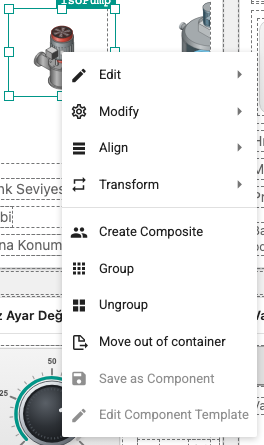
The menu that opens when you right-click an item contains:
- Edit: Replace, Duplicate, Copy, Paste, Copy Style, Paste Style, Delete
- Modify > Arrange: stacking order commands
- Align: alignment, distribution and size matching
- Transform: Rotate Right 90°, Rotate Left 90°, Flip Horizontally, Flip Vertically
- Create Composite, Group, Ungroup, Move out of container, Save as Component, Edit Component Template
For Move out of container, see Moving an item to another container.
Grouping
Group (Ctrl+G) puts the selected items in the same container into a new box that exactly encloses them; the position of the items on the screen does not change. The group is moved and resized as a whole.
Ungroup (Ctrl+B) removes the selected box and moves the items in it to the container the box is in, keeping their positions. This command works only on box items.
Stacking Order
The items in a container are drawn in order; an item later in the order appears on top of the earlier ones. The order is changed from the Modify > Arrange menu or from the right-click menu:
| Command | Function |
|---|---|
| Bring Forward / Send Backward | Brings the item one level forward / sends it one level backward (Alt+↑ / Alt+↓). |
| Bring to Front / Send To Back | Brings the item to the very front / sends it to the very back of its container. |
Items can also be reordered by dragging them in the Elements tab. In addition, every item has a Layer order value in the Props > Layout section; a larger value appears on top.
Alignment
The Left, Top, Right, Bottom, Horizontal Center and Vertical Center commands in the Align menu require at least two selected items in the same container. Distribute Horizontally and Distribute Vertically require at least three items in the same container. Match Width, Match Height and Match Size also work with at least two items in different containers. If the condition is not met, the command appears disabled.
Rulers and Guides
The rulers show pixel measurements along the top and left edges of the canvas. To add a guide line, drag from a ruler onto the canvas: the top ruler gives a vertical guide, the left ruler a horizontal guide. The guide shows its position in pixels.
- A guide is moved by dragging; if it is dragged outside the canvas and released, it is deleted.
- While Snap to grid is on, a guide snaps to the 10-pixel grid; holding Alt while dragging ignores the grid.
- While Snap to guides is on, moved items align to a nearby guide.
- View > Lock guides fixes the guides, and Clear guides deletes them all.
Guides are stored in the browser separately for each page; they are not saved in the page content and do not appear on another computer. Rulers, guides and grid are visible only while edit mode is on and in the Desktop preview.
Properties Panel
The right panel has two tabs: Styles and Props. When an item is selected, the Search properties (e.g. color, border) box appears at the top of the panel. The word typed here is searched in the field names; only the matching fields and the sections that contain them are shown.
Most fields have a help icon next to them; hovering over it shows the description of the field.
When more than one item is selected:
- Changes in the Styles tab are applied to all selected items. Values that differ between items are shown as Mixed.
- The Props tab edits the first item in the selection; only the common layer and color fields are applied to the whole selection. The information line at the top of the panel shows which item is being edited.
Styles Tab
Contains the appearance settings of the selected item:
| Section | Content |
|---|---|
| General | The Display and Position type, flex layout settings and the Left, Top, Right, Bottom position values. |
| Size | Width, Height and the minimum/maximum sizes. |
| Spacing | Margin and Padding; a single value for All sides, or a separate value for each side with Custom. |
| Typography | Font, Font size, weight, Text color, letter and line spacing, alignment. The Clear typography settings button deletes the values in this section. |
| Decorations | Opacity, Corner radius, Border (width, style, color) and the background image and color. |
Properties Tab
Shows the behavior settings of the selected widget in collapsible sections. Which sections appear depends on the widget type. The common sections are:
| Section | Content |
|---|---|
| General | Name (unique identifier within the page), Display name (visible only in the editor, in the Elements tab), Title (the text shown by widgets that show a title) and Authorization. The role selected in the Authorization field determines for which users the widget is interactive in the interface; if left empty, there is no role restriction. Restrict who can write to tags with user roles. |
| Layout | X position, Y position, Rotation, Layer order, Position and Visible. |
| Layout (Grid) | Visible only for items inside a grid container; grid layout settings such as the number of columns and rows the item spans. |
| Appearance | Foreground color, Background color and CSS classes. CSS classes can be selected from a grouped list of ready-made classes. |
| Navigation (To) | The target opened when the widget is clicked. See Navigation links. |
| Drawing | For lines and shapes: fill and border color, transparency, border width, dash pattern, line ends. |
| Points | For lines and polygons: the list of corner points. Points are added, deleted, reordered, their X/Y values are edited, or the list is edited as raw text. |
| Markers | Arrow, dot and square markers shown at the start, intermediate points, end or along lines, and their colors. |
| Elements | The option list of widgets such as button group, drop-down list and radio group. Elements are added, deleted and reordered; the list can be edited in a wide editor or as raw JSON. |
| Other | Settings of the widget that are not in another section. |
| Events | Code that runs on click, mouse and value change events. It is written in the Event Code Edit window; risky calls are shown below the code as Event code warnings. From 2.11, only SystemAdmin accounts can add or change event code; other users see the section read-only and can delete the code. See Event Code and Who can add event code. |
| Bindings (Rules) | Binding widget properties to tags. See Data bindings. |
When a composite component is selected, the Component Parameters section appears instead of Events and Bindings (Rules); see Templates and Blocks.
Widget-Specific Sections
For widgets with many settings of their own, these settings are collected in the widget's own section instead of the Other section. The section name depends on the widget; for example Push Button Settings, Potentiometer Settings, Conveyor Settings, Data Table Settings, Card Settings, Chart Settings, Button Settings or Recipe Settings.
Most of these sections are divided into collapsible groups:
- Fields that do not belong to a group are always shown open at the top.
- Only the first group is open by default; the others are opened by clicking their headers.
- Which groups are open is remembered in the browser for each widget type. For example, a group you open on a push button is also open when you select the next push button.
The meaning and default values of the fields in the sections are listed on the Widget Reference pages.
Data Bindings
A binding connects a widget property to the value of a tag. As the tag value changes, the property is updated too. There are no separate "value", "color", "visibility" or "animation" binding types; what the binding does is determined by the bound property:
| Purpose | Example of the bound property |
|---|---|
| Show a value | processValue (the main value of the widget) |
| Change color | foregroundColor, backgroundColor |
| Show / hide | visible |
| Flash | enableFlashing |
The bindable properties of a widget are listed in the Bindings section of the Widget Reference pages.
Adding a Binding
- Select the widget and open the Bindings (Rules) section in the Props tab.
- Click the Add binding (+) button at the top of the section. A new binding named "New Binding", bound to the
processValueproperty, is added to the list. - Click the header of the binding to open it and type a meaningful name in the Name field.
- Type the full name of the tag in the Tag Name field, or select it from the tag selector with the Select tags button next to the field.
- Select the Binding Type. For Direct, select the property to bind from the Property Name list.
- For conditional types, click the settings (gear) button of the binding and define the conditions in the Binding Values window.
The changes become permanent when the page is saved.
Instead of a single tag, the Tag Name field can also contain an expression that combines tag names in single quotes with operators (for example, 'Kanal.Cihaz.Tag1' + 'Kanal.Cihaz.Tag2'). While the field contains an expression, a tag selected in the tag selector is added in quotes to the end of the expression; you type the operator in between. Long expressions are edited in a large window with the Open in a dialog button.
Binding Types
| Type | Behavior |
|---|---|
| Direct | The tag value is written to the selected property as it is. |
| IntRange | The tag value is compared with integer ranges; the value in the row of the range the value falls in is applied to the property. |
| FloatRange | Works like IntRange; the range limits are decimal numbers. |
| Boolean | The tag value is evaluated as true/false; the value in the true or false row is applied. |
| Bit | The bit of the tag value given by Bit Number (0–31) is read; the value of the matching row is applied depending on whether the bit is 0 or 1. |
Conditional Bindings
For types other than Direct, the conditions are defined in the Binding Values window:
- Check the Binding Name and Binding Type fields.
- Select a property from the Property Name list and click the + button next to it. A binding can change more than one property at the same time (for example, both the background color and the text color). The added properties appear as tags in the header; remove them with the − on the tag.
- Add a condition row with the Add button. For range types, enter Min Value and Max Value in each row; for Boolean and Bit types, enter the state to compare; then type the value to apply for each property.
- Save with Ok. If Binding Name is empty, the window does not close and the warning "A binding name is required." appears.
For range types, the limits of adjacent rows are kept consistent automatically; when the limit of a row changes, the neighboring row is corrected as needed and an information note appears in the row.
Example: for a temperature tag, three rows of type FloatRange bound to the backgroundColor property: 0–60 green, 60–80 yellow, 80–150 red.
Binding List
The Bindings (Rules) section lists all bindings of the selected widget. The header of each binding has copy, settings and delete buttons. The buttons at the top of the section:
| Button | Function |
|---|---|
| Paste copied binding | Adds the copied bindings to the selected widget. This is how bindings are transferred to other widgets. |
| Clear copied binding list | Empties the list of copied bindings. |
| Edit bindings as raw JSON | Edits all bindings of the widget as text. If invalid JSON is entered, the window stays open, the text you typed is kept and the warning "Enter a valid JSON array of bindings." appears. |
| Add binding | Adds a new binding. |
While a binding is selected in the list, Ctrl+C copies that binding and Ctrl+V pastes the copied ones (when the cursor is not in a text box).
Tag Selector
The Select tags button opens the tag selector. The selector has two tabs:
- Tags: The channel, device and tag tree. Select a tag and confirm with Yes. In long trees, the selector opens scrolled to the last selected tag.
- System: Read-only tags published by the application itself. System tags cannot be written and cannot be used as a history source. Select a row and add it with Yes, or double-click the row.
Tags listed in the System tab:
| Tag | Value |
|---|---|
__activeAlarmCount | Number of active (not ignored) alarms. |
__unacknowledgedAlarmCount | Number of alarms waiting for acknowledgment. |
__warningAlarmCount | Number of active alarms of the warning type. |
__latestAlarmText | Message of the newest active alarm; empty when there is no active alarm. |
__latestAlarmType | Type of the newest active alarm: 0 error, 1 warning, 2 alarm; -1 when there is no active alarm. |
__latestAlarmTime | Change time of the newest active alarm as local YYYY-MM-DD HH:mm:ss; empty when there is no active alarm. |
__latestAlarmId | Id of the newest active alarm, for this.srt.ackSingleAlarm(id); empty when there is no active alarm. |
__latestAlarmAcknowledged | 1 when the newest active alarm is acknowledged, 0 while it waits; -1 when there is no active alarm. |
__currentUserRoles | Role names of the signed-in user, separated by commas. |
__currentUserGroups | Group ID of the signed-in user. |
__currentLocale | The selected interface language (for example, tr-TR); assigned after the user selects a language. |
Each row shows the type of the value (number/text) and the binding types that can be used: alarm counts can be used with Direct, IntRange and FloatRange, the type and acknowledged state of the newest alarm with Direct and IntRange, the others only with Direct. The newest alarm is the first row of the alarm table with its default Active filter; see Touch Panels.
The Recipe state group at the bottom of the tab lists the tags the server creates automatically for the recipe state: the group ID and name of the last applied recipe, the recipe ID and name, and, for each recipe group, the ID and name of the recipe last applied in that group. These tags are created when a recipe group is created or a recipe is applied.
A tag selected from the System tab is written with @NOP:: in front of it (for example, @NOP::__activeAlarmCount). This prefix prevents the tag prefix of the page from being applied to this tag; see Tag prefix.
Snapshot Name Builder
The Snapshot name builder button with the clock icon next to the Tag Name field builds, step by step, a snapshot name that reads period values of a tag, such as today's consumption or yesterday's average, and writes it to the field with Insert. Its use and the structure of snapshot names are described on the Consumption and Snapshots page.
If a snapshot name starting with @NOP:: is typed in the field, a warning appears under it; on pages with a tag prefix, this name returns no value.
Tag Prefix
If the same page is used for different devices, the page can be opened with a Tag Prefix (see Navigation links). On a page opened with a prefix, the tag names in bindings are resolved as follows:
| Tag Name | Prefix | Tag read |
|---|---|---|
Sicaklik | Kanal.Kazan1. | Kanal.Kazan1.Sicaklik |
.Sicaklik | Kanal.Kazan1 | Kanal.Kazan1.Sicaklik |
@NOP::Kanal.Ortak.Sicaklik | Any | Kanal.Ortak.Sicaklik |
The prefix is added directly in front of the tag name. Write @NOP:: in front of tags to which the prefix must not be applied. For snapshot names the prefix rules are different; see Tag name and page prefix.
Navigation Links
The Props > Navigation (To) section determines what opens when the widget is clicked. The options in the Type list:
| Type | Target | Behavior |
|---|---|---|
| No Selection | — | No navigation. |
| Move to Scada Page | Page list | Opens the selected SCADA page. The landing page is shown in the list with the note "(start page)". If the user is not authorized for the page, the warning "You do not have a permission to access this page!" is shown. |
| Move to Screen | Application screens | Opens an application screen such as alarms or trend analysis. The list contains only the screens the user in the editor can access. At runtime, a user without permission gets the warning "Unauthorized access!" and stays on the page. |
| Show/Hide Element | Modal windows on the page | Opens or closes the selected modal window. |
| External Link | The typed address | Opens the address in a new tab. Only http, https and mailto addresses are opened. |
| Go to Start Page | — | Opens the user's landing page. |
| Back | — | Returns to the previous screen in the browser history. If there is no screen to go back to within the application (for example, if the page was opened directly by its address), it goes to the landing page. |
| Forward | — | Goes to the next screen in the browser history. |
For the Move to Scada Page, Show/Hide Element and Go to Start Page types, a Tag Prefix can also be entered; the target opens with this prefix (see Tag prefix).
One modal window is enough for many equipment items with the same variable structure (for example motors): on each item's button, select the same modal with Show/Hide Element and enter that item's prefix in Tag Prefix. At runtime a closed modal opens with the clicked item's prefix, an open modal switches to another item without closing, and clicking the same item again closes it. The prefix given by the link does not change the modal's saved Tag Prefix; once the modal closes, the modal's own Tag Prefix applies again. A Show/Hide Element link with an empty Tag Prefix only opens or closes the modal. When an open modal switches to another item, the page in the modal is built again: values that were typed but not yet sent are cleared, and windows opened from inside the modal return to how they were when the page first opened. A value typed for one item is therefore not carried over to another.
For the Show/Hide Element type an optional Title can also be entered. While the link keeps the modal open, the modal's title bar shows this text instead of the modal's own title (for example Motor M01); this is how a shared modal shows which item is open. If Title is empty, and after the modal closes, the modal's own title applies. In the editor the modal always shows its own title.
Clicking a link whose target was left empty shows the warning "Link target is not configured." If the page is open in kiosk mode, kiosk mode is kept on pages reached through links.
Shared Equipment Window
The following example sets up one equipment window (faceplate) for all motors of a line. The tags of the motors have the same structure: Hat1.Motor01.Calisiyor, Hat1.Motor01.Hiz, Hat1.Motor02.Calisiyor …
- Equipment page: Design the content of the window as a separate page (for example
Motor_Detay). In the bindings, write the tag names as relative names starting with a dot (.Calisiyor,.Hiz). Put@NOP::in front of the name of a tag that is shared by all motors (see Tag prefix). - Modal window: Add one modal window to the page with the motors. Select the equipment page as Page Name and leave Start Visible off.
- Motor symbol: Collect the motor symbol and the values shown next to it in a Box; use relative names in their bindings as well. In the Navigation (To) setting of the widget to be clicked, select Show/Hide Element as Type, the modal from step 2 as the target, and type
{{composite.tagPrefix}}in the Tag Prefix field. The Title field can take a fixed text or also{{composite.tagPrefix}}. - Component: Turn the box into a composite component (save it to the library with Save as Component and add it from there, or use Modify > Create Composite). Place one copy for each motor and type the motor's prefix in the copy's Tag Prefix field (for example
Hat1.Motor03).
At runtime {{composite.tagPrefix}} is replaced with the effective tag prefix of the copy: the prefix of the page (or of the modal that contains the component) and the Tag Prefix value of the copy are combined in the same way as in bindings such as .Hiz inside the component. The modal therefore opens with the tags of the motor that the motor symbol shows, and the prefix does not have to be typed on every button. The placeholder is resolved only in widgets inside a composite component. The target of the link is the modal window on the page where you prepared the box; use the component on the page that contains this modal.
If the operator types a setpoint and switches to another motor without sending it, the typed value is cleared; to send the value, the operator opens the previous motor's window again and enters the value again.
Unit per equipment: The Unit setting of value widgets is saved with the equipment page and looks the same for every motor. If all motors use the same unit, this setting is enough.
Page Settings
When no item is selected on the canvas, the Props tab shows the settings of the open page:
| Setting | Description |
|---|---|
| Id | The number of the page in the system. Read-only. |
| Name | The name of the page. It is read-only here; it is changed with File > Rename Page. |
| Tag Prefix | The tag prefix defined for the page. Read-only. |
| Height | The height of the canvas in pixels. |
| Viewer toolbar | Auto (show on activity), Always visible or Hidden. |
| Print orientation | Landscape (A4) or Portrait (A4). |
| Print fit | Automatic (by page type), Whole page on one sheet or Fit to width. |
| Print colours | Light (for paper) or As on screen. |
The effect of the viewer toolbar and print options in the viewer is described on the Page Viewer page. These settings are saved with the root container of the page; therefore they are disabled on an empty page.
Page Size and Scaling
The size of the root container determines how the page behaves on screen (Styles > Size):
- Fixed-size SCADA screen: If the Width and Height of the root container are given in pixels (for example, 1920px × 1080px), the viewer scales the page to fill the window. Because width and height are scaled separately, the page may stretch horizontally or vertically if the window has a different aspect ratio.
- Flexible (responsive) page: If the size is given as a percentage or automatic, the page is not scaled; the content is laid out according to the window width.
The Automatic (by page type) print option also works according to this distinction.
The background color or image of the page is set with the Appearance > Background color or Styles > Decorations settings of the root container.
Saving
The page is saved with File > Save or Ctrl+S. On a successful save, a message saying the page was saved successfully appears and the dot next to the page name disappears.
A saved page is live immediately
The page editor has no draft, preview-publish or approval step. Save changes the only version of the page: all users who can access the page (including operator screens and kiosk screens) see the new version the next time they open or refresh the page. The server does not keep the previous version of the page.
Before making a large change to a page in use:
- Back up the page with Transfer > Export. If you need to return to the previous version, load this file with Transfer > Import from JSON File and save.
- If possible, prepare the change on a separate page and hide it from operators by assigning only the Editor role to it (see Page Management). When it is ready, copy the items and paste them into the actual page, or move them with export/import, and save the actual page.
While there are unsaved changes:
- When you try to open another page from the left panel, you are asked "There are unsaved changes on the page. Do you want to continue without saving?".
- When you try to go from the editor to another screen, you are asked "There are unsaved changes. Are you sure you want to leave this screen?".
To check the design, you can look at the tablet and mobile sizes with the Preview device in the canvas toolbar. To check with live tag values, save the page and open it in the viewer.
Find and Replace
Edit > Modify Page Content > Replace a string replaces a text throughout the page. It is usually used to change tag names after a page has been copied for another device.
- Type the text to replace in the Search string field (for example,
Kanal.Kazan1.). - Type the new text in the Replacement String field (for example,
Kanal.Kazan2.). - Confirm with Yes.
The whole page content changes
The search is done not only in bindings but in the whole content of the page: tag names, titles, texts, item names and other settings. It is case-sensitive and every match is replaced. Short or generic strings can also change unexpected places; take a backup with Transfer > Export before the operation and check the result before saving.
Event code changes too
The search also runs over the texts inside event code; for example, the call setTag("Kanal.Kazan1.Hiz", …) in event code becomes Kanal.Kazan2.Hiz as well. From 2.11, a replacement that changes the text of event code counts as a code change and can be saved only with a SystemAdmin account. If a user with the Editor role tries to save such a page, the save is rejected and nothing is saved (see Who can add event code). If you use the same design for many devices and open a single page with a tag prefix instead of copying and changing the page, the event code does not change.
To use the same design on many devices, instead of copying the page you can also open a single page with a tag prefix.
Replacing a Widget
Replace converts a widget into another widget type while keeping its settings and bindings. For example, a three-state selector is converted this way into a rotary switch that uses the same settings.
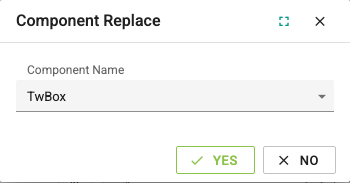
- Right-click the widget on the canvas or in the Elements tab and select the Edit > Replace command.
- In the Component Replace window, select the target widget type from the list. The list shows the technical names of the widgets (for example,
TwRotarySwitchfor the rotary switch); the technical names are in the Component name column of the Widget Reference tables. - Confirm.
Settings that exist with the same name in the new widget (including position, style, bindings and common settings) are kept. Settings that have no counterpart in the new widget are deleted. A container cannot be converted into a widget that is not a container ("Target component is not a container").
Translations
The translations of the texts on the page into other languages are edited in the Manage Translations window, opened with Edit > Modify Page Content > Edit Translations. The window shows the translations of the open page. The commands in the toolbar:
| Command | Function |
|---|---|
| Save / Cancel / Refresh | Saves the translation changes, discards them or reloads the list. |
| Add Language / Remove Language | Adds a new translation language or removes the selected language. |
| Import Translations | Imports translations from a CSV file. If you try to close the window after a file is selected but before it is imported, a confirmation is requested. |
| Sync Texts | Creates keys for all texts on the page that do not have a translation key yet. |
| Move Translations | Moves the translations of one language to another language. |