
Notifications
A notification definition sends an email or SMS to selected users when an alarm occurs. In addition to email or SMS, a WhatsApp message can also be sent; see WhatsApp additional channel. Select Settings > Notifications in the left menu to open the page where notifications are set up.
For sending email, the SMTP Settings must be configured; for SMS, the SMS Settings; for WhatsApp, the WhatsApp Settings. Sent notifications are tracked on the History > Notification History page; see Notification History.
The page has three tabs at the top:
- By alarm: Select an alarm to manage the notification definitions of that alarm.
- All notifications: All notification definitions you are allowed to see are shown in a single list.
- By user: Lists the notifications the selected user receives. This tab is visible only to SystemAdmin and to users with the AlarmManagement or UserAdministrator role.
By Alarm
This tab has the Alarm Definitions table at the top, which shows the defined alarms, and under it the Notifications table, which shows the notification definitions of the selected alarm. To define a notification, first select an alarm in the alarm table.
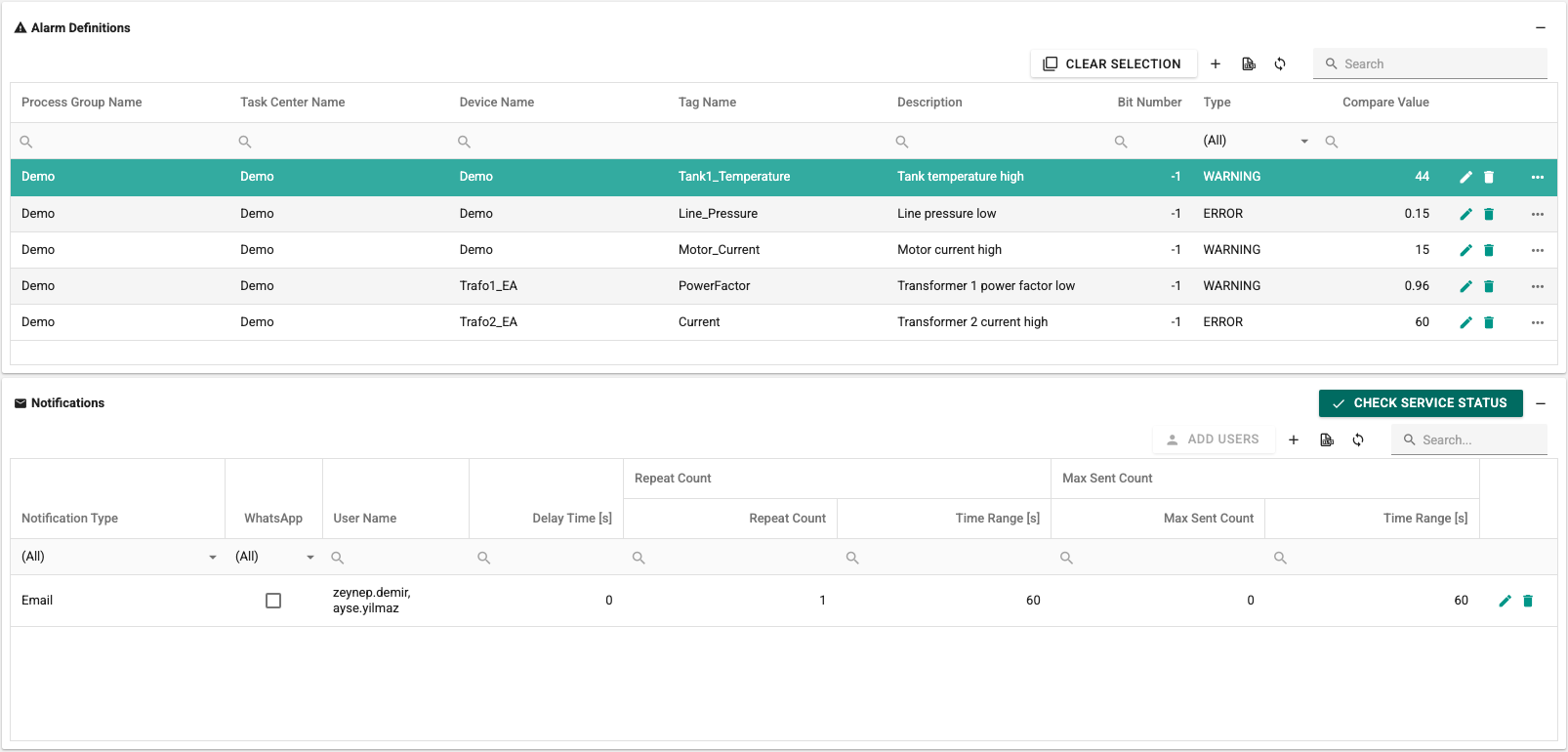
The Notifications table has these columns:
Notification Type: How the notification is delivered:
- Email: Only an email is sent.
- SMS: Only an SMS is sent.
- EmailAndSMS: Both an email and an SMS are sent.
WhatsApp: If selected, the notification is also sent by WhatsApp together with the selected email or SMS. It is not selected by default. See WhatsApp additional channel.
Alarm: The alarm the notification is bound to.
User Name: The users the notification is sent to.
Delay Time [s]: The time (seconds) to wait after the alarm occurs before the notification is sent. If the alarm clears before this time is up, no notification is sent.
The Repeat Count group:
- Repeat Count: How many times the alarm must occur for a notification to be sent. It must be at least 1.
- Time Range [s]: The time (seconds) over which the repeat count is counted. For example, with 60 s and a repeat count of 3, the notification is sent when the alarm occurs 3 times within 60 seconds. If 0 is entered, no time limit applies.
The Max Sent Count group:
- Max Sent Count: The maximum number of notifications sent for the alarm within the time range.
- Time Range [s]: The time (seconds) over which the maximum sent count is counted. For example, with 60 s and a maximum sent count of 1, only 1 notification is sent even if the alarm occurs more than once within 60 seconds.
The toolbar of the table has Add Users, + for a new notification, Excel export, refresh and a search box.
The Check Service Status button to the right of the Notifications header checks whether the notification service is running. If the service responds positively, the button turns into a check mark icon:

If the service does not respond, the button stays red:

 This button to the right of the table headers collapses the table; the button turns into the
  icon, and clicking it expands the table again.
Selecting the Recipients
After the notification definition is made, select the notification in the table and click the Add Users button in the toolbar. The Notification Users window opens.
The window lists the User Groups at the top and the Users in the selected group at the bottom. Select the users the notification is sent to with the check boxes on the left of the rows. Click the Save button to complete the operation; the Close button closes the window.
For email notifications the user must have an email address, and for SMS notifications a phone number; see Users. For WhatsApp messages, the user's WhatsApp consent must also be recorded.
WhatsApp Additional Channel
When the WhatsApp box in the notification definition window is selected, the notification is also sent by WhatsApp in addition to email or SMS. WhatsApp is only an additional channel: the Notification Type always includes email, SMS or both, and WhatsApp cannot be selected on its own.
WhatsApp cannot be the only alarm channel
WhatsApp does not guarantee delivery and may be delayed. Make sure recipients always receive alarms by email or SMS as well.
- A WhatsApp message is sent only to those users added to the notification whose WhatsApp consent is recorded and whose consented number is the same as their current phone number. Consent is recorded by the user on their own My Account page or by an administrator on the Users screen; see WhatsApp Settings – Recipient consent.
- No WhatsApp message is sent to a recipient without consent; this recipient appears in Notification History as Validation failed. Email or SMS delivery to the same person is not affected.
- The message is not free text. A template approved by Meta is used; the message contains the site name, the alarm severity (Warning or Error), the device name, the alarm description and the alarm time.
- The installed license must include the WhatsApp entitlement, and WhatsApp must be enabled on the WhatsApp Settings page. Otherwise no WhatsApp message is sent, even if the box is selected.
All Notifications
This tab shows all notification definitions you are allowed to see in a paged list. The list is read-only. Columns: Alarm, Type, Tag, Device, Channel, Notification Type, WhatsApp, Delay Time [s], Repeat Count, Time Range For Repeat Count, Max Sent Count, Time Range For Maximum Sent Count and Recipient count. The Channel column is hidden by default; show it with the column chooser. Columns that do not fit on the screen are opened with the ... button at the end of the row.
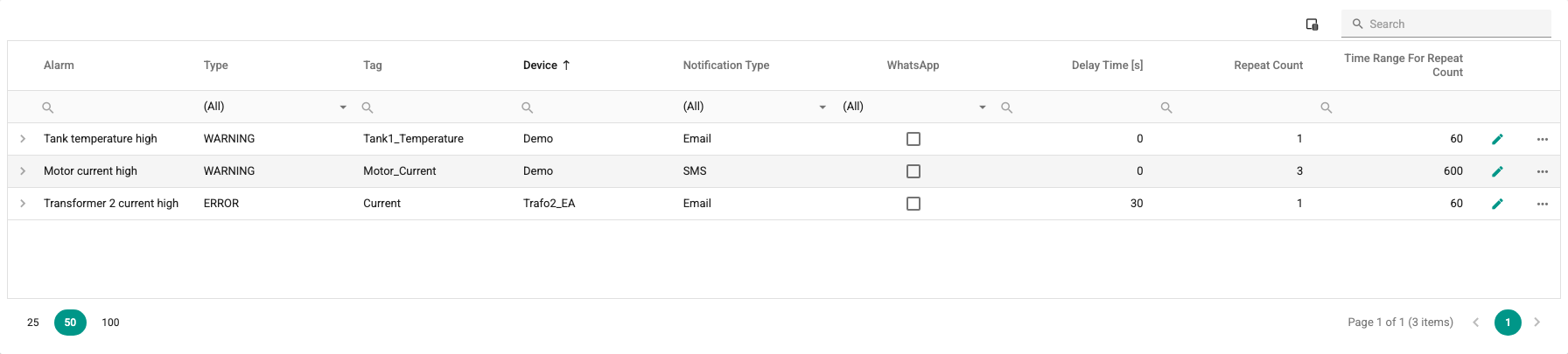
- Expanding a row shows the Recipients list of the notification.
- The Search box searches the alarm, tag, device and channel columns; the filters under the column headers can also be used.
- 25, 50 or 100 rows are shown per page.
- Clicking the Edit button of a row, or double-clicking the row, opens the window for editing the notification definitions of that alarm (Edit notification definitions). When the window is closed, the list is refreshed. Notifications whose alarm has been deleted cannot be edited.
This list has no Excel export, grouping or summary row.
By User
When a user is selected in the Select a user list, the notifications the user receives are shown in the same format as the list on the All notifications tab. Until a user is selected, the list is empty.
The list contains the users you can see according to your permissions. If the user list cannot be loaded or you are not allowed to see it, the message The user list could not be loaded or you are not allowed to view it. is shown.