
REST Client
With the REST Client protocol, 2WinScada itself pulls tag values at set intervals from an external system that has an HTTP/HTTPS API and, if needed, writes values to the same system. If the external system has to send the data to 2WinScada itself, use the REST Server protocol.
How it works:
- The tags of a device are grouped by their Update Interval[s] value; for each group, a single HTTP request is sent to the read address, and the request contains all tag addresses in that group.
- The tag addresses are looked up in the incoming JSON response, and the values found are written to the tags.
- When a value is written to a tag, a request with a JSON body is sent to the write address.
- The timeout for read and write requests is 30 seconds; a read response can be at most 4 MB.
License
REST Client is available in the Standard and Professional license editions; it is not available in the Starter edition. For details, see the License page.
Channel Definition
On the General tab of the new channel window, enter the Name and select RestClient as the Connection Type.
Connection Parameters tab:
| Field | Description | Default | Range |
|---|---|---|---|
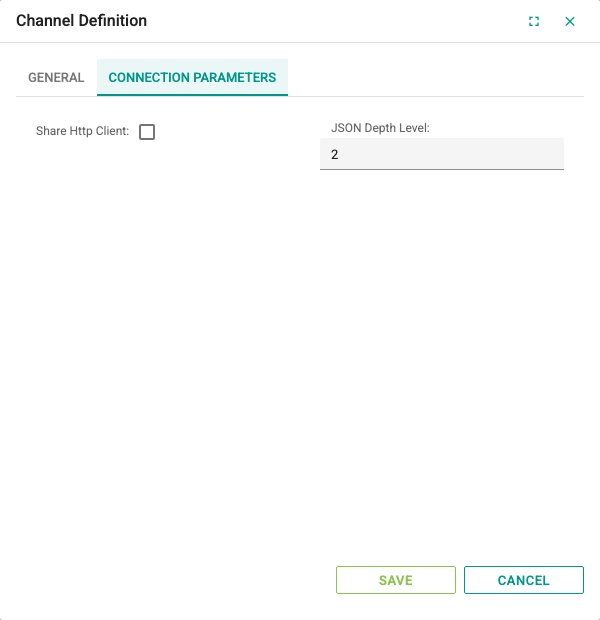
| Share Http Client | When selected, the active devices on the channel are polled one after another instead of at the same time; the next device does not send a request until one device's read round is finished. Use it if the external system cannot handle concurrent requests. | Not selected | – |
| JSON Depth Level | While Tag Address is in Keys is selected on the device, sets how deep nested objects in the response are scanned. | 2 | 1–15 |
Device Definition
On the General tab, the Name and Active fields are filled in as for other protocols. A REST Client device also has the Parameters, Read and Write tabs.
Parameters tab
The Header Parameters table defines the HTTP headers added to all read and write requests. Add a new row with the + button at the top right of the table; write the header name in the first column and its value in the second.
For APIs that require authorization, enter the required information in this table as a header. Examples:
| Header name | Value |
|---|---|
Authorization | Bearer <access-token> |
Authorization | Basic <Base64 of the user:password text> |
X-Api-Key | <api-key> (enter the header name as written in the API documentation) |
When a saved device is opened, the value of headers whose name indicates credentials (Authorization, API key, token, cookie, etc.) appears as ********. Saving without changing it keeps the value, typing a new value changes it, and deleting the header deletes the value. On a device created by copy/paste in the grid, these values are not copied; they must be entered again.
WARNING
For requests with a body, Content-Type: application/json is sent automatically; you do not need to add this header to the table. Content headers added to the table (those starting with Content-) are applied to the request body. An invalid or conflicting header is skipped and a warning is written to the service log; the device's other reads and writes are not affected.
Read tab
In the Read Request group, the address where the read is made and the format of the request are set.
| Field | Description | Options |
|---|---|---|
| Url | API address the read is made from. Fixed query parameters written in the address (after ?) are kept. | – |
| Request Method | HTTP method of the read request. | GET (default), PUT, POST |
| Param Type | How the tag addresses are added to the request. | None, Query (default), Body |
Param Type options:
- None: No tag address is added to the request; used if the API returns all values without parameters.
- Query: Each tag address in the group is added as a query parameter, with the key name written in the
TagAddressrow of the Read Request Parameters table. Because the address length can hit server and proxy limits, Body may be preferable for many tags. - Body: The tag addresses are sent as an array in the JSON body.
At the bottom of the tab are the Read Request, Response Schema and Value Schema tabs.
Read Request tab: The Read Request Parameters table defines the parameters added to the read request. Select a parameter from the list in the first column and write its value in the second.
TagAddress: Specifies the key name with which the tag addresses are sent. This row must be defined if addresses are to be sent.Period,SampleTime,ValueType,FillType,FillValue,StartTime,EndTime,AlignToCalendar,CalculateConsumption,IANATimeZone,PeriodCount: These rows are added to the request as extra parameters with the name in the list and the value in the second column. Define them if the API you use expects these parameters.
For example, on a device whose TagAddress value is ids, the requests for two tags with the addresses Kazan.Sicaklik and Kazan.Basinc are built as follows.
When Param Type is Query:
GET https://<api-server>/read?ids=Kazan.Sicaklik&ids=Kazan.BasincWhen Param Type is Body, the request body is:
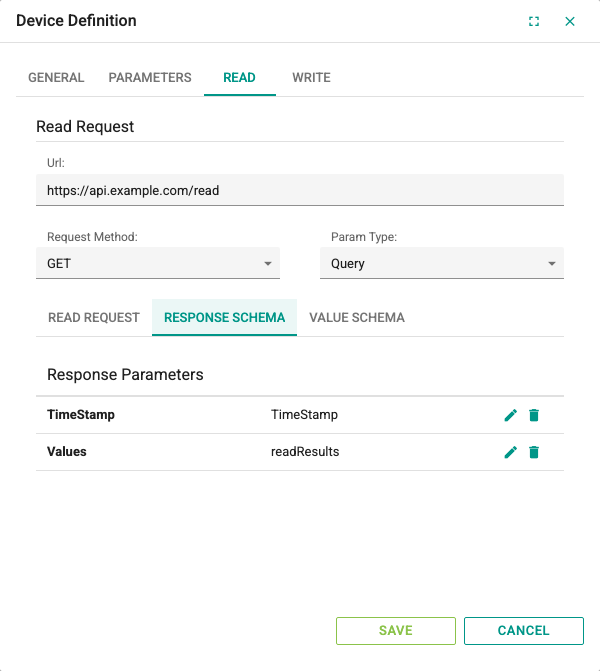
{ "ids": ["Kazan.Sicaklik", "Kazan.Basinc"] }Response Schema tab: The Response Parameters table defines where the values are in the response. At most two rows can be added.
Values: Name of the field at the root level of the response that contains the list of values (e.g.readResults). If this row is missing or the field is not found in the response, the root of the response is used.TimeStamp: Not used in this version.
Value Schema tab: Defines how each element in the list of values is read.
Select the Tag Address is in Keys option if the response carries the tag address as the field name and the tag value as that field's value (e.g. { "Kazan.Sicaklik": 81.5 }). In this case the Response Value Schema table is not used; nested objects are scanned according to the JSON Depth Level setting on the channel. The same field name must not occur more than once in the response; for the most reliable result, keep the values at a single level in the response.
While the option is not selected, the list of values is expected to be an array, and the Response Value Schema table is filled in:
| Row | Description |
|---|---|
TagAddress | Name of the field in the array element that carries the tag address. Required. |
TagValue | Name of the field in the array element that carries the value. Required. |
TagChangeTime | Not used in this version; the read time is stored as the time of the value. |
TagQuality | Not used in this version. |
If the array elements are arrays rather than objects (e.g. ["Kazan.Sicaklik", 81.5]), write the element's index (starting from 0) instead of a field name.
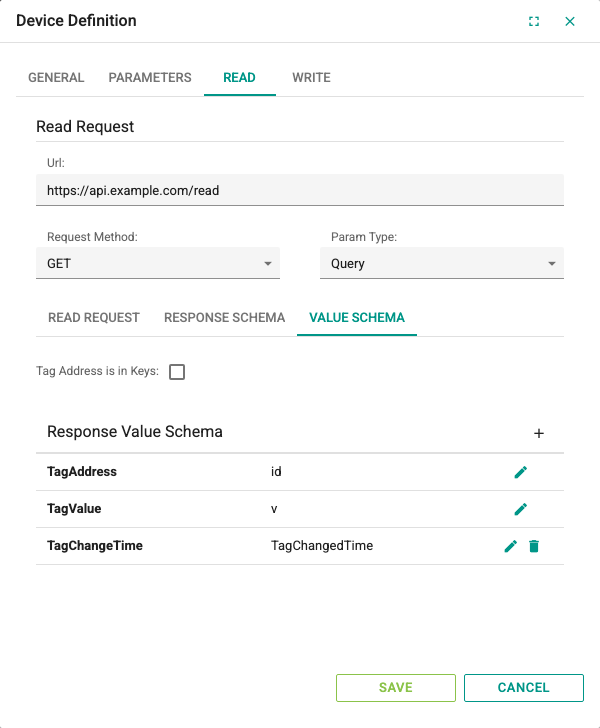
An example response that matches the schema above (Values = readResults, TagAddress = id, TagValue = v):
{
  "readResults": [
    { "id": "Channel1.Device1.tag1", "s": true, "r": "", "v": 263, "t": 1442606724647 }
  ]
}
With this response, the value 263 is written to the tag with the address Channel1.Device1.tag1.
Write tab
If the external system supports writing, fill in the Write Request group. If the Url is left empty, no writes are made to the tags.
| Field | Description | Options |
|---|---|---|
| Url | API address the write is made to. | – |
| Request Method | HTTP method of the write request. | PUT, POST (default) |
| Param Type | Appears in the list, but the write request is always sent with a JSON body. | None (default), Body |
In the Write Request Parameters table, rows cannot be added or deleted; only the values can be changed:
TagAddress: Name of the field in which the tag address is sent. Required.TagValue: Name of the field in which the value to be written is sent. Required.
When TagAddress = id and TagValue = v and 42 is written to the Channel1.Device1.tag1 tag, the body sent is:
[{ "id": "Channel1.Device1.tag1", "v": 42 }]Bool tags are sent as 0 or 1. Each write is sent once in a single request; a failed write is not repeated; the HTTP error code is shown in the Error field of the Device States screen.
Tag Definition
Select the device in the channel tree and add a new tag in the tag table on the right. The common fields are filled in as on the Tag Management page. Important fields for REST Client:
| Field | Description |
|---|---|
| Address | Identifier by which the external system knows the tag (1–250 characters). This value is sent in the read request and is matched exactly, case-sensitively, with the address field in the response. In the example above, the address must be Channel1.Device1.tag1. |
| Data Type | Choose a type that suits the value read; if the value cannot be converted to this type, the tag is not updated. |
| Update Interval[s] | Read interval. Tags with the same interval are read in one request. |
Troubleshooting
| Symptom | Checks |
|---|---|
| The device and all tags in the group are Bad | Check whether the API returns an HTTP code other than 2xx, the Url value, network and firewall access, the certificate and the authorization headers. The response must arrive within 30 seconds, be valid JSON and not exceed 4 MB. |
| No read is made at all | Check that the Url value is filled in and valid, and whether there is a skipped-header warning in the service log. If Share Http Client is selected, a slow device on the same channel can make the others wait. |
| Tag quality is Uncertain | The tag address was not found in the response. Check that the Address value is the same as in the response, including case, and the Values and TagAddress field names. |
| The tag value is not updated | Check the TagValue field name and the Data Type selection. |
| Writing does not work | Check the write Url value, the Request Method selection, the TagAddress / TagValue field names and the last error message in the device state. |