
Tag Management
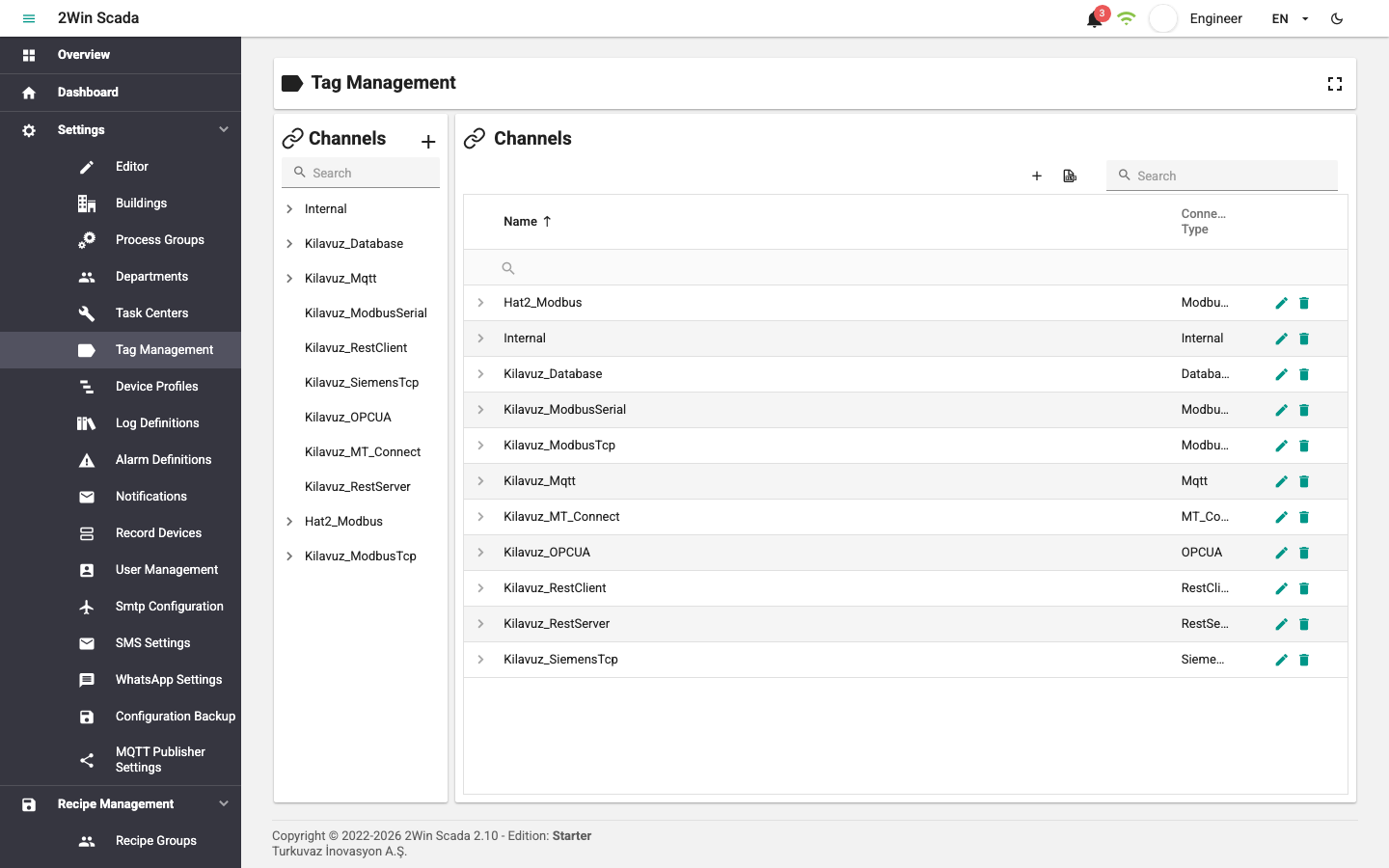
Select Settings > Tag Management in the left menu to open the tag management page. The page has three main parts:
- the Channels tree on the left, which contains the channels and devices,
- the channel, device or tag table on the right, depending on the selection,
- the Other Definitions section at the bottom, where log, alarm and advanced tag definitions are made for the selected tag.
Click the Channels text in the tree header to open the channel table on the right. The + button to the right of the header, or the + button at the top right of the channel table, opens the new channel definition window. Use the Search box above the tree to search by channel and device name.
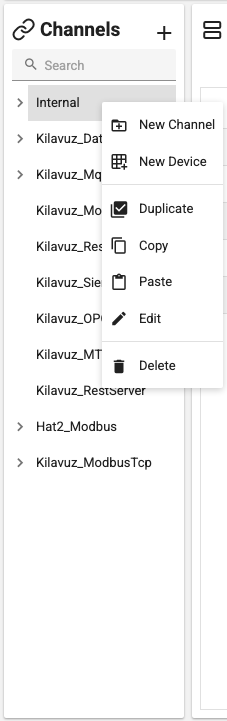
Right-clicking a channel or device in the tree opens a menu with these commands: New Channel, New Device, Duplicate, Copy, Paste, Edit and Delete.
Devices whose configuration has changed and that need to be restarted show a Reinitilize Device button with a refresh icon in the tree. Clicking the button restarts the device with the new settings.
Duplicating Channels and Devices
A channel or device can be duplicated together with the definitions under it:
- Duplicate: Creates a copy of the right-clicked channel or device.
- Copy and Paste: A copied channel is duplicated by selecting Paste on any channel in the tree. A copied device is duplicated into a channel by selecting Paste on a channel with the same connection type; it cannot be pasted into a channel with a different connection type.
Both ways open the Paste Options window.
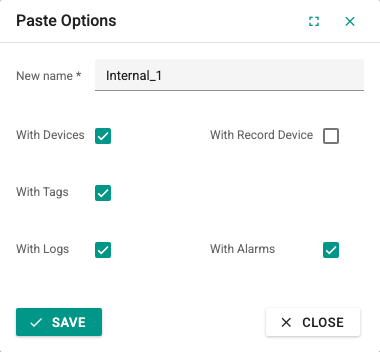
| Field | Meaning |
|---|---|
| New name | Name of the new channel or device. The system suggests a unique name. A channel name must be 3–50 characters long and must not start with a digit; a device name must be 3–100 characters long. A warning is shown if the name is already in use. |
| With Devices | Shown only when duplicating a channel. The devices of the channel are copied too. Clearing it also clears the other options. |
| With Record Device | The record device definitions of the devices are copied too. |
| With Tags | The tag definitions of the devices are copied too. |
| With Logs | The log definitions of the tags are copied too. Cannot be selected unless tags are included. |
| With Alarms | The alarm definitions of the tags are copied too. Cannot be selected unless tags are included. |
Clicking Save starts the duplication in the background on the server and opens the Duplicating definition window. The window shows the tracking ID of the operation and its current stage (operation queued, copying definitions, preparing log history tables and so on). When the operation completes, the new channel or device is added to the tree. A failed operation is not retried automatically; after the problem is fixed, it can be started again with Try again. The Close button closes the window without duplicating.
TIP
To copy the settings of a record device to another device, use the Duplicate command on the Record Devices page.
Channel Definition
The + button in the tree header or the New Channel command in the right-click menu opens the Channel Definition window.
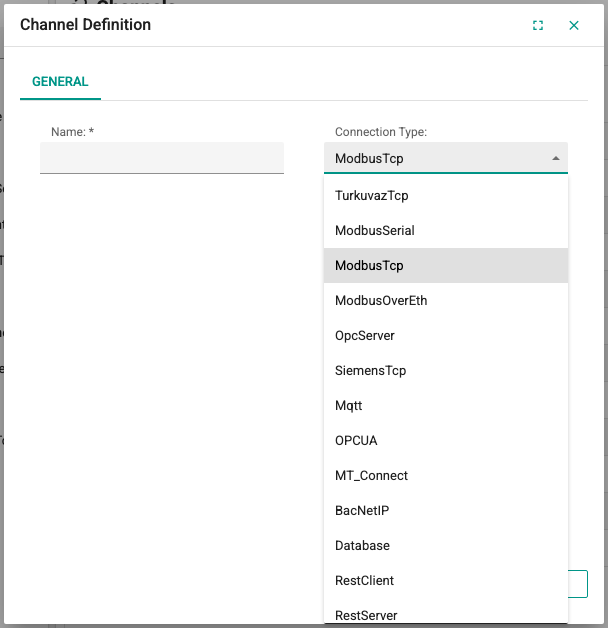
The General tab is common to all protocols. This tab sets the Name and Connection Type of the channel. The channel name must be 3–50 characters long, must not start with a digit and must be unique in the system. The contents of the Connection Parameters and Advanced Parameters tabs depend on the protocol; these fields are described on the protocol pages.
Device Definition
Click a channel in the tree to show the device table of the channel on the right. Right-click the channel and select New Device to open the Device Definition window.
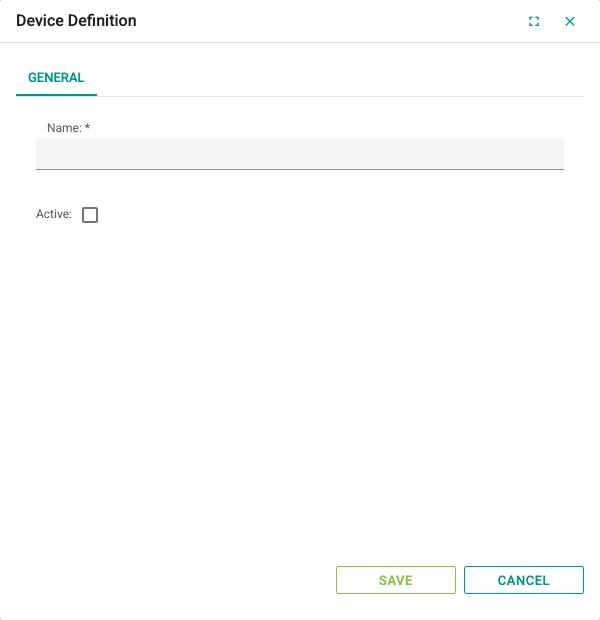
The General tab of the window is common to all protocols. The Name of the device must be 3–100 characters long and unique within the channel.
Active: Enables or stops communication with the device. Communication is enabled when the check box is selected.
The contents of the other tabs depend on the protocol and are described on the protocol pages.
Tag Definition
Click a device in the tree to show the Tags table of the device on the right. In this table you manage the name, address, data type, update interval and other settings of the tags. The example below shows the tags of the Demo device in the sample project; for example, the Line_Pressure tag has the data type "Real", the unit "bar" and an update interval of 1 second.
When a tag is selected in the table, the Other Definitions section opens at the bottom. Use the Log Definitions, Alarm Definitions and (if the tag is an advanced tag) Advanced Tags tabs in this section to make the log, alarm and advanced tag definitions for the selected tag.
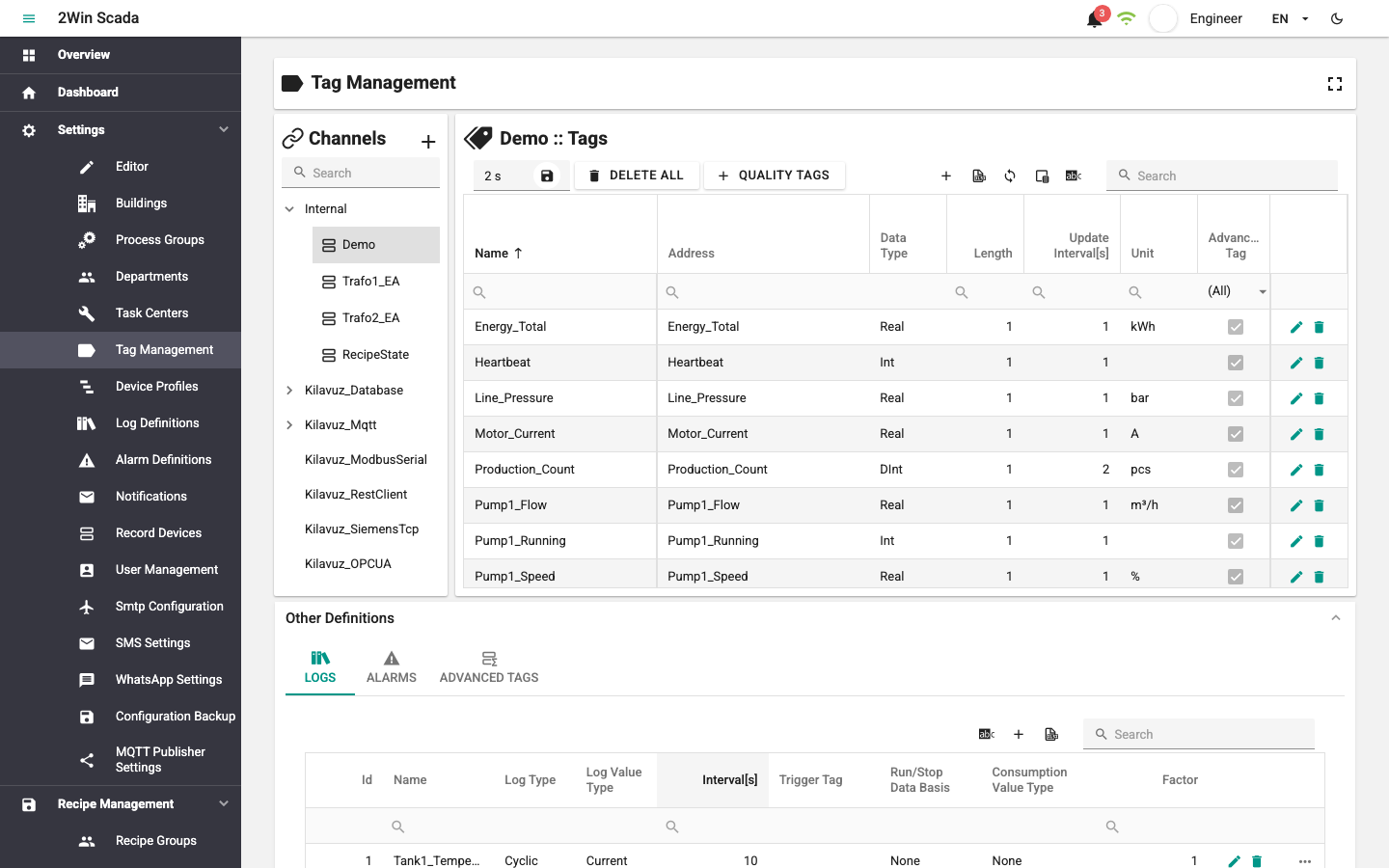
The table header shows the name of the device the tags belong to. The left side of the toolbar under the header has these buttons:

- Update All Intervals: Type a new value in the interval box and click the floppy disk button next to it; after confirmation, the update interval of all tags of the device is changed.
- Delete All: After confirmation, deletes all tag definitions of the device. This cannot be undone.

- Quality tags: After confirmation, automatically adds the
_ConnErrorand_TagQualityBadtag definitions that monitor the communication state of the device (see the system addresses below). - EtherNet/IP devices also have a tag scan button; see EtherNet/IP.
Buttons on the right side of the toolbar:
- The + button adds a new tag row.
- The
 button exports the table data as an Excel file.
 - The
 button (Refresh Data) refreshes the table.
 - The
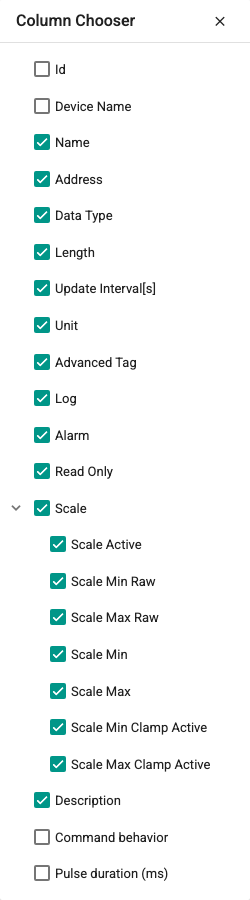
 button opens the column chooser. Select or clear the check boxes next to the columns to show or hide them.
- The Manage Translations button opens a window for editing the translations of tag texts by language.
- Text typed in the Search box on the far right is searched in the tag name or address, and the table is filtered.
The filter boxes under the column headers filter only on their own column. The ... button at the end of the row shows or hides the columns that do not fit on the screen; in the new tag image below, the fields starting with Scale Min Raw shown under the row are these columns.
Adding a New Tag
Click the + button to open a new tag row in edit mode in the table.
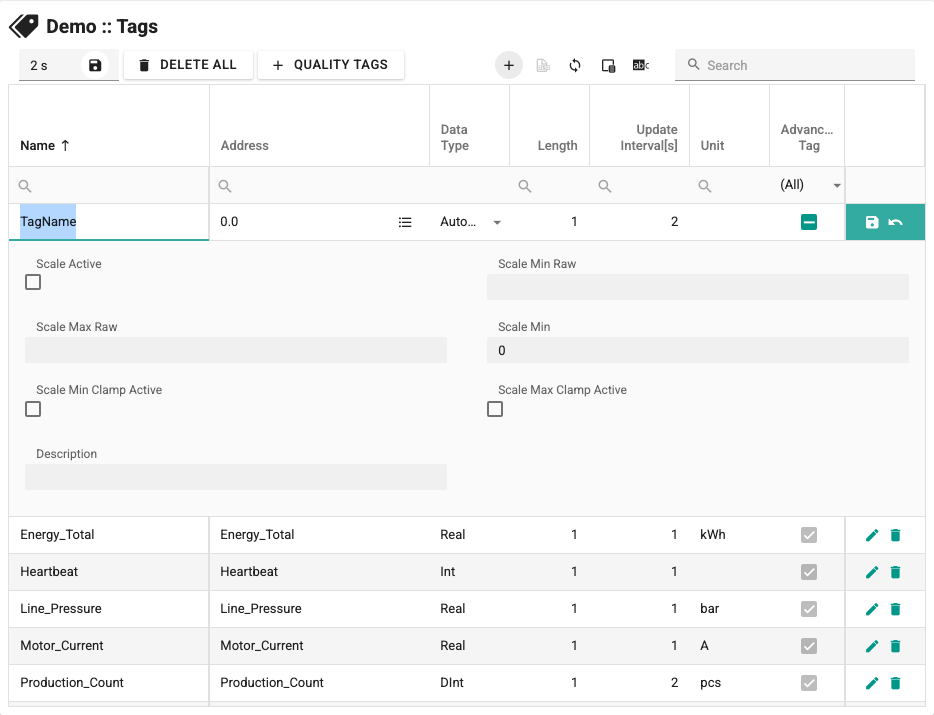
Enter the column values according to the rules below.
Name: The name of the tag shown on pages and in other sections. It must be 1–250 characters long and unique within the device. Tab, line break and the characters ~`¨!@$^&={}[];,<>/'+# cannot be used.
Dots (.) are allowed in tag names. Page bindings use a full name made from the channel, device and tag names; correct definitions that share a full name. A write addressed by an ambiguous name is not sent; repair the definition or bind by ID. New or renamed tags cannot contain + or #. Legacy names remain loadable and restorable; publications with invalid MQTT topics are skipped with a diagnostic.
Address: The address of the tag, entered in the address format of the selected protocol.
From the Choose a device system address menu in the address field, you can select two system addresses that monitor the communication state of the device:
| Address | Meaning |
|---|---|
_ConnError | Connection error: if the value is 1, there is no connection to the device. |
_TagQualityBad | Bad quality: if the value is 1, the device has a tag with bad quality. |
A tag with a system address has the data type Bool and is read-only. These tags can be used in alarm definitions and on pages to show the communication state of the device.
Data Type: The data type of the tag, selected from the list. For OPC UA it can be left as "Automatic". For correct reading, the data type must match the type in the device.
Length: The number of characters to read when the data type is "String". For other data types the default value is 1.
Update Interval[s]: How often the tag is read from the device; it must be between 0.5 and 86400 seconds.
Unit: Optional unit text for the tag (at most 20 characters).
Advanced Tag: Select it if the value of the tag is calculated with an expression. The expression is defined in the Advanced Tags tab that opens in the Other Definitions section; see Advanced Tag Definition.
Log: Shows whether the tag has a log definition. It cannot be changed.
Alarm: Shows whether the tag has an alarm definition. It cannot be changed.
Read Only: If selected, the tag cannot be written.
Scale > Scale Active: If selected, the value read from the device is scaled with the parameters below.
Scale Min Raw / Scale Max Raw: The smallest and largest raw value read from the device.
Scale Min / Scale Max: The smallest and largest value the scaling produces.
Scale Min Clamp Active: If the scaled value falls below Scale Min, Scale Min is used as the tag value.
Scale Max Clamp Active: If the scaled value rises above Scale Max, Scale Max is used as the tag value.
Description: Optional description text for the tag.
EtherNet/IP devices also have command behavior fields; see EtherNet/IP.
After filling in the fields, click the floppy disk button at the end of the row to save the tag. If a field does not follow the rules, a warning is shown in a red box under the field.
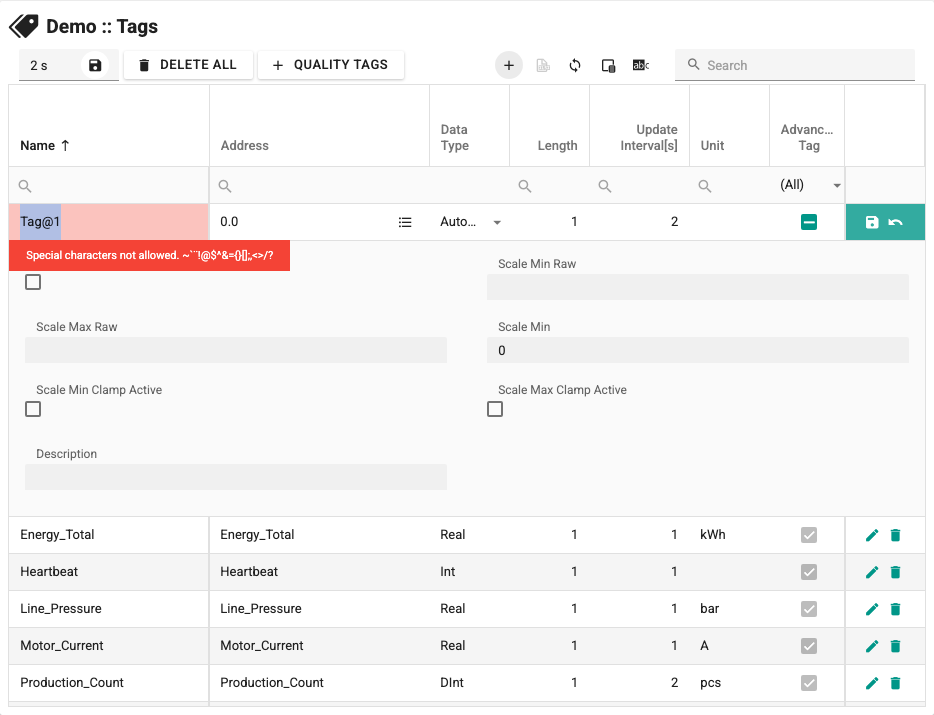
The button with the undo icon cancels the change.
Copying and Pasting Tags
Right-clicking a row in the tag table shows the Copy, Paste, Duplicate and Delete commands.
- Duplicate adds a copy of the selected tag with a unique name to the same device.
- Copy puts all fields of the selected tag on the clipboard as a single tab-separated line of text. You can paste this line into a spreadsheet program, duplicate and edit it, and use it as a template for several tags.
- Paste adds the lines on the clipboard to the selected device as new tags. If a name is already in use in the device, a unique name is generated; characters that are not allowed are removed from the name. If a line is missing a column, the Missing column error warning is shown and nothing is pasted.
In 2.11, creating or renaming channels, devices or tags rejects new full-name collisions. Correct collisions from older backups after restoring them.