
First Project
This page walks you through preparing your first monitoring screen on a newly installed 2WinScada server. At the end you have a page that reads a temperature from a Modbus TCP device, sends commands to a pump, archives the values and raises an alarm when the temperature is high.
Each step starts with its purpose, followed by the actions to take and the expected result. Detailed explanations are in the links at the end of each step.
Before you begin
- The installation must be complete and the web interface must open in the browser. See Installation.
- The license must be imported. New devices and tags are counted against the license capacity. See License.
- Have the username and password of the administrator account you set during installation at hand.
- You need a Modbus TCP device that the server can reach over the network (a PLC, an energy analyzer or a Modbus simulator) and the device's register map. If you do not have a device, see the tip in step 4.
Example values
The names and addresses on this page are examples. The device IP address is 192.168.1.10, the channel name is Hat1 and the device name is PLC1. Use the values of your own plant.
1. Sign in and prepare the operator account
Purpose: Sign in with the administrator account and prepare the account the operator will use.
- Open the address entered during installation in the browser.
- Type the administrator credentials you set during installation in the Username and Password fields, then click Sign in.
- Open Settings > User Management from the left menu. The Users tab is open.
- Click the + button in the upper right of the table. In the User Information window, enter the username, first name, last name and email address, and select the Operators group in the Group field.
- Type a temporary password of at least 10 characters in the Password and Confirm Password fields and click Save.
- Give the temporary password to the person who will use the account through a secure channel.
Result: The operator can sign in with the new account. At the first sign-in, the user is taken to the Change your password screen and sets their own password.
Personal accounts
Instead of a shared account, we recommend creating a separate account for each operator. Use the administrator account only for system administration.
Details: User and Group Management, Changing a User's Password, Changing the Password at First Sign-In.
2. Explore the sample project
Purpose: See in a ready-made project how channels, devices, tags and pages are connected to each other.
On a new installation, the system creates a simulated sample project the first time it starts; no field device is needed. The sample project is not added when an existing database is upgraded or a configuration backup is restored.
| Item | In the sample project |
|---|---|
| Pages | In the Örnek Proje (Sample Project) folder: Genel Bakış (Overview, the landing page with an isometric plant view), Tesis Yerleşimi (Plant Layout, the plant seen from above), Tesis Özeti (Plant Summary), Pompa İstasyonu (Pump Station) and Enerji Analizörü (Energy Analyzer) |
| Channel and devices | The active Demo (pump station), Trafo1_EA and Trafo2_EA (energy analyzers) devices on the Internal channel |
| Tags | 48 simulated tags: 14 in the pump station (commands, speed, flow, tank level, temperature, pressure, energy, counter) and 17 in each analyzer (line voltages, frequency, phase and neutral currents, power factor, phase and total active power, reactive power, active energy counter) |
| Log definitions | One consumption log for the active energy counter KWH of each analyzer: Cyclic, 60 seconds, Consumption Value Type Cumulative, 12 months retention |
| Organization | The Demo task center and the Demo process group |
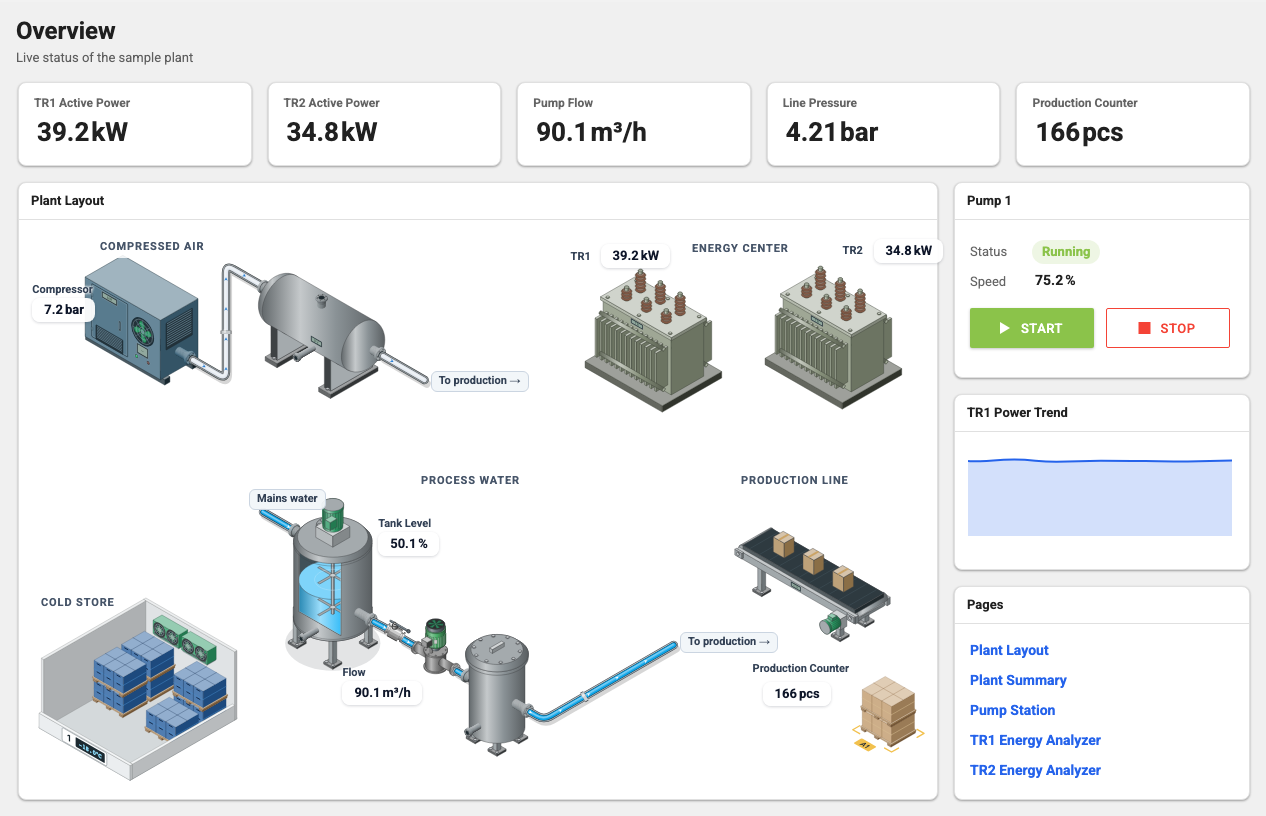
Open Overview from the left menu. At the top of the Genel Bakış page there are five live summary cards: TR1 Active Power, TR2 Active Power, Pump Flow, Line Pressure and Production Counter. Below them, the Plant Layout card shows the plant as an isometric drawing in five areas: Compressed Air (compressor and air receiver), Energy Center (two transformers and their current power), Process Water (mains water, a mixer tank that shows its level, a valve, the pump and a filter), Cold Store and Production Line (conveyor, pallet and production counter). While the pump is running, the flow in the pipes moves. On the right, the Pump 1 card shows the state of the pump (Running or Stopped) and its speed; the green START and red STOP buttons start and stop the simulated pump. The TR1 Power Trend card draws the power of Transformer 1 as a live curve. The Pages card opens the other pages of the sample project: Plant Layout, Plant Summary, Pump Station, TR1 Energy Analyzer and TR2 Energy Analyzer. Some values come from live tags; values such as the compressor pressure (7.2 bar) and the cold store temperature (−18 °C) are static example values.
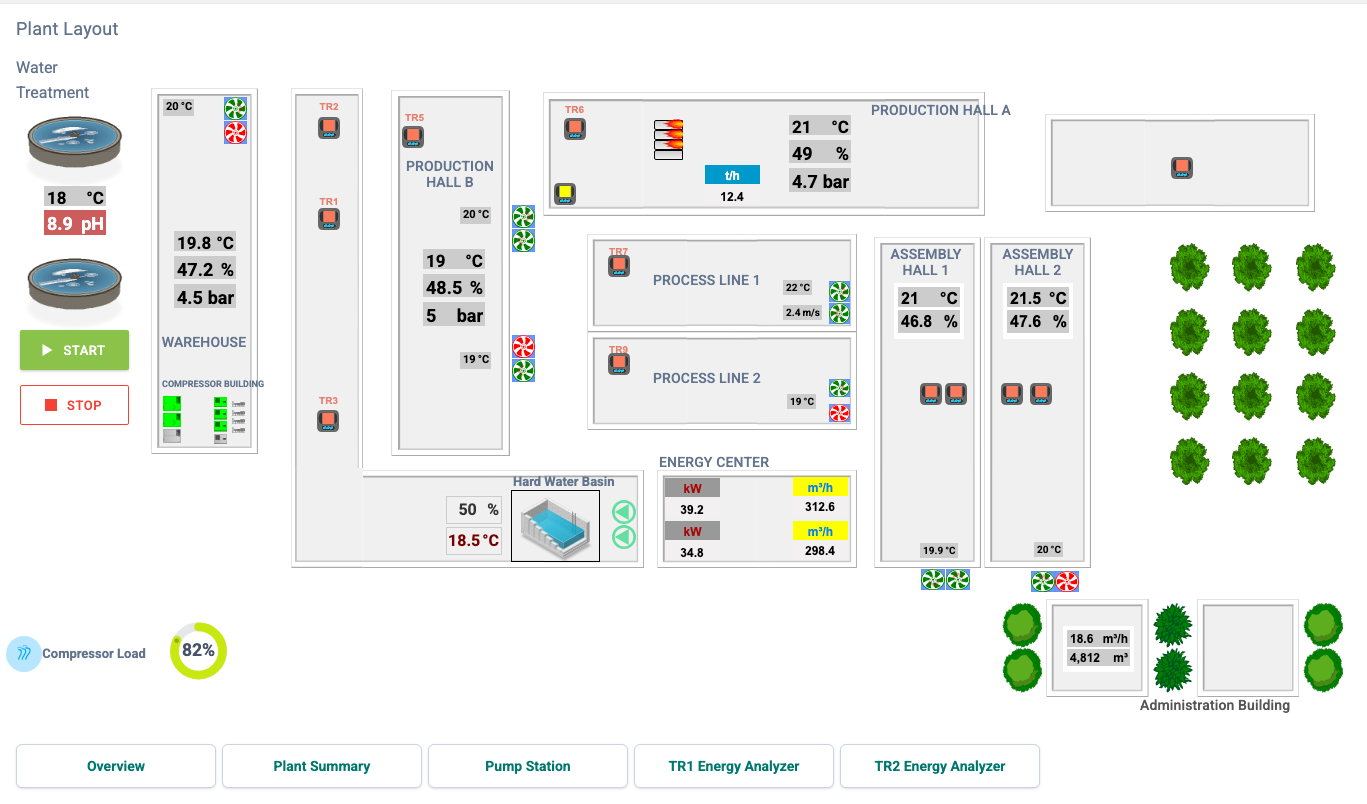
On the Pages card, click the Plant Layout link. The Tesis Yerleşimi (Plant Layout) page shows the plant from above: areas such as the production and assembly halls, the warehouse, the energy center, the compressor building, Water Treatment and the Hard Water Basin, and at the bottom the navigation cards Overview, Plant Summary, Pump Station, TR1 Energy Analyzer and TR2 Energy Analyzer. Only some objects are live: the water treatment symbols and the two pumps next to the basin show the running state of the simulated pump, the basin shows the tank level, and the two kW values in the energy center show the current power of the transformers. The fan, compressor, dryer and flame symbols and the process labels (temperature, humidity, pressure, flow, steam, pH) show static example values. The START and STOP buttons on this page also start and stop the simulated pump.
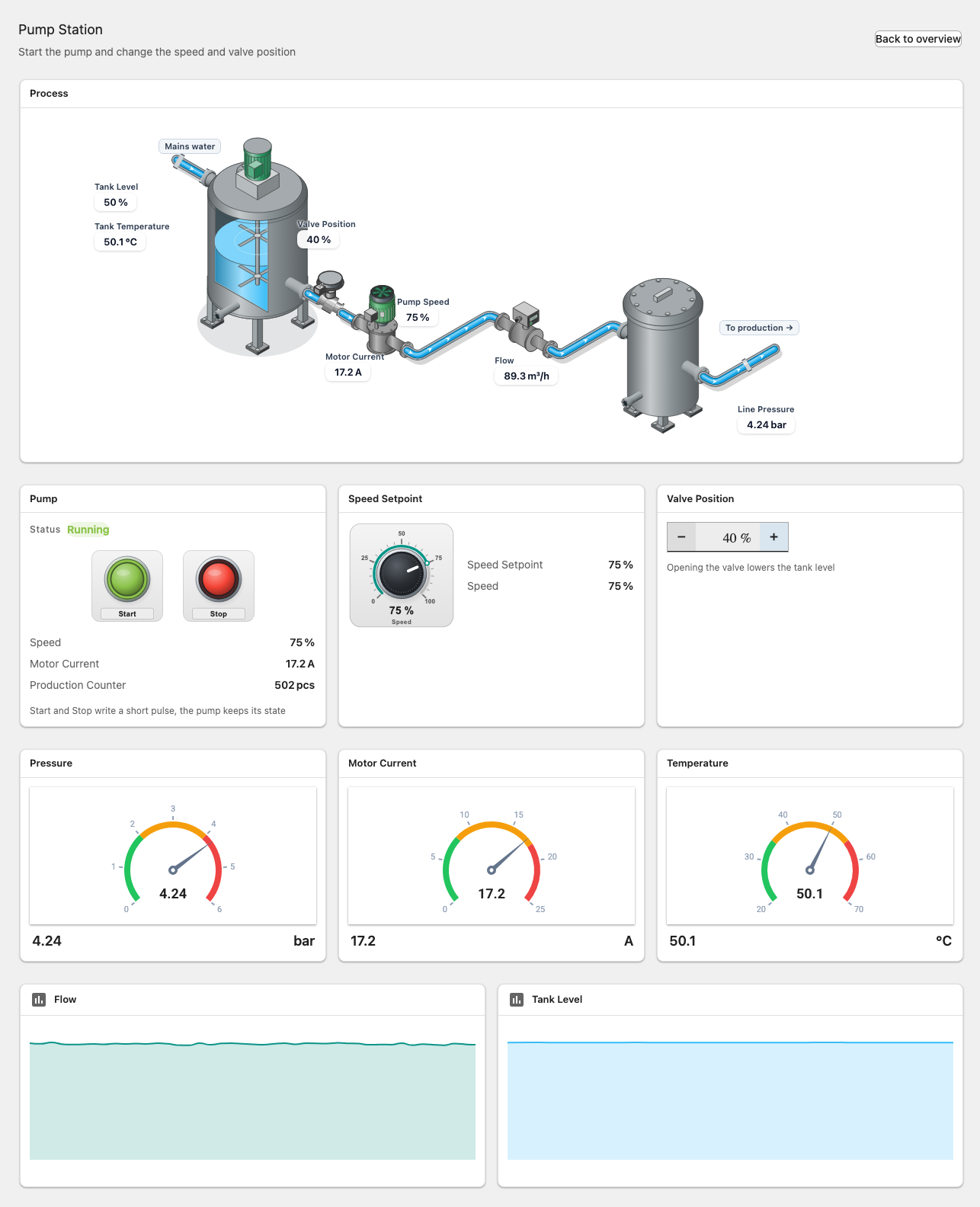
Click the Pump Station card at the bottom. The Process card at the top of the page draws the process isometrically: mains water, tank, control valve, pump, flow sensor, filter and the line to production. The labels show the tank level and temperature, the valve position, the pump speed, the motor current, the flow and the line pressure. Below it are the Pump card, a potentiometer for the speed setpoint, a value input for the valve position, gauges and sparklines.
On a new installation the pump starts running; its status shows Running, and the speed, flow, pressure and motor current change live. Change the Speed Setpoint and Valve Position values and watch how the flow and the tank level react. Stop the pump with Stop; the status changes to Stopped, and the speed and motor current drop. Start the pump again with Start.
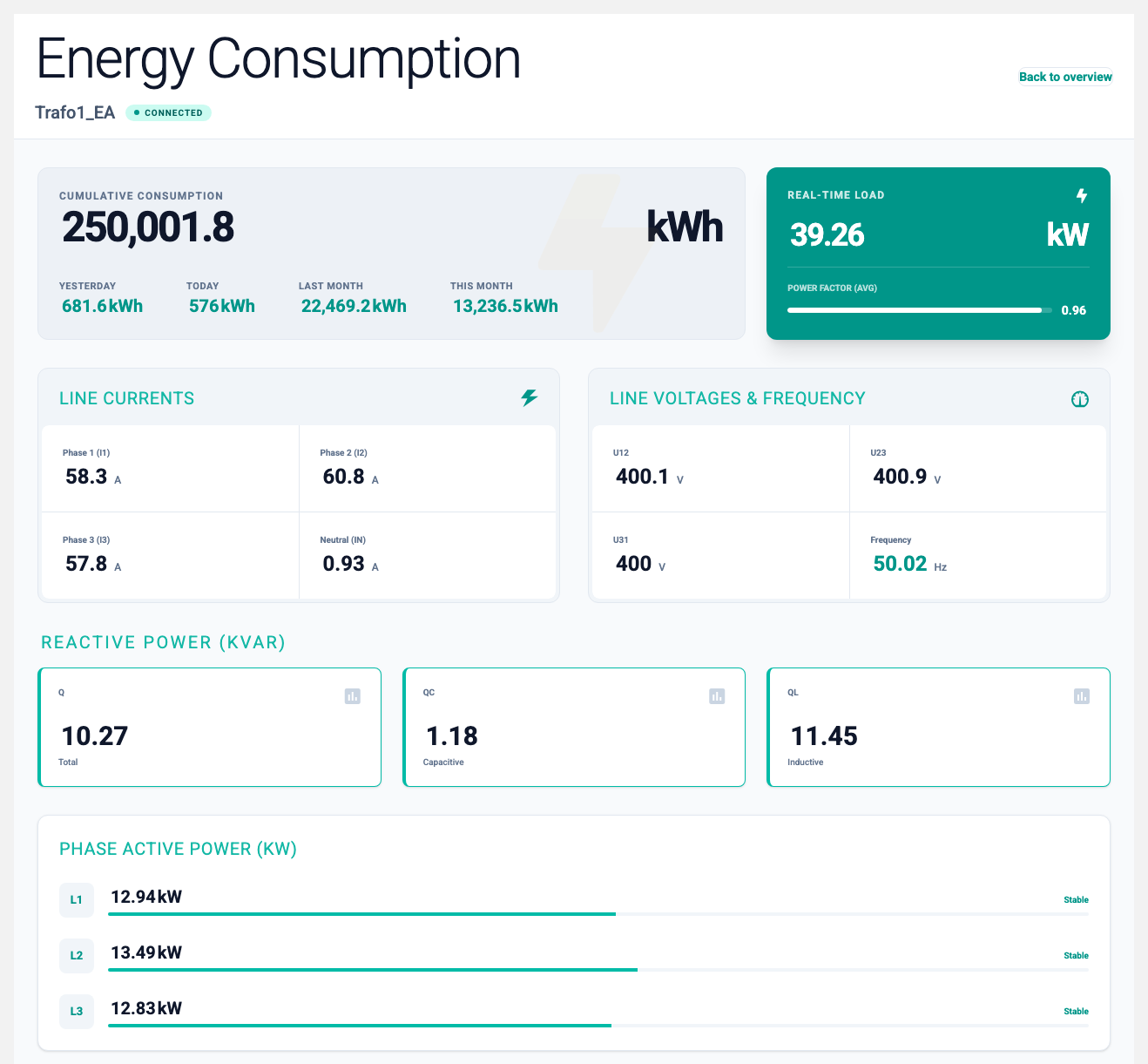
Go back to the Genel Bakış page with the Back to overview link and click the TR1 Energy Analyzer link on the Pages card. The Enerji Analizörü page opens with the values of Transformer 1: line voltages and frequency, phase currents, power factor, phase active power, reactive power, the real-time load and the period consumptions on the Cumulative Consumption card. When you go back and click the TR2 Energy Analyzer link, the same page now shows the values of Transformer 2. The TR1 and TR2 symbols and the navigation cards on the Tesis Yerleşimi page and the Transformer 1 and Transformer 2 cards on the Tesis Özeti page open the page in the same way. While the pump is running, the current and power of Transformer 1 are higher, because the pump is fed from this transformer.
Open Settings > Tag Management and select the Demo device under Internal in the channel tree. The tags used on the page are listed in the table on the right.
Result: You have seen that every live indicator on the page is bound to a tag and that tag names are written in the form Channel.Device.Tag (for example Internal.Demo.Pump1_StartCmd). You will use the same structure on your own page.
Enerji Analizörü is a template page: its bindings start with a dot, such as .KW, and do not contain the device name. The TR1 and TR2 links and the transformer cards and symbols open the page with a Tag Prefix (Internal.Trafo1_EA or Internal.Trafo2_EA); the prefix and the binding are combined into Internal.Trafo1_EA.KW. If you have many devices of the same type (analyzers, compressors, air handling units), instead of drawing a separate page for each one you can prepare a single template page and give the links different prefixes. If you open the template page directly from the menu, the values appear empty because there is no prefix.
The Yesterday, Today, Last Month and This Month values on the Cumulative Consumption card are calculated from the consumption log of the analyzer's KWH tag and are also bound with the prefix (.__cons.today.sum.KWH; see Tag name and page prefix). The sample project does not come with historical data; the logs write records from the time of installation. On a new installation, Today and This Month therefore fill after the first records, Yesterday needs records of at least one day and Last Month records of at least one month.
License capacity
The three active devices of the sample project use 3 devices and 48 tags of the license capacity. If your license is close to its limit or you no longer need the simulation, set the Demo, Trafo1_EA and Trafo2_EA devices to inactive; the pages remain, and the consumption logs stop writing records. Do not delete the Internal channel; its role is described on the Internal (Memory Channel) page.
Details: Sample project.
3. Define a channel, a device and tags
Purpose: Connect to the Modbus TCP device and define the values to read or write as tags.
The definitions are made on the Settings > Tag Management page. The page has the channel tree on the left, the channel, device or tag table for the current selection on the right, and the Other Definitions section for the selected tag below it.
Channel
- Open the Settings > Tag Management page.
- Click the + button in the header of the channel tree. You can also right-click a channel in the tree and use the New Channel option.
- On the General tab, type
Hat1in the Name field. The name must not start with a digit and must be 3–50 characters long. - Select ModbusTcp in the Connection Type list. A Modbus TCP channel has no other settings.
- Click Save.
Result: The Hat1 channel appears in the tree.
Device
- In the channel tree, right-click the
Hat1channel and select New Device. - On the General tab, type
PLC1in the Name field and select the Active check box. - On the Parameters tab, enter the device's Ip address (for example
192.168.1.10), the Port number (usually502for Modbus TCP) and the Slave Id value. - Leave the Settings and Advanced Parameters tabs at their default values for now.
- Click Save.
Result: The PLC1 device appears under the Hat1 channel. You can follow the device's connection status on the Monitoring > Device States page. If no connection can be established, check the IP address, the port, the Slave Id value and the firewall between the server and the device.
Tags
- In the channel tree, click the
PLC1device. The device's tag table opens on the right. - Click the + button on the table toolbar. A new editable row opens in the table.
- Fill in the row for the first tag in the table below and click the Save button with the floppy disk icon at the end of the row.
- Repeat actions 2 and 3 for the other two tags.
| Name | Address | Data Type | Update Interval[s] | Unit | Read Only |
|---|---|---|---|---|---|
Tank_Sicaklik | 300001 | Real | 1 | °C | Selected |
Pompa_Calisiyor | 100001 | Bool | 1 | Selected | |
Pompa_Komut | 000001 | Bool | 1 | Cleared |
Modbus addresses are written with 6 digits, and the first digit shows the area: 0 coil, 1 discrete input, 3 input register, 4 holding register. Change the addresses according to your device's register map.
Result: The three tags are listed in the device's table, and their values and qualities appear on the Monitoring > Tag States page. If the temperature value is very different from what you expect, check the First Word Low 32 Bit option on the device's Settings tab.
Monitoring device communication
The Quality tags button in the tag table adds the _ConnError and _TagQualityBad system tags, which monitor the device connection. You can use these tags in alarm definitions and on pages.
Add the device to a task center
When a device is added to a task center, it belongs to the process group that the task center is part of. Alarms of devices that do not belong to a process group fall into the system's Genel process group; who sees them depends on the roles assigned to Genel, and if no role is assigned, everyone sees them (see Genel process group). To give an area to its own operators, add the devices to a task center. In this example, the Demo task center of the sample project is used.
- Open the Settings > Task Centers page.
- Select the Demo task center in the table and click the Add Device button on the toolbar.
- In the window that opens, select the
PLC1device in the channel tree on the left and click Add. - Click Save.
Result: PLC1 is now under the Demo process group. If you want to use your own project name, rename the Demo task center and process group instead of deleting them.
Details: Tag Management, Modbus TCP, Modbus Addressing, Task Centers, Process Groups.
4. Add a log and an alarm
Purpose: Record the temperature value in the archive and raise an alarm when the temperature exceeds 80 °C.
Log definition
- On the Settings > Tag Management page, select the
PLC1device and then theTank_Sicaklikrow in the tag table. - In the Other Definitions section below, open the Logs tab and click the + button.
- In the General step, enter the following:
- Name:
Temperature 1 min - Log Type: Cyclic
- Interval[s]:
60 - Log Value Type: Current
- Name:
- Click Next. Leave the settings in the Consumption & Run/Stop step at their default values.
- Click Save.
Result: The Log column in the tag table appears selected for Tank_Sicaklik. The temperature value is written to the archive every 60 seconds.
Alarm definition
- With the
Tank_Sicaklikrow selected, open the Alarms tab in the Other Definitions section and click the + button. - In the Alarm Definition window, enter the following:
- Description:
Tank temperature high - Type: ALARM
- Compare Operator:
> - Compare Value:
80 - Delay Time:
5(the alarm is raised if the value stays above 80 for 5 seconds)
- Description:
- Click Save.
Result: The Alarm column appears selected for Tank_Sicaklik. When the alarm condition occurs, the alarm button on the top bar appears and blinks.
If you do not have a field device
You can also try log and alarm definitions on the simulated tags of the sample project. For example, the Tank1_Temperature tag of the Demo device on the Internal channel fluctuates between about 40 and 50 °C; if you enter 48 as the compare value, you soon see the alarm being raised and cleared. In step 5 you can also bind this device's tags instead of Hat1.PLC1.….
Details: Log (Archive) Definitions, Alarm Definitions.
5. Design the first page
Purpose: Create a page that shows the temperature and sends commands to the pump.
Create the page
- Open Settings > Editor from the left menu.
- In the top menu, select File > New.
- In the Create new page window, type
Pump Linein the Name for a new page field. - In the Start section, select Blank page and click Yes.
Result: The new page is listed on the Pages tab in the left panel of the editor and opens in the design area.
Starting from a template
If you select From a page template in the Start section, a ready-made page template is added to the new page and the page is saved. You can also add a template later to a page that already has content; the template is added to the existing content and the widgets on the page are not deleted. See Templates and Blocks.
Add a temperature indicator
- Open the Widgets tab in the left panel.
- Click the Value label widget in the Basic group or drag it onto the design area.
- With the widget selected, type
°Cin the Unit field of the properties panel on the right and set Fraction Digits to1. - In the properties panel, open the Bindings (Rules) section and click the Add binding (+) button in the Bindings header.
- Fill in the following fields in the new binding:
- Name:
Sicaklik - Tag Name: Open the tag tree with the Select tags button and select the
Tank_Sicakliktag, or typeHat1.PLC1.Tank_Sicaklik. - Binding Type: Direct
- Property Name:
processValue
- Name:
Add a pump button
- On the Widgets tab, add the Push button widget from the Buttons group to the page.
- In the Push Button Settings section, select Maintained (latching) as the Mode and type
PUMPin the Caption field. The Pressed Value (true) and Released Value (false) suit a Bool tag; do not change them. - Add a binding in the Bindings (Rules) section: Tag Name
Hat1.PLC1.Pompa_Komut, Binding Type Direct, Property NamepressedValue. - To make the button lamp show the actual state of the pump, add a second binding: Tag Name
Hat1.PLC1.Pompa_Calisiyor, Binding Type Direct, Property NameprocessValue.
Button modes
In Maintained (latching) mode, each press toggles the command tag between true and false. For PLCs that expect the start/stop command as a short pulse, use the Pulse mode; the Start and Stop buttons on the Pompa İstasyonu page of the sample project use this mode. Details: Push button.
Save the page
- In the top menu, select File > Save or press Ctrl+S.
Result: The page is saved on the server. There is no separate publishing step for pages; a saved page can be opened in the viewer right away.
Who can see the page?
A page without assigned permissions is visible to all users. To make the page available only to certain roles, right-click the page on the Pages tab and select Role Assignment. See Page Management and Authorization.
Details: Page Editor, Value label, Widget Reference.
6. Monitor the page, check the alarm and the report
Purpose: Open the page you prepared the way the operator will see it, and check the alarm and the archived data.
Open the page
- In the editor, right-click the
Pump Linepage on the Pages tab and select Make Landing Page. - Open Overview from the left menu.
Result: The Pump Line page opens with the live temperature value. When you press the PUMP button, a value is written to the Pompa_Komut tag; when the PLC starts the pump, the button lamp lights up.
If you want to keep the Genel Bakış page of the sample project as the landing page, skip action 1. Instead, open the page through a link on another page or by adding /#/overview/Pump Line to the end of the server address in the address bar.
Check the alarm
- When the temperature rises above 80 °C, the alarm button appears on the top bar; its upper right corner shows the number of active alarms.
- Click the button. The
Tank temperature highalarm is listed in the Alarms window. - Select the alarm and click the Ack button.
- Open History > Alarms from the left menu.
Result: The times the alarm was raised and acknowledged appear in the alarm history.
Open the report
- Open History > Trend Analysis from the left menu.
- Click the Chart Settings button on the chart toolbar.
- On the Tag Selection tab of the Chart Options window, select the
Tank_Sicakliktag in the Tags tree.Temperature 1 minis selected in the Logs list. - Click Ok and query the last hour with the 1h (One Hour) button on the toolbar.
Result: The archived temperature values appear in the chart. Because the log definition has a 60-second interval, it takes a few minutes for the first points to appear.
Details: Page Viewer, Alarm History, Reporting, Tag States.
Next steps
- Learn about the channel, device, tag and process group concepts in the Concepts section.
- To add gauges, charts and tables to your page, see the Widget Reference and Page Editor pages.
- To duplicate pages quickly for similar equipment, read the Templates and Blocks page.
- Define email or SMS notifications for alarms: Notifications.
- Grant permissions through Process Groups so that users see only their own areas.
- Back up the configuration regularly: Backup and Restore.