
Period Report
Energy Performance > Period Report is the work screen for one calendar month of a scope (site or area/line): the month is calculated, the result is reviewed, corrected if needed and closed, and the XLSX file of the closed month is downloaded. The top of the screen has the Site and Month selectors (Previous month, Next month), the status badge of the month, the primary action and the More actions menu.
The report and the closed revisions are shown from saved results; when you change the site or month, the screen loads automatically. The archive database is read only during a calculation.
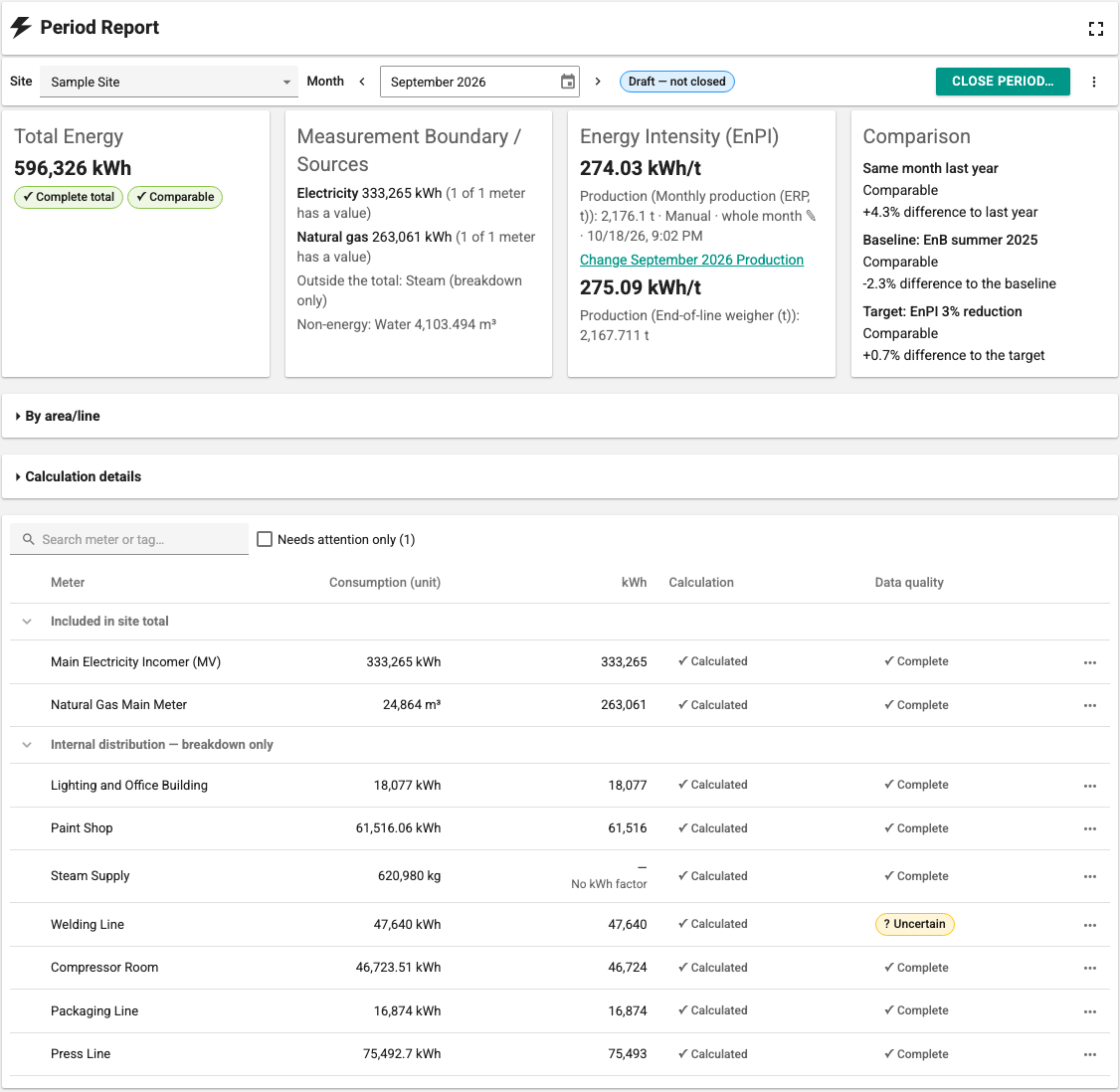
Month status and primary action
| Status badge | Meaning | Primary action |
|---|---|---|
| Not calculated | There is no result for the month. | Calculate {month} |
| Calculating | The calculation is queued or running (see Calculation). | — (Cancel Calculation) |
| Month in progress — draft | The current month. The calculation shows the part of the month up to today; the month cannot be closed before it ends. | Calculate {month} |
| Draft — not closed | There is a draft result and the inputs are up to date. | Close Period… |
| Draft — out of date | A definition, tag setting, correction or production value changed after the calculation. | Recalculate |
| Draft — calculated before month end | The result was read before the month ended and does not cover the whole month. | Recalculate |
| Draft — no total | The total label is Total not calculable. | Recalculate, or fix what is missing |
| Closed · Rev. {revision} | The month is closed. | Download Rev. {revision} XLSX |
| Closed · Rev. {revision} · Rev. {next} draft available | There is a new revision draft for the closed month. | Depending on the view, Close as Rev. {next}… or the XLSX |
In states where the month cannot be closed, the Close Period… button is disabled with the reason, for example The result is out of date: information changed after the calculation. Recalculate first. Without the Energy Closing role the button is not shown; the tooltip of the badge says Closing requires the Energy Closing role.
If the installation has no site yet, the screen shows the 3 Steps to Your First Report list (see First report). If the scope has no meters, it says Add a site and meters in Definitions first.
Calculation
Calculate {month} (or Recalculate) starts a background calculation. The calculation reads the month's log records from the SCADA archive and saves the result as a draft. You can leave this page; the calculation continues in the background. When you come back to the page, the running calculation and the latest draft are found again. While the calculation runs, the previous draft stays readable under the heading Previous draft ({at}).
| Calculation status | In the panel |
|---|---|
| Queued | The calculation is queued. Only one energy calculation runs at a time on this installation. |
| Calculating | Reading {month} data: {percent}%, then Saving the result: {percent}% |
| Waiting | SCADA is busy right now. The calculation waits to protect live data collection ({minutes} min). If the load lasts longer than 15 minutes, the calculation stops. |
| Completed | The panel closes; the notification {month} calculated. appears. |
| Cancelled | The calculation was cancelled. |
| Not completed | The reason and the suggested action; see Calculation not completed. |
- Device communication, data collection and live data are the priority work of SCADA. The energy calculation is limited so that it does not slow these down; the calculation waits while SCADA is busy.
- If another user has also requested a calculation for the same scope and month, you follow the same calculation: Another user also requested this calculation; you are following the same calculation. In this case Stop Following appears instead of Cancel Calculation; it does not stop the other user's calculation.
- Cancel Calculation asks for confirmation: The progress made so far will be lost.
- When it starts, the calculation takes a consistent copy of the definitions. Definition changes made while the calculation runs do not mix into the result; the result later becomes Draft — out of date.
- Draft results are kept for 30 days. For an expired draft, calculate the month again. The result of a closed month is permanent.
- The calculation starts only if you have data rights on all meters of the scope (see Roles and access).
Summary cards
| Card | Contents |
|---|---|
| Total Energy | The kWh total of the month, the total label and whether it is comparable. If the total is not complete, the reason is given with meter names (for example No value: {names}). |
| Measurement Boundary / Sources | The energy types in the total and the number of meters (({withValue} of {count} meters have a value)); sources that could not be converted to kWh ({quantity} → not convertible to kWh (no factor): {names}); sources kept outside the total (Outside the total: {sources} (breakdown only)) and water (Non-energy: {source} {quantity}). |
| Energy Intensity (EnPI) | Total kWh ÷ production and the source of the production (for example Manual · whole month). If no production is defined: No production defined; energy intensity is not calculated. The month's production is entered from here (see Monthly production entry). |
| Comparison | Same month last year, Baseline: {name} and Target: {name} with the difference (for example {percent} difference to the baseline). If no comparison can be made, the reason is given (for example No comparison: the same month last year was not closed). |
If the total energy is not complete or the production is not comparable, energy intensity is still shown, but with the label Not comparable; no baseline or target comparison is made. While the total is not comparable, only the consumption difference may be shown (Consumption difference only (no intensity comparison)).
The By area/line section shows the total of each area. The Calculation details section has Calculated at, Read at, Method, Site time zone and this note: The tag factor is the value at calculation time; changes before the module was set up are not known.
Meter table
The table shows the meters in three groups:
- Included in site total: The meters that make up the total.
- Internal distribution — breakdown only: Parts of the total; not added to the total a second time (Breakdown (not in total)).
- Non-energy — shown separately: Water; it enters no energy total and does not affect the total label.
An energy source that cannot be converted to kWh (natural gas or steam without a factor) is not moved to the non-energy group; it stays in the included group, its kWh cell shows No kWh factor and it makes the total partial.
Columns: Group, Meter, Consumption (unit), kWh, Calculation, Data quality, Value source. You can search with Search meter or tag…, and with Needs attention only ({count}) show only the rows whose calculation status is not Calculated, whose quality is not Complete or whose source is not Measurement.
Row fields
Every meter and month row has four fields:
| Field | Values |
|---|---|
| Calculation status | Calculated: The measurement was calculated for the whole month. · Partially calculated: Part of the month could not be calculated (for example there is no previous reading, or the link started during the month); the value does not cover the whole month. · Not calculated: No value could be produced from the measurement for this month. |
| Data quality | Complete: All expected records exist. · Missing data: Expected records are missing on some days. · Uncertain: The meter records on change, so missing records cannot be known for sure. · Manually completed: The value comes from a manual period total. |
| Effective value | The value that goes into the totals and the energy intensity. If there is no value, it does not enter the total and is not counted as zero. |
| Value source | Measurement · Measurement + delta correction · Manual period total · None |
The calculation status describes only the measurement itself; a correction does not change the calculation status. A measured zero is a valid value and can be Calculated + Complete. For a meter logged on change, a day without a record does not lower the calculation status; that day's consumption is written to the next record, and only the data quality is affected.
The effective value is determined in this order: if there is an active manual period total, that value; otherwise, if the calculation status is not Not calculated, the measured value plus any delta corrections; if neither applies, there is no value.
Total labels
The total is the sum of the included rows that have an effective value. The label is given by the first rule below that applies:
| Order | Condition | Label | Comparable |
|---|---|---|---|
| 1 | No included meter has a value | Total not calculable | No; the month cannot be closed |
| 2 | At least one included meter has no value, was partially calculated or could not be converted to kWh | Partial total | No |
| 3 | The total contains at least one manual period total | Total incl. manual values | No |
| 4 | Data is missing or uncertain for some meters | Total with quality warning | No |
| 5 | All included meters were calculated from measurements for the whole month | Complete total | Yes |
- The label is calculated only from the included rows. Gaps in breakdown rows appear in a separate note (for example {count} breakdown meters have no value); water does not affect the label at all.
- A complete total that contains delta corrections stays a Complete total; it carries the note Total includes delta corrections: {names}.
- A Partial total does not cover the whole month: missing rows are not counted as zero; they are left out of the total.
Row details
When you click a row (or press Enter), the row details open on the right:
- The four fields with explanations; if there is no value, the reason (for example Reason: no tag link.).
- Calculation chain: Raw measurement, Tag factor: ×{factor} ÷{divisor}, Delta correction, Manual period total (replaces the measurement), Effective value, kWh factor: ×{factor} kWh/{unit}, Result.
- Data coverage: Samples, First sample, Last sample, Coverage, Days with unknown coverage, Days without a base.
- Corrections: Active and revoked corrections; correction actions (see Corrections).
The row details are kept in the address bar; you can point to a row by sharing the link.
Corrections
If the measurement is wrong or incomplete, a justified and documented correction is entered without changing the measurement. Corrections are entered with the Energy Management role, in the row details, only in the draft view. A closed report is always read-only; corrections for a closed month go through the new revision flow (see New revision).
| Correction | When | Effect |
|---|---|---|
| Delta correction | Calculation status Calculated or Partially calculated | An amount is added to or subtracted from the measured value. The source becomes Measurement + delta correction; the data quality does not change. |
| Manual period total | In every calculation status | A manually entered month total replaces the measured value. The source becomes Manual period total and the quality Manually completed. For an included meter, the total becomes Total incl. manual values and is not comparable. |
Rules:
- If there is no measured value (Not calculated), no delta correction can be entered; only a manual period total can be entered.
- A delta correction and a manual period total cannot exist together for the same meter and month. Revoke the other one first. A month has at most one active manual period total.
- An action that is not available is not hidden; it appears disabled with the reason (for example Revoke the delta corrections first.).
- A correction is entered in the meter's own unit and applied before the kWh conversion.
The fields of the Add Delta Correction and Enter Manual Period Total forms are: Operation (+ add / − subtract; only for a delta correction), Amount or Month total, Reason and Source document (for example invoice number, work order, report). The reason and the source document are required. Preview (not saved) at the bottom of the form shows how the effective value and the total label will change, for example Total label: unchanged ({name} is not counted in the total).
After saving, the notification Correction saved. Recalculate before closing the month. appears and the month becomes Draft — out of date.
A correction is not changed or deleted. It is revoked with Revoke; revoking asks for a reason: The entry is not deleted; a revocation record is kept. The row details show the user who entered each correction, the time and, if any, the revocation information.
Monthly production entry
If the production kind is Monthly manual entry, the month's production is entered with the Enter {month} Production (or Change {month} Production) action on the Energy Intensity (EnPI) card:
- Enter the production quantity and check the This value covers the whole month of {month}. box. The checkbox is required; production for part of a month cannot be entered.
- If there is a saved value, the dialog shows it; the new value replaces it, and the old value stays in the history.
- No value can be entered for a future month. The value must be zero or positive.
- After saving: {month} production saved. Recalculate before closing the month. The new value enters the report when the month is recalculated; until then the card shows the note included after recalculation.
Entering a production value needs the Energy Management or Energy Data Entry role. In a closed month, production is read-only; Energy Management can change it through the new revision flow. With the Energy Reader role the Period Report opens read-only. With the Energy Data Entry role no calculation, correction or closing is possible; production is entered only in a month that is not closed. The same value can also be entered with the Manual entry table widget on pages (see Monthly manual value entry).
Closing
Closing saves the month's result as an official report that cannot be changed. Closing a month needs the Energy Closing role (or Editor) and data rights on all meters of the scope. The current month cannot be closed; after the month ends, it is recalculated and closed.
Close Period… opens a review dialog (Close {month} — {scope}):
- A closed report cannot be changed or deleted. If a change is needed later, a new revision is calculated; this revision (Rev. {revision}) is kept.
- Total energy, the total label and the Measurement boundary (counted).
- If the label is not Complete total, the reason: Why partial, Manual values, Quality warning. Meter lists are shortened after 5 names; Show all in the table filters the table.
- Other notes, for example delta corrections in the breakdown or manual production.
- Calculated at: {at} (the result you see on the screen). The dialog closes the result you see on the screen.
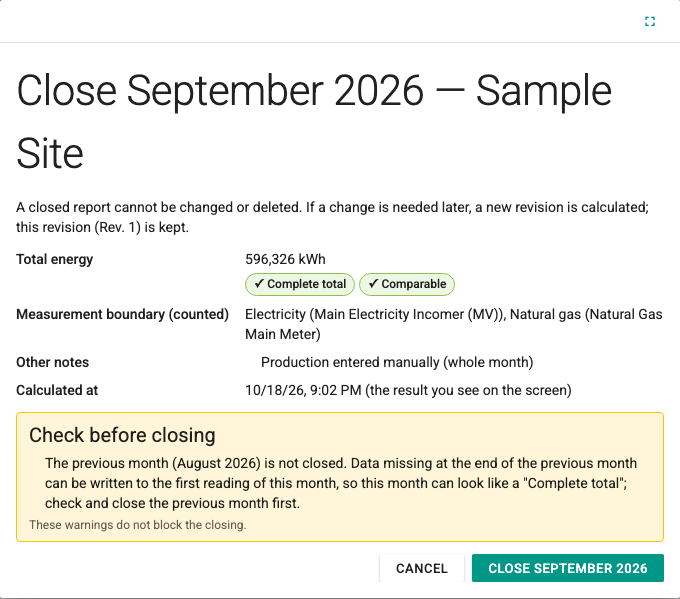
Check before closing
The dialog warns in the following cases. These warnings do not block the closing.
- The previous month is not closed: Data missing at the end of the previous month can be written to the first reading of this month; even if this month shows a Complete total, checking and closing the previous month first is recommended.
- The previous month is not a "Complete total": The previous month was closed with another label; data missing at the end of it may have been written to the first reading of this month.
- Possible double counting: An included meter's upstream meter is also included in the total. The total may count the same energy twice and its label does not show it; check the total membership of the meters.
In the first month of a scope, and for a previous revision you cannot open, the previous month warning is not shown.
Confirmation and result
If the label is not Complete total, a confirmation checkbox must be checked before closing:
| Total label | Confirmation checkbox |
|---|---|
| Complete total | None |
| Total with quality warning | I am closing this report with a total with quality warning; data of some meters is missing or uncertain. |
| Total incl. manual values | I am closing this report with a total that includes manual values; the report will not be comparable. |
| Partial total | I am closing this report with a partial total; the total does not cover the whole month. |
| Total not calculable | The month cannot be closed: This month cannot be closed because its total could not be calculated. |
Close {month} writes the closing. On success the badge becomes Closed · Rev. 1, the primary action changes to the XLSX download and the notification {month} closed (Rev. 1). appears. With Official report link you can get the permanent link of the closed report.
If the connection drops during closing, the dialog does not close and checks whether the closing was written. If it was not written, Try Again sends the same result; no double closing is created.
If the result became out of date during closing, the month was closed by someone else, or a restore is running, the dialog shows the reason and the solution; see Closing results.
Why is there no "undo"?
A closing is an evidence record and cannot be deleted from within the product. The way to correct a month that was closed by mistake is a new revision.
New revision
If a change is needed in a closed month (late data, an invoice correction, a missing history declaration), a new revision is calculated and closed. The previous revision does not change and can always be opened.
- In the closed month, choose More actions > Calculate New Revision…. The dialog says: Rev. {revision} stays unchanged. A new draft is calculated with the current definitions and SCADA data (for example late data or a new correction). If you review and close the draft, it becomes Rev. {next}. Calculate Draft starts the calculation.
- If a correction is needed, choose Add Correction for a New Revision… in the row details of the official view. The view switches to the draft; the form says This correction does not change the official Rev. {revision}. If a new revision draft is calculated and closed, it becomes part of Rev. {next}. After saving, calculate the draft with Calculate New Revision Draft.
- With the view selector in the header you can switch between Official: Rev. {revision} and Draft: Rev. {next} candidate.
- Close the draft with Close as Rev. {next}…. The dialog shows the total of the previous revision and the difference.
A revision reason is required from Rev. 2 on. The dialog has a Revision reason field (Why a new revision? (e.g. late data, invoice correction)), at most 500 characters. If it is left empty, the warning Enter a reason for Rev. {revision}. appears. Rev. 1 has no reason field. The reason appears in the revision menu, in the official report header, in the closed reports list and in the XLSX file.
The Revisions menu lists all revisions of the month with number, date and the user who closed it (for example Rev. 2 · {date} · {user} (current)). When you open an older revision, the bar You are viewing an older revision. Current revision: Rev. {revision}. appears. A revision whose sources you are not allowed to see appears in the list with the note You are not allowed to see the sources of this revision and cannot be opened.
If the selected range contains a month that is not closed, no new revision can be calculated; a new revision is only for closed months.
XLSX
The XLSX file is available only from a closed revision. A draft has no XLSX button; the More actions menu says The XLSX is only available from a closed report. In a closed month, Download Rev. {revision} XLSX produces a separate file for each revision; the file name contains the scope, the month and the revision (Enerji_<scope>_<yyyy-MM>_Rev<n>.xlsx; the name starts with Enerji_ in every interface language).
| Sheet | Contents |
|---|---|
| Summary | Scope, month, revision and current revision, total energy (kWh), total label and its reason, comparison, energy intensity, the user who closed it and the closing time |
| Meters | For each meter: raw value, delta correction, effective value, unit, kWh factor, kWh, calculation status, data quality, value source and reason |
| Corrections | All corrections: type, amount, reason, source document, entered by, time, state and revocation reason |
| Calculation chain and factors | Tag factor and divisor, kWh factors, factor source and validity period |
| Source and method | Report ID, closing ID, input digest, period, site time zone, method, calculation and read times, the user who requested the calculation, access path, revision reason and the tag factor note |
The labels are the same as on the screen. Trend and draft results are not exported.