
SMS Settings
An SMS provider must be defined so that alarm notifications can be sent by SMS. These settings are made on the Settings > SMS Settings page. The page can be opened by users with the Editor role and by the SystemAdmin group.
SMS messages are not sent directly at the moment of the alarm. When an alarm occurs, the message is written to a persistent send queue, and the notification service passes the queued messages to the provider. This way, a slow response from the provider does not delay alarm processing.
Prerequisites
- The installed license must include the SMS sending right. Without this right, neither alarm SMS nor test SMS messages are sent.
- API access must be enabled at the selected provider.
- The sender title must be approved in advance in the provider panel.
- Users who will receive SMS must have a phone number in their user record (see User and Group Management).
- The notification service must be running. You can check the service with the Check Service Status button on the Notifications page.
Providers
The companies in the Provider list that can be used for sending are listed below. When a provider is selected, the sign-in fields of that company are shown on the second card of the page. Fields marked with an asterisk (*) are required.
| Provider | Sign-in fields | Status |
|---|---|---|
| Netgsm | Username*, Password*, App key | Available |
| İleti Merkezi | API key*, API hash* | Available |
| Verimor | Username*, Password* | Available |
| Twilio | Account SID*, Auth token*, From number*, Messaging service SID | Available |
Sending is not supported with the other providers shown in the list. When an unsupported provider is selected, a warning appears on the page and SMS cannot be sent with that provider.
Twilio
Whether Twilio can send to Turkey and how the sender is registered differ from account to account; confirm with Twilio that your account meets these conditions.
Settings fields
Fields on the SMS provider settings card:
| Field | Description |
|---|---|
| Provider | The company the SMS is sent through. |
| Sender title | The title shown as the sender name on the recipient's phone; up to 32 characters. It must be exactly the same as the value approved at the provider. |
| Default country code | The code added to numbers written without a country code. +90 for Turkey (default). |
| Timeout (seconds) | The maximum time to wait for a response from the provider; 1–120 seconds. Default 30. |
| Retry count | The number of retries after a network error, a timeout or a temporary provider error; 0–10. Default 3. Permanent errors are not retried. |
| Maximum segments | The maximum number of SMS parts a message can be split into; 1–10. Default 3. A message above this limit is not sent at all. |
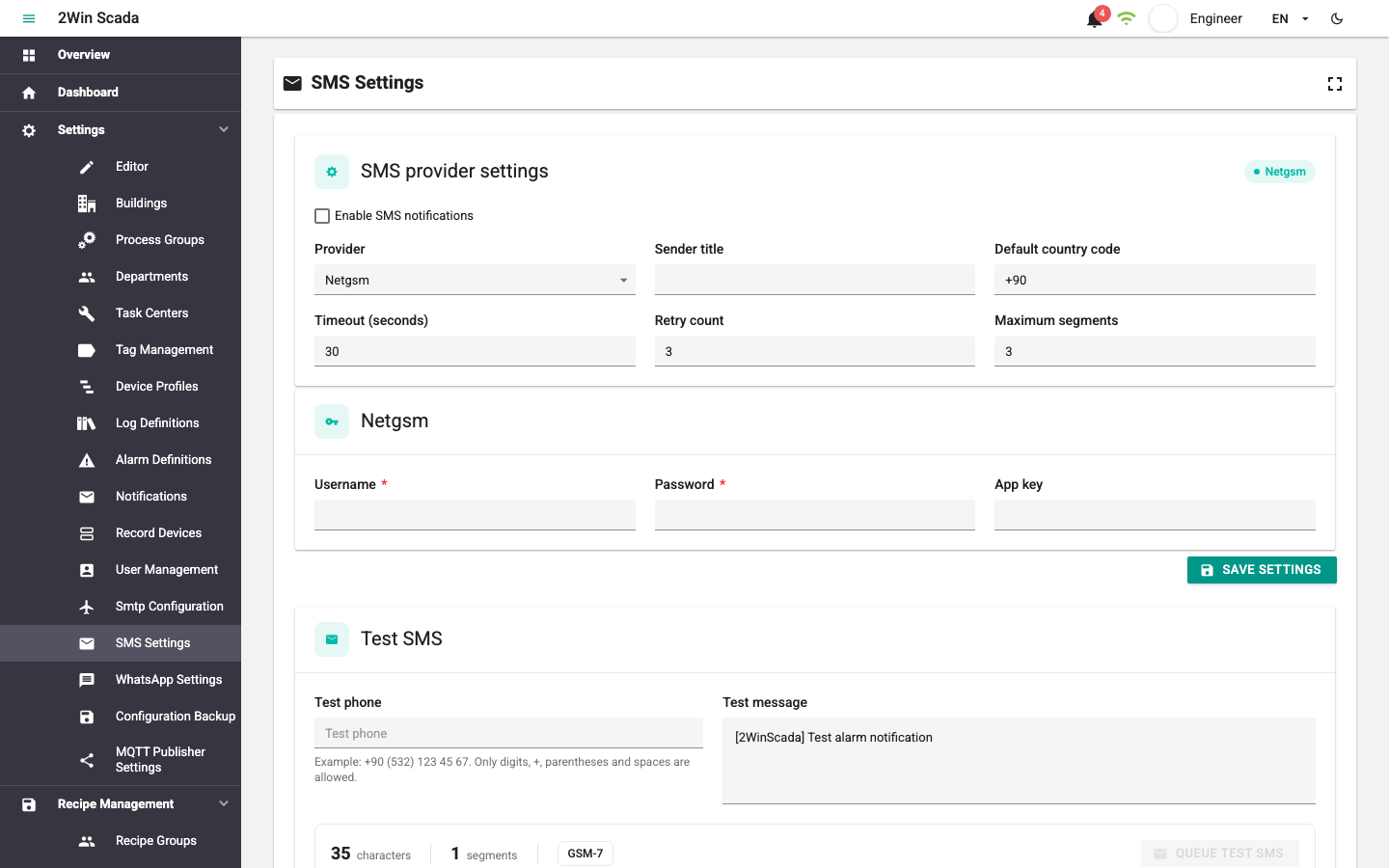
On the provider card, secret fields such as password, API key, hash and token are stored encrypted and are never sent back to the page. To keep a stored secret value, leave the field empty; to change it, enter the new value.
Changing the provider
When you select a different provider and save, the stored sign-in details of the previous provider are deleted. If you go back to the previous provider, you have to enter the details again.
To save the changes, click Save settings. If a provider that is not available for sending is selected while SMS sending is enabled, the settings cannot be saved. Saving is also rejected if a required field of the provider is empty while sending is enabled.
Message segments
A segment is a single SMS part that the mobile operator charges for. Even if a long message looks like one message on the phone, the provider may send and charge it as several segments.
| Encoding | Single segment | Per segment in a split message |
|---|---|---|
| GSM-7 | 160 characters | 153 characters |
| Unicode (UCS-2) | 70 characters | 67 characters |
- Standard Latin letters are sent with GSM-7.
- The characters
^ { } \ [ ] ~ | €count as two characters in GSM-7. - Turkish characters that are not in GSM-7, such as
ş,ğandı, switch the message to Unicode encoding; the single-segment limit drops to 70 characters.
Example: A 100-character text that contains only standard Latin letters is one segment. A text of the same length that contains ş or ğ becomes two segments.
Test SMS
The Test SMS card lets you try the entered settings with a real send:
- Enter the provider details and click Save settings.
- Type the number in the Test phone field. The field accepts only digits,
+, parentheses and spaces. - Type a short test text in the message field.
- Check the character count, segment count and encoding shown at the bottom of the card.
- Click Queue test SMS.
- Follow the result on the History > Notification History screen (see Notification History).
While the default country code is +90, only Turkish mobile numbers are accepted. All of the following notations are valid and are converted to the +905321234567 format before sending:
0532 123 45 675321234567+90 (532) 123 45 670090 532 123 45 67
For an invalid number, the warning Enter a valid Turkish mobile phone number. appears below the field.
The Queue test SMS button is enabled only while SMS sending is enabled and the selected provider is available. A test SMS is also a real send and is charged by the provider.
Relation to notifications
SMS does not use a separate recipient list. When the Notification Type of a notification defined for an alarm on the Notifications page is set to SMS or EmailAndSMS, SMS messages are sent to the users added to that notification, using the phone number in their user records.
- No SMS is sent to a user whose phone number is invalid or empty; the other recipients are not affected.
- If the same number appears more than once in the same alarm event, the SMS is sent once.
- Email and SMS are independent of each other; an error in one does not stop the other from being sent.
Delivery statuses
The status of each SMS is followed on the Notification History screen:
| Status | Meaning |
|---|---|
| Queued | The message is waiting to be sent. |
| Processing | The message is being passed to the provider. |
| Accepted | The provider accepted the request. |
| Sent | The provider sent the message. |
| Delivered | A delivery report was received from the mobile operator or the device. |
| Failed | Sending failed. |
| Validation failed | Not sent because the number or the message is invalid. |
| Cancelled | The message was cancelled. |
| Delivery unknown | Sending was interrupted; it is not known whether the message reached the provider. It is not retried automatically, to prevent duplicate sends. |
| Suspended by license | The message is on hold because the license lost the SMS right. |
If the provider does not offer delivery reports, the record may stay in the Accepted or Sent status; this does not mean the message was not delivered.
History and retention
- Email and SMS delivery history is kept for a fixed 30 days; older records are deleted automatically.
- Phone numbers are shown masked in the history.
- Full phone numbers, message contents and provider sign-in details are not written to the service logs.
SMS suspended by license
If the license loses the SMS right (for example, the license expires or the grace period ends), unsent SMS messages in the queue are moved to the Suspended by license status. When the right comes back, these messages are not sent automatically; to prevent old alarm messages from being sent in bulk, the decision is left to the administrator.
- Install the new license file with the installation tool.
- Restart the notification service. An SMS channel that was closed does not open automatically when the license comes back.
- Open the History > Notification History screen with a user in the SystemAdmin group.
- Select one by one the suspended SMS messages you really want to send (up to 100).
- Click Resume selected SMS or Cancel selected SMS and check the count in the confirmation window.
- Re-queuing requires a current and valid SMS right; sending is subject to provider charges.
- Cancelling is also possible while there is no license or the license has expired.
- Messages whose delivery is uncertain, that were accepted by the provider or that have no retries left cannot be re-queued.
- If the record was changed by another operation in the meantime, the operation is rejected; refresh the list and select again.
- The history and the records of previous attempts are not deleted.
Backup
SMS settings are included in the configuration backup as the SMS Settings module (see Backup and Restore). The provider sign-in details are included in the backup; keep the backup package as confidential information. After restoring on another installation, send a test SMS; if it fails, enter the provider details again.
Troubleshooting
| Symptom | Possible cause and solution |
|---|---|
| SMS settings could not be loaded. | Check your session and your permissions; refresh the page. |
| SMS settings could not be saved. | Check the required provider fields and the field limits. |
| Test SMS could not be queued. | Check that the notification service is running and that the license includes the SMS right. |
| Notification service is unavailable. (3703) | Start or restart the notification service. |
| Notification service database schema is not up to date. (3706) | Contact your system integrator. |
| SMS in the Validation failed status | Check the user's phone number. |
| SMS in the Failed status | Check the Error code column, the provider sign-in details, the approval of the sender title and the IP restrictions in the provider panel. |
| No SMS is created | Check the Notification Type of the notification, that users are added to the notification and the users' phone numbers. If the message exceeds the Maximum segments limit, it is not queued at all. |