
Building Definitions
Select Settings > Buildings in the menu to open the Location Definitions page. On this page you define the buildings, and the locations inside buildings, that are used to specify where task centers are located. The Buildings table is at the top and the Locations in Building table is at the bottom. The location inside a building that is selected in the task center definition is shown on the Dashboard as the Location of the task center (see Task Centers).
Buildings
 Click the + button in the upper right corner of the building table to open the Building Definition window.
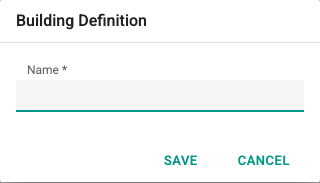
Type the building name in the Name field and click Save. The name must be 3–100 characters long and must not start with a digit. To close the window without saving, click Cancel.
 This button in the upper right corner of the table exports the building list to Excel.
 The refresh button next to the export button reloads the data in the table.
Text typed in the Search box on the far right filters the table; you can also use the filter row below the column headers.

 This button on each row edits the record.
 This button on each row deletes the record.
Locations in buildings
To add a location to a building, first select the building's row in the Buildings table. The Locations in Building table lists the locations of the selected building, and its + button becomes available. Clicking the button opens the Building Column window; enter the Name of the location (2–100 characters) and click Save.
Editing, deleting, exporting to Excel and searching work in the location table the same way as in the building table.
To define, edit and delete buildings and locations, the user's group must have the Editor role.