
Alarm Definitions
An alarm definition creates an alarm when the value of a tag meets a given condition. Alarm definitions are made in two places:
- on the Tag Management page, in the Alarm Definitions tab of the Other Definitions section at the bottom when a tag is selected,
- on the Settings > Alarm Definitions page in the left menu.
Alarm Definition Table
After a tag is selected in the tag table, the Alarm Definitions tab of the Other Definitions section lists the alarms defined for the selected tag.
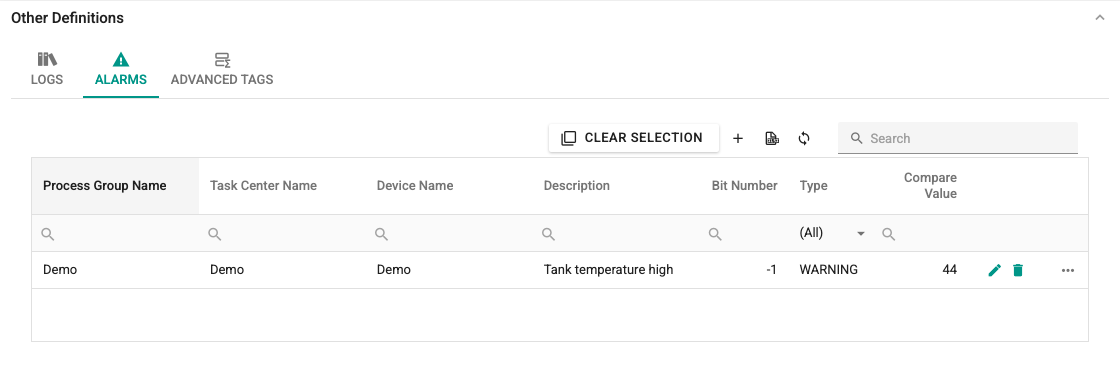
The table contains the following information:
Process Group Name: The process group the tag belongs to. If the tag is in a tag group, that group is shown; otherwise the process group of the task center of the tag's device is shown.
Task Center Name: The task center the tag's device belongs to.
Device Name: The device the tag belongs to.
Tag Name: The tag the alarm is bound to.
Description: The alarm description. This text is shown in alarm lists.
Bit Number: The bit number, if the alarm is defined on a single bit of the tag value. For non-Bool tags, the value of this bit (0 or 1) is compared.
Type: ERROR, WARNING or ALARM. They are shown in different colors in alarm lists.
Compare Value and Compare Operator: The tag value is evaluated against the compare value with the operator.
Active Tolerance and Passive Tolerance: Create a dead band (hysteresis) between the thresholds at which the alarm occurs and clears; see the details below.
Delay Time: The time (seconds) to wait before a change in the alarm state is applied.
Ignored: Shows whether the alarm is locked. A locked alarm is still evaluated, written to the history and sends its notifications; it is only not colored in the interface, not counted in the alarm count and plays no sound (see Lock). This state is changed with the Lock operation in the alarm window; see Interface. It is not edited in the definition window.
New Alarm Definition
For a new record, click the + button at the top right of the table. The Alarm Definition window opens.
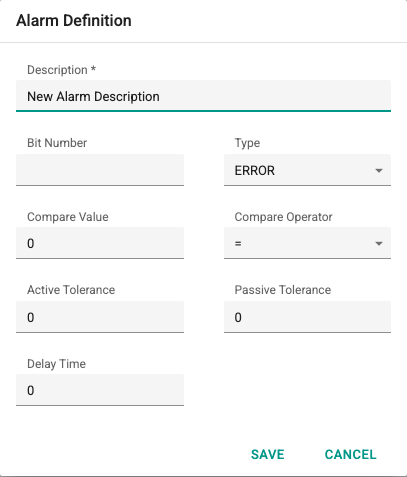
- Description is required and must be 3–500 characters long.
- Bit Number is entered if a bit of the tag value is used for the alarm.
- Compare Operator is one of seven options: =, <, >, <=, >=, != and Not Changed.
Tolerances and Delay
The = and != operators do not use tolerances; the alarm condition occurs if the value equals (or does not equal) the compare value.
For the <, <=, > and >= operators, the tolerances work as follows:
| Operator | Alarm occurs | Alarm clears |
|---|---|---|
| < | value < Compare Value − Active Tolerance | value ≥ Compare Value + Passive Tolerance |
| <= | value ≤ Compare Value − Active Tolerance | value > Compare Value + Passive Tolerance |
| > | value > Compare Value + Active Tolerance | value ≤ Compare Value − Passive Tolerance |
| >= | value ≥ Compare Value + Active Tolerance | value < Compare Value − Passive Tolerance |
If the value is between these two thresholds, the current state of the alarm is kept. For example, with the > operator, a compare value of 80, an active tolerance of 2 and a passive tolerance of 3, the alarm occurs when the value exceeds 82 and clears when it drops to 77 or below.
The Not Changed operator monitors that the value of the tag does not change. If the change of the value from the previous value is equal to or less than the Active Tolerance, the alarm condition occurs; when the change exceeds the Passive Tolerance, the alarm clears. These alarms are re-evaluated by the system about every 10 seconds even if the tag value never changes, so a frozen value also produces an alarm.
A Not Changed alarm is not evaluated until the first real value is read from the tag. When the service starts, the device is reloaded, the alarm definition is updated or the alarm is moved to another tag, the first value read is only used as a reference; the Delay Time is counted from this first value and then from each value change. This way no false Not Changed alarm occurs when the service starts. When the connection is lost (quality Bad), the last value stays frozen, so the alarm still occurs at the end of the delay time.
If a Delay Time is entered, when the alarm condition changes, the system waits for this time and updates the state according to the comparison result at the end of the time. This way short fluctuations do not create alarms. With the Not Changed operator, there is no wait when the alarm clears.
Alarm Definitions Page
Select Settings > Alarm Definitions in the left menu to open the page where alarm definitions are managed together. The page has two tabs at the top:
- By tag: Select a tag to manage the alarm definitions of that tag.
- All alarms: All alarm definitions you are allowed to see are shown in a single list.
Alarms in the Genel Group
If there are alarms that belong to no process group, the Alarms in the Genel group warning and the number of alarms appear under the tabs. Clicking the warning shows an explanation and the names of the first 10 alarms. These alarms are delivered to users who can see the Genel group; if no role is assigned to Genel, everyone sees them, including operators limited by process group. To bind an alarm to a process group, add the alarm's tag to a tag group or assign a process group to the task center of the tag's device; see Process Groups.
The warning is shown only to Editor and SystemAdmin users; it does not appear if there are no unassigned alarms.
By Tag
This tab has three parts: Filters at the top, the Tags table in the middle and the Alarms table of the selected tag at the bottom.
Filters: Has the same features as the filter on the log definitions page; see Log Definitions.
Tags: The same as the tag table on the log definitions page. Tags with and without alarm definitions can be separated with the filter in the Alarm column.
Alarms: The alarm definitions of the selected tag are listed. Alarm definitions are made as described above.
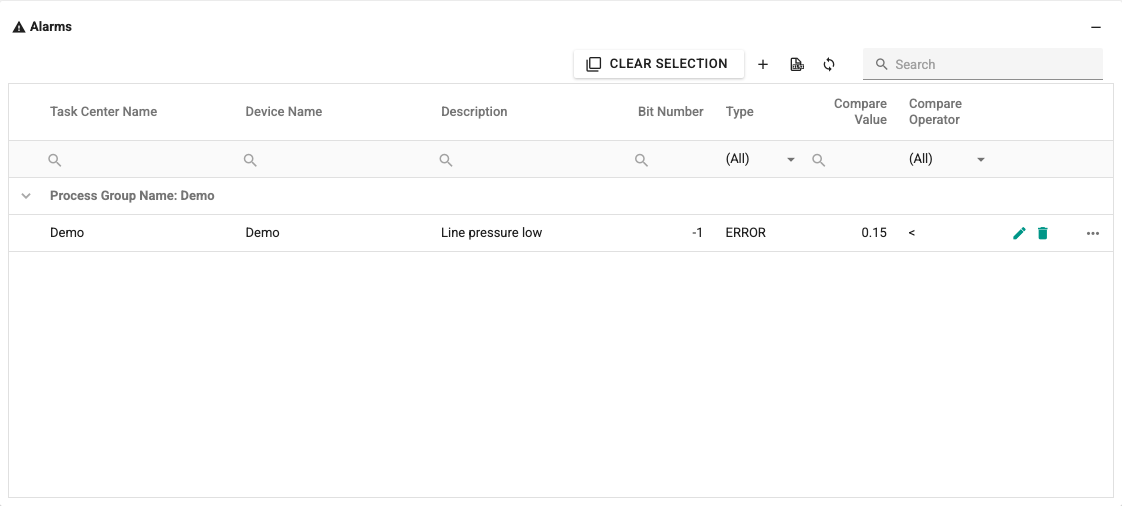
To group the table, right-click a column header and select Group by This Column; the rows are grouped by the values of that column (Process Group Name in the image above). You can group by more than one column. To remove grouping, right-click the header and select Ungroup All.
All Alarms
This tab shows all alarm definitions you are allowed to see in a paged list. The list is read-only. Columns: Description, Type, Tag, Device, Channel, Compare Operator, Compare Value, Bit Number, Delay Time, Active Tolerance, Passive Tolerance, Ignored and the Notification count bound to the alarm.
- The Search box searches the description, tag, device and channel columns; the filters under the column headers can also be used.
- 25, 50 or 100 rows are shown per page.
- Clicking the Edit button of a row, or double-clicking the row, opens the window for editing the alarm definitions of that tag (Edit alarm definitions). When the window is closed, the list is refreshed.
This list has no Excel export, grouping or summary row.