
Process Groups
Process groups group the parts of the plant and determine which part's values and alarms users see. There are two types of process groups:
- Process Group: Contains task centers, and the task centers contain devices (process group → task center → device hierarchy). All tags of a device belong to this process group.
- Tag Group: Tags are added to it directly. Through the group, only these tags are reached.
A tag can belong to more than one process group, both through tag group membership and through the task center of its device.
Select Settings > Process Groups in the left menu to show the table where process groups are defined.
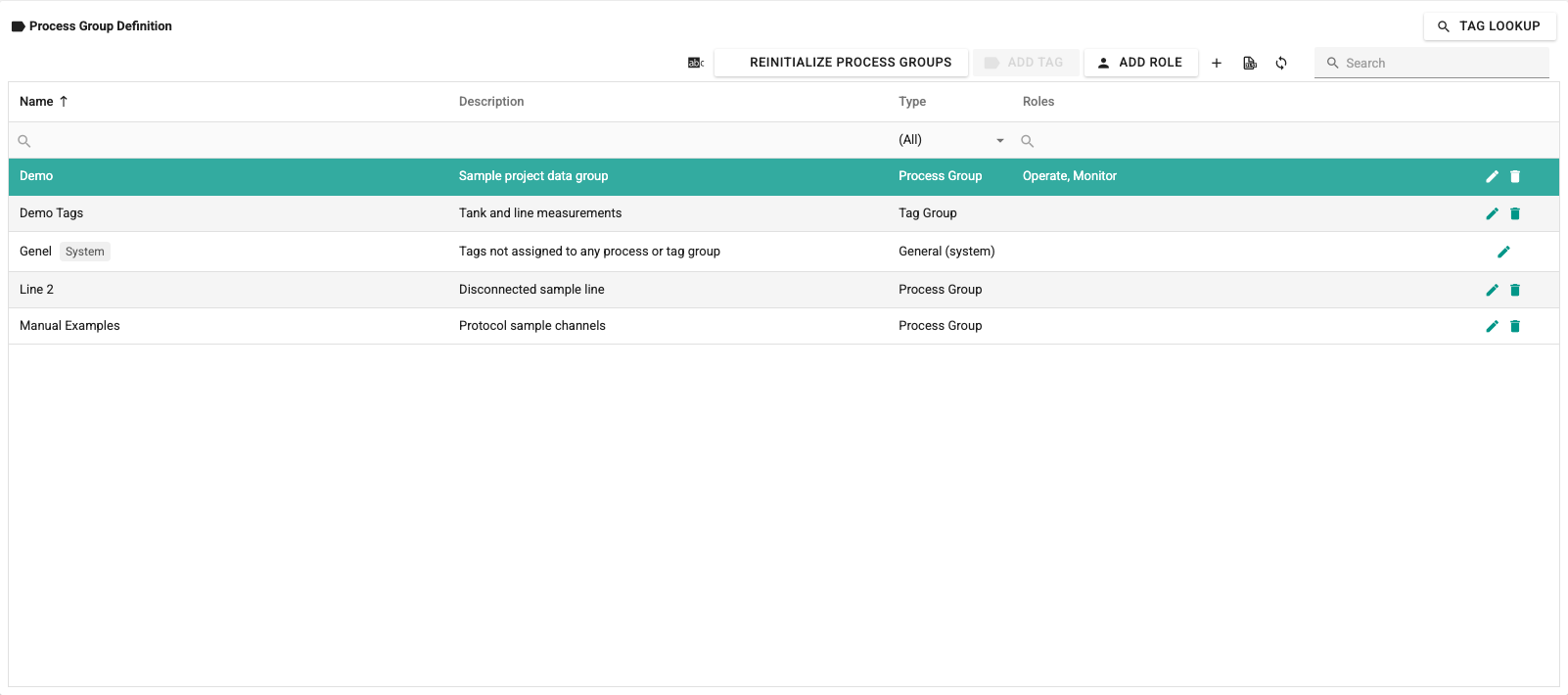
The table has the Name, Description, Type and Roles columns. The toolbar above the table has these buttons:
- Manage Translations: Opens a window for editing the translations of process group texts by language.
- ReInitialize Process Groups: See below.
- Add Tag: Adds tags to the selected tag group. Enabled only while a tag group is selected.
- Add Role: Assigns a role to the selected process group.
- +: Opens the window for defining a new process group.
- The Excel export and Refresh Data buttons and the Search box.
Editing and deleting are done with the buttons at the end of the row. If the group selected in the table is a tag group, the Tags table listing the tags of the group is shown under the table.
Genel process group
Tags that belong to no process or tag group are collected automatically in the system's Genel process group. Genel cannot be deleted and tags cannot be added to it by hand; its visibility is limited by assigning roles. Details: Genel process group.
Adding a New Process Group
Click the + button to open the Process Group Definition window.
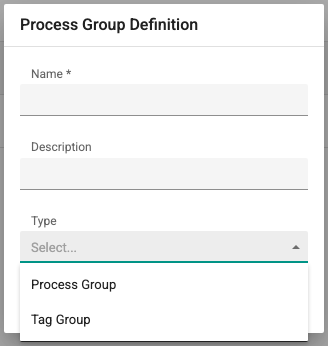
Name: Must be 3–100 characters long, must not start with a digit and must be unique.
Description: Optional description text (at most 100 characters).
Type:
- Process Group: Process group. Select it if the group will contain task centers and devices.
- Tag Group: Tag group. Select it if tags will be added to it directly.
Reinitializing Process Groups
For changes to process groups, task centers or group memberships to be reflected in monitoring screens and alarm delivery, the process groups must be reloaded. The ReInitialize Process Groups button starts this immediately. If the button is not clicked, the reload is done automatically when no new change is made for about one minute after the last change.
Adding Roles
If no role is assigned to a process group, the group is visible to all users. If roles are assigned, the group is visible only to user groups that have one of these roles. Users with the Editor role and the SystemAdmin group see all process groups.
Select a process group in the table and click the Add Role button to open the Role Assignment window.
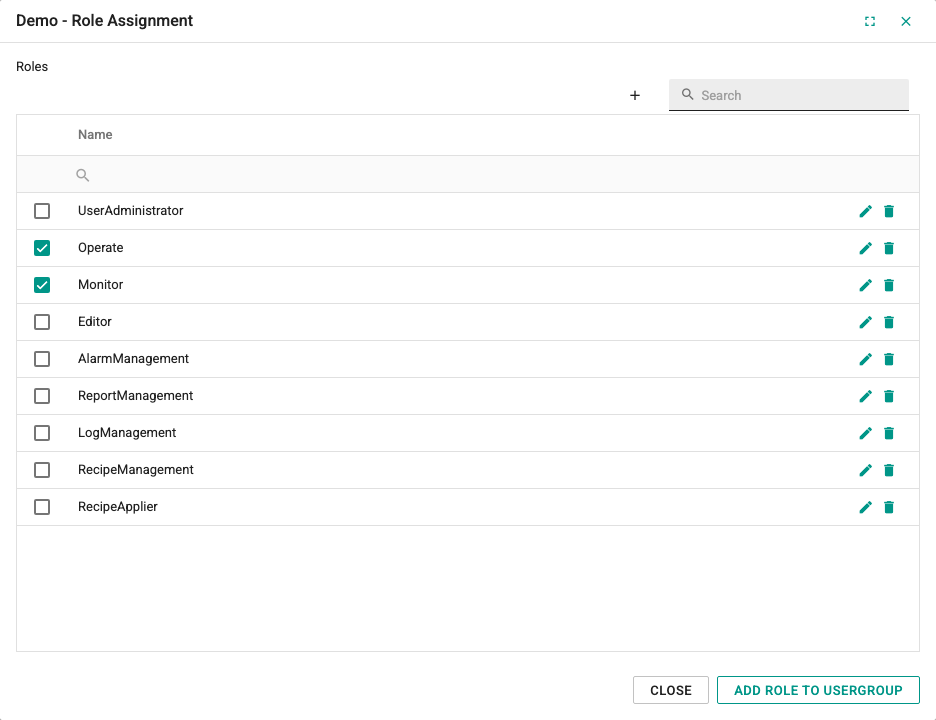
In this window, select the roles that can see the process group with the check boxes next to them and click the Close button.
If a role that is not in the list is needed, a new role can be defined with the + button next to the search box. For the new role to take effect, it must also be added to a user group. To do this, click the Add Role To UserGroup button; the view below opens.
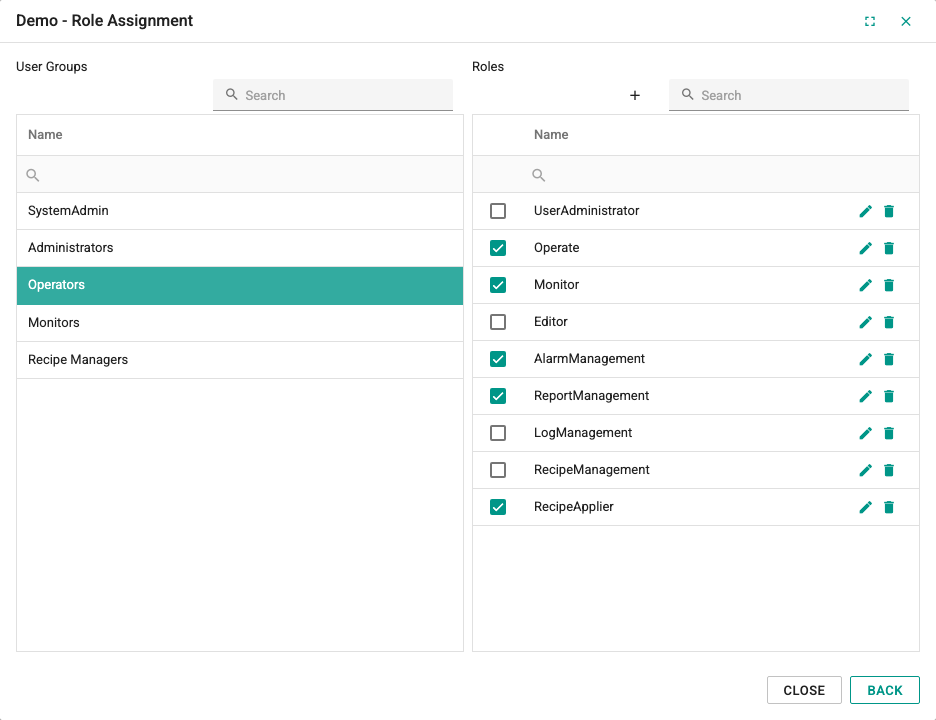
This view has the User Groups list on the left and the Roles list on the right. Select a user group on the left and select the check box of the role to add to the group on the right. The Back button returns to the previous view; the Close button closes the window.
Adding Tags to a Tag Group
While a tag group is selected, clicking the Add Tag button opens the Tag Assignment window.
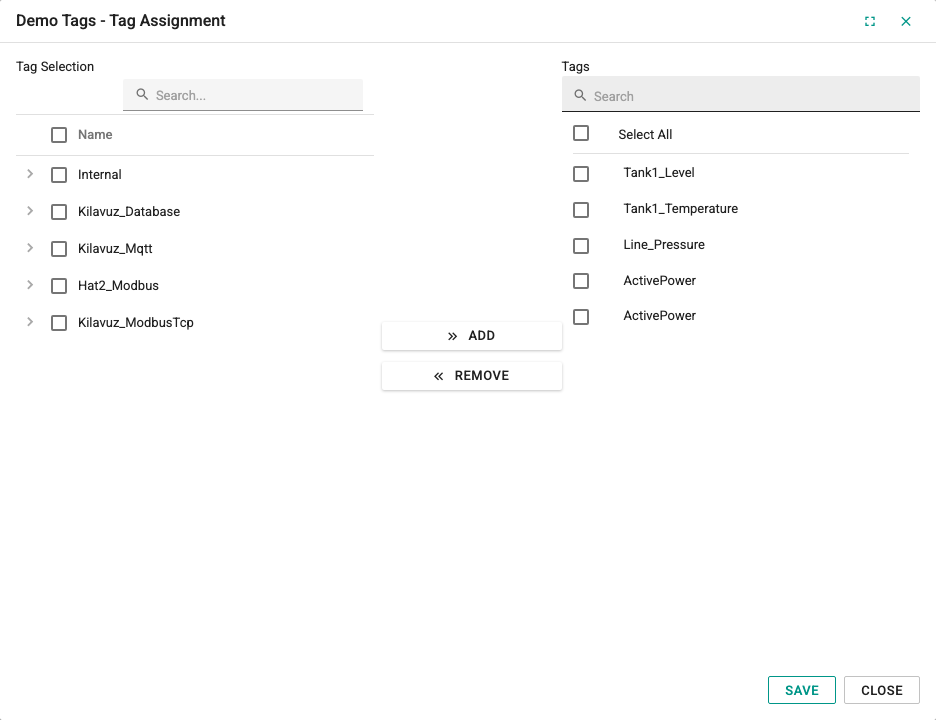
The window has the Tag Selection tree on the left, the Add and Remove buttons in the middle and the Tags list of the group on the right.
- To add tags, select the check boxes of the tags in the tree on the left and click the Add button. The added tags appear in the list on the right.
- To remove tags, select the tags in the list on the right and click the Remove button.
The changes are saved with the Save button; the Close button closes without saving.
Tag Lookup
The Tag Lookup button in the header of the process groups table opens the Tag Lookup by DataGroup Usage window, which lists tags by their process group memberships. Tag membership is calculated both through tag groups and through the task center of the device. The window has three tabs:
- Without DataGroup: Tags that belong to no process group other than Genel, that is, the tags collected in the Genel process group. Their alarms reach only the users who can see Genel; if no role is assigned to Genel, everyone sees them (see Genel process group).
- With Single DataGroup: Tags that belong to only one process group.
- With Multiple DataGroups: Tags that belong to more than one process group.
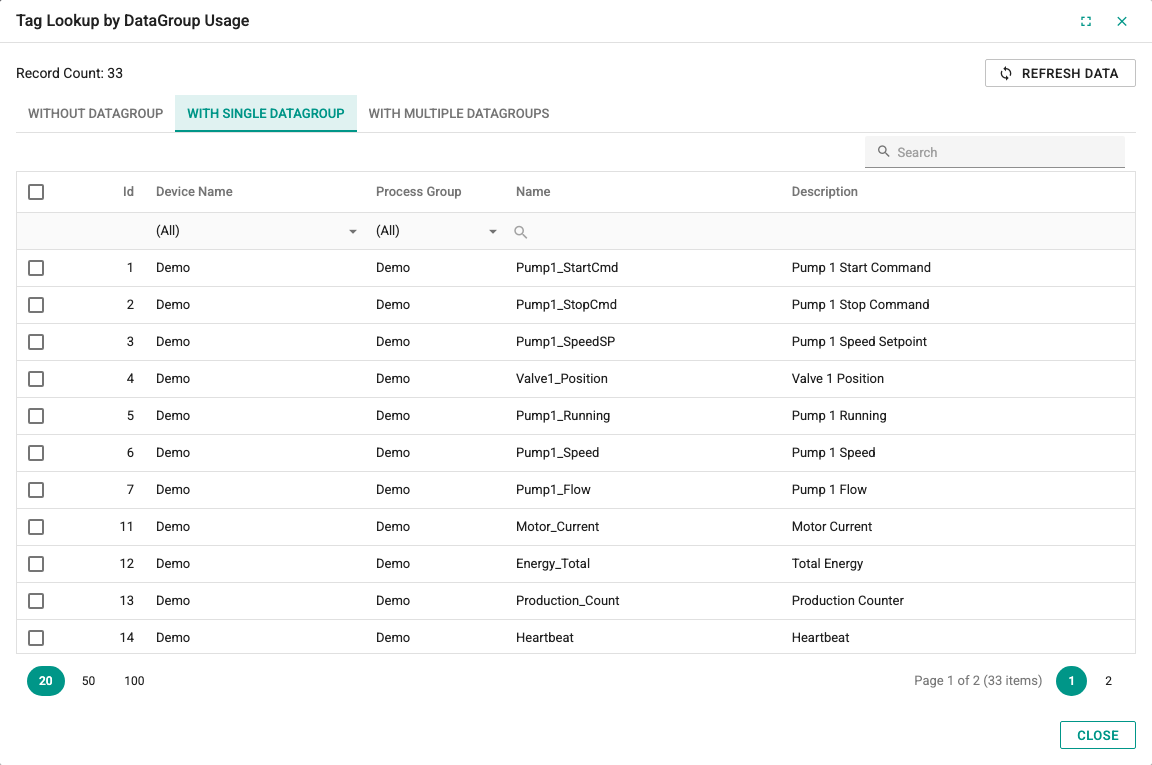
The top of the tab shows the number of records (Record Count) and the Refresh Data button, which refreshes the list.
On the Without DataGroup tab, select tags, right-click and select the Add Selected Tags To TagGroup command. Select the target tag group in the Select TagGroup window that opens and click the Select button to add the tags to this group.