
Dashboard
This page, which opens when you select Dashboard in the menu, shows the live state of process groups, task centers, devices and tags hierarchically. The top of the page has a header section, and below it is the table or the cards of the selected level.
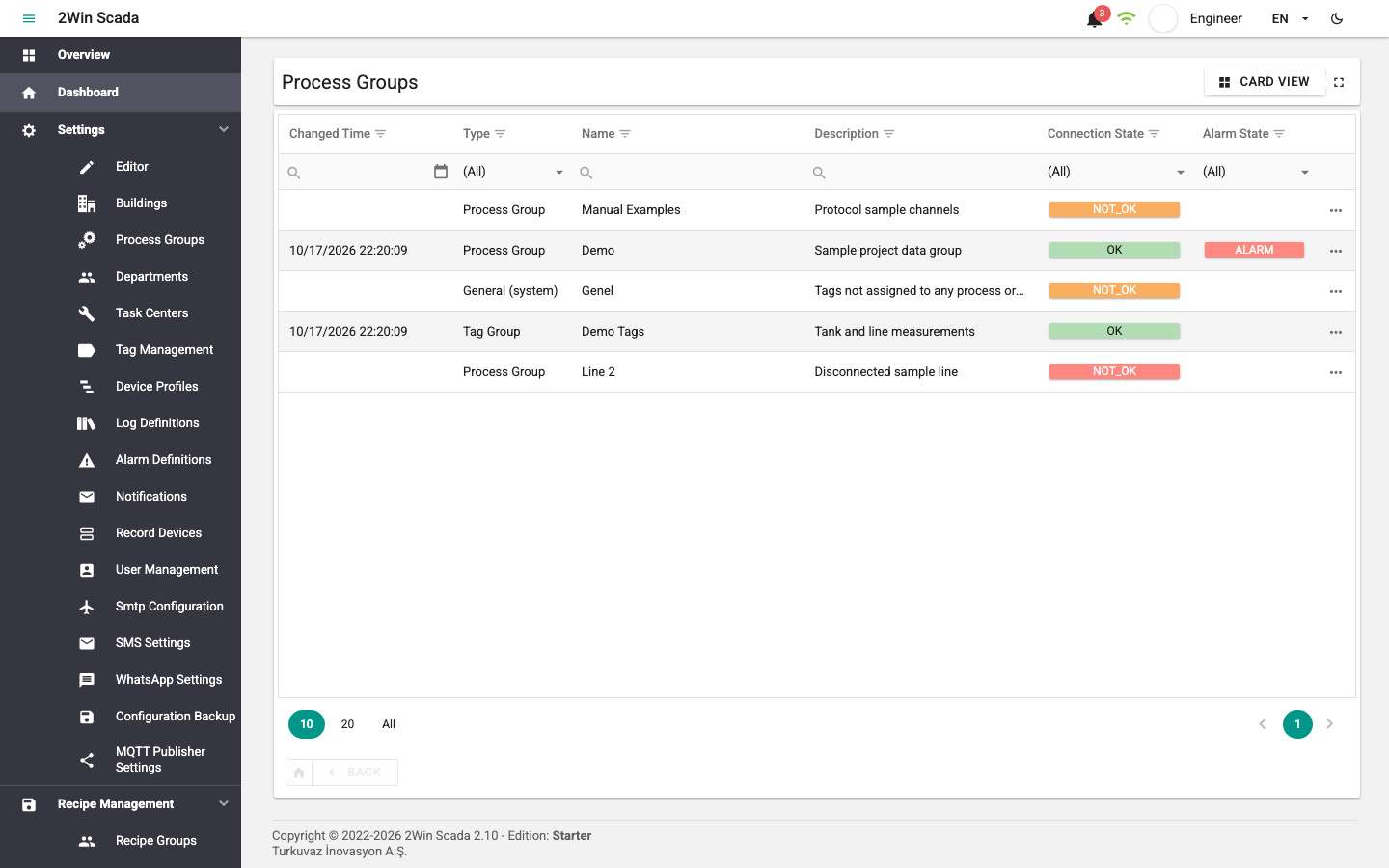
The header shows the current level as a path (for example Process Groups > process group name > Task Centers). Click an earlier item in the path to go back to that level.

The Card View button on the right of the header switches to the card view; in the card view, the same button switches back to the table view. The selected view is remembered.
 To the right of the view button is the Full Screen button. When you click it, the header and the content fill the whole screen.
Below the table or the cards are two navigation buttons: the button with the home icon returns to the process groups level, and the back button next to it goes up one level. The back button shows the name of the level it returns to.
Table view
The table view works the same way at all levels:
- Double-click a row to go down one level.
- Filter the rows with the filter row under the column headers and with the filter icon in the headers (see Filtering table rows).
- Below the table, select the number of records per page on the left and use the buttons on the right to move between pages.
- When the live data connection to the server is lost, the table background turns gray.
Process groups
This table lists the process groups with summary information.
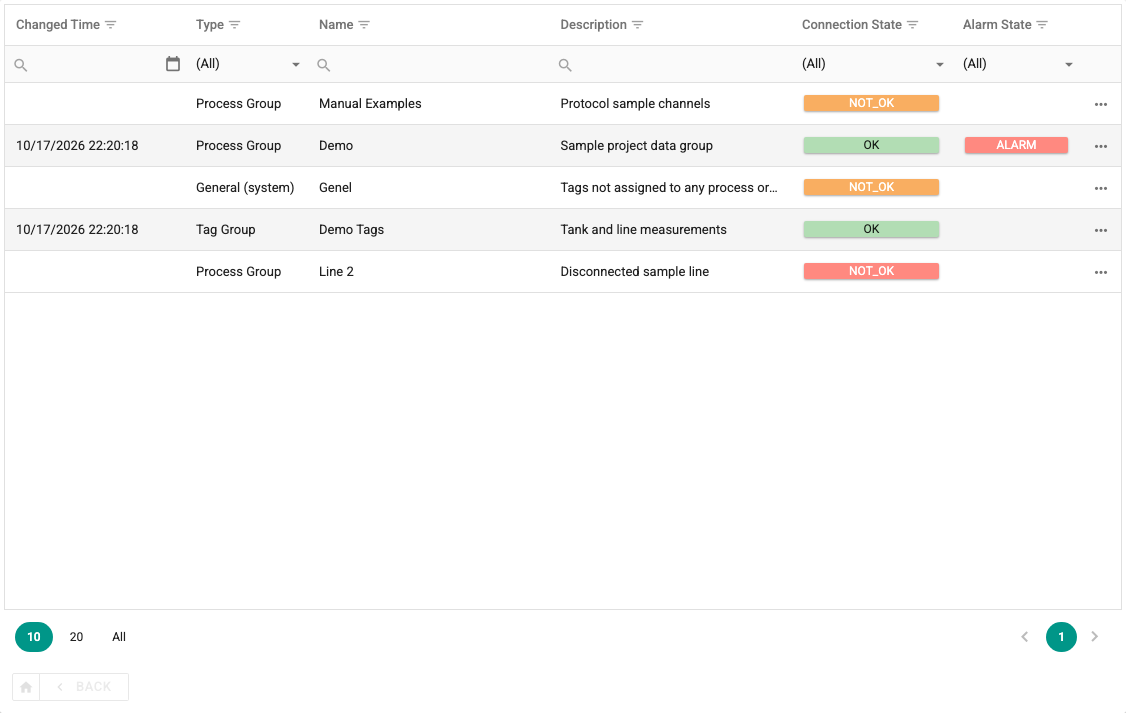
The columns are: Changed Time, Type (process group or tag group), Name, Description, Task Center Count/Tag Count (the number of task centers for a process group, the number of tags for a tag group), Connection State and Alarm State. The connection state can be one of the following.

Shows that all devices in the process group are connected, or that the quality of all tags in the tag group is Good.

Shows that there is a connection problem with at least one device in the process group, or that the quality of at least one tag in the tag group is Bad.

Shows that none of the devices in the process group could be connected, or that the quality of all tags in the tag group is Bad.
The icon below in the Alarm State column shows that at least one tag of the group is in alarm.

The buttons below, at the bottom left of the table, set the number of records shown per page.

The buttons on the right of the same row move between pages.

Below the page navigation row is the button with the home icon for returning to the process groups table, and next to it the back button for going up one level.

Double-clicking a process group row opens its task centers; double-clicking a tag group row opens the tag table directly.
Task centers
This table lists the task centers in the selected process group. The columns are Changed Time, Name, Description, Location, Device Count, Connection State and Alarm State. The connection and alarm states are calculated from the devices in the task center, in the same way as in the process group table.
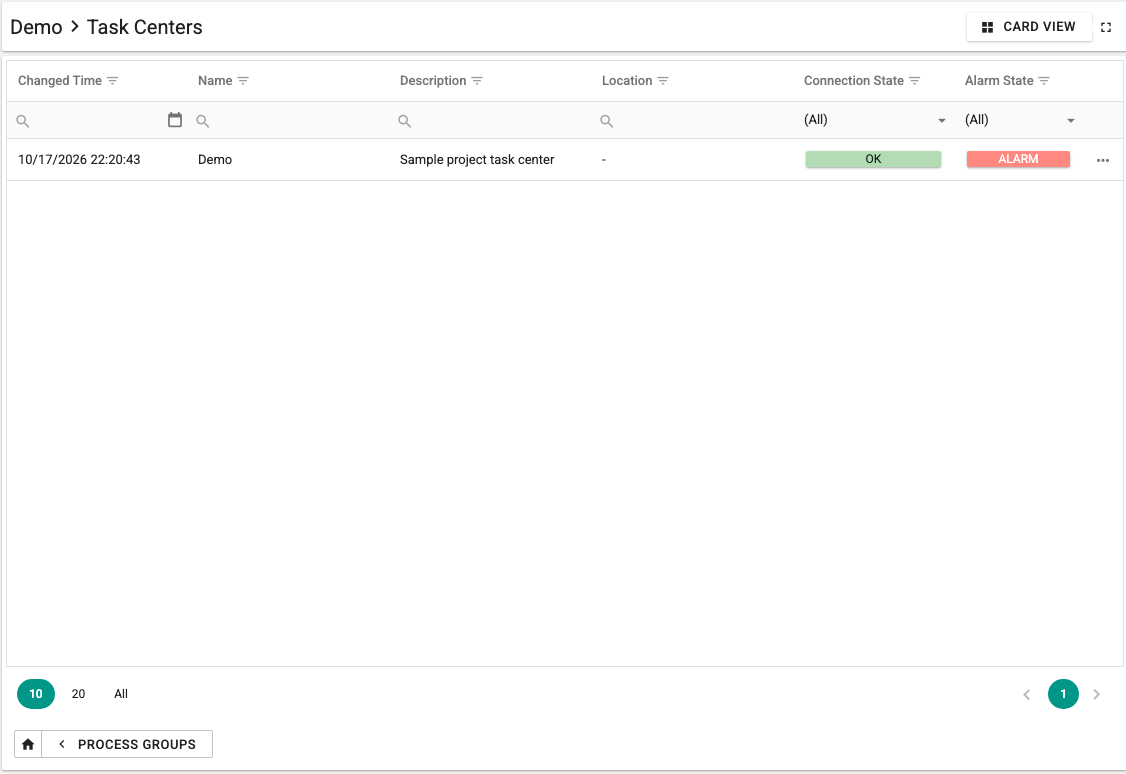
Double-clicking a row opens the devices of the task center.
Devices
This table lists the devices in the selected task center. The columns are Changed Time, Name, Description, Connection State and Alarm State. Rows of devices set to inactive in tag management are shown in a different color.
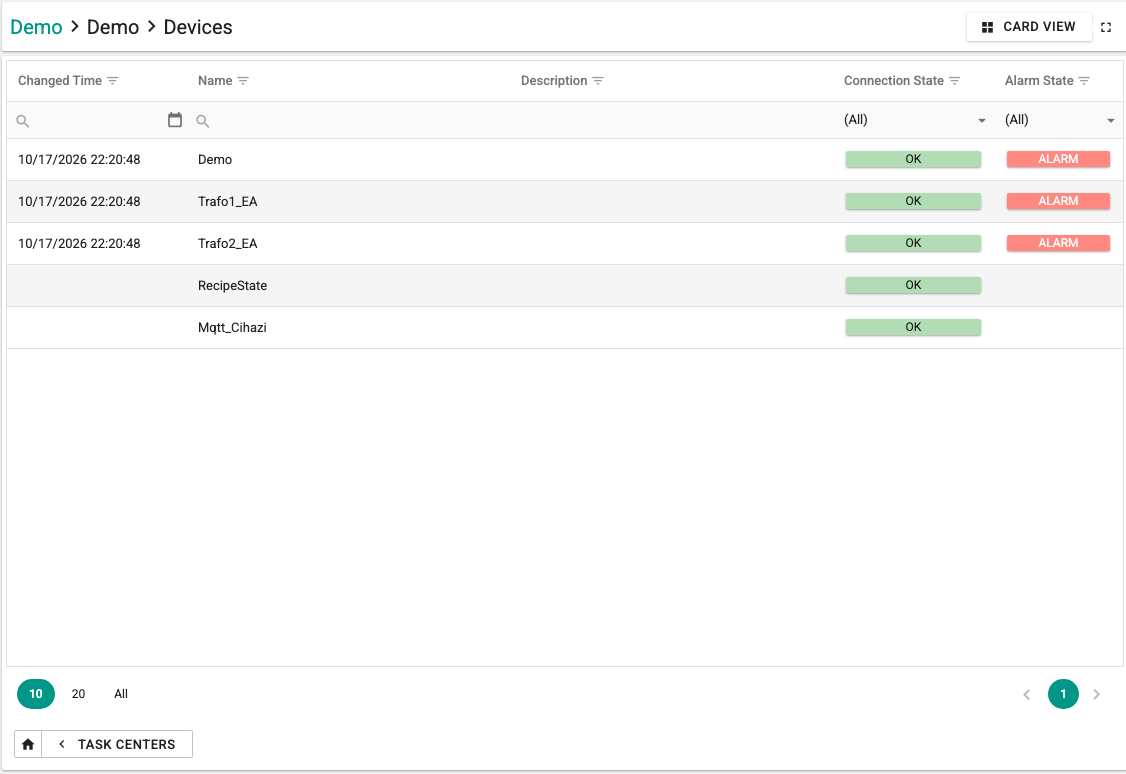
Double-clicking a row opens the device's tag table.
Tags
This table lists the live values of tags. The header shows the device, task center and process group the tags belong to as a path.
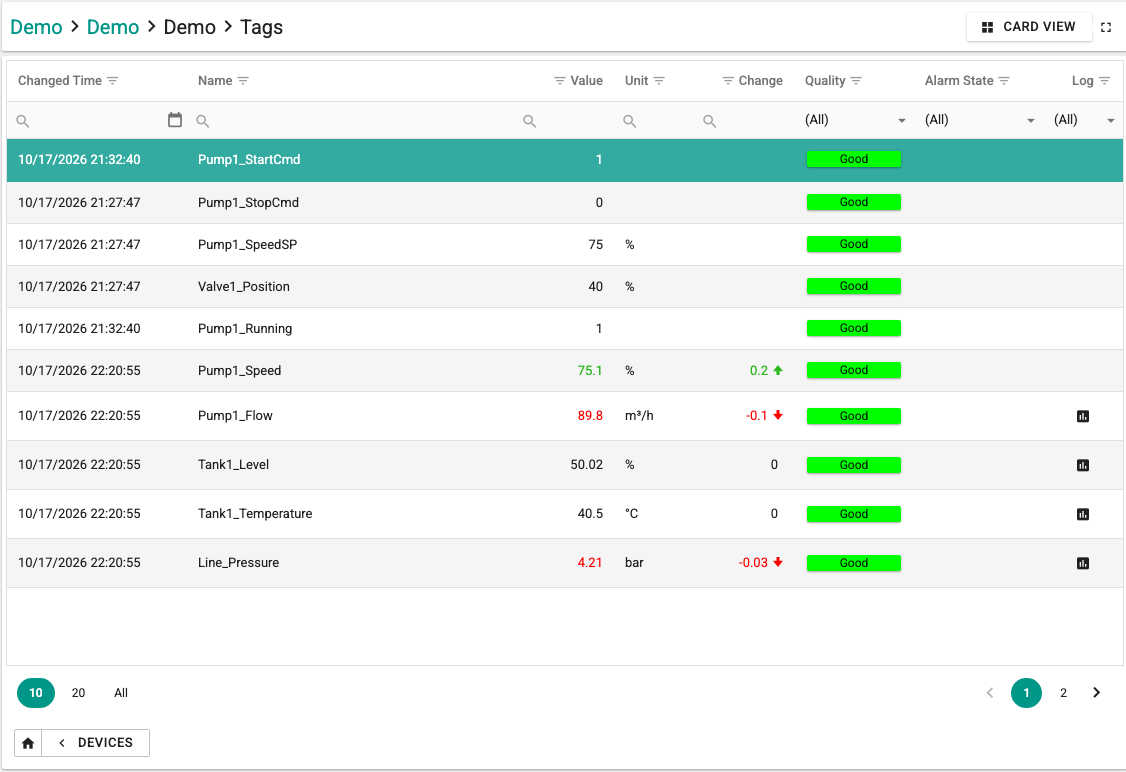
The columns are:
- Changed Time: The time the value was last updated.
- Name: The tag name. The Description column is hidden by default.
- Value: The current value of the tag.
- Unit: The unit of the tag, if defined.
- Change: The difference between the previous value and the last value.
- Quality: The tag read quality.
- Alarm State: If one of the alarms defined for the tag is active, an alarm icon appears.
- Log: If the tag has a history (log) definition, a button with a chart icon appears. Clicking the button adds the tag to the reporting shortcut list (see Reporting shortcut button).
If the table was opened from a tag group, there is a grouping area above the table and the tags are grouped by Device Name by default. In this case you can also choose the columns to show with the column chooser at the top right.

Drag the Device Name header from the grouping area back to the table to remove the grouping; Device Name then appears as a column in the table. Drag a column header to the grouping area to group the tags by that column. The table layout is stored in the browser and kept when the page is opened again.
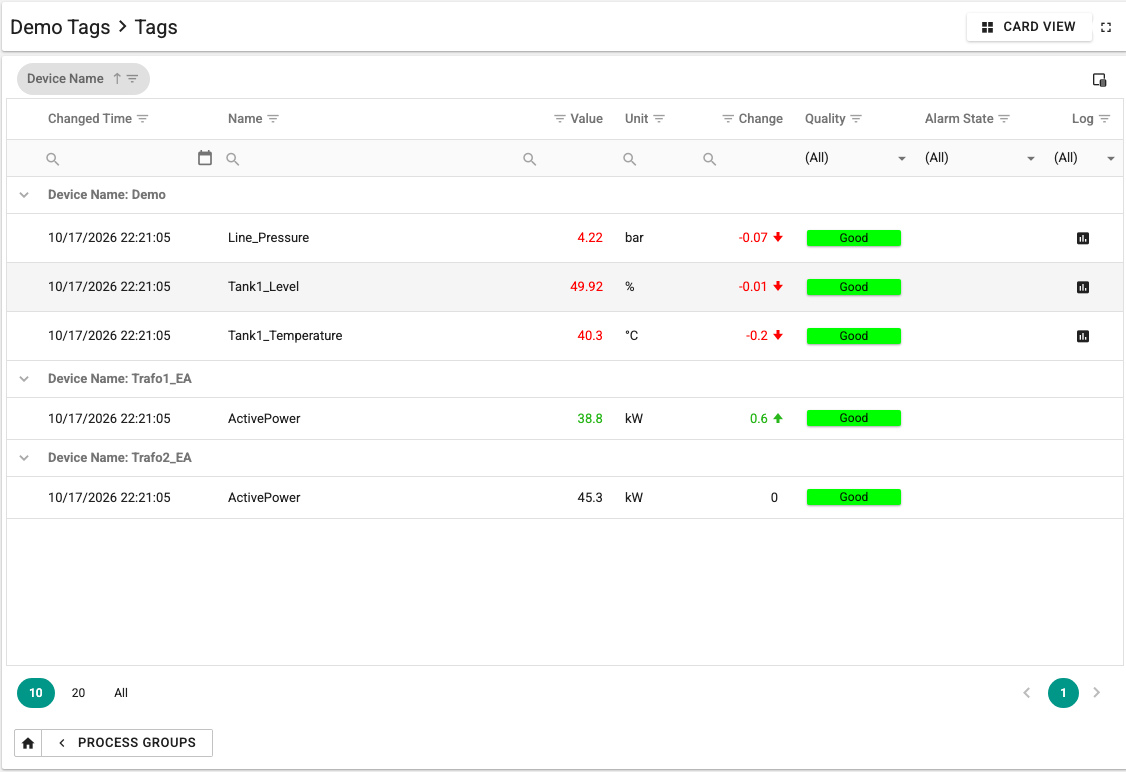
The Quality column shows one of the following values:

Uncertain (gray): The tag has not started to be read yet, or (for example with the OPC protocol) no variable matching the defined address was found.

Good (green): The tag is being read correctly from the device or the remote system.

Bad (red): An error occurred while reading the tag from the device or the remote system.
Writing a value to a tag
In the table view, right-click a row and select Write to Tag in the menu that opens.
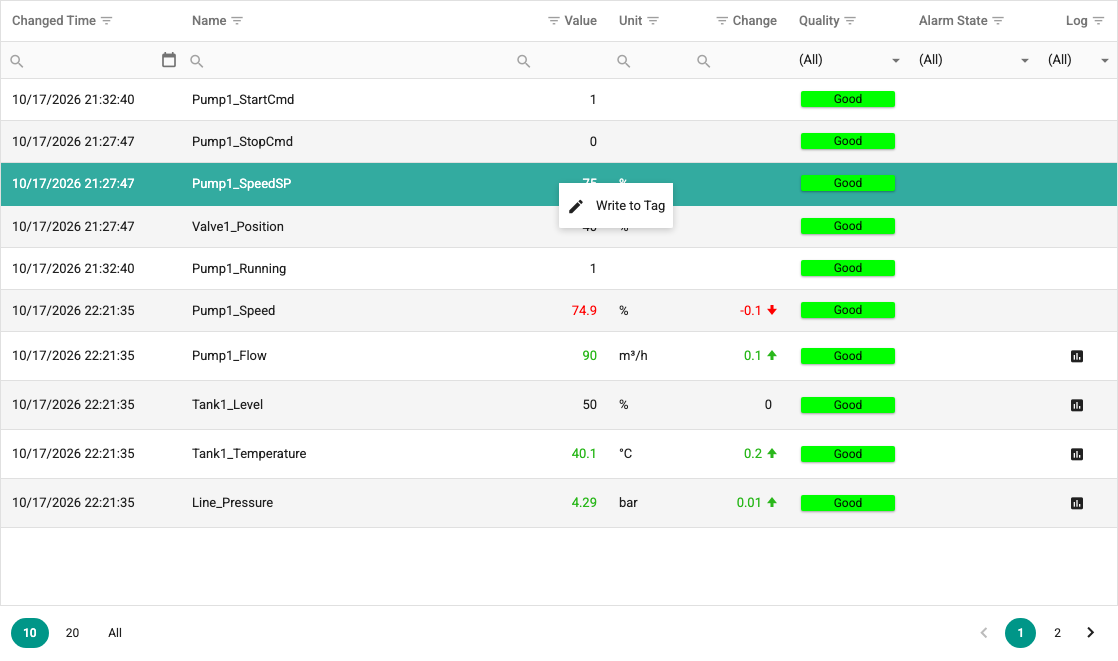
The window that opens shows the tag name. Enter the value to write and click Write; after you confirm, the value is sent to the server. The Close button closes the window without writing.
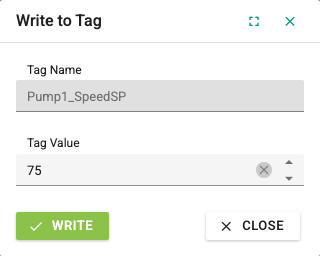
To write values, the user's group must have the Operate or Editor role. Values cannot be written to read-only tags. To send a command to a tag with the Pulse or Rising edge command behavior, the user must also see the tag within their process group scope (see Tag Write Scope). Write operations are shown on the Operation History screen.
Filtering table rows
In the table view, there are filter fields right below the column names.

Click the search icon in a filter field to change the filter operator. The following options are available for a date field:
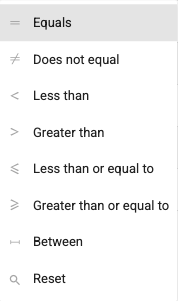
The options for a text field are as follows:
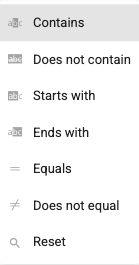
Card view
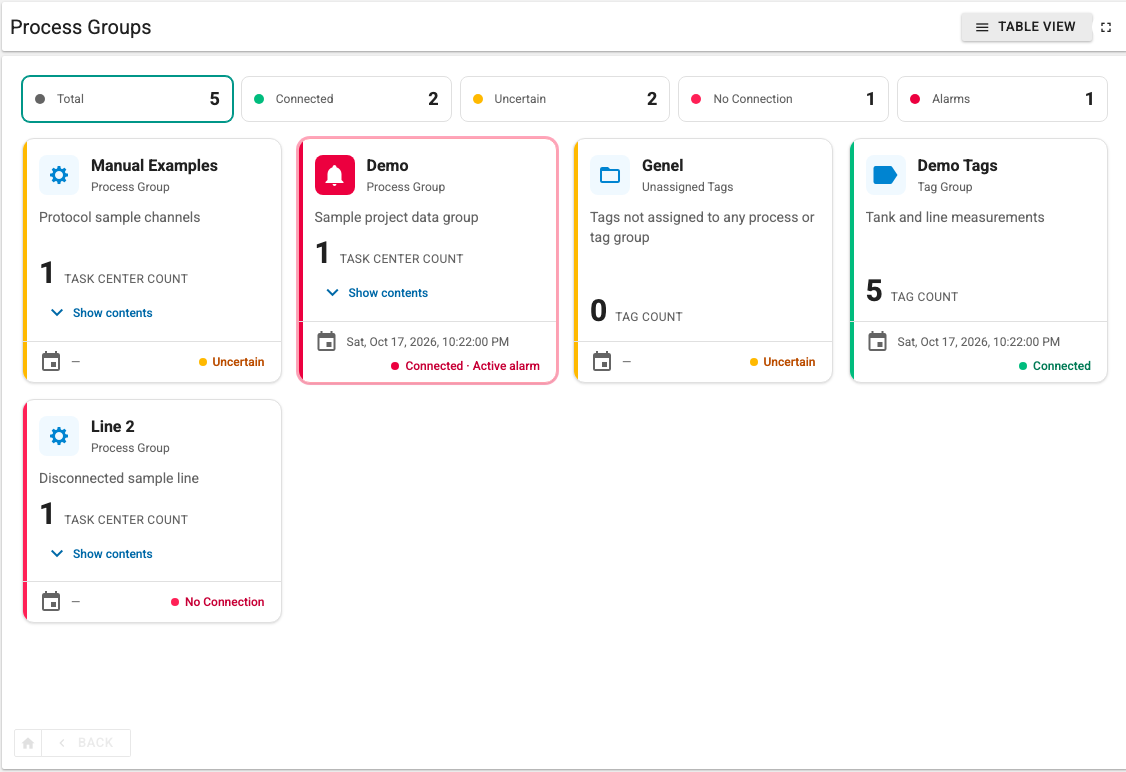
In the card view, each record is shown as a card. Cards have the same structure at all levels:
- The top of the card shows an icon, the record name and its kind (Process Group, Tag Group, Task Center or Device). On task center cards, the task center's location is shown instead of the kind, if defined.
- The middle shows the description and the number of child records (Task Center Count, Tag Count or Device Count).
- The bottom line shows the last update time and the connection state with a colored dot (Connected, Uncertain or No Connection).
- If the record has an active alarm, the card border turns red, a blinking bell appears in place of the icon and the bottom line says Active alarm.
Click the card name to go down one level. Cards without child records do not open.
Summary strip and search
The summary strip above the cards shows the Total, Connected, Uncertain, No Connection and Alarms counts. Click one of these boxes to list only the cards in that state; click the same box again to remove the filter. When the live data connection to the server is lost, the Live data connection lost warning appears above the strip.
If a level has more than 12 cards, a search box appears below the strip. It searches by name, description, device name or location and shows how many records are displayed. If no card matches the filter, remove the filters with the Clear filters button. When there are many cards, they are loaded in parts; open the remaining cards with the Show more button at the bottom of the list.
Process group and task center cards
A process group card shows the number of task centers, and a tag group card shows the number of tags. The Show contents link on a process group card lists the task centers in the group with their state dots and alarm icons; clicking a task center in the list opens the devices of that task center directly. When a tag group card is opened, the tags are shown directly.
A task center card shows the number of devices; its Show contents link lists the devices in the task center, and clicking a device in the list opens that device's tags.
Device cards
A device card shows whether the device is Active or Passive, the number of tags and, if any, the last communication error (Last error) with its time. Cards of inactive devices appear faded.
Tag cards
A tag card shows the tag name, its description if any, the current value and the unit. The last change is shown below the value with an up or down arrow label. If the tag was opened from a tag group, the card also shows the device name.
If the tag quality is not Good, the card fades and "—" is shown instead of the old value. If the tag has a history (log) definition, the bottom line of the card has an Add to log list button; this button adds the tag to the reporting shortcut list.
When the tags of a tag group are opened in the card view, the Show Them in Device Cards switch appears in the header. When the switch is on, the tags of each device are listed as rows in a single device card; clicking the card name opens that device's tags.