
SMTP Settings
An email account must be defined so that email notifications and Forgot password verification codes can be sent. These settings are made on the page opened with Settings > Smtp Configuration in the menu.
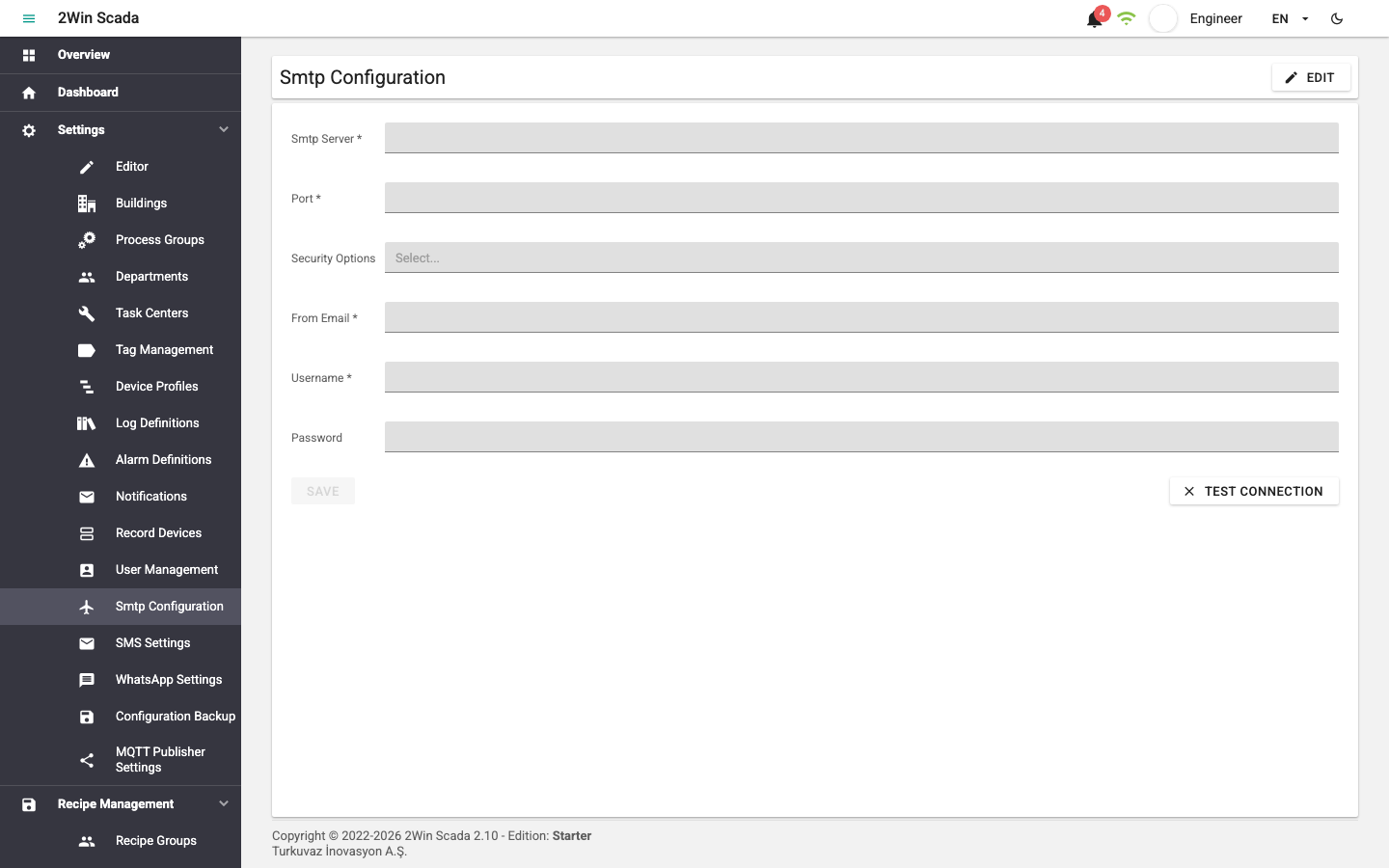
When the page first opens, the fields cannot be edited. To make changes, click the Edit button in the upper right; the fields become editable. Clicking the button again locks the fields again.
- Smtp Server: Address of the SMTP server used to send email. Required.
- Port: Port of the SMTP server. Required.
- Security Options: Connection security: None (no encryption), Auto (automatic, depending on the server), SslOnConnect (the connection is set up with SSL/TLS from the start), StartTls (the connection is encrypted with STARTTLS) or StartTlsWhenAvailable (STARTTLS is used if the server supports it).
- From Email: The email address the notifications are sent from. Required; must be a valid email address.
- Username: The user name used to sign in to the SMTP server. Required.
- Password: Password of the SMTP user. The eye icon on the right of the field shows or hides the typed password.
Changes are saved with the Save button after confirmation. The password is stored encrypted on the server and is never sent back to the page; this is why the Password field is empty when the page opens. If you are not changing the password, you can save with the field left empty; the stored password is kept.
Saved settings are passed to the notification service immediately. Then click Test Connection to check whether the notification service can connect to the SMTP server with the saved settings. The test uses the saved settings, so use Save first. If the connection succeeds, the button icon becomes ✔ and the button is highlighted; if it fails, the icon stays ✖.
To use this page, the user's group must have the Editor role and the license must allow SMTP settings to be managed.