
Definitions
On the Energy Performance > Definitions screen you define everything the report is based on: the site and area/line tree, meters and tag links, kWh factors, production, baseline and target. Changing definitions needs the Energy Management role (or Editor); with the Energy Reader, Energy Data Entry and Energy Closing roles the screen opens read-only: You are not allowed to change definitions (Energy Management role); they are shown read-only. For the roles, see Roles and access.
A wide screen is recommended for editing definitions.
Screen layout
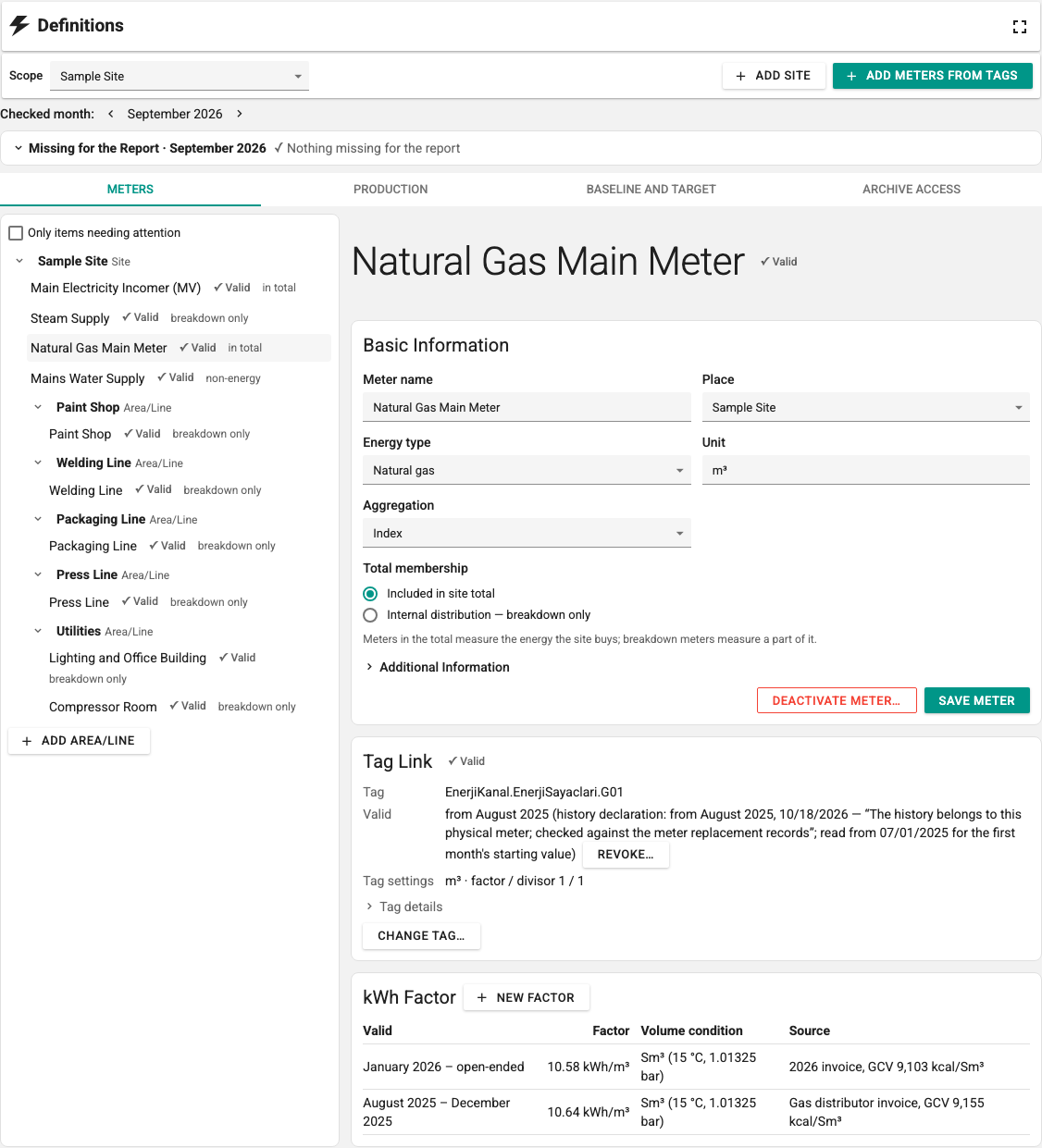
- At the top are the Scope selector and the Add Site, Add Meters from Tags, Add Area/Line and Rename buttons.
- Below them is the Missing for the Report panel (see Missing for the report).
- Tabs: Meters, Production, Baseline and Target and Archive Access. The Archive Access tab is visible only with the Energy Closing role (or Editor).
- The Meters tab has the Scope tree on the left and the details of the selected meter on the right. In the tree, every meter shows its total membership (in total, breakdown only, non-energy) and any state that needs attention:
| State in the tree | Meaning |
|---|---|
| No declaration | There is no history declaration; months before the link cannot be calculated. |
| Not linked | This meter has no tag link; the report shows Not calculated. |
| Inactive | An inactive meter is left out of new calculations. Closed reports do not change. |
| Tag settings changed, Tag not found, Awaiting approval | The tag link cannot be used in a new calculation; see Tag link and Approval after a restore. |
The Only items needing attention option leaves only the meters in these states in the tree. If you move to another node, tab or page with unsaved changes, you are asked to confirm (Unsaved changes).
Missing for the report
For the Checked month:, the panel lists the definitions of the selected scope that block the report or leave it incomplete. You can change the month with the Previous month and Next month buttons. The items have three levels; each item has a single action button that opens the relevant form:
| Level | Meaning | Example items → action |
|---|---|---|
| Report cannot be calculated | The calculation cannot be started, or no row can be calculated. | This scope has no meters → Add Meters from Tags · a meter has no tag link → Link · the tag settings of a link changed or the tag was not found → Review · approval after a restore is pending → Approve Links |
| Report will be partial | The calculation runs, but the total cannot be a Complete total. | no history declaration → Declare History · no kWh factor for this month → Enter Factor · several meters of the same energy type are included in the total (possible double counting) → Review Total Membership |
| For comparison (optional) | The report is complete, but no energy intensity, baseline or target comparison can be made. | No production quantity is defined; energy intensity is not calculated → Add Production · the production value was not entered for this month → Enter Production · No baseline → Define Baseline · No target → Define Target |
Optional suggestions are collapsed by default and only their number is visible ({count} suggestions for comparisons). If nothing is missing, the panel shows Nothing missing for the report instead.
Site and Area/Line
The scope tree has the order Site → Area/Line → Meter. The site is at the top; areas or lines are added under a site or under another area. A report can be taken for any site or area/line node.
- Add Site adds a site; select a node in the tree and use Add Area/Line to add an area/line. Rename changes the name of the selected node.
- The same name cannot be used twice on the same level.
- The tree has at most 8 levels; a group cannot be moved under itself.
- An installation can have at most 1,000 scope groups, 5,000 meters and 1,000 production variables.
A meter can also be attached directly to the site; an area/line is optional.
Add Meters from Tags
Meters are added in bulk from logged tags with the Add Meters from Tags wizard. The wizard has three steps.
Step 1 — Choose Tags
The list shows the logged tags; you can search by tag, device or channel name. Only logged tags that can be used for consumption can be chosen; the others are listed with the reason. Reasons:
| Reason | Description |
|---|---|
| Not logged | The tag has no log definition (see Log (Archive) Definitions). |
| Not a consumption log (e.g. power in kW) — cannot be used for consumption | The Consumption Value Type in the log definition is None. A tag that measures power (kW) cannot be a consumption source. |
| Already linked: {name} | The tag is linked to another meter. |
If the Consumption Value Type in the log definition is Cumulative, the meter's aggregation is Index; if it is Instant, it is Interval consumption. Choose at least one tag and click Next: Details.
Step 2 — Review Details
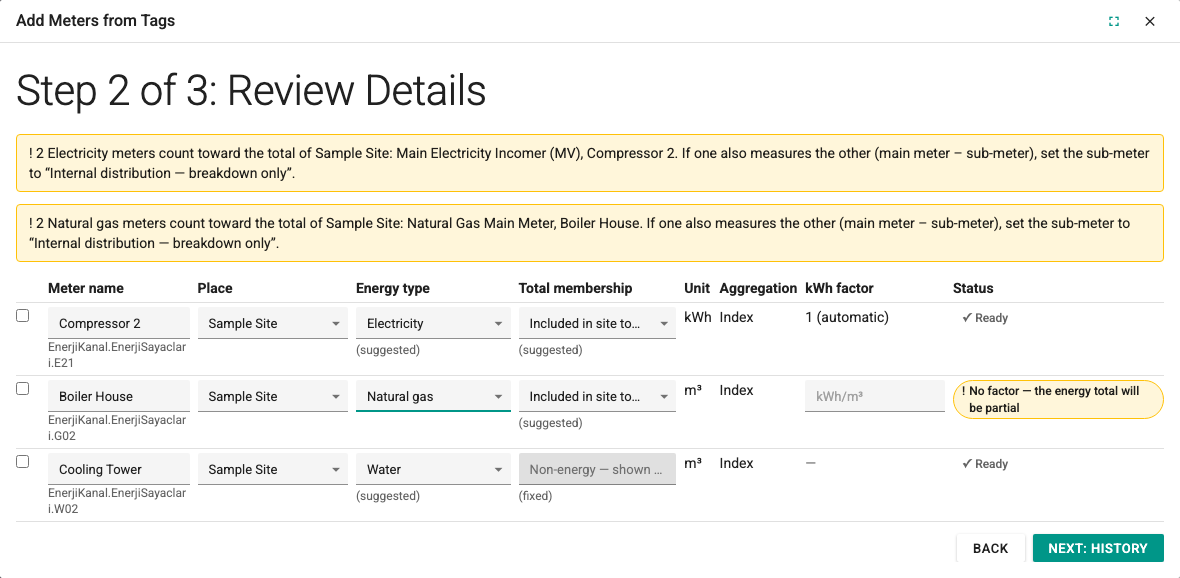
Each selected tag is a row in the table. The editable columns are Meter name, Place, Energy type, Total membership and kWh factor. Unit and Aggregation come from the tag's log definition and cannot be changed.
- Energy type is suggested from the unit (kWh, MWh, Wh → Electricity; Sm³, Nm³ → Natural gas; m³ → Water; t, kg → Steam) and marked (suggested).
- Total membership is always asked. For a meter attached directly to the site, Included in site total is suggested; for one attached to an area/line, Internal distribution — breakdown only. For water, Non-energy — shown separately is fixed ((fixed)).
- kWh factor: For an electricity meter that measures kWh, the column shows 1 (automatic). For MWh, 1000 is suggested; for Wh, 0.001. For natural gas and steam, a factor can be entered or left empty; an entered factor is valid from the first selected month and its source is recorded as Entered in the add-meters wizard. For water, no factor is asked.
- You can select several rows and assign Place, Energy type and Total membership in one go with Apply to Selected Rows.
The Status column tells the result of the row:
| Status | Meaning |
|---|---|
| Ready | The row can be added. |
| No factor — the energy total will be partial | A natural gas or steam meter included in the total has no kWh factor. The meter is reported in its natural unit, but the month's energy total becomes a Partial total. To keep the source out of the total on purpose, choose Internal distribution — breakdown only. |
| No factor — no kWh in the breakdown | A breakdown-only meter has no kWh factor; no kWh is shown in the breakdown and the total is not affected. |
| A field needs fixing | A required field is empty or invalid (for example A meter with this name already exists here or repeats in the list.). |
Double counting warning. If several meters of the same energy type in the same site are included in the total, a warning appears above the table: if one also measures the other (main meter – sub-meter), set the sub-meter to Internal distribution — breakdown only. Two separate supplies are normal, so the warning does not block adding.
The Next: History button is never disabled without a reason; if a field is wrong, it goes to the first wrong field and says how many fields need fixing.
Step 3 — History and Confirmation
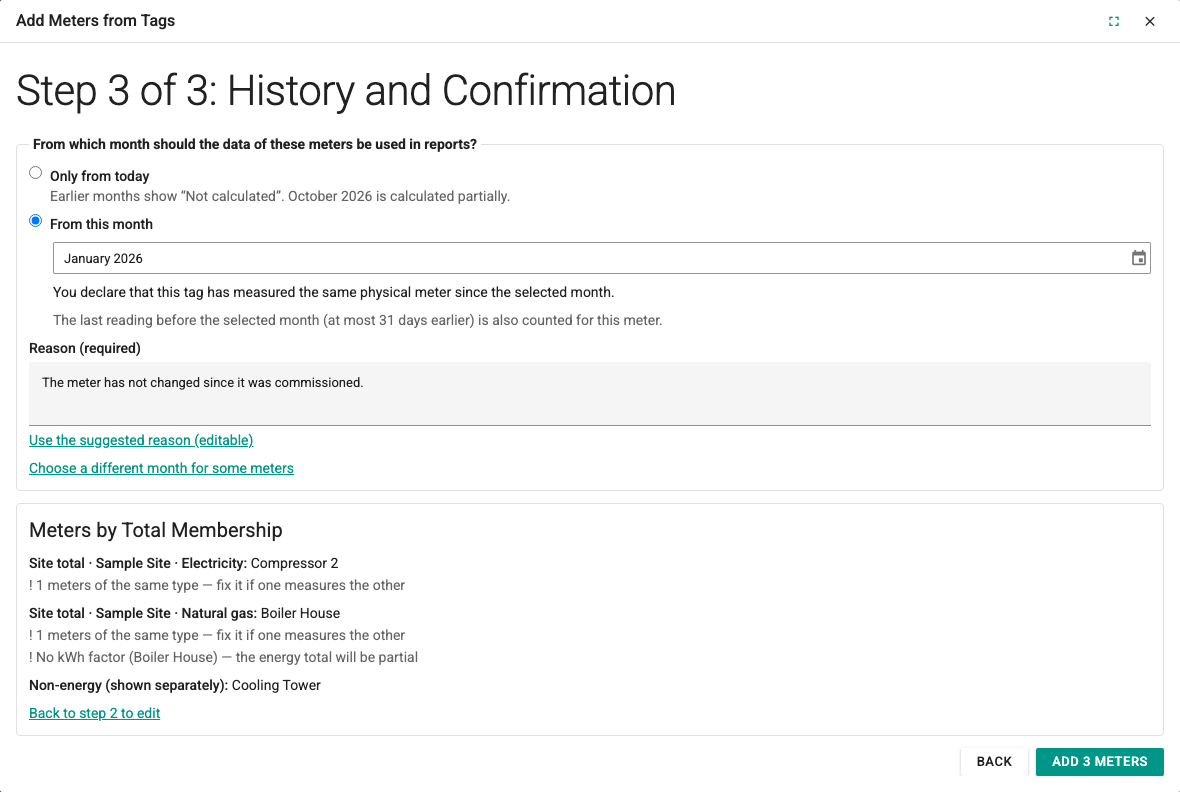
From which month should the data of these meters be used in reports?
- Only from today: Earlier months show Not calculated in the report; the current month is calculated partially.
- From this month: You declare that these tags have measured the same physical meter since the month you choose (history declaration, see History declaration). The Reason (required) field is asked; with Use the suggested reason (editable) you can take the suggested text. A future month cannot be chosen.
With Choose a different month for some meters you can give a different start per row (for example for a meter commissioned in the middle of a month).
The Meters by Total Membership summary above the confirm button lists the meters by total membership and shows the double counting and missing factor warnings again. To fix something, use Back to step 2 to edit.
Add {count} Meters saves the meters one by one. The Result screen shows the line {done} meter(s) added, {failed} not added. and the state of each meter (Added, Not added). For a meter that was not added, the failed step is shown (Meter not created, Tag not linked, kWh factor not saved, History declaration not saved). Retry {count} Meters keeps the successful rows. Calculate the Report takes you to the Period Report.
If you close the wizard with meters that have not been added, you are asked Close the wizard?
Meter details
When you select a meter in the tree, its details open on the right.
Basic Information: Meter name, Place, Energy type, Unit, Aggregation and Total membership. When the total membership changes, this warning appears: This change alters the totals of open months; closed reports do not change.
Additional Information (optional): Upstream meter, Data owner, Calibration date, Calibration document. The upstream meter must be active, measure the same energy type and be in the same site; the meter chain cannot form a loop. The energy type and site of a meter that has sub-meters cannot be changed. The upstream meter information is used in the Possible double counting warning at closing (see Closing).
Save Meter saves the changes. If a field is wrong, Not saved: fix {count} fields. is shown and the first wrong field is focused.
A meter is not deleted; it is deactivated. The Deactivate Meter… button asks for confirmation: an inactive meter is left out of new calculations; closed reports do not change.
kWh factor
The kWh Factor table in the meter details shows the validity history of the factor: Valid, Factor, Volume condition, Source. New Factor adds a new period:
| Field | Description |
|---|---|
| First month | The first month in which the factor is valid. A factor is always valid from the start of a month; it cannot change in the middle of a month. |
| Last month (optional) | If empty, open-ended. The last month is included. |
| kWh factor (kWh/{unit}) | Greater than 0, at most 1,000,000. For example 10.64 for natural gas. |
| Unit | Must be the meter's unit. |
| Volume condition | Required for natural gas (for example 15 °C, 1.01325 bar). |
| Source | The source of the factor (for example the distribution company's invoice). Required. |
- Two factors with overlapping periods cannot be defined for the same meter.
- Electricity measured in kWh uses the factor 1 automatically. No factor can be entered for such a meter.
- Water is not energy; no kWh factor is used.
- A new factor is not applied to closed months. To correct the factor of a closed month, a new revision is needed (see New revision).
- A meter included in the total that has no factor for a month makes that month's energy total a Partial total.
Tag link
The Tag Link card in the meter details shows which tag the meter uses:
- Tag, Valid (for example from {date}) and the history declaration, if there is one.
- Tag settings: unit and Factor / divisor. Under Tag details, Log ID and Link revision are shown.
A link stores the tag settings at the moment it was created: tag name, log type, consumption value type, unit and factor/divisor. If one of these changes later, the link is not used in new calculations; this way a tag whose settings changed does not silently give a wrong result.
| Link state | Meaning | Solution |
|---|---|---|
| Valid | The link is used in new calculations. | — |
| Tag settings changed | The tag name, log type, unit or factor has changed since it was linked. The card shows the When linked and Now values side by side. | Relink with New Settings… |
| Tag not found | The linked tag or log definition no longer exists. | Link another tag with Change Tag…. |
| Awaiting approval | Because the configuration was restored, the link must be approved before new calculations. | Approval after a restore |
A meter without a link has the Link Tag… button.
Linking and relinking. The dialog asks you to choose a tag. The new link is valid from now on. This month is calculated partially. Closed reports are not affected, and access to old reports does not move to the new tag. In the same dialog you can check Also count it for this meter from the start of this month (history declaration) and enter a month and a reason. The tag must be a consumption log with the same aggregation and unit as the meter.
Closed reports
A closed report keeps the link of the moment it was closed. Linking the meter to a new tag does not change the content or the access of the old report.
History declaration
A new tag link is valid from the moment it is created. Log records from before this moment are not used for the meter, even if they belong to the same tag: the tag may have measured another physical meter in the past. That is why months before the link show Not calculated, and the month in which the link started is Partially calculated.
With a History Declaration you declare that the tag has measured the same physical meter since the month you choose. The declaration is given on the card with Declare History…; it can also be given for several meters:
- From which month? The declared month cannot be after the month the tag link started.
- The last reading before the selected month (at most 31 days earlier) is also counted for this meter. This way the first day of the selected month can also be calculated. The card shows this as read from {date} for the first month's starting value.
- Reason (required), for example The meter has not changed since it was commissioned.
- The declaration is recorded and can be revoked. The record also keeps the user who gave the declaration and the time.
A link has at most one valid declaration. To change the declaration, first revoke the existing one with Revoke…. Revoking also asks for a reason and tells its effect in advance: those months become Not calculated again for this meter. Closed reports do not change.
A declaration is a responsibility
If the tag was linked to another meter in the middle of a month or the meter was replaced, do not give a declaration for the months before the change. The declaration appears as source information in closed reports and in the XLSX file.
Production
The Production tab defines the production and relevant variables used for energy intensity (for example kWh/t). Production is needed for energy intensity (e.g. kWh/t). It is not needed for the report.
The form opened with Add Production has the fields Name, Unit (for example t) and Kind:
| Kind | Where the value comes from |
|---|---|
| Monthly manual entry (suggested) | The value is entered manually each month on the Period Report (see Monthly production entry). |
| Tag — counter | A tag of a production counter that keeps increasing. The tag link works as for meters. |
| Tag — interval | A tag that gives the quantity per interval. |
- A tag cannot be linked to a variable with monthly manual entry; a monthly manual value cannot be entered for a tag variable.
- Manually entered production covers the whole month; production for part of a month cannot be entered. That is why manual production does not affect the comparability of energy intensity; its source appears as Manual in the report.
- With missing or zero production, energy intensity is not calculated.
Baseline and target
The Baseline and Target tab defines the measures for comparison. Neither is required for the report.
Baseline
A baseline is what you compare later months with. The Add Baseline form:
| Field | Description |
|---|---|
| Name | For example 2025 baseline. |
| Indicator | Total consumption (kWh) or Energy intensity (kWh ÷ production). For energy intensity, a Production is selected; a production must first be defined on the Production tab. |
| Reference months | Start and End month. 12 months are recommended but not required; at most 120 months. |
| Valid from | From which month the baseline is used in comparisons. |
| Method version, Static factors note, Revision conditions | Documentation fields (for example that the baseline will be reassessed if the product mix or shift pattern changes). |
| Reference value (optional) | If empty, the reference value is calculated from the closed reports of the reference months. |
If no reference value is entered manually, every month of the baseline must be closed and its latest revision must be a Complete total; for an energy intensity indicator, the production value of every month must also be comparable. If even one month is missing, there is no reference and no baseline comparison is made (no usable closed month in the baseline period). No average is taken over only part of the closed months.
Target
A target is a percentage reduction against a baseline or an absolute value. The Add Target form: Name, Indicator, Kind (Percentage reduction or Absolute value), Baseline (required for a percentage reduction), Reduction (%) or Target value, Valid from and Valid until (optional). The indicator of the target must be the same as the indicator of the selected baseline.
Revisions
Saving always adds a new revision. Earlier reports do not change. To change an existing baseline or target, use the New Revision… button; Revision reason (required) is asked. In the list, each record appears with its revision number (Rev. {revision}) and validity range.
Archive access
The Archive Access tab manages the roles that can read the closed reports of the scope without SCADA data rights. See Archive access.
Approval after a restore
When a configuration backup is restored (of the same project or of a different project), the tag links need approval again before new calculations, and a bar appears on the Period Report, Trend and Definitions screens: The configuration was restored. Tag links must be approved before new calculations. Closed reports stay readable.
Review Links opens the Link Approval after Restore dialog. For each link, Meter / production, Tag and Result are listed:
| Result | Meaning |
|---|---|
| Settings unchanged | The tag name and settings are the same as in the link. Can be approved in bulk. |
| Settings differ | The tag exists, but its settings changed. Resolved one by one with Link Again…. |
| Tag not found | The tag or log definition does not exist in the restored configuration. Linked to another tag with Link Again…. |
| Approved | The link is already approved. |
| Outside your rights | You have no data rights on this tag; the details of the row are not shown. |
Approve {count} Unchanged Links approves only the Settings unchanged rows. The approval dialog shows this responsibility text: If a backup of another project with the same names was restored, the system cannot tell. The approval is recorded under your name. The result says {confirmed} link(s) approved. {remaining} link(s) must be linked again.
If most links do not match, an additional warning appears: Most links do not match. A backup of another project may have been restored. Old reports open only with archive access.
- Approval needs the Energy Management role and process group rights on the tags in the scope: Approving links needs the Energy Management role.
- After a restore, links whose tag was deleted or changed can be approved or relinked only by a user with the Editor role.
- Closed reports can be read and downloaded before the approval as well.
For the differences between a backup of the same project and of a different project, see Backup and Restore.