
Database (ODBC)
The Database protocol lets 2WinScada periodically read tag values from a table in another system's database and, if needed, write values to this table. It is designed for "address–value" tables in which each row holds the address (name or number) and the value of one variable.
2WinScada connects to the database only through ODBC. Any database with an ODBC driver installed on the server (e.g. Microsoft SQL Server, PostgreSQL, MySQL) can be used; there is no built-in database-specific connection driver. The read and write queries are built by 2WinScada from the entered table and column names; no free-form SQL query is written.
License
Database integration is available in the Standard and Professional license editions; it is not available in the Starter edition. If the license does not include database integration, the connection test and runtime communication are blocked. For details, see the License page.
Defining an ODBC data source
If a DSN will be used in the connection string, an ODBC data source is created on the 2WinScada server before the channel is defined:
- Install the 64-bit ODBC driver of the target database on the server. Because the 2WinScada service runs as 64-bit, 32-bit drivers and 32-bit data sources cannot be used.
- In Windows, open the ODBC Data Sources (64-bit) tool (search for "ODBC" in the Start menu, or Windows Tools).
- Select the System DSN tab. Because 2WinScada runs as a Windows service, it cannot see the User DSN entries of a Windows user other than the service account.
- Click Add, select the driver and click Finish. In the driver's own window, enter the server, database and authentication details and save the data source.
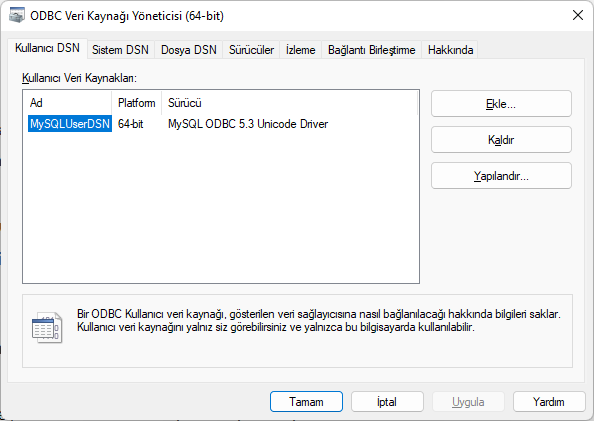
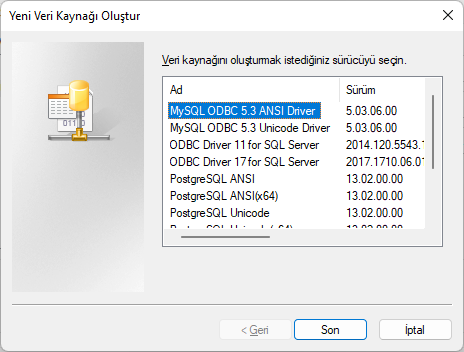
If the driver you need is not in the list, contact your database administrator to get the correct driver.
Channel Definition
On the General tab of the new channel window, enter the channel name and select Database as the Connection Type. After making the connection settings, click Save.
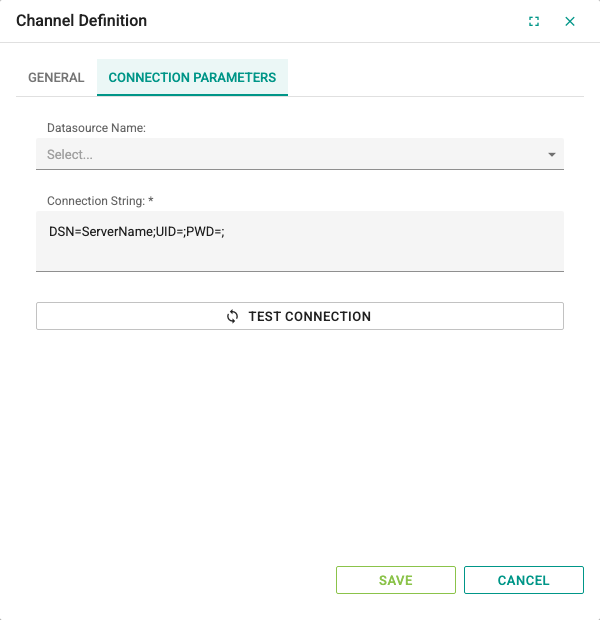
Connection Parameters tab:
| Field | Description | Default |
|---|---|---|
| Datasource Name | Lists the ODBC data sources defined on the server. The selected data source is written automatically to the DSN= value in the Connection String; the other parts of the string are kept. | Empty |
| Connection String | ODBC connection string. Only this string is used for the connection. Required. | DSN=ServerName;UID=;PWD=; |
| Test Connection | Tries to open a connection from the server to the database with the Connection String on the form (see Saved password). | — |
Main keys in the connection string:
DSN: Name of the ODBC data sourceUID: Database usernamePWD: Password of this user
Connection string examples (replace the values in angle brackets with your own details):
DSN=<data-source-name>;UID=<user>;PWD=<password>;You can also connect without defining a DSN by writing the driver name directly:
Driver={ODBC Driver 17 for SQL Server};Server=192.168.1.10;Database=<database>;UID=<user>;PWD=<password>;In the connection string, use a separate database user for 2WinScada that can only read the required table (and, if writing is used, update the related column).
Saved password
When a saved channel is opened, the password in the connection string is not shown; it appears as PWD=******** and the saved password is kept.
- Saving the connection string with
PWD=********unchanged keeps the saved password. - To change the password, type the new password in place of
********. - Leaving the
PWD=value empty or deleting thePWDkey removes the password. - On a new channel created by copy/paste in the grid, the password is not copied; it must be entered again.
On a saved channel, Test Connection uses the saved password if the connection string has not changed. If any part of the connection string, such as the server, DSN, driver or user, has been changed, the saved password is not sent to a different target, and the test stops with the error The stored password cannot be used because the connection string differs from the saved channel. (3056). In this case, type the password again, or save the channel first and then test. On a new (unsaved) channel, type the password explicitly.
If Test Connection succeeds, the button changes to a check-marked state. If the test fails, a general error message appears on the screen; for security reasons, the detailed error text returned by the driver is written only to the service log.

Device Definition
Each device represents a table in the database the channel connects to. On the General tab, the Name and Active fields are set as for other protocols.
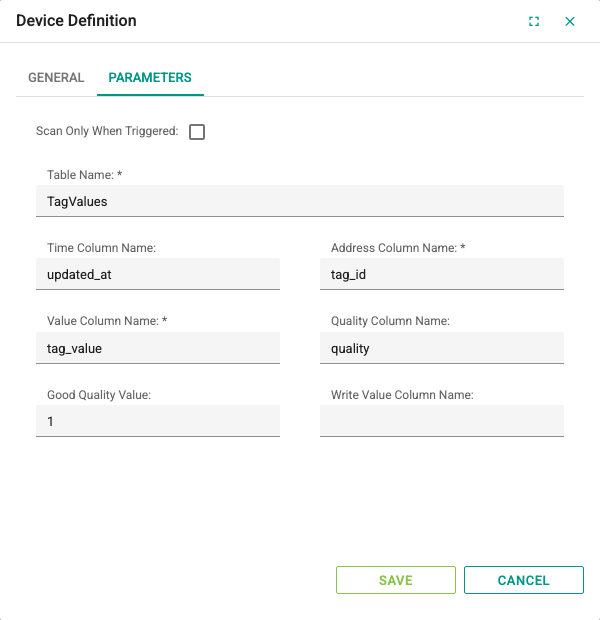
Parameters tab:
| Field | Description | Rule |
|---|---|---|
| Table Name | Table the data is read from | Required; at least 2 characters |
| Time Column Name | Column that holds the update time of the row. If entered, the row with the latest time is read for each address. | Optional |
| Address Column Name | Column that holds the value identifying the variable (name or number). The tag Address fields are matched with the values in this column. | Required |
| Value Column Name | Column that holds the current value of the variable | Required |
| Write Value Column Name | Column where the value written to the tag is stored. If left empty, writing is not possible. The same column as the Value Column Name can also be entered. | Optional |
| Quality Column Name | Column that indicates whether the value is valid | Optional |
| Good Quality Value | Value in the quality column that means "good" (e.g. 1, true or OK) | Must be filled in if a quality column is used |
| Scan Only When Triggered | If selected, the table is not read periodically; it is read only when triggered from outside (see Triggered scan). | Off |
If a name contains spaces or a reserved word, write it with the database's own quoting style (e.g. [Tag Değerleri] for SQL Server, "TagDegerleri" for PostgreSQL). If a schema name is needed, it can be written together with the table name (e.g. dbo.TagValues).
Example table:
| tag_id | tag_value | updated_at | quality |
|---|---|---|---|
| 1001 | 15.74 | 2026-01-23 10:35:07 | 1 |
| 1002 | -23.38 | 2026-01-23 10:35:07 | 1 |
| 1003 | 13.53 | 2026-01-23 10:35:07 | 0 |
For this table, enter TagValues as the Table Name, tag_id as the Address Column Name, tag_value as the Value Column Name, updated_at as the Time Column Name, quality as the Quality Column Name and 1 as the Good Quality Value.
Read query
If the Time Column Name is empty, all rows of the table are read. In this case the table must have a single row for each address; if there are several rows with the same address, it is not guaranteed which one remains as the value.
If the Time Column Name is entered, only the defined tag addresses are queried and the row with the latest time is taken for each address.
WARNING
When the Time Column Name is used, the address column must be numeric and the tag addresses must be entered only as numbers. If the address column is text, leave the Time Column Name field empty and keep a single row for each address in the table.
Read rules:
- A query can take at most 30 seconds; if this time is exceeded, the read counts as failed.
- A query can return at most 100,000 rows. If more rows are returned, the read fails; for large history tables, use the Time Column Name or read a table or view that holds only the current values.
- If no Quality Column Name is entered, the quality of all tags read becomes Good. If it is entered, the quality value in the row is compared with the Good Quality Value: as
true/falseor1/0if the column is logical (bool), as a number if it is numeric, and as exact text if it is text. The tag quality of rows that do not match becomes Bad. - On a read error (connection, query or timeout), the quality of the device and of the tags in that query becomes Bad. On a successful read, the device quality becomes Good.
Tag Definition
Select the device in the channel tree on the left and add a new tag in the tag table (see Tag Management).
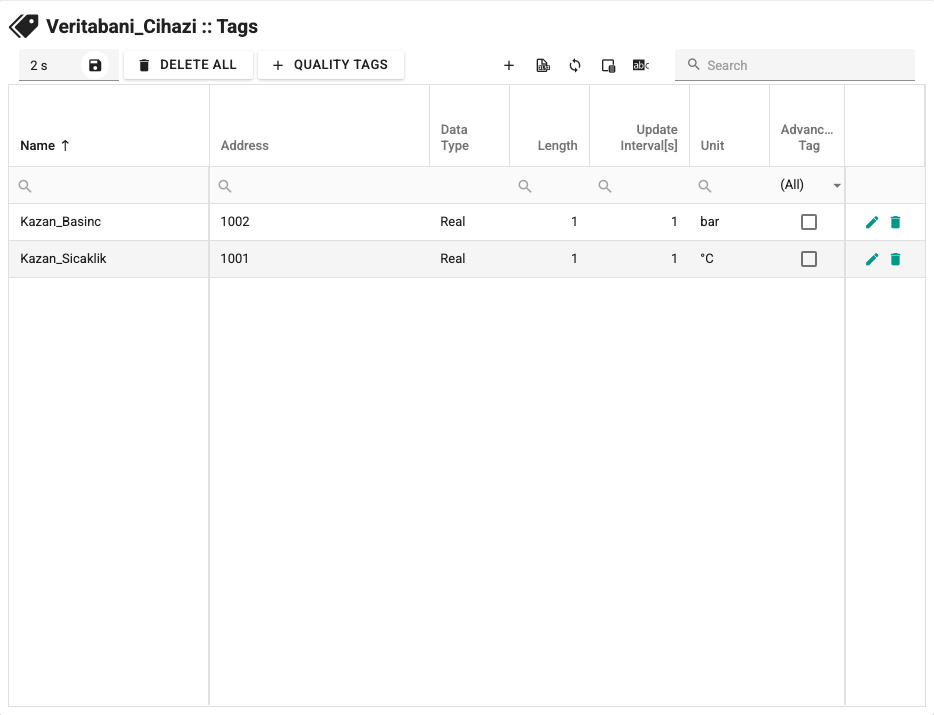
| Field | Database rule |
|---|---|
| Address | Text form of the value in the address column. Matching is case-sensitive and exact (e.g. 1001 or Tank1_Seviye). |
| Data Type | A type that matches the data in the value column. For types other than Bool and String, the decimal separator is converted automatically. |
| Update Interval[s] | Read period of the table. Tags with the same update interval are read in one query; each different interval creates a separate query. |
| Read Only | If selected, 2WinScada does not write to this tag. |
The tag value is updated only when the value read changes. Tags that do not match a row in the table are not updated.
Writing
When a value is written to a tag, 2WinScada updates the Write Value Column Name column in the rows whose address matches, using a parameterized query.
- The value and the address are not inserted into the query as text; they are sent as parameters. Bool values are written as 1 or 0.
- If the address is entered in single quotes (e.g.
'Tank1'), it is sent as text; if it is a number, as a number; in other cases, as text. - The query updates all rows whose address matches. Do not write to history tables that have several rows for the same address.
- Writes are queued and each is tried once; a failed write is not repeated. At most 64 writes can wait in the queue; if the queue is full, a new write is rejected.
- The result of the write is seen at the tag's next read. If the write column is different from the value column, transferring the value to the value column is the responsibility of the other system.
Triggered scan
If Scan Only When Triggered is selected, the device does not read the table until it is triggered. When triggered, all tags of the device are read once regardless of the Update Interval[s], and the values are published again even if they have not changed.
A scan can be triggered in two ways:
- From page scripts:
await this.srt.triggerDatabaseScan(<device-id>); - From the 2WinScada service API, with the device's ID number:
GET /api/DbClient/ScanTrigger?deviceId=<device-id>Both ways require a signed-in user with the Editor role.
Troubleshooting
| Symptom | Checks |
|---|---|
| The Datasource Name list is empty | Define the data source as a System DSN in the 64-bit ODBC tool. Alternatively, write a connection string starting with Driver= in the Connection String field. |
Test Connection returns error 3056 | The connection string differs from the saved channel. Type the password again in place of ********, or save the channel first. |
| Test Connection fails | Check the driver detail in the service log, the server address, the username and password, network access to the database server and that the 64-bit driver is installed. Verify that the license includes database integration. |
| The quality of the device and tags is Bad | Check the spelling of the Table Name and the column names, the user's permission to read the table and that the query completes within 30 seconds. |
| Reading stops when a Time Column Name is entered | If the address column is text, leave the Time Column Name field empty (see Read query). |
| The tag value is never updated | Check that the tag's Address value is exactly the same as the value in the address column (case, spaces). |
| Tag quality is always Bad | Check that the Good Quality Value field is the same as the "good" value in the quality column. |
| The read fails because of the number of rows | The table returns more than 100,000 rows. Use the Time Column Name, or read a view that contains the current values. |
| The write has no effect | Check that the Write Value Column Name field is filled in, the Read Only setting, the user's update permission and that the address value matches a row in the table. |
| The triggered scan does not work | Check that the device is active, that the correct device ID is used and that the triggering user has the Editor role. |