
User and Group Management
This is where users, user groups and the roles of user groups are defined.
User group definitions
Users are managed on the page opened with Settings > User Management in the menu. The page has the Users, User Groups and API Keys tabs. To use the page, the user's group must have the UserAdministrator role and the license must allow user management. API keys are described on the API Keys page.
The User Groups tab shows the User Groups table at the top and the Roles table at the bottom. The arrow button in the header of each table collapses and expands the table.
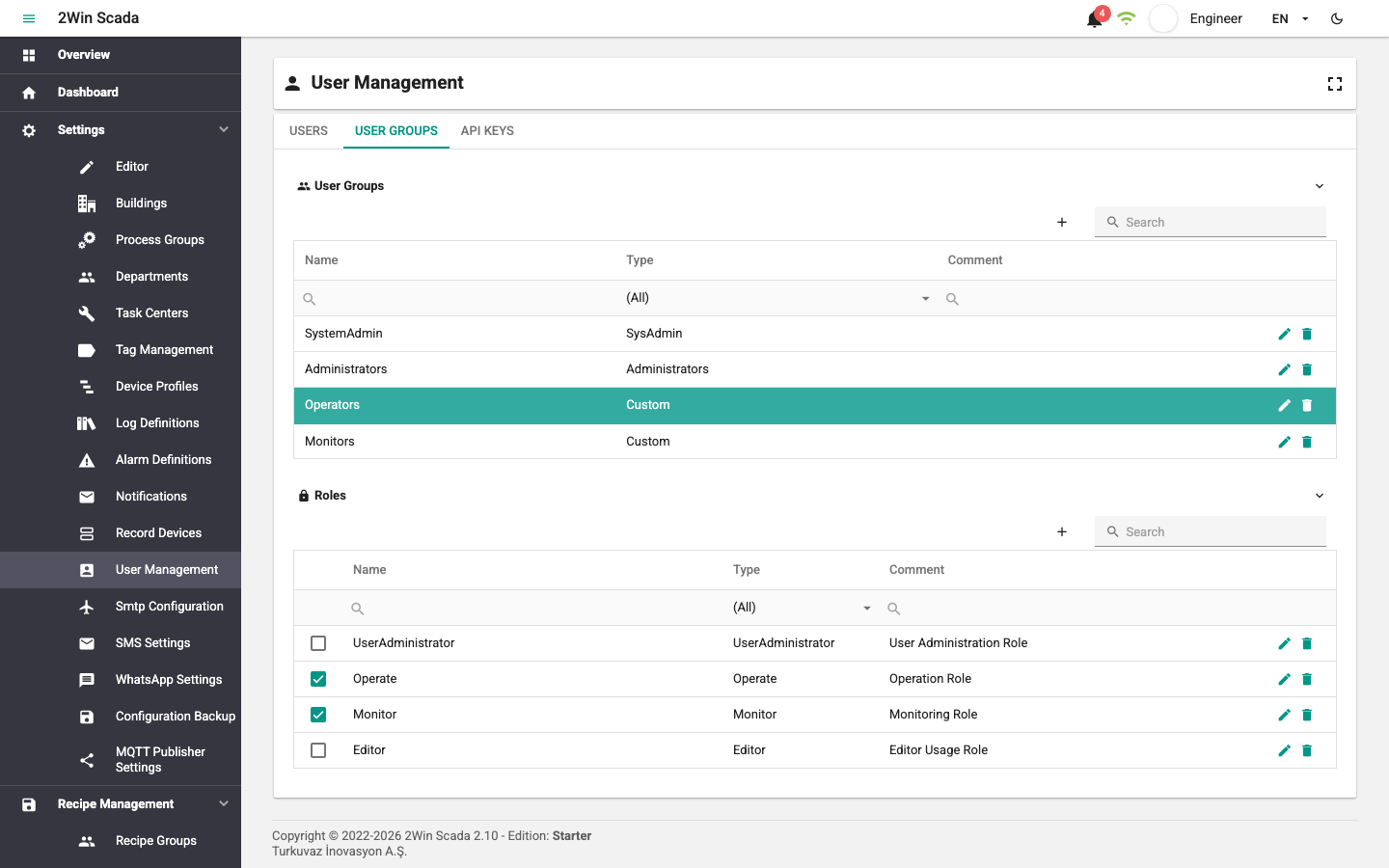
The type of a user group is shown in the Type column. Groups of the SysAdmin and Administrators types are defined by the program; they cannot be deleted or renamed. The SystemAdmin group is listed only when you are signed in with a SystemAdmin account. All other groups (including Operators and Monitors, which come with the installation, and Recipe Managers, which comes with new installations from 2.10 on) are of the Custom type; they can be edited and deleted.
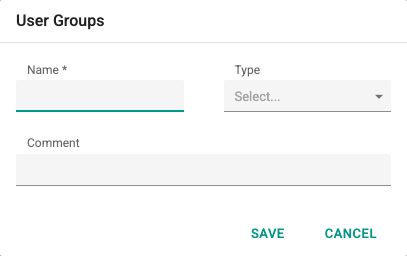
To add a new group, click the + button. In the window that opens, enter the group's Name (3–100 characters, unique) and an optional Comment, and click Save. Whatever is selected in the Type field, new groups are always created with the Custom type.
The Roles table lists the roles that can be given to groups. The roles that come with the installation are: UserAdministrator (user management), Operate (writing values to tags), Monitor (monitoring), Editor (definitions and page editor), AlarmManagement (alarm and notification management), ReportManagement (report management), LogManagement (log definitions), RecipeManagement (recipe definitions) and RecipeApplier (recipe apply). Version 2.11.0 added the four role types of the Energy Performance module: Energy Reader (read-only view of energy definitions, trend, period report and closed reports), Energy Data Entry (Energy Reader plus monthly manual values for months that are not closed), Energy Management (energy definitions, tag mappings, corrections, production entry and calculation) and Energy Closing (month closing and granting archive access); see Roles and access.
To give a role to a group, first select the group in the User Groups table. Then select the check box at the far left of the role's row in the Roles table; clearing the check box removes the role from the group. Users without the Editor role cannot see the Editor role and cannot give it to groups.
Access to process groups is also granted through roles: when a role is assigned to a process group, only users with this role can access that group (see Process Groups).
To define a new role, click the + button in the upper right of the Roles table, to the left of the search box.
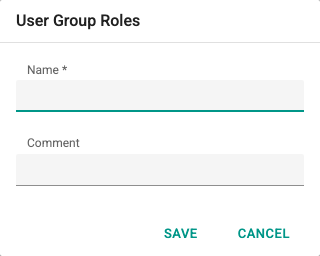
In the User Group Roles window that opens, define the new role by typing its Name (3–100 characters) and an optional Comment. New roles are of the Custom type; roles defined by the program cannot be deleted.
User definitions
The Users tab shows the user table. The table has the User Name, First Name, Last Name, Email, Phone, Group and Department columns. In this table you define new users, update user details, delete users, set passwords and edit user preferences.
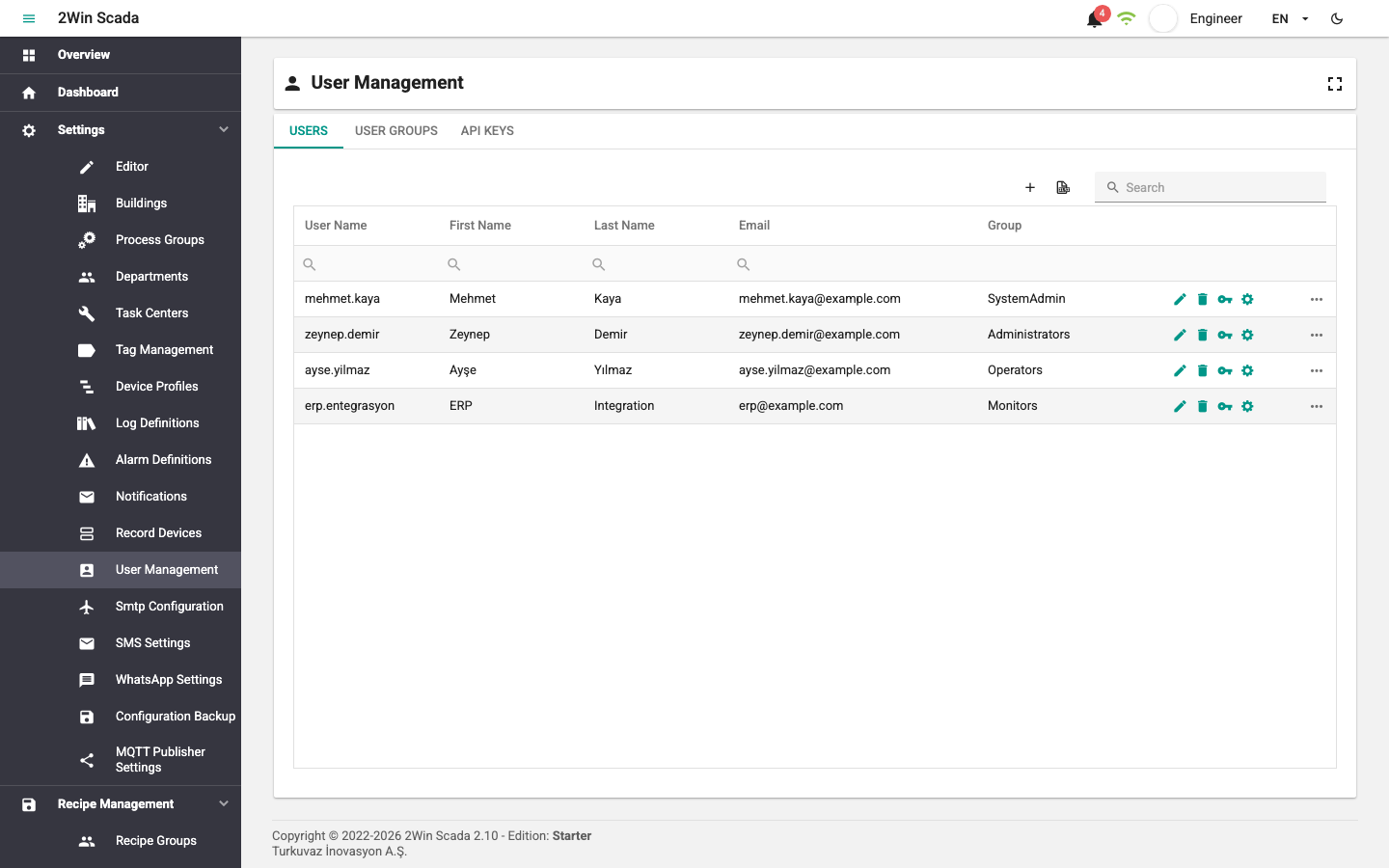
After the first installation, the system has the following accounts:
| User | Group | Password |
|---|---|---|
| Administrator account set during installation | SystemAdmin | The password entered during installation |
| Default operator account | Operators | None; assigned by the administrator |
| Default monitoring account | Monitors | None; assigned by the administrator |
Accounts without a password cannot sign in. The default accounts are created only at the first installation; if they are deleted, they are not created again. Delete the accounts that are not used, and renew the passwords of the accounts in use regularly.
Defining a New User
Click the + button in the upper right of the table to open the User Information window.
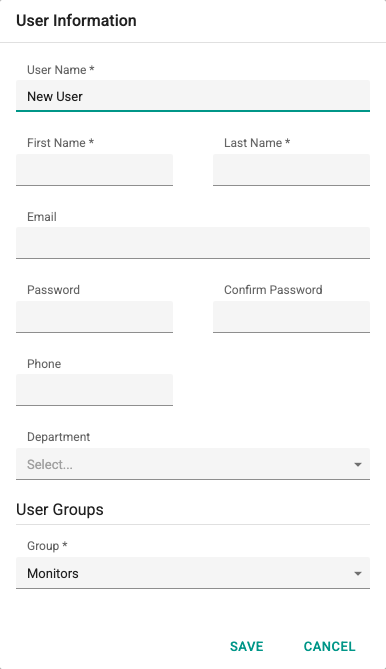
For a new user, fill in the User Name (3–100 characters, unique), First Name and Last Name (3–100 characters), Email, Password and Confirm Password fields. Under the default policy, the password must be at least 10 characters long (12 for accounts in the SystemAdmin group). By default, the password given here is temporary: the user must set their own password at the first sign-in (see Changing the Password at First Sign-In). Phone and Department are optional. In the Group field, select the user group that matches the level of permission to be given to the user. Click Save to create the user.
The email address is the address the Forgot password verification code is sent to. When a user is edited, the password fields are not shown; the password is changed with the password reset button described below.
Editing/Deleting a User
To edit or delete existing users, use the command buttons at the end of the row.
 Opens the window for changing the user on that row.
 Deletes the user on that row.
Changing a User's Password
The Password Reset button with the key icon  on the row of the user table opens the password reset window.
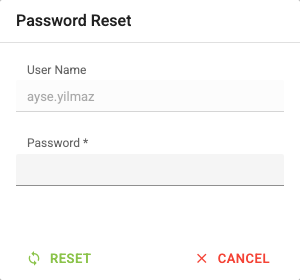
In the Password Reset window, type the new password in the Password field and click Reset. Under the default policy, the password must be at least 10 characters long (12 for SystemAdmin accounts).
The passwords of SystemAdmin accounts can be reset from the web interface only by SystemAdmin accounts; other administrators do not see these accounts in the list. If the password of the only SystemAdmin account is forgotten, it is reset on the server with a local recovery command; see If the password is forgotten or sign-in is rejected.
By default, the password set by the administrator is temporary. At the next sign-in, the user must replace it with their own password; sessions open at that time are also redirected to the password change screen at the next refresh. The default accounts, which have never had a password, also get their first password this way.
User preferences
For users with the Editor role, the user row also has a Preferences button with a gear icon. Clicking the button opens a window where the following preferences of the user are edited:
- Landing Page: The page that opens in Overview when the user signs in. If none is selected, the system's default landing page is used.
- Tag Prefix: The tag prefix applied when the user's landing page opens without a specific tag prefix (see Tag prefix).
- Enable Alarm Sound: Whether the warning sound plays for new alarms.
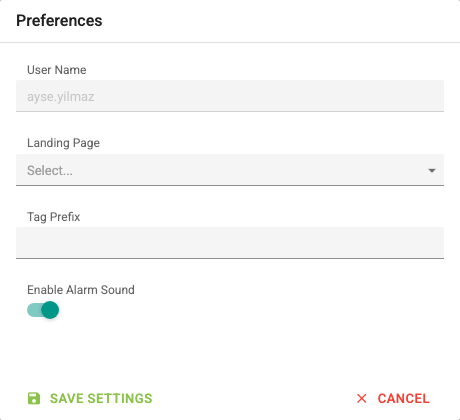
Changes are saved with the Save Settings button. Users can see their own preferences on the Account page but cannot change them.
WhatsApp consent
If the installed license includes the WhatsApp right, the user table shows a WhatsApp consent column and a WhatsApp button on each row for users with the Editor role and for the SystemAdmin group. WhatsApp alarm messages are sent only to users whose consent is recorded (see WhatsApp Settings).
Statuses in the WhatsApp consent column:
| Status | Meaning |
|---|---|
| No consent | Consent has never been recorded. |
| Active | Consent is recorded and valid for the user's current phone number. |
| Consent needed again | The phone number changed after consent was given; consent must be obtained again for the new number. |
| Withdrawn | Consent was withdrawn by the user or an administrator. |
The administrator records consent if the user has a signed form or written approval:
- Click the WhatsApp button on the user's row. The WhatsApp consent window shows the masked phone number, the status, the consent method and the dates.
- Type the reference of the signed form or written approval in the Evidence reference field (required, up to 500 characters).
- Click Record consent. Consent is recorded for the user's current phone number; the method is shown as Recorded by administrator.
To withdraw consent, click Revoke consent in the same window. The withdrawal takes effect immediately; WhatsApp messages that have not been sent yet are not sent.
- If the user has no valid mobile phone number, the window shows the warning No valid mobile phone number is stored for this user. and consent cannot be recorded. First correct the user's Phone field.
- If the user's phone number is changed, the consent becomes invalid and changes to Consent needed again.
- Users can also give or withdraw consent themselves; see My Account.
- Administrators other than SystemAdmin cannot see or change the consent of users in the SystemAdmin group.
Password policy and panel accounts
The minimum shown by password fields follows the server policy. The default is 10 characters for customer accounts and 12 for SystemAdmin accounts. Existing passwords remain valid until a new password is set. A saved user name cannot be changed.