
Record Devices
Record devices are devices that store tag values on themselves (for example, a recorder or a data logger). When a record device is defined, gaps that occur in log records for various reasons are filled with the records on this device.
Select Settings > Record Devices in the left menu to open the Record Device Definitions page. The page has the filter section at the top, the Record Devices table in the middle and the Tag Mapping table of the selected record device at the bottom.
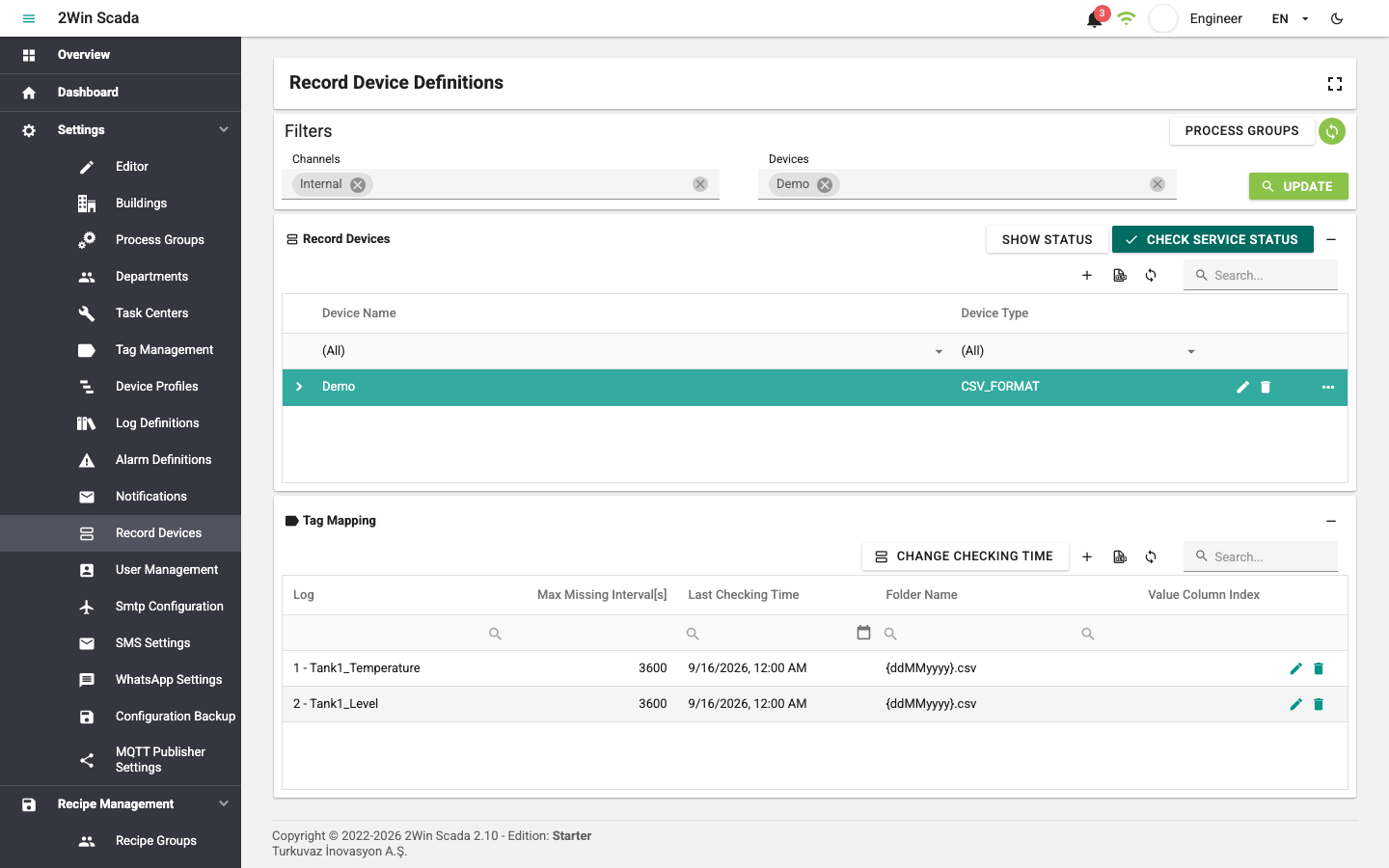
Filters
The selections in this section query the record devices and list the devices that match the selected criteria.
By default, filter by selecting Channels and then Devices. Clicking the Process Groups button at the top right of the section switches the filter to selecting Process Groups, Task Centers, Departments and Devices. After making the selections, click the Update button.
Record Devices Table
The table lists the defined record devices. The columns are, in order, Device Name, Device Type, Control Interval and Active. The arrow on the left of a row shows the parameters of the record device under the row.
Buttons to the right of the table header:
Show Status: Opens the Record Device Status window. The window lists the record devices and their mapped tags, together with their errors, if any. Columns: Device Name, Name (tag), Parameters, Last Checking Time, Last Error Time, Error Category and Last Error Message. Rows with an active error are highlighted in color; the last resolved error is still shown for information. Error messages are fixed descriptions that do not contain connection information or the raw error text of the server (for example, "The remote record source could not be reached."). This history is cleared when the service restarts.
Check Service Status: Checks whether the record devices service is running. Before the check, the button is red. If the service can be reached, the button changes color and its icon turns into a check mark; if it cannot be reached, it stays red.
The toolbar of the table has + for a new record device, Excel export and Search. Editing and deleting are done with the buttons at the end of the row.
New Record Device
Clicking the + button opens the Record Device Definition window.
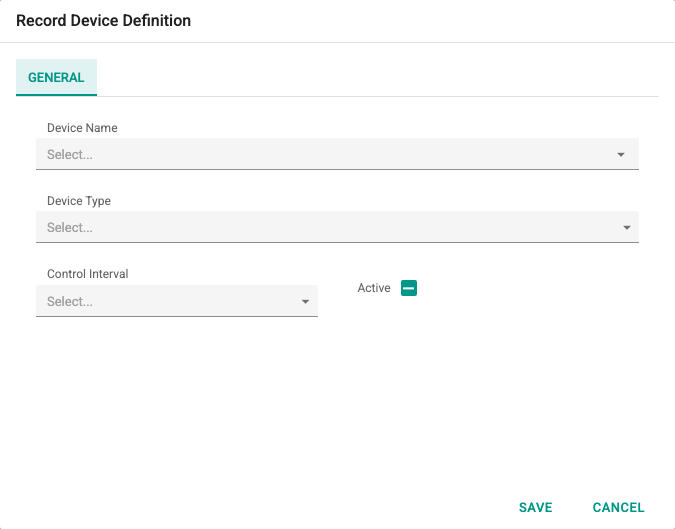
On the General tab:
- Device Name: Select one of the devices defined in tag management. It cannot be changed after the record device is created.
- Device Type: Determines how the data on the record device is retrieved. It cannot be changed after the record is created.
- Control Interval: Hour or Day. Determines the interval at which the data on the record device is checked.
- Active: If selected, the record device is checked.
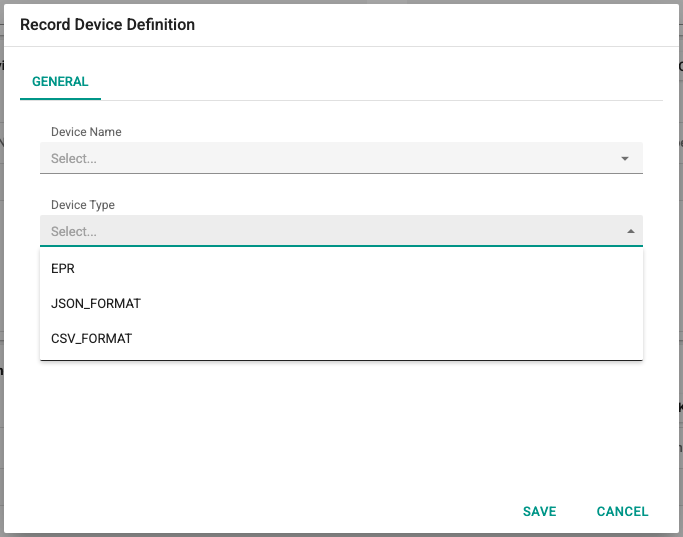
After the device type is selected, the Parameters and settings tabs for the type open:
- EPR: For Elimko EPR devices. Enter the FTP address of the device. It is assumed that the device keeps daily files in a separate folder for each channel and that each line in the files is created at 1-minute intervals; the archive time of a line is found by adding as many minutes as the line number to the start time of the file.
- CSV_FORMAT: Records are read from CSV files downloaded over FTP or SFTP. The Csv Settings group has the order of the value and time columns (zero-based), Csv Seperator, Csv Header Exist, Maximum File Size (MB) (1–512 MB), the date format and the Datetime is UTC option. For SFTP addresses, the
SHA256:...fingerprint obtained from the server administrator must be entered in the SSH Host Key SHA-256 field. The password is stored encrypted and is never shown again; if the field is left empty, the stored password is kept, and it is deleted with Explicitly clear stored password. - JSON_FORMAT: Records are read as JSON from a REST service. The request address, header parameters, credentials and the response template are defined in the settings tabs.
- With username / password (Basic) authentication, the password field does not show the stored password. If the field is left empty, the stored password is kept; if a new value is typed, it is changed. The Explicitly clear stored password option, shown when a password is stored, deletes the password.
- The values of headers that carry credentials, such as Authorization, API key, token and cookie, are shown as
********. Saving without changing them keeps the value; deleting the header deletes the value.
Finally, select the Active option and click the Save button.
Duplicating a Record Device
The settings and tag mappings of a record device can be copied to another device that does not have a record device definition yet. To do this, right-click the source row in the record devices table and select Duplicate. In the Copy record device window that opens, select the Target device and click the Copy button.
Tags are matched by name (or address) and log definition; mappings with no counterpart on the target device are skipped.
WARNING
The copied record device is created Passive. Enable it after checking its settings and tag mappings.
Tag Mapping Table
The tag mapping table lists, for each log definition of the tags of the selected device, how it is mapped to the archive records on the record device. New records, editing and deleting work as in the other tables. The table has these fields:
Log: The log definition defined for the tags of the device.
Max Missing Interval[s]: The time (seconds) that determines how long data must be missing from the log records before it is filled from the record device.
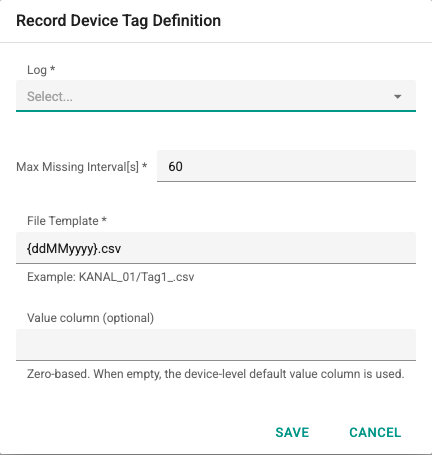
Additional fields depending on the device type:
- EPR – Folder Name: Elimko EPR devices create a folder for each channel and keep the archive data in daily files in this folder. Enter the name of the folder the log data is read from.
- CSV_FORMAT – File Template: The path and name of the file to read; the date part is given as a template (for example,
KANAL_01/Tag1_{ddMMyyyy}.csv). A zero-based column number can be entered in the Value column (optional) field; if it is left empty, the default value column of the record device is used. - JSON_FORMAT: The identity of the tag in the REST response is defined.
Last Checking Time: A column for information; shows up to which date the last check was done for the log.
The service checks record devices once an hour and, in each check, processes the day after the last check date.
Changing the Check Date
The Change Checking Time button at the top right of the table opens the Record Checking Time window.
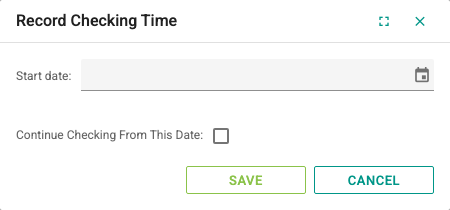
Enter the desired check date in the Start date field. The date can be between at most two years ago and tomorrow.
- If Continue Checking From This Date is selected, the last check date is moved to this date and the following checks continue from this date.
- If it is not selected, only the given day is checked; after that, the checks continue from where they left off.
Finally, click the Save button.