
BACnet
The BACnet protocol lets 2WinScada communicate with building automation controllers, HVAC devices and similar BACnet/IP devices. 2WinScada acts as a client on the network; it periodically reads and writes the Present Value property of the objects on the devices.
Main supported features:
- BACnet/IP (IPv4) communication over UDP
- Discovering devices on the network with Who-Is / I-Am and bulk import
- Reading tags from the device's object list and bulk import
- Access to devices on other subnets by registering with a BBMD as a foreign device (Foreign Device)
- Automatically finding the device address from the BACnet device identifier (Automatic Who Is)
Serial lines such as BACnet MS/TP and COV (Change of Value) subscriptions are not used; values are polled according to each tag's Update Interval[s] value.
License
BACnet is one of the standard protocols and is available in all of the Starter, Standard and Professional license editions. For details, see the License page.
Channel Definition
On the General tab of the new channel window, enter the channel name and select BacNetIP as the Connection Type. After making the settings on the other tabs, click Save.
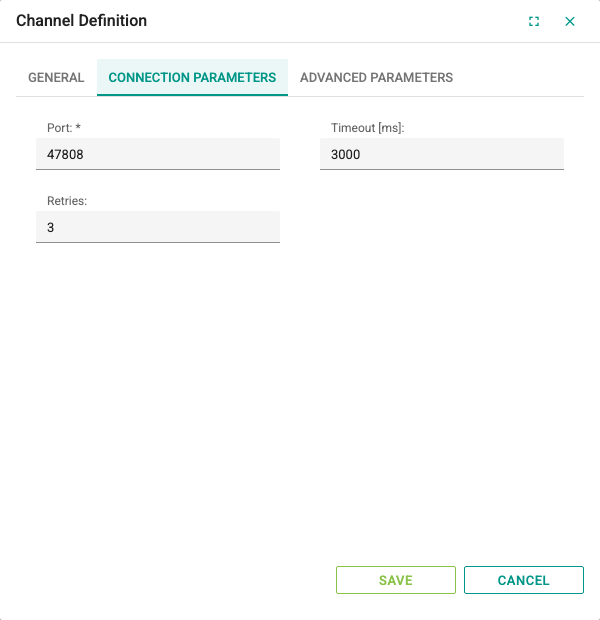
Connection Parameters tab:
| Field | Description | Default | Range |
|---|---|---|---|
| Port | UDP port 2WinScada uses for BACnet/IP. The standard BACnet/IP port is 47808 (hexadecimal 0xBAC0). | 47808 | 1–65535; required |
| Timeout [ms] | Time to wait for the response to a request | 3000 | 3000–86400000 |
| Retries | Number of times a request with no response is sent again | 3 | 0–10 |
Advanced Parameters tab:
| Field | Description | Default | Range |
|---|---|---|---|
| Local Endpoint Ip | IPv4 address of the local network interface used for BACnet traffic. If the server has more than one network card, enter the address of the card connected to the BACnet network. If left empty, the interface is selected automatically. | Empty | IPv4 address |
| Max Payload | Largest BACnet payload carried in one UDP packet (bytes). 1472 suits the standard Ethernet MTU (1500 bytes). | 1472 | 128–16384 |
| Use Exclusive Port | If selected, the Port is opened exclusively (not shared) for this channel. Do not select this option if another BACnet application on the same server uses the same port. | Off | — |
| Dont Fragment | Sets the "Don't Fragment" flag in the IP packets sent. If a packet is larger than the MTU on the path, it is dropped instead of fragmented. | Off | — |
| Register As Foreign Device | Registers 2WinScada as a foreign device with a BBMD (BACnet Broadcast Management Device). Used when the devices are on a different IP subnet and discovery broadcasts do not pass the router. | Off | — |
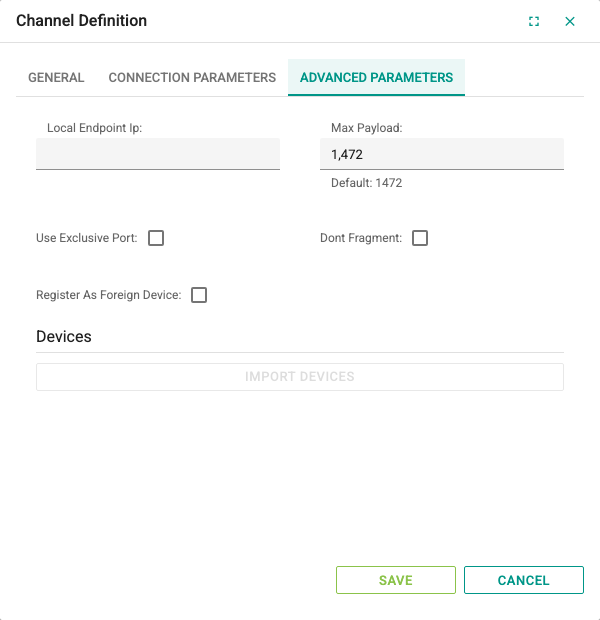
When Register As Foreign Device is selected, the BBMD Devices group appears:
| Field | Description | Default | Range |
|---|---|---|---|
| Ip Adress | IPv4 address of the BBMD | Empty | IPv4 address |
| Port | UDP port of the BBMD | 47808 | 1–65535 |
| Time To Live(TTL) | How long the registration stays valid on the BBMD (seconds) | 30 | 1–32767 |
The BBMD registration is made only while Register As Foreign Device is selected and the BBMD Ip Adress is entered; while the option is off, no registration packet is sent to the BBMD. While registration is on, 2WinScada renews the registration by itself at half of the Time To Live(TTL) period (but no more often than every 10 seconds). An expired registration affects only discovery; reading and writing with devices whose address is known continue directly over the IP address.
Importing devices
On a saved channel, the Import Devices button in the Devices group of the Advanced Parameters tab lists the BACnet devices discovered on the network. The button is inactive until the channel is saved.
- Click Import Devices. The BacNet Device Selection window lists the devices that have sent an I-Am response since the channel started.
- If the list is incomplete, click Send WhoIs. 2WinScada sends a Who-Is broadcast to the network (and also through the BBMD if BBMD registration is on). The button stays inactive for 30 seconds. Devices that have not responded for 15 minutes are removed from the list at this point.
- Depending on the number of devices on the network, the responses may take time to arrive. To refresh the list, click Refresh Data.
- The list shows the Name, Address, BacNet Device Id, Address Type and Network columns. Select the devices to import, click Select and accept the confirmation window.
The selected devices are saved directly with their name, address and device identifier and are added as active. On imported devices, Automatic Who Is is off; the address is taken from the I-Am response. At the end of the operation, the numbers of imported, failed and unsuitable records are reported.
TIP
Discovery and import require the channel to be running in the 2WinScada service. If the list is empty, check that the channel is saved, that the license allows BACnet and that UDP 47808 traffic passes the firewall.
Device Definition
A device record represents a single BACnet device. On the General tab, the Name and Active fields are set as for other protocols. On imported devices, the parameters are already filled in.
Parameters tab:
| Field | Description | Default / rule |
|---|---|---|
| Address | IPv4 address and UDP port of the device, in the IP:port format (e.g. 192.168.1.20:47808) | Required while Automatic Who Is is off |
| BacNet Device Id | BACnet Device object number of the device (Device Instance). Must be unique for each device on the network. | Required; digits only, 0–4194303 |
| Address Type | Type of the address. Only IP (IPv4) can be selected. | IP |
| Network | BACnet network number where the device is located. Leave it 0 if the device is on the same IP network; for networks behind a BACnet router, enter the network number defined on the router. | 0 |
| Automatic Who Is | If selected, the device address is found automatically with Who-Is using the BacNet Device Id, and the Address field is not used. | On for a new device |
2WinScada performs BACnet/IP communication over IPv4 UDP, and the Address field accepts only the IPv4 IP:port format. IPv6 is not supported; the server also rejects a save with an address type other than IP. Devices saved with an IPv6 static address in earlier versions are not deleted; they show Bad quality and the issue is written to the service log. Save these devices with IP selected as the Address Type and an IPv4 address.
While Automatic Who Is is on:
- 2WinScada sends Who-Is only for this device identifier (and also through the BBMD if BBMD registration is on) and waits about 3 seconds for a response. If the address is not found, the attempt is repeated every 30 seconds.
- If 4 tag reads fail in a row, the address is searched again. This way, devices whose IP address changes are reached again.
While Automatic Who Is is off, the address in the Address field is used directly and no new search is made.
Importing tags
The Import Tags button is in the Tags group on the Advanced Parameters tab of a saved device. The button is inactive until the device is saved.
- Click Import Tags. 2WinScada reads the device's object list (Object List) and queries the name and type of each object.
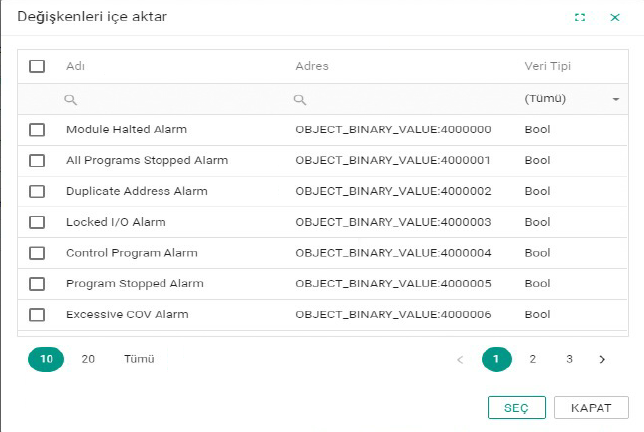
- The window that opens shows the Name, Address and Data Type columns. Select the rows to import, click Select and accept the confirmation window.
- The selected tags are added to the device with their name, address and data type. The other tag fields are created with their default values.
Only the objects in the object types table appear in the list. The device must be active and its address must be known; on a device with Automatic Who Is on, the list is empty if the address has not been found yet.
Tag Definition
Tags are defined in the device's tag table in the same way as for other protocols (see Tag Management). In the Address field, write the object type and the object number (instance) separated by a colon:
<OBJECT_TYPE>:<instance>Examples:
| Address | Meaning |
|---|---|
OBJECT_ANALOG_INPUT:5 | Analog Input number 5 |
OBJECT_ANALOG_VALUE:5 | Analog Value number 5 (e.g. a setpoint) |
OBJECT_BINARY_VALUE:5 | Binary Value number 5 |
OBJECT_MULTI_STATE_VALUE:2 | Multi-state Value number 2 |
The object type name is case-sensitive and must be written as in the table below. If the address cannot be resolved, the tag is not read.
Object types and data types
Object types listed by Import Tags and the assigned Data Type:
| Object type | Name in the address | Data Type |
|---|---|---|
| Analog Input | OBJECT_ANALOG_INPUT | Real |
| Analog Output | OBJECT_ANALOG_OUTPUT | Real |
| Analog Value | OBJECT_ANALOG_VALUE | Real |
| Binary Input | OBJECT_BINARY_INPUT | Bool |
| Binary Output | OBJECT_BINARY_OUTPUT | Bool |
| Binary Value | OBJECT_BINARY_VALUE | Bool |
| Multi-state Input | OBJECT_MULTI_STATE_INPUT | Int |
| Multi-state Output | OBJECT_MULTI_STATE_OUTPUT | Int |
| Multi-state Value | OBJECT_MULTI_STATE_VALUE | Int |
| CharacterString Value | OBJECT_CHARACTERSTRING_VALUE | String |
Other object types with a Present Value property (e.g. OBJECT_INTEGER_VALUE:1) can be defined manually; in this case, choose a Data Type that matches the value on the device.
Read and write behavior
- Each tag is updated by reading the object's Present Value property when its Update Interval[s] expires. The tag value changes only when the value read changes.
- The quality of a tag that cannot be read becomes Bad. When at least one tag can be read from the device, the device quality becomes Good.
- Writing is done to the object's Present Value property and is supported only for Analog, Binary and Multi-state Input/Output/Value objects. The value is sent with the BACnet data type that matches the object type:
| Object | Type sent | Accepted value |
|---|---|---|
| Analog | REAL (DOUBLE if the Data Type is LReal) | A number; for REAL, within the single-precision range |
| Binary | ENUMERATED | Only 0 or 1 (Bool values are sent as 0/1) |
| Multi-state | UNSIGNED | An integer of 1 or greater (state number) |
- Writing to String (CharacterString) tags and to other object types is not supported. An unsuitable value (e.g. 2 for Binary, 0 or a fractional value for Multi-state) is rejected without being sent to the device.
- No priority is specified in the write request; by the BACnet standard, the device then applies the lowest priority, 16. If a command with a higher priority exists, the written value has no effect.
- After writing, 2WinScada waits for the device's acknowledgment using the channel's Timeout [ms] and Retries values. A rejected or unacknowledged write does not appear successful: the warning Write request rejected: the server could not hand the request to the driver. appears on the screen of the user who made the write, the reason is written to the service log and the write is not recorded in the Operation History. In Recipe Apply, these items are listed as failed.
WARNING
Before trying write operations on a live plant, check the device documentation, that the object is writable and the priority array (Priority Array). During initial commissioning, define tags as Read Only.
Troubleshooting
| Symptom | Checks |
|---|---|
| The device list is empty | Check that the channel is saved, that it is running in the 2WinScada service and that the license allows BACnet. After Send WhoIs, refresh the list with Refresh Data. Check the firewall for UDP 47808 and the Local Endpoint Ip value. |
| Devices on another subnet do not appear | Check the Register As Foreign Device setting, the BBMD Ip Adress and Port values, and that the BBMD accepts foreign device registration. |
| No response arrives, the port is used by another application | If another BACnet application on the same server uses port 47808, clear Use Exclusive Port or use a different port. |
| The device cannot be found (Automatic Who Is) | Check that the BacNet Device Id value is the same as the Device Instance on the device. The search is repeated every 30 seconds. If needed, clear Automatic Who Is and enter the Address. |
| Tag quality is Bad | Check the object type name and number in the address, that the device is reachable and the Timeout [ms] value. |
| The Import Tags list is empty | Check that the device is saved and active and that its address has been found. |
| The write has no effect | Check the Read Only setting, that the object is writable and that no command with a higher priority exists. Details are in the service log. |
| "Write request rejected" warning on write | Check that the object type supports writing, that the value matches the object type (Binary 0/1, Multi-state an integer of 1 or greater) and that the device accepts the write. The reason for the rejection is in the service log. |
| Device quality is Bad, address type IPv6 | IPv6 is not supported. Save the device with IP selected as the Address Type and an IPv4 address. |